
Groups and components
You can put several elements in a group so they move together, and you can turn a group into a component: a reusable card part that you can use in any deck of the game, and that updates everywhere at once when you change it.
Groups
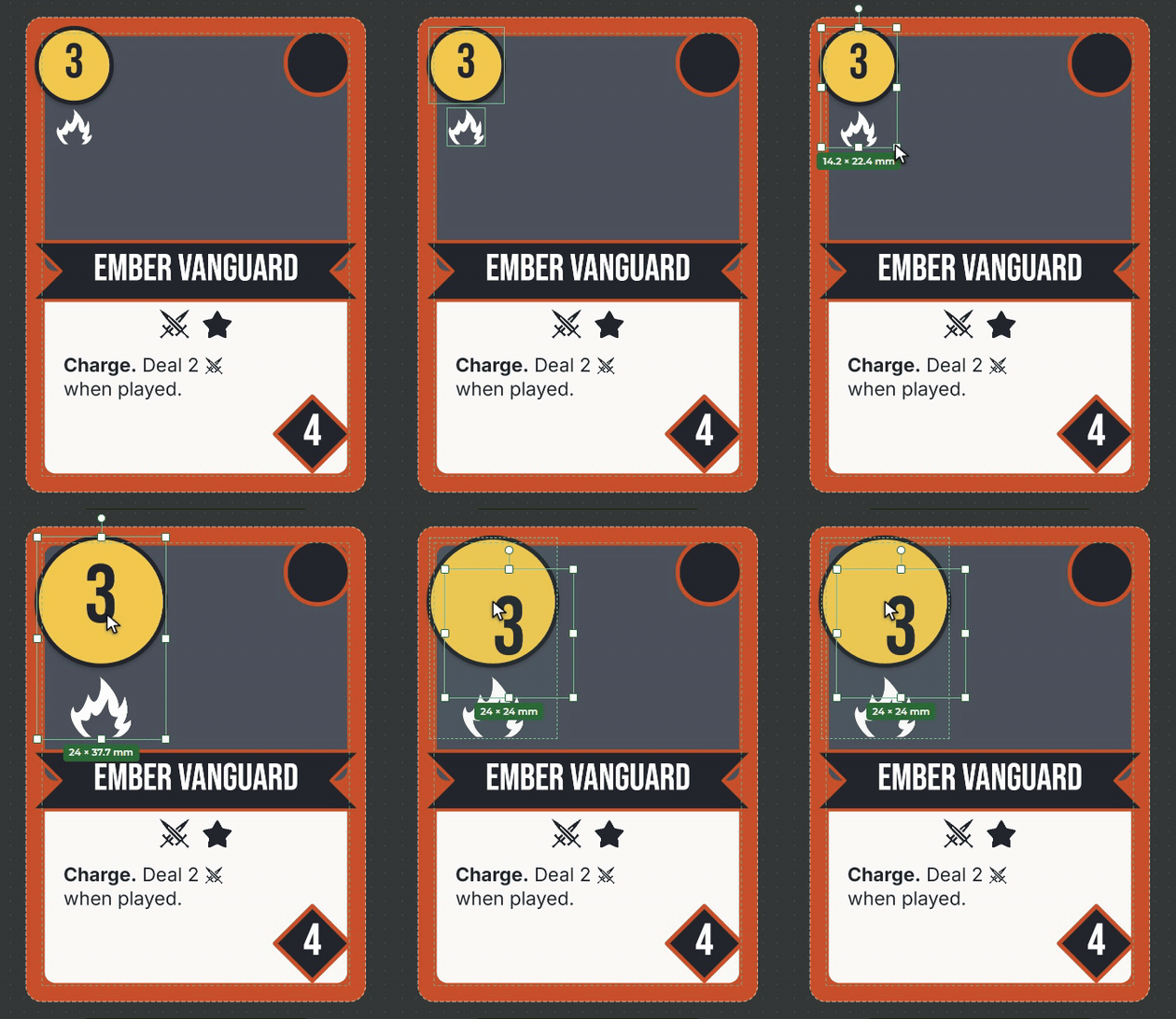
Making a group: select the elements (Shift+click), then press Ctrl+G, or click the Group button in the right panel. Nothing moves on the card, but from now on the elements move, rotate and resize as one.
Ungrouping: Ctrl+Shift+G, or the panel’s Ungroup button.
Resizing: if you drag the group bigger, the elements and the letters in it grow in proportion. The thickness of the borders stays, though, so a thin border is still thin when enlarged.
Entering a group: double-click the group. Then you can select and change the elements in it one by one. Esc, or a click on an empty part of the card, leaves it.
In the Elements list a group is one row, which opens with its arrow. You can drag an element into the group, or out of it, with the mouse.
Components
A component is a card part made from a group that belongs to the game: it can go into the template of any deck of the game, and every copy of it follows its changes. It is good, for example, for a cost badge, a header strip or a frame that you want to look the same on several decks.
Making a component: select a group, and turn on the Component switch in the right panel. The group goes among the game’s components, and a copy of it stays in its place; the card does not change.
A component on the card: in the Elements list header, the Component button shows the game’s components, with a search and a small preview. One click puts it in the middle of the card.
The copy’s settings
If the component’s elements were bound to fields (a text to Cost, for example), these become properties in the component. On a copy you can say where each property comes from: a fixed value, a field of the deck or a game value. So the same component shows its own data in every deck.
Changing a single copy: double-click the copy and change a part of it (its colour, for example). This applies only to this copy. Your changes show in the panel’s list, and you can reset them one by one or all at once.
Detaching: the Detach button turns the copy into a plain group, which no longer follows the component.
Editing the component
On a copy’s panel, the Edit button opens the component on a card of its own. A bar at the top shows that you are editing the component, and on the left the component’s properties stand in place of the fields. What you change here shows in every deck of the game, on every copy. The Done button takes you back to the deck.
All of the game’s components are also on the Components tab of the Library: there you see where they are used, and there you can delete one you no longer need.