
Printing and images
You can do more with your deck than send it to the Builder: you can print it at home on paper (print and play), or save the cards as image files. Both are in the Export menu of the Cards view.
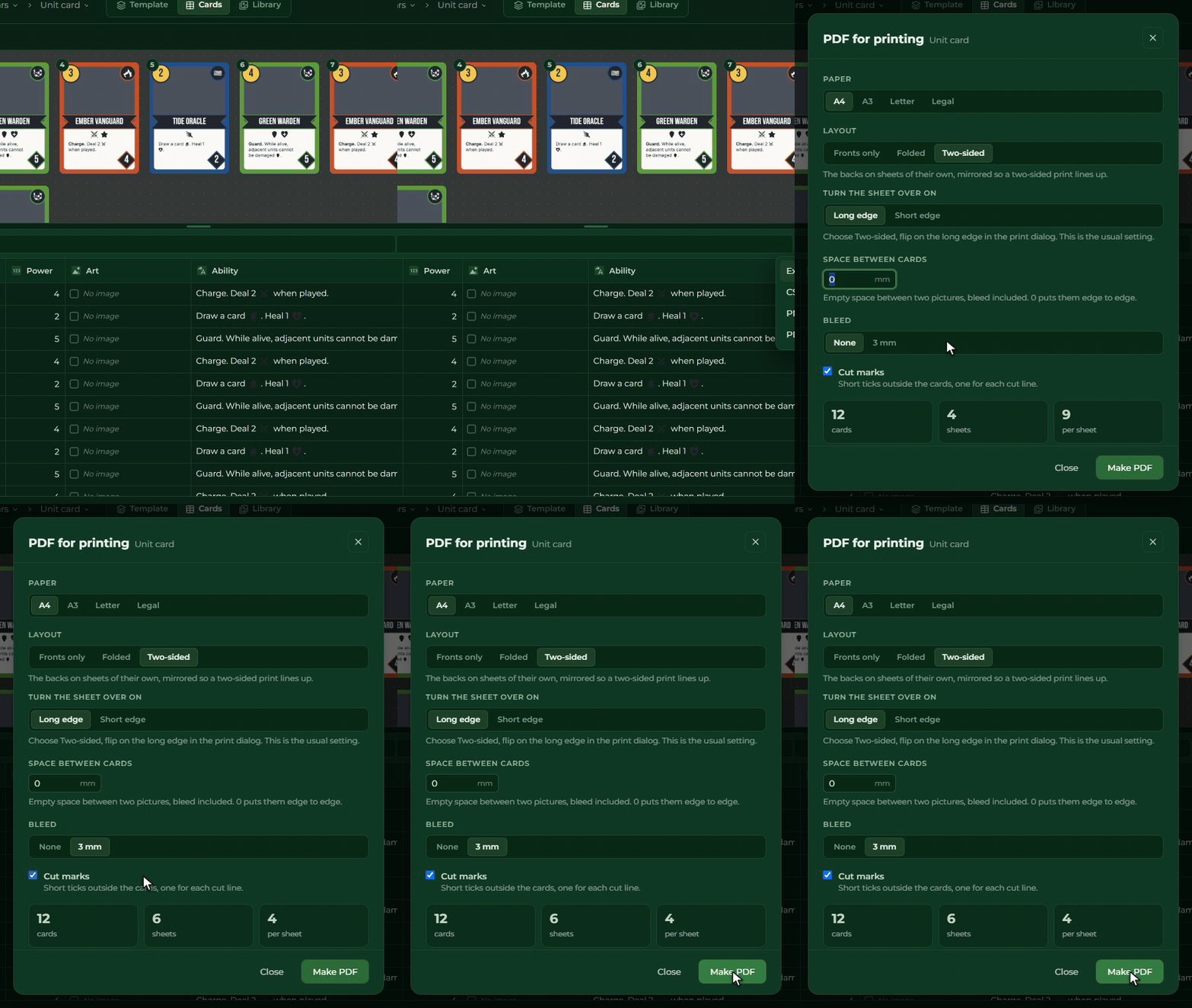
PDF for printing
PDF for printing… makes printable sheets from the deck. It is available from the Plus plan.
Settings:
- Paper: A4, A3, Letter or Legal. As many cards go on a sheet as fit (nine Poker cards on A4).
- Layout:
- Fronts only;
- Folded: the front and the back side by side, for folding in half;
- Two-sided: every sheet of fronts is followed by the sheet of backs, so that in two-sided printing every back falls behind its own front. Here you also give which edge the sheet turns on in the printer (Long edge is the usual one).
- Space between cards in millimetres (none by default).
- Bleed: none or 3 mm. The bleed carries the picture on past the card’s edge, so no white strip is left when you cut. Circle and hexagon shapes have no bleed; cut those out along their outline.
- Cut marks: small marks outside the cards, where you have to cut.
It repeats cards as the Qty column says: a card you need two copies of goes on the sheet twice.
After the Make PDF button the file goes into your downloads.
Printing tip: print at 100% size (not “fit to page”), because only then is the card exactly as big as you designed it. For a two-sided layout, choose two-sided printing on the printer too, with the same edge you set here.
PNG images
PNG images… saves every card of the deck as a separate image file, on every plan. The images are the same as the ones the Creator sends to the Builder; their resolution depends on your plan, see The limits of your plan.
- Every card gives one image (the number of copies is not repeated), named after the deck and the row number,
for example
Units-01.png. - The back becomes an image too: if it is the same on every card, one file; if it changes card to card, one for every different back.
- With the Choose a folder and export button you choose a folder on your computer, and the images go there.
Saving into a folder needs the Chrome or Edge browser; in other browsers the window tells you so.
Multilingual deck
If your game has more than one language, at the top of the PDF and the PNG window you choose which language the cards are made in. If a translation is missing on a card, the window tells you, but it does not stop the export. See Multilingual game.