
Tabs and links
A deck’s table can have several tabs, like an Excel workbook. The first tab is Cards: every row of it is a
card. Next to it you can keep helper tables, for example a Factions table with each faction’s colour and
icon, which the cards refer to. So you change a faction’s colour in one place, and all its cards follow.
Helper tables
Below the table is the strip of tabs. The Cards tab is always the first, and cannot be deleted. The + button opens a new helper table.
A helper table belongs to the game, not to a deck. Every deck of the game sees the same tables, you can edit them from any deck, and a change affects every deck that uses the table. Under the tab you see how many decks use it.
- Rename: double-click the tab’s name, or use the tab’s menu (the tab’s arrow).
- Order: drag the tab to a new place, or move it left or right in the menu.
- Delete: the menu’s Delete from every deck item. The Creator asks first, because the table disappears from every deck of the game. As long as a deck refers to it, it cannot be deleted; the Creator shows where it is referred to.
The first column of a helper table is the key: this name identifies the row, and this is what you see in the cards’ cell.
Linking to a helper table
A Link to a tab column ties the helper table to the cards:
- On the Cards tab open a column’s menu, choose Link to a tab for its type, then the helper table. The Creator matches the cells’ existing values with the table’s rows, by name.
- From then on the cells show the name of the linked row, and you can choose from the table.
- In the template every column of the linked row can be used as a field: in the Fields panel, under the link,
you find
Faction › Colour,Faction › Icon. You drag these in just like any other field.
If you change a faction’s colour in the helper table, every card concerned updates, and the next send sends only these cards again.
Choice with options
For smaller cases you do not need a helper table. In the Options… item of a Choice column’s menu you can
give every option a name, a colour and an icon. These show as fields in the template
(Resource › Colour, Resource › Icon), so every card shows the colour and the icon of its own option.
If you rename an option, its cells go with it; if you delete one, its cells are cleared.
Turning into a table
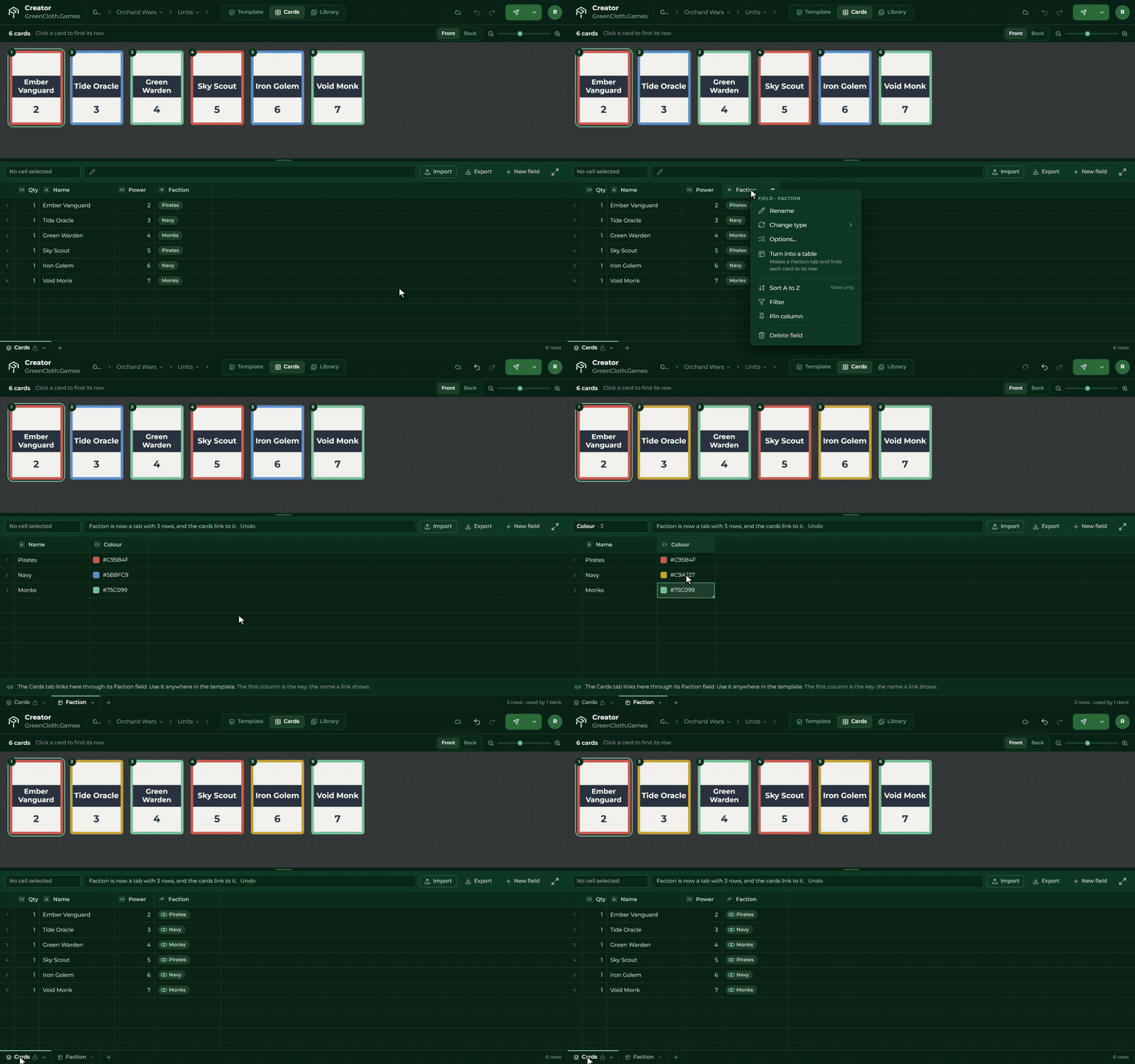
If a Choice column has outgrown its options (the factions would also need a description and a background picture, for example), the column menu’s Turn into a table item makes a helper table out of it: every option becomes a row, its colour and icon go into separate columns, and the column becomes a link. The template’s bindings keep working as before.
Data from other decks
A link column can also point to another deck of the game. So, for example, the cards of a Spells deck can show the name and power of a hero from the Heroes deck. You choose it from the Other decks group of the type picker.
- The deck referred to shows on the right of the tab strip, with a padlock. Here it is read only: you can select and copy, but you have to edit it in its own deck. The Open button takes you there.
- If you change a value in the other deck, the cards that use it update, and the Creator tells you how many cards were redrawn.
- Two decks cannot refer to each other in a circle: what you cannot choose, the picker shows greyed out, with the reason.
- A deck that another one refers to cannot be deleted while the reference stands.
When the source changes
If a helper table or a deck referred to changes, the Creator tells you: on the home page the deck’s tile says Changed since last send, and in the Builder the set gets a yellow bar. The next send sends again only the cards that actually changed.