
The Games page
This page is about what you see once you are signed in, and how you get from there to the work. The Games page is the Builder’s starting point: your games and your groups’ games are lined up here, this is where you open them, and this is where a new game starts.
The screen page covers how the screen is divided.
What is on the page
At the top of the page stands the title (Games) and a short sentence, with the New game button on
the right. Under them the games’ cards in a grid. In the grid of your own games the first card is
always the dashed New game tile.
In the personal workspace the grid gets the My games heading, and your groups’ sections follow
under it, see Your groups’ games. In an organisation workspace there is a single grid,
with no heading.
If you have no games yet, the No games yet heading and an explanation stand where the grid would
be, with the New game button under them. At the bottom of the empty state you read the most
important sentence about the Builder: “Nothing reaches players until you publish the rules or make
a version playable.” In an organisation workspace the empty page says No games in this organisation yet.
If the games cannot be loaded, an error message stands on the page, with a Try again button.
A personal or an organisation workspace
The workspace switcher at the top of the sidebar decides whose games stand on this page:
- Personal: your own games, and your groups’ games.
- The name of an organisation: that organisation’s games. The page’s subtitle then names the organisation, and a new game created here is added to the organisation as well.
The switcher’s menu also carries the Add organisation row: this is how you join an organisation
with an invite code, or create a new one. See
Organisations.
A workspace is a view, not ownership: the game still belongs to its owner, wherever you look at it from.
Your groups’ games
In the personal workspace, under the My games grid, every group of yours has a section of its
own, with the group’s name as its heading. Every group you are a member of gets one, the groups you
own included. An organisation gets no section: you open it with the workspace switcher.
- The section shows all of the group’s games, yours and the other members’, in title order.
- Instead of the edit time and the version tags, the card names the owner:
by Anna. There is noNew gametile here. - The section’s heading leads to the group’s page. The groups themselves are covered by the Groups page.
- If one of your games is in several groups, you see it several times: once in the
My gamesgrid, and once in each group’s section. This is on purpose, and the card opens the same game everywhere. - If a group has no games yet, the section says: “No games in this group yet.” If the group’s games cannot be loaded, the section shows an error message.
Whether you can edit a game of a group or only look at it is decided by the group’s ceiling, not by this page. See The ceiling.
What a card shows
Every card of your own games is built the same way:
- the cover image at the top: the game’s cover in 16:9, if it has one; if not, a grey controller icon. You pick the cover on the Details page from among the game’s images;
- the title, on one line;
- when it was last edited:
edited just now,edited 3 hours ago,edited yesterday,edited 4 days ago. For an edit older than a week the date stands there, for exampleedited 12 Aug; - tags at the bottom:
| Tag | What it means |
|---|---|
v1.3 | the version of this game that is currently out |
No version yet | not a single version has been made playable yet |
Unpublished changes | you have changed the rules but not published them yet: players still get the old text |
Changes not playable yet | the rules are fine, but the components (the sets, the items, the images) differ from the current version: players still get the old version |
On a narrow screen the tags are shorter: No version, Unpublished, Not playable yet.
The two change tags are separate because you get the two things to players in different ways: you publish the rules, and you make the components playable. See What is still waiting for the players.
A card carries at most one change tag. If both the rules and the components differ, Unpublished changes shows, and Changes not playable yet shows only when the components alone differ. If a game has
no version yet, only a difference in the rules counts: the components have nothing to be compared
with.
The change tag only shows on games you can edit. In an organisation workspace you may therefore not always see it on a game of another owner.
Opening a game
Clicking the card opens the game’s Overview page, and the game’s menu appears in the sidebar
(The screen). From then on the sidebar belongs to that game, until you go
back to the Games page with the logo or with the Games row.
You do not have to leave a game to switch to another: clicking the other card on the Games page is enough.
New game
The New game tile, or the New game button at the top of the page, opens a modal
(The screen). What it asks for:
| Field | Required | What to put in it |
|---|---|---|
| Title | yes, in at least one language | one field with an EN and a HU badge; click the badge to switch language |
| Where it comes from | yes, My own design by default | Purchased copy or My own design; a purchased copy cannot go into a group or an organisation and cannot be made public |
Under the modal’s title it says that all of this can be changed later. On a wide screen the bottom carries the warning too: “Nothing reaches players until you make a version playable.” The Create game button cannot be clicked until you have entered the title in at least one language. After it the interface takes you straight to the new game’s Overview page.
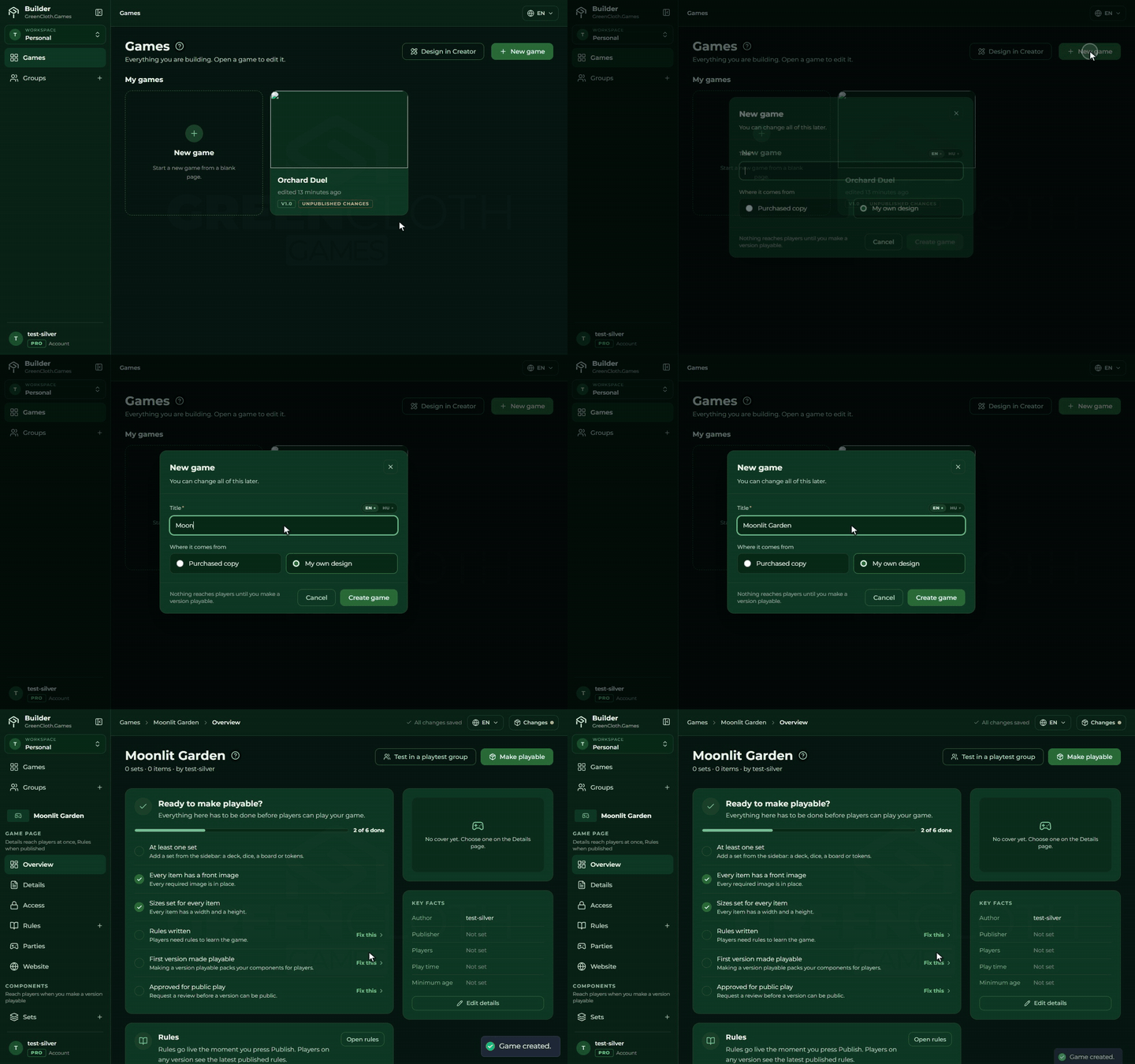
If you are in an organisation workspace, the modal says the game will be added to the organisation as well.
⚠ If you have reached your plan’s game limit, creation does not start: an explanatory panel
appears where the modal would be, with the current and the allowed count, and the See plans
button. The limit is your plan’s even when you create the game in an organisation workspace: the
new game counts among your games, and the organisation has no allowance of its own. See
Account.
What this page cannot do
- There is no quick editor. You change a game’s details on the Details page, where everything is always editable.
- Groups, organisations and brands are not on this page, they are under the sidebar’s own menu items: Groups, Organisations, Brands. You do see your groups’ games here, but you manage the group itself there.
- You cannot delete from here either: deleting a game is at the bottom of the Details page.