
Navigation
Two separate tools help you get where you want to look: navigation mode, which steps you from container to container, and bookmarks, which jump you back to a saved camera position.
Navigation mode
The Navigation Mode button is on the table’s bottom wall, to the left. Switched on:
- the camera moves in on one container
- arrows appear along the edges of the screen, pointing at the other containers
- tap an arrow and the camera animates across to that container
The button is lit while the mode is on. This is the only way to switch it on: it never starts by itself. From the keyboard, the E key switches it on and off, see Keys.
The mode always steps between the containers of the area you are looking at, and it remembers where you left off. If an area has no containers, the mode does not start.
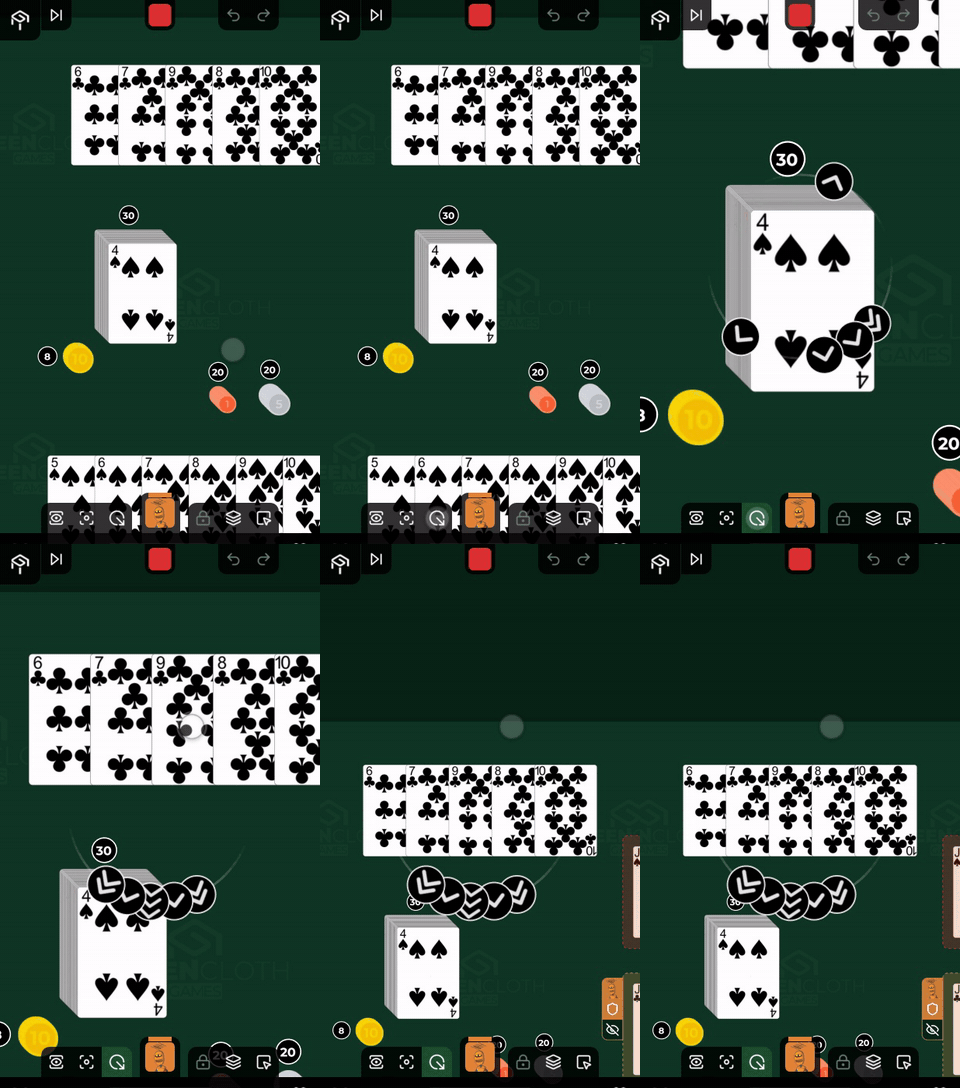
The arrows
The arrows stand on an arc drawn around the middle of the screen, and their icon shows the distance:
| Icon | What it means |
|---|---|
| one arrowhead | a nearby container |
| two | middling distance |
| three | a distant container |
Getting out
The mode switches off when you:
- press the button again
- move the camera by hand (pan, pinch or scroll)
- press the Fit Area button
This is a change from how it used to work: after moving by hand, the arrows do not come back on their own after a few seconds. If you want them again, switch them on with the button.
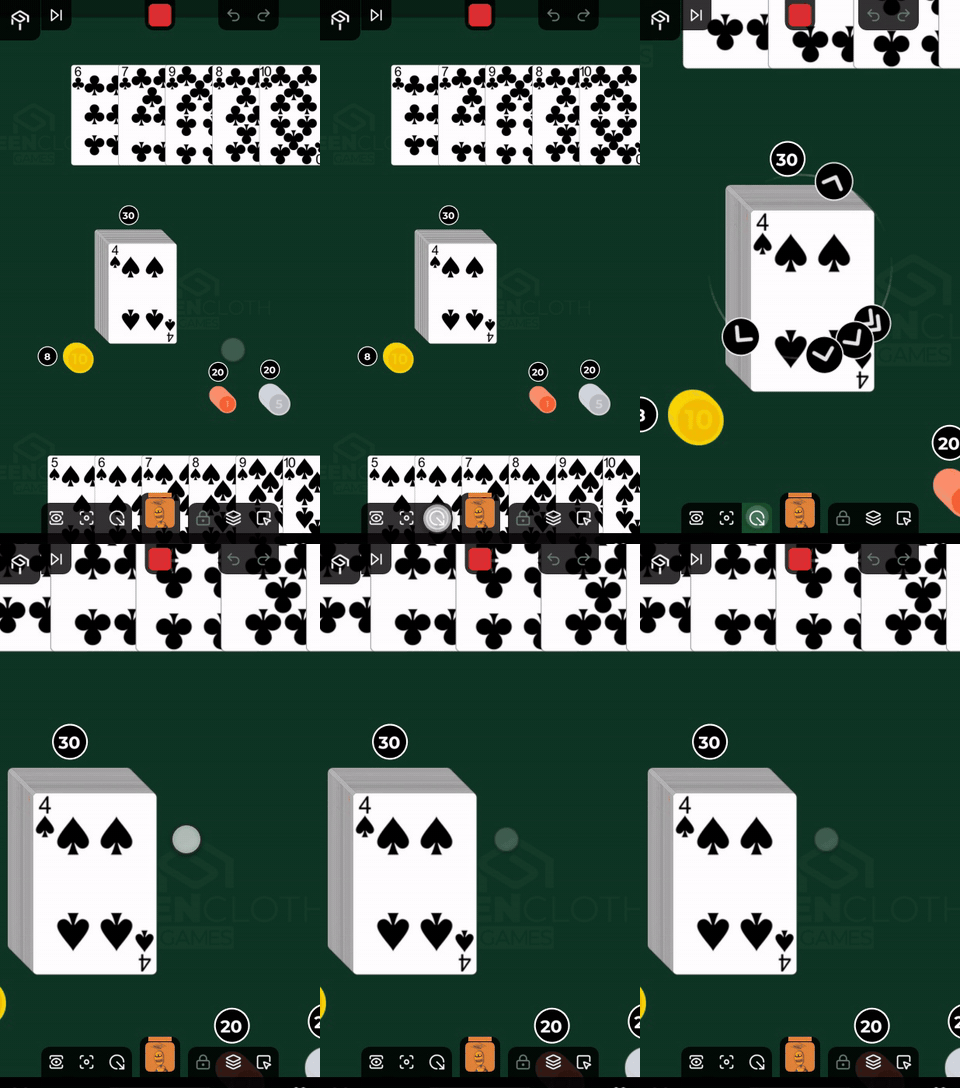
Navigating during a drag
While you drag a card the arrows stay live:
- stop over an arrow and the camera switches to the arrow’s target, where you can drop the card without ever having let go
- drag the card outside the circle of arrows and the table starts scrolling in that direction by itself
Bookmarks
A bookmark is a marked container together with the camera position saved with it: what you were looking at, and from where, from how close. They stand on the left wall, their buttons showing the picture of the container’s last piece, with a small number in the corner.
A bookmark belongs to the area
Not to you, but to the area where it was made. Everything else follows from that:
| Area | Who can make and delete a bookmark on it |
|---|---|
| the shared table | the host |
| your area | you |
| an opponent’s area | they |
Everyone can see the bookmarks of the area they are looking at, and everyone can use them. It is only the set you cannot change on somebody else’s.
The left wall always shows the bookmarks of the area you are looking at: switch areas and the contents of the wall are exchanged. There can be at most nine bookmarks per area.
A bookmark is part of the party, so it stays: after reloading the page, leaving and coming back, or joining from another device, it is still there. A saved game setup takes the bookmarks along, and loading it puts them back. Undo leaves them alone: a bookmark is not a move in the game.
Saving a bookmark
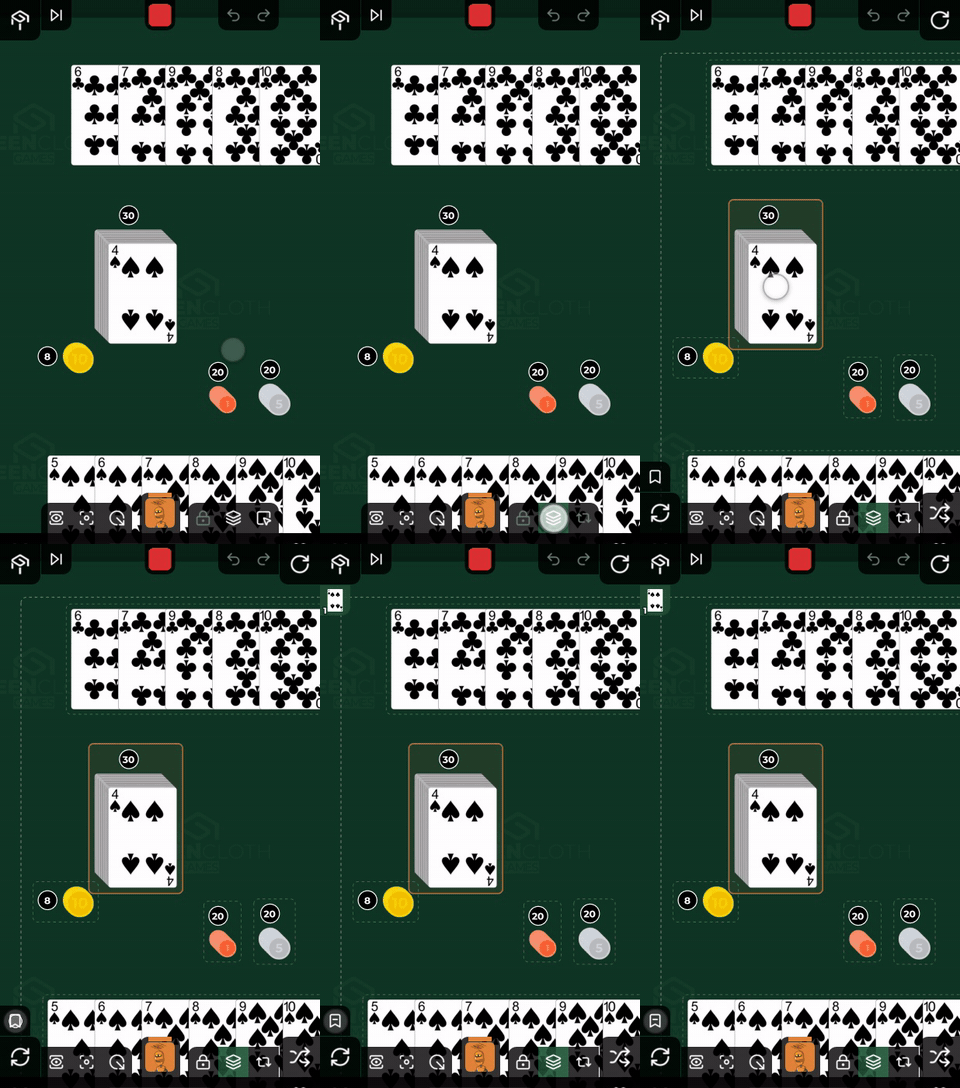
A bookmark is tied to a selected container. Switch Select Containers mode on from the table’s bottom wall and select a container: in this mode only one can be selected at a time. The Bookmark the selected container button then appears at the bottom of the left wall (as long as you are standing in an area where you are allowed to). Without a selected container the button is not there at all, so an empty place at the bottom of the wall means there is nothing to save.
Press it and the button saves the selected container and the current camera position. You do not have to switch navigation mode on for this.
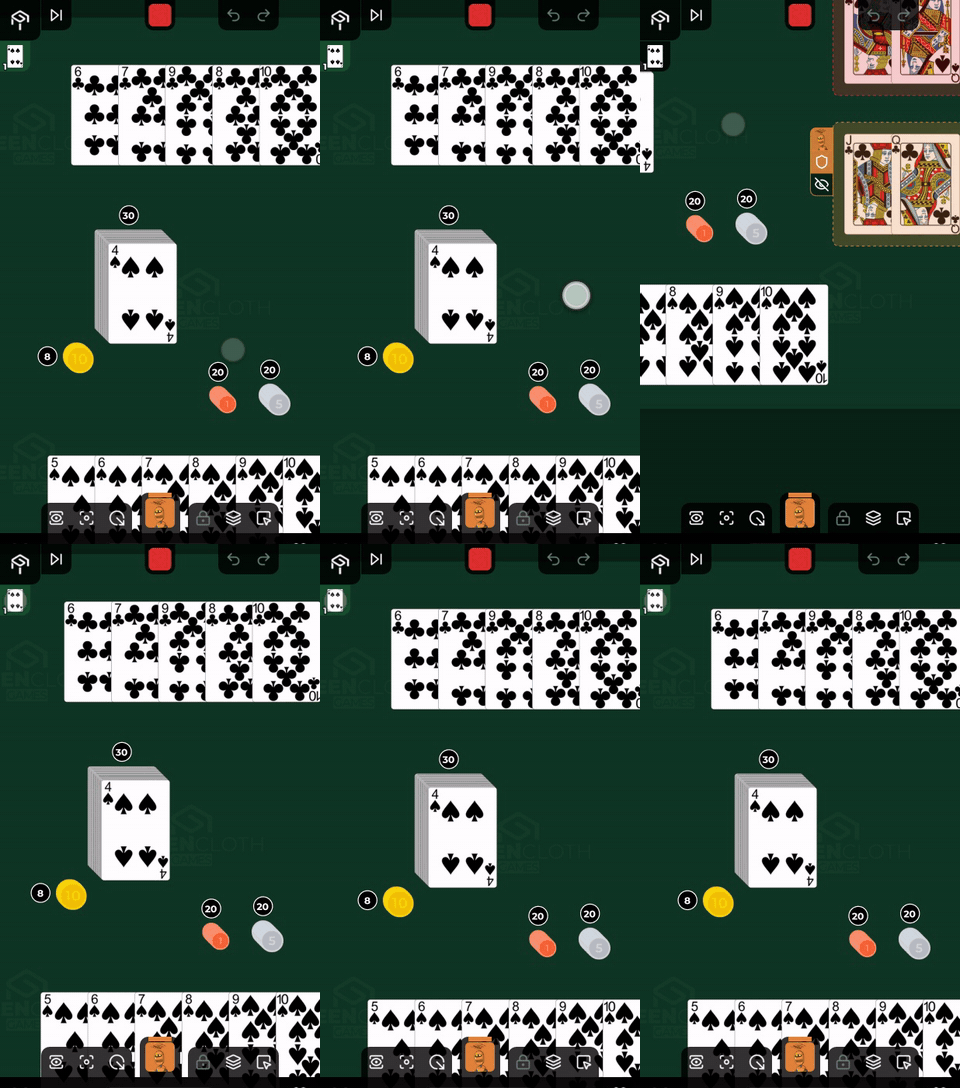
Jumping back
Tap the bookmark’s number: the camera settles exactly on the view you saved it from. The bookmark belongs to its area: if the area has been moved or turned since, it shows the same part of the area, at the area’s new angle. From the keyboard, the 1-9 keys jump to the bookmark with that number, see Keys.
The same works while you drag a card: hold it over the bookmark for a moment and the camera switches, so you can carry the card somewhere far off in one gesture.
Deleting
While you are standing on the bookmark you saved and Container Selection mode is on, Remove Bookmark appears in place of the save button. In item selection mode it is not there, so a selected bookmark cannot be deleted by accident. Press it and the bookmark is gone for good, for everybody.
“Standing on that bookmark” holds until you move the camera: on the first manual pan or zoom the button goes back to saving.
Reordering
Dragging along the wall, that is up or down, reorders the bookmarks, and their numbers follow the new order.
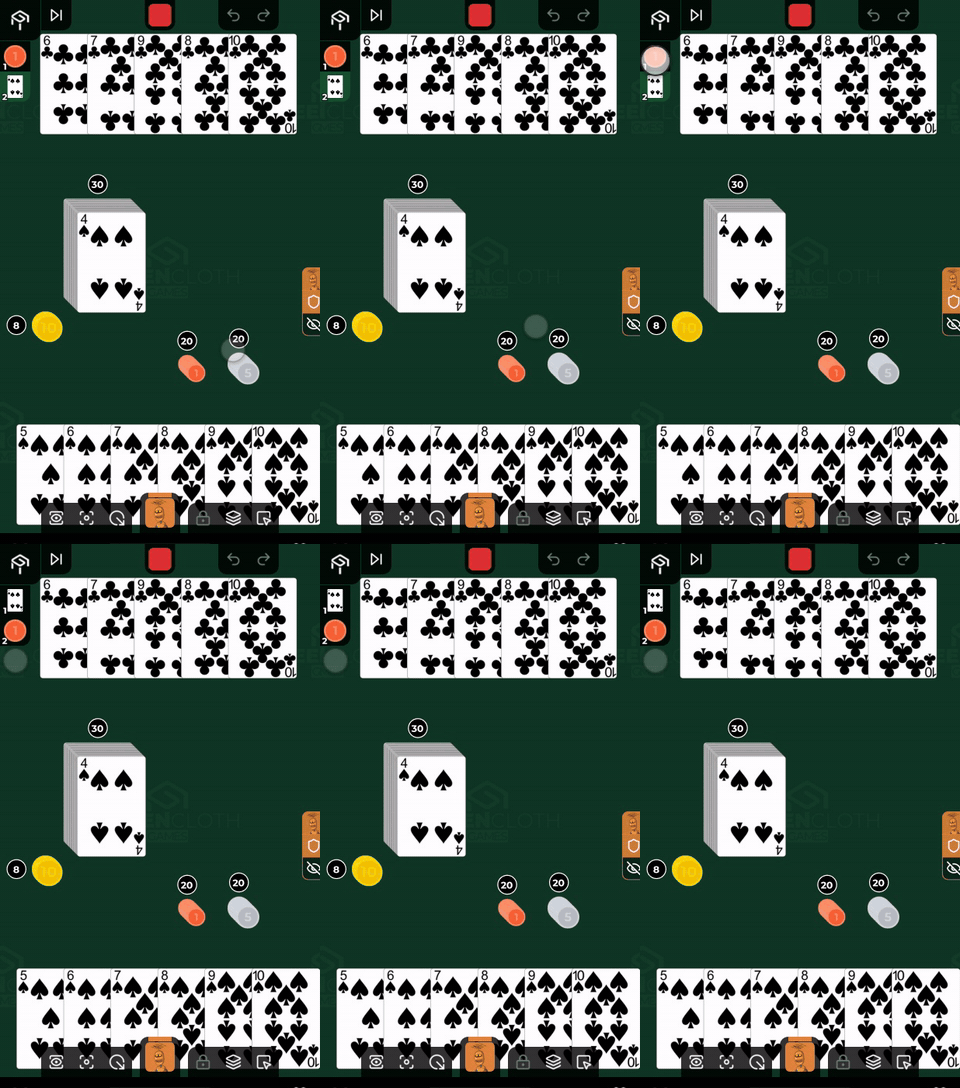
Fit Area
The second button at the left end of the bottom wall fits the camera to the area you are looking at. When it lights, how you leave the fit, and what it does to the camera are described on the Camera page. From the keyboard, the W key presses it, see Keys.
Keys
On a computer, or with a keyboard attached to your device, navigation can be reached from the keys too. Every key works as if you tapped the button it stands for:
| Key | What it does |
|---|---|
| E | Navigation Mode on or off |
| W | Fit Area |
| 1-9 | jumps to the bookmark with that number on the left wall |
| Shift + 1-9 | goes to the area of the opponent in that place, in head order; the left wall then shows their bookmarks |
If the button is not available at the moment (there is no bookmark with that number, or the area has no containers for navigation mode to step through), its key does nothing either. The other keys, and the exact rules, are under Keyboard shortcuts.