
Send to Builder
Sending takes the deck from the Creator to the Builder. The Creator draws the cards into images, and makes the deck a set of the game in the Builder. This page describes what the send checks, what it becomes in the Builder, and how you can get the cards to the players in one step.
A plain send does not make the cards playable yet: they go into the Builder’s draft, and the players get them with the next release. If you want it in one step, use the Send and release button.
The send sheet
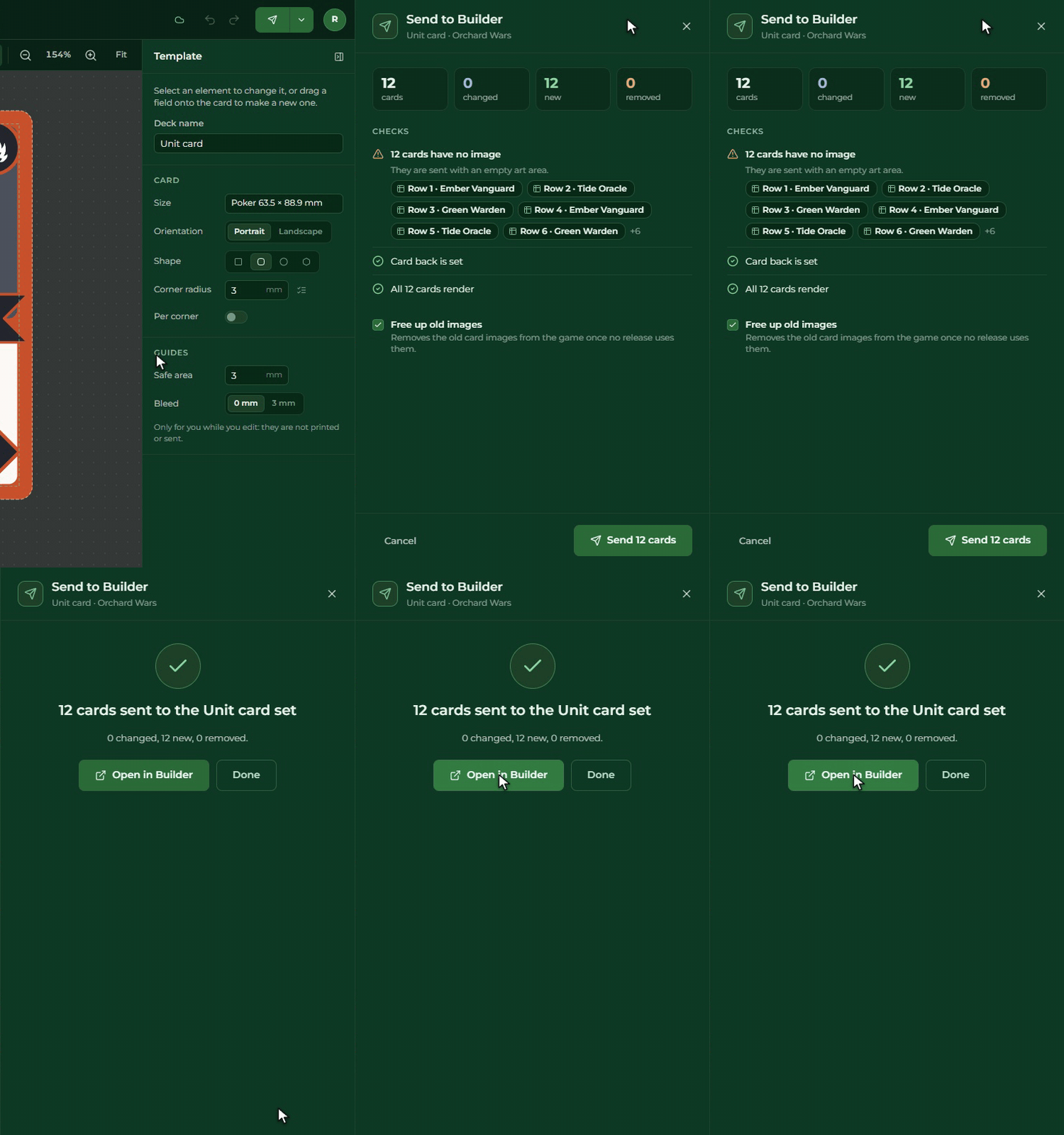
The Send to Builder button in the top bar shows a side sheet. At the top are four numbers: how many cards go, how many changed, how many are new and how many are deleted. On the first send every card is new.
The checks
The send first looks the deck over, and tells you if:
- a card has no picture: the card goes with an empty picture place, this is only a warning. Click the link to jump to that row in the Cards view;
- there is no back: the cards go without a back;
- the deck has no cards: then it cannot be sent, add at least one row first.
If all is well, you read: All N cards render.
How the send goes
Click the Send N cards button. The Creator draws and uploads the cards, then writes them into the Builder. With the Run in background button you can close the sheet and keep working meanwhile; at the end you get a notification.
Free up old images (on by default): it deletes the images left over from earlier sends that are no longer used, so they do not take up your storage. What a release still uses is kept.
If something gets stuck (the storage is full, for example), the sheet tells you what is wrong, and you can try again with the Try again button. Nothing is lost.
What it becomes in the Builder
The deck becomes a set of the game, under the deck’s name. At the end the Open in Builder button takes you there.
- Every row is an item: its front is the picture drawn in the Creator, its back is the deck’s back.
- The Qty column is the item’s quantity: a row with three copies is one item with a quantity of three.
- The set’s size is the deck’s size, you do not have to give it separately.
- A card deck becomes a Card set, a token or tile deck a Token set.
In the Builder the set has a From Creator badge, and the Edit in Creator button brings you back here. See A set that came from the Creator.
What the send overwrites
The Creator’s data overwrites. The quantity, the order, the back, the size and the title belong to the Creator: if you changed any of these in the Builder, the next send puts them back. The send sheet tells you beforehand how many such changes will be overwritten.
The send does not touch the Builder’s own settings: the set’s type and container, the subsets, and the items added by hand in the Builder.
A front replaced by hand. If you replaced a card’s picture with another one in the Builder, the send shows the two side by side, and asks card by card: Overwrite (the Creator’s picture) or Keep (your picture).
Sending again
You can change the deck and send it again any time. Sending again draws and sends only the cards that changed.
If you changed something since the send, on the home page the deck’s tile says Changed since last send, and in the Builder a yellow bar on the set tells you that there is a newer version in the Creator. It tells you this even if the deck did not change but a helper table or a deck it refers to did (see Tabs and links).
If you also changed the set in the Builder meanwhile, the send keeps that.
Send and release
The arrow next to the Send to Builder button opens a menu with the Send and release item. It sends the deck, then makes a private release of the game, so the cards are playable right away, without opening the Builder. This needs the right to make releases of the game; if you do not have it, the item is greyed out and says why.
The send sheet then has a Release part too:
- the number of the next version;
- what blocks the release, for example an item in another set of the game that has no size or picture. The Fix in Builder link takes you straight to the item with the problem. As long as there is one, the release does not start.
- What is new (optional): a short text, which becomes the name of the release.
At the end the Open Releases in Builder button takes you to the game’s releases. The release is private: you, and those who were given access, can play with it. Making it public happens in the Builder, see Making it public.
Multilingual deck
If your game has more than one language, one send takes every language, see Sending with every language.