
Camera
The playing area is one large virtual table, and you only ever see a part of it at a time. This page is about how you move the view.
Panning
- one finger, dragging on an empty part of the table
- two fingers, anywhere on the table
- with a mouse: right button + drag
A one finger drag started on a card moves the card rather than the camera, which is why you need the empty area or the second finger.
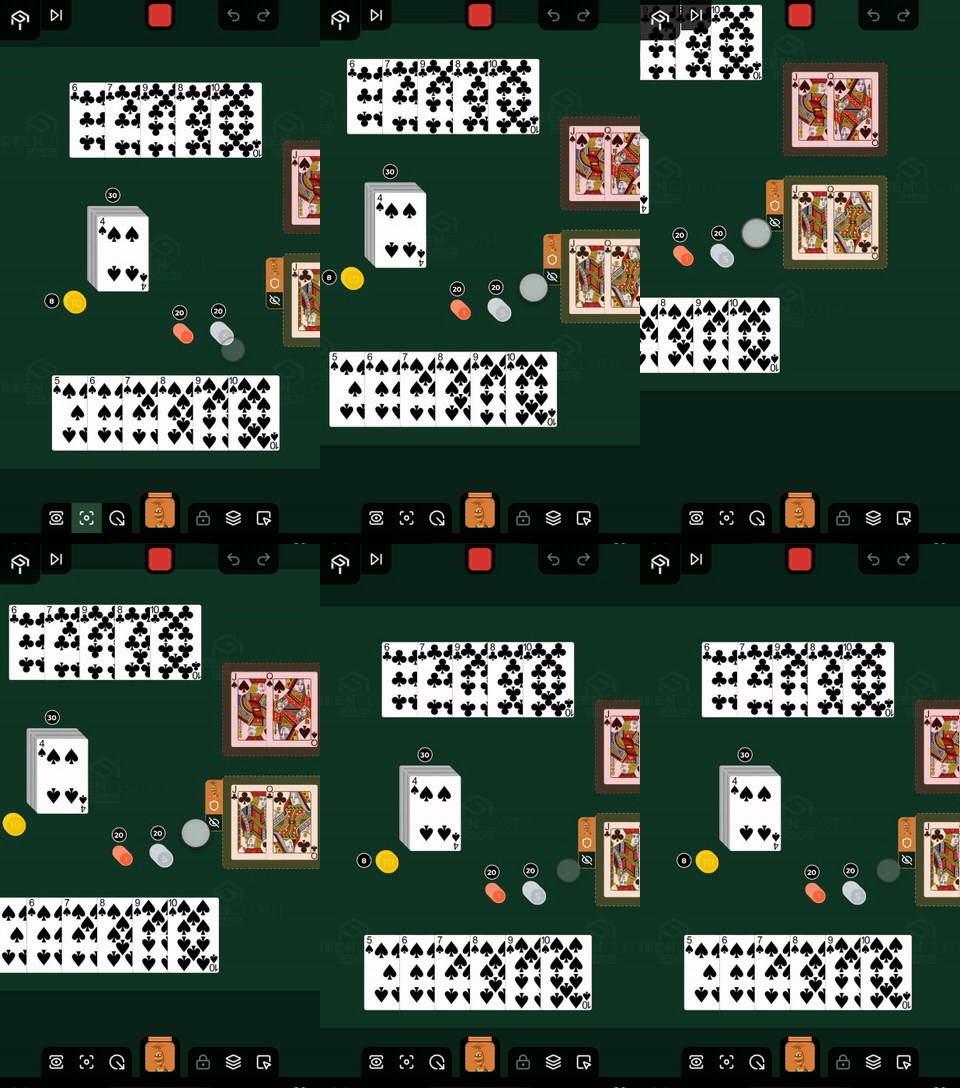
Momentum
Let go after a quick drag and the table keeps sliding, then slows to a stop.
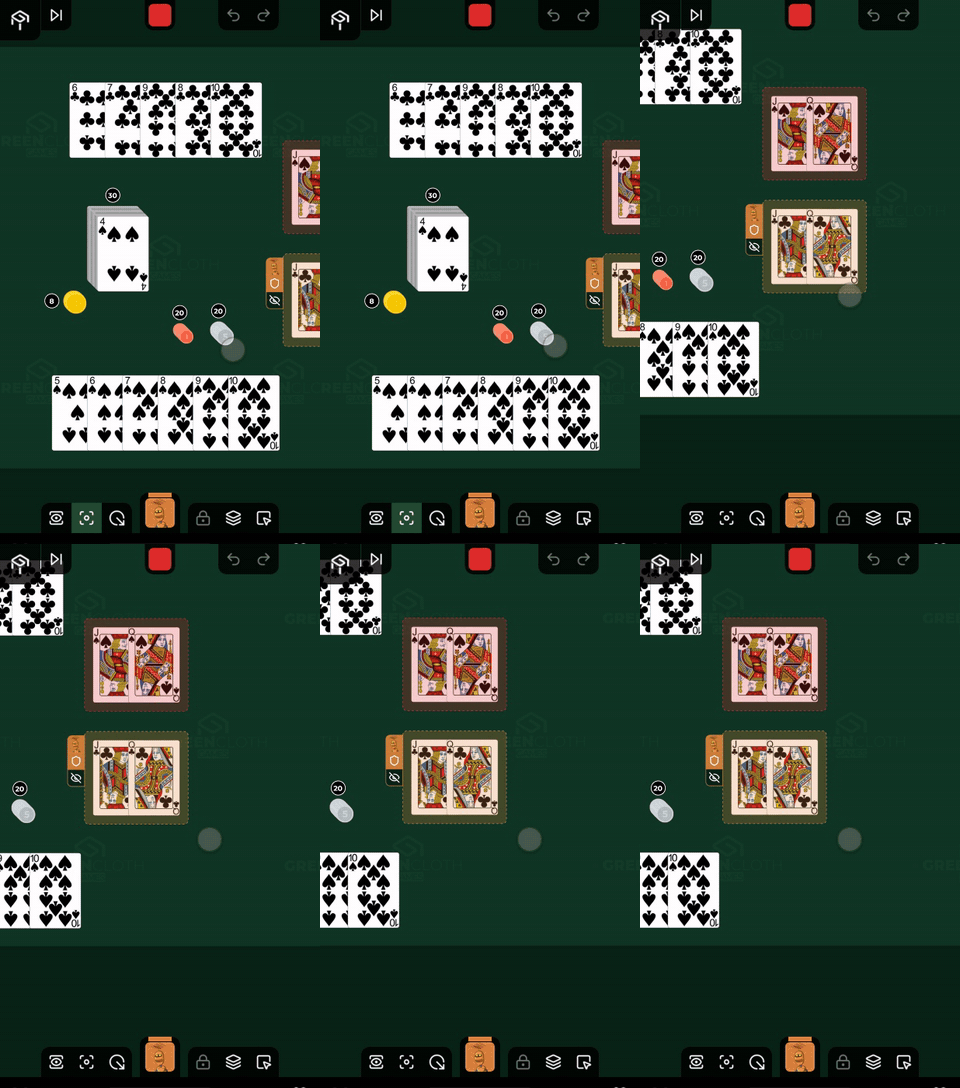
Bounds
The table cannot be dragged beyond its contents: the view stays within the frame around the board. If the board is smaller than the screen, it is centred.
Zoom
- pinching with two fingers on the table
- with a mouse, the scroll wheel
The zoom always happens around your fingers (or the cursor), so that point stays where it is.
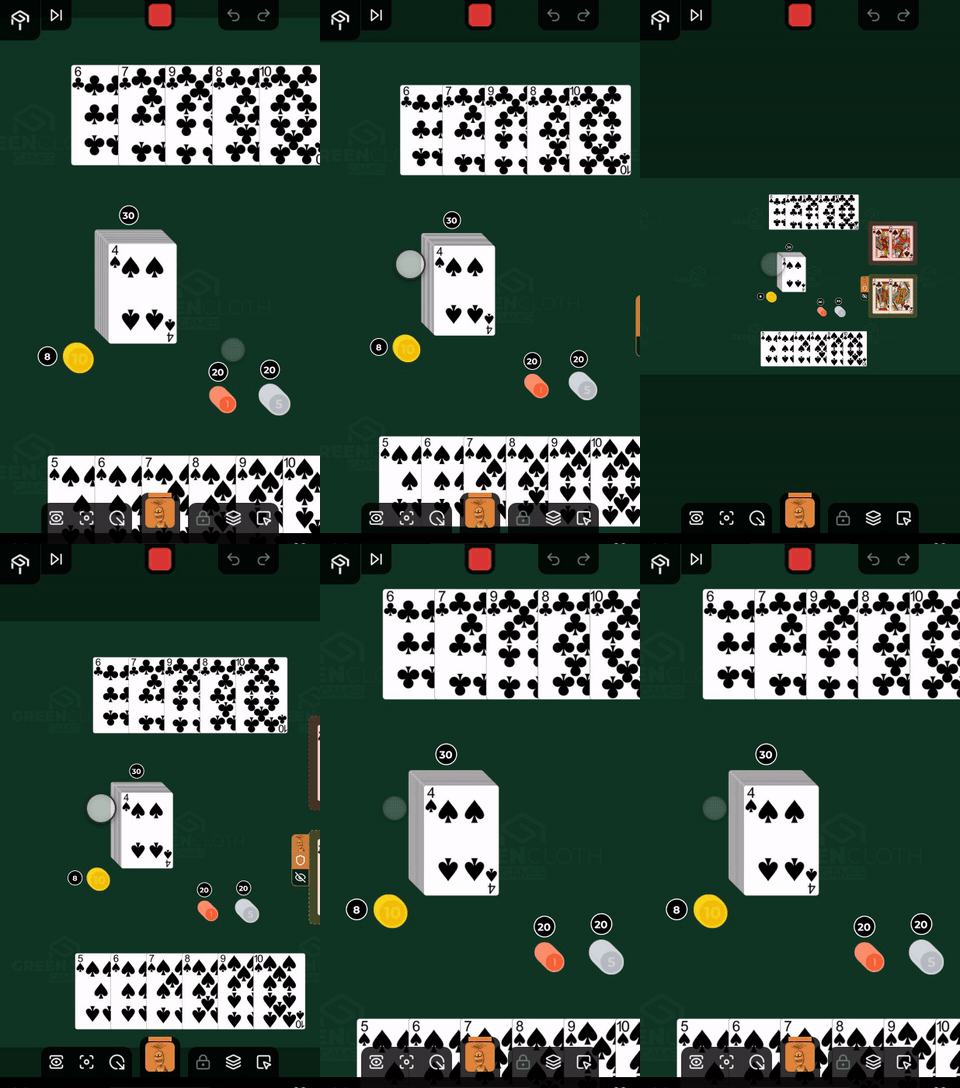
Limits
- outwards as far as the whole board fitting on the screen
- inwards to a fixed limit that guarantees the cards stay readable
The outward limit moves with the game: when a new container lands on the table, or the screen changes size, the limit follows.
Whole table
The first button at the left end of the table’s bottom wall (the eye in a frame) shows the whole table from above, at 0 degrees, whichever area you are in and however the camera is set.
- switched on, the button lights up and the camera flies to the whole table. The camera you left (where it looked, how far in it was, which angle) is remembered
- switched off (pressed again), the camera flies back to exactly where it was before you switched it on
- if you move the camera by hand while it is on (pan, pinch or scroll, switch areas, jump to a bookmark, or press the Fit Area or Navigation Mode button), the button goes out by itself and the camera does not jump back: the new view is the valid one, and the remembered view is dropped
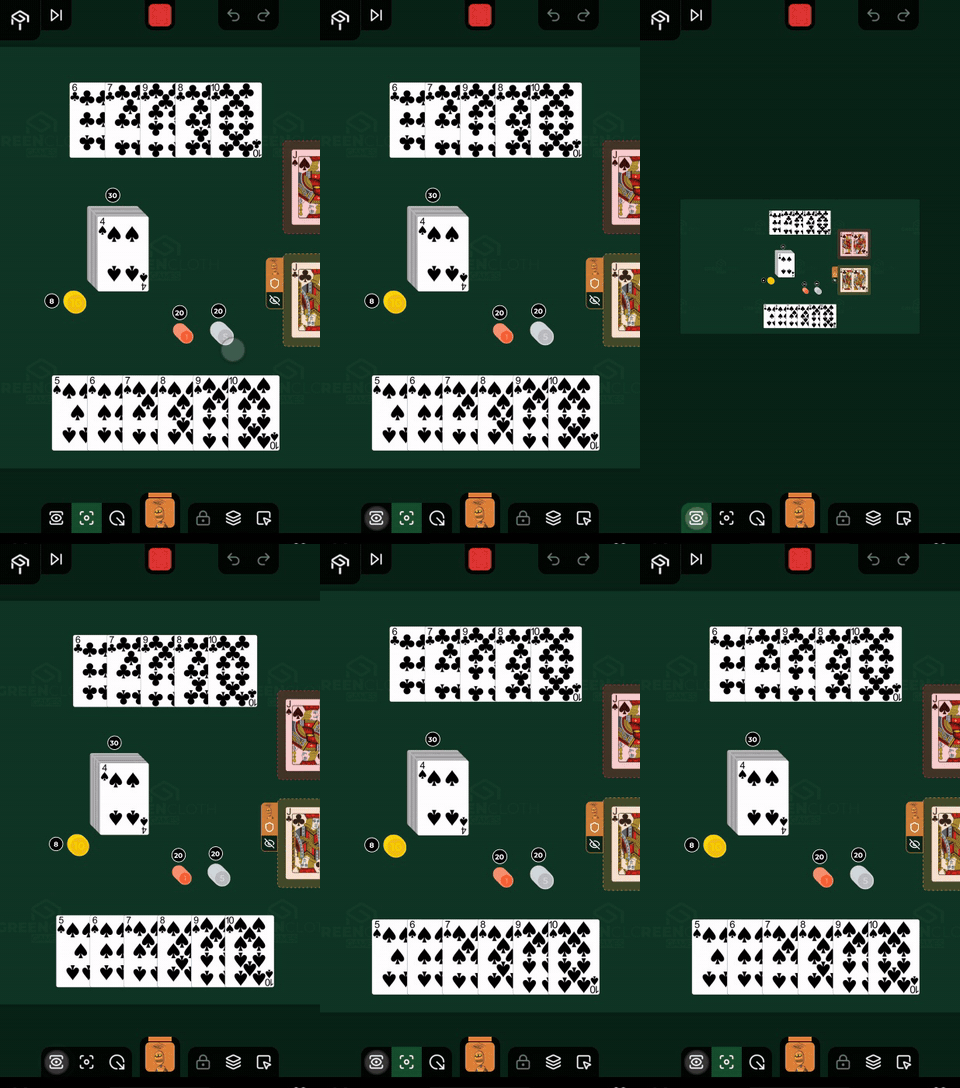
It is not the same as Fit Area: that fits the area you are looking at to the screen at its own angle, this shows the whole table at 0 degrees.
From the keyboard, the Q key presses it, see Keyboard shortcuts.
Fit Area
The second button at the left end of the table’s bottom wall (frame corners with a dot in the middle) fits the camera to the area you are looking at (the shared one, your own, or an opponent’s). If that area is empty, it shows the whole board.
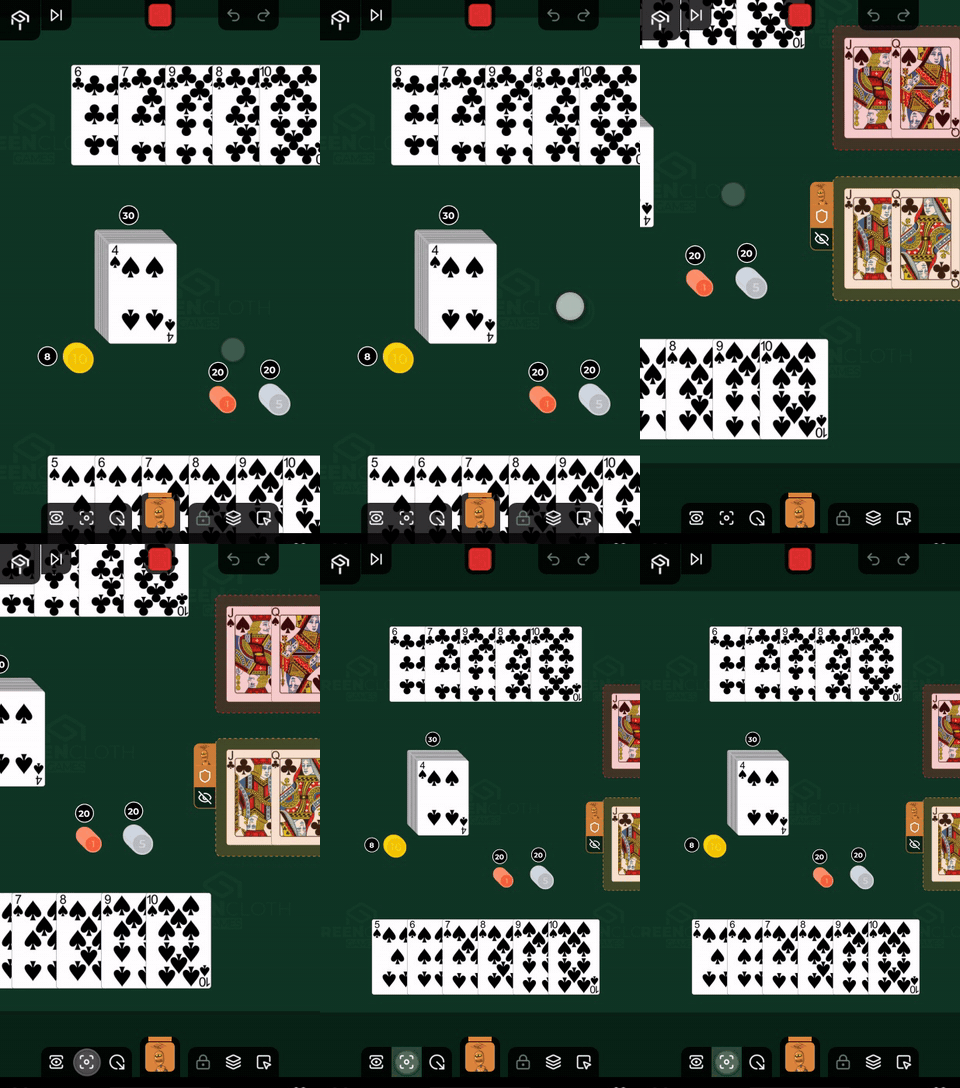
The frame is tight but does not cut anything off: the camera fits to where the board really is visible, so the edge of the area does not run under the toolbar’s buttons.
The button is lit while the view is exactly that fit. It dims when you:
- move the camera by hand (pan, pinch or scroll)
- switch navigation mode on
- switch Whole table on
- jump to a bookmark
The button is a switch: while it is lit, pressing it again leaves the fit. Only the button goes out then, and the camera stays where it is, since there is nowhere for it to jump back to. If navigation mode is on, pressing the button switches it off and fits the camera to the area.
From the keyboard, the W key presses it, see Keyboard shortcuts.
Switching areas and the camera
When you switch areas by tapping the heads, two separate things happen:
- the bands slide, but that does not make the board jump or resize: the table band’s size does not change, see The screen
- the camera then flies to the area you opened: it always fits to it, rather than picking up where you last left off in that area
Going back to the shared table, though, brings back the view you left there.
Turning to face the area you are looking at
Whenever you look towards an area, your own, an opponent’s, or the shared table, the camera always squares up to that area, so that area is always upright in front of you, however it has been rotated on the table.
- the whole table view is always at 0 degrees: however you have turned the areas, the view showing the whole board never turns
- if somebody rotates the area you are looking at, you see it turn, and the camera then follows it so that the area stands square again
- the Fit Area button fits to the viewed area’s own angle, so it stands square after that too
The camera and navigation mode
In navigation mode the camera focuses on one container and jumps to the next when you tap an arrow. As soon as you move the camera by hand, navigation mode switches off.
Landscape
The camera knows nothing about the phone’s orientation: it works in landscape exactly as in portrait, and it does not go back to the whole table view on its own. The hand bar does not cover the picture in landscape either, because the camera fits to the table band rather than to the whole screen.