
Your first game night
This page walks through the whole first evening: what you need, how a table gets onto the TV, how everyone else sits down, and how the first card reaches your hand. Each step is two or three sentences; the topic pages carry the detail.
If you would rather understand the shape of it first, read How it works.
What you need
One shared screen you can sit around: a TV, a monitor, a tablet or a projector driven by a computer, with a browser on it. Beyond that, a phone for every player.
Nothing has to be installed, and signing in is optional: you can sit down as a guest. Use the shared screen in landscape, full screen if you can.
1. Open the table
On the shared screen, open the Display app. The logo appears in the middle, and a QR code sits in the bottom right corner with the display’s six digit, numbers only code written out under it.
That code identifies the screen, and it lives as long as you keep the browser tab open. See The display’s code.
2. Connect your phone
Scan the QR code on the shared screen with your phone. The phone opens the Controller and remembers which display it was.
If you have nothing to scan with, type the six digits instead: in the Controller menu, on the Connect page, into the Invite Device field. See Two ways into a party.
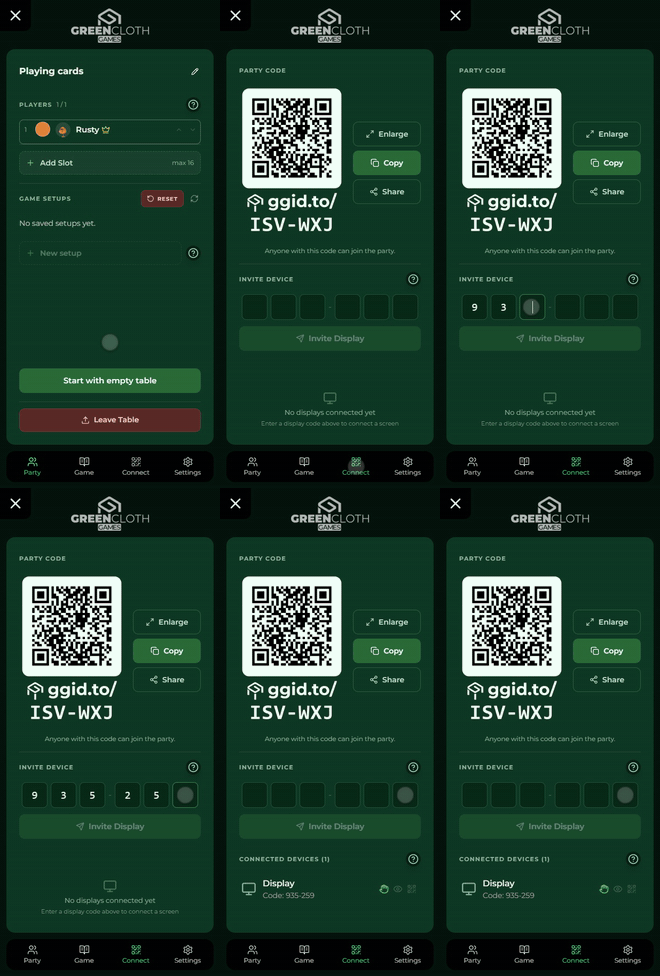
3. Start a party
In the Controller, pick a game from the list on the New Party page. That creates the party, makes you its host, and gives you a seat at the table straight away. The list only shows games you can start right now. If a start is refused anyway (your access was taken away since the list loaded, say), you see this message: “You can’t start this game right now.”
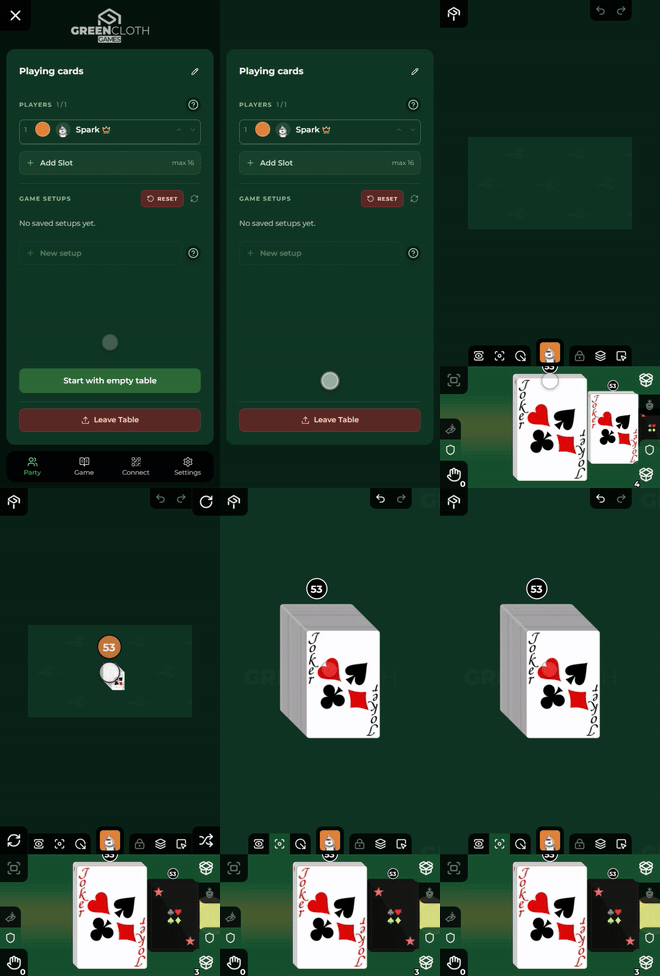
Your phone then shows the Party window rather than the table: the game’s name at the top, the Players list below it (you are on it), further down the Game Setups, and at the very bottom the Start with empty table button. The table is still hidden behind it. If you have a saved setup, you can load it here; if you do not, there is nothing to do about it. The window opens like this only for whoever started the party: anyone who joins later arrives at the table. You press the button in step 6; until then, invite and seat the others.
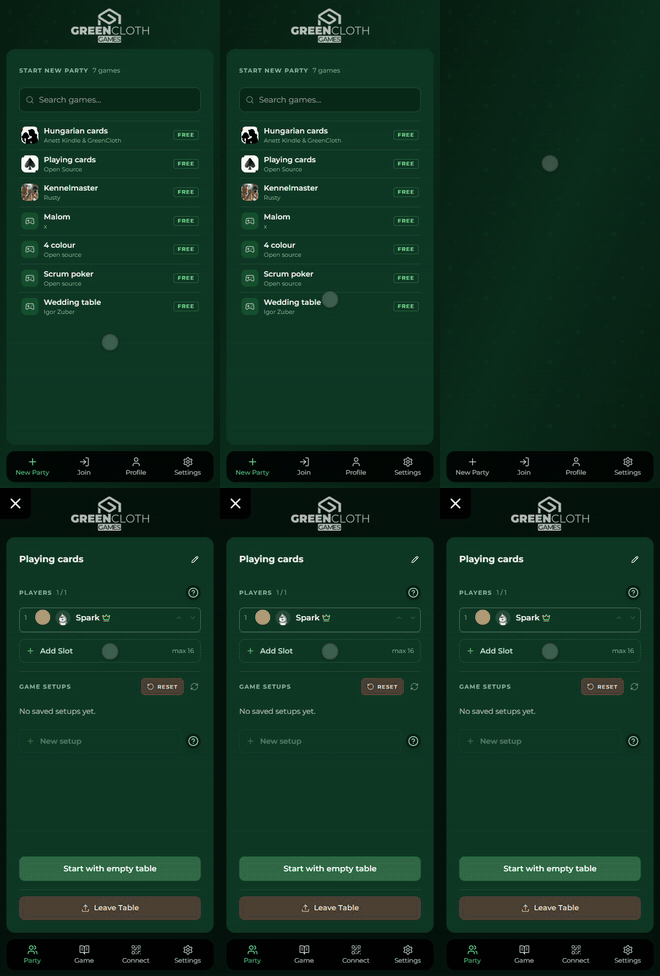
The display you scanned joins by itself: the logo fades and the table appears. See The moment it connects.
4. Invite the others
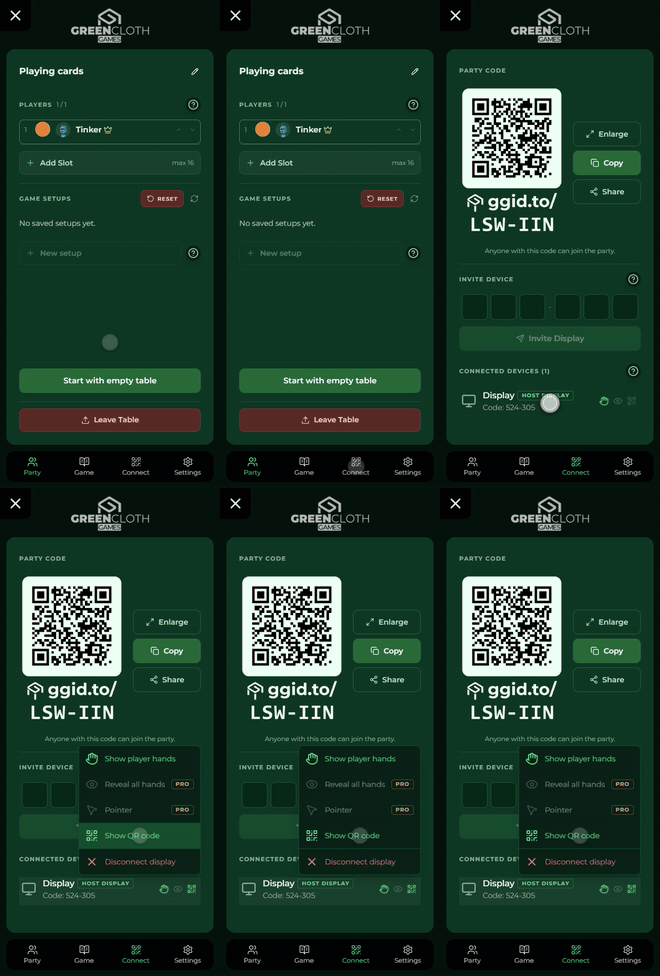
The party code is six letters, so it can never be confused with the display’s digits. The quickest way in is to put the party’s QR code on the shared screen and let the others scan it.
The switch is on your phone: in the Party window’s bottom bar (later in the menu), the Connect page, then Show QR code on the display’s card. See Settings and The party’s QR code.
5. Seat everyone
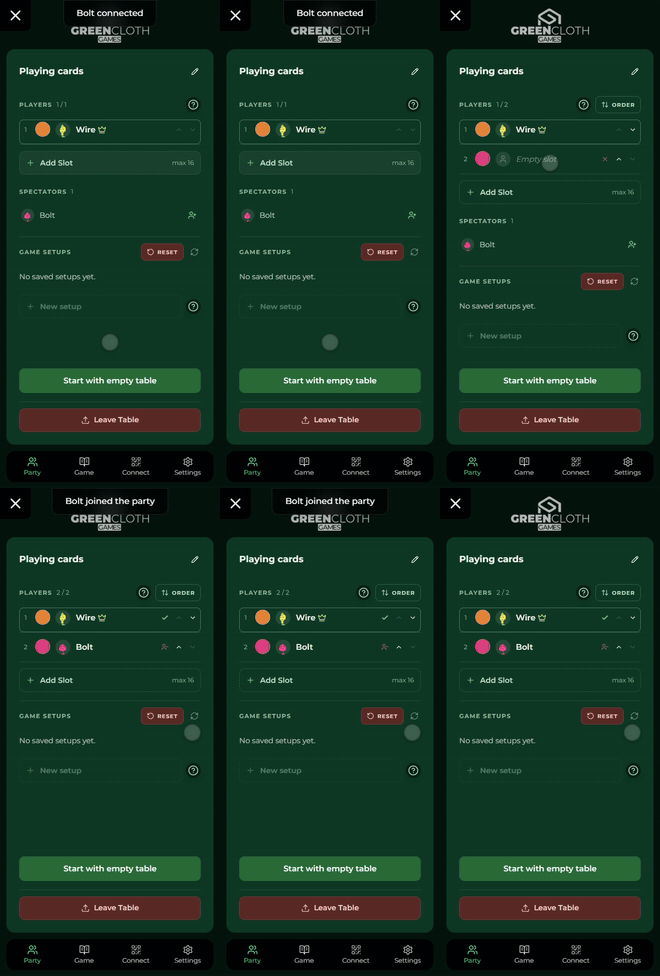
Whoever joins arrives as a spectator first: they see the table and can move their own view, but they cannot touch anything. As the host, you seat them.
You need the Party page for this. It is the Party window that is open at the start, and later you reach it from the menu: the seats are listed at the top, the Spectators below them. If there is no free seat, add one, then seat the spectator with the button next to their name. See Menu.
6. Take the game out of the box
Once everyone is seated, tap Start with empty table at the bottom of the Party window. The window closes and the table appears, empty: the X or Escape takes you there too. The game’s pieces are in the box, which shares the right half of the bottom bar with your right hand.
The box is already open in the bottom bar, so grab the deck and drag it up onto the table. See Your two hands and the box and From the box.
7. Shuffle and deal
Turn the Select Containers button on and tap the deck, so that you pick up the whole container rather than one card. Then flip the deck face down from the toolbar and shuffle it.
To deal, tap the deck quickly as many times as the number of cards you want, then drag the handful onto your own hand bar or onto a player’s head. See Flip, Shuffle, Taking several cards off a pile and Where you can drop.
8. The first draw
Tap the top of the draw pile. The top card is selected and appears along the right edge of the screen, on the wall of selected cards.
Drag it inwards from there onto your hand bar, and the card is in your hand. Everyone sees on the shared screen that you drew, but not what you drew. See Where the selected cards are shown and Dropping into your hand.
Where next
| If you want | Read this |
|---|---|
| A word you do not know | Glossary |
| Why it is built this way | How it works |
| Something is not behaving | Troubleshooting |
| Every gesture on the phone | Controller manual |
| What the big screen shows | Display manual |
| Publishing a game of your own | Your first game in the Builder |