
Library
The Library is the game’s shared store: here are the images, the symbols, the textures, the game values and the components that every deck of the game can use. This page is about the Images tab; the other tabs have pages of their own.
On an open deck the Library button in the top bar opens the Library, and on the home page the game’s Library button. It has five tabs:
| Tab | See |
|---|---|
| Images | this page |
| Symbols | Symbols |
| Textures | Textures |
| Game values | Game values |
| Components | below, and Groups and components |
The Images tab
The game’s images stand in a grid, with their names and their tags. By default you see the images you uploaded in the Creator. The All images switch shows the images uploaded in the Builder too.
The Creator makes the pictures of the cards sent to the Builder itself; these do not show here.
Search and tags
Above the grid you search by name or tag. Below it is the row of tags: click a tag and only the images marked with it remain. If you turn on several tags, the images that have all of them show.
Upload
You upload an image with the Upload button, or simply drag the files onto the grid. It takes PNG, JPEG and WebP images, up to 50 MB each, several at once.
A new image gets the tags that are turned on when you upload: if you filter on the hero tag and upload like that,
the new images get the hero tag too.
Managing tags
Select one or more images (with Ctrl- or Shift-click, or with the box in the image’s corner), and manage their tags in the right panel:
- a tag typed into the Add tag… field goes onto every selected image;
- a tag’s × removes it from all of them;
- a faded tag is only on some of the selected images.
An image can have at most 16 tags. The tags marked with a padlock are put on by the Creator, and cannot be removed.
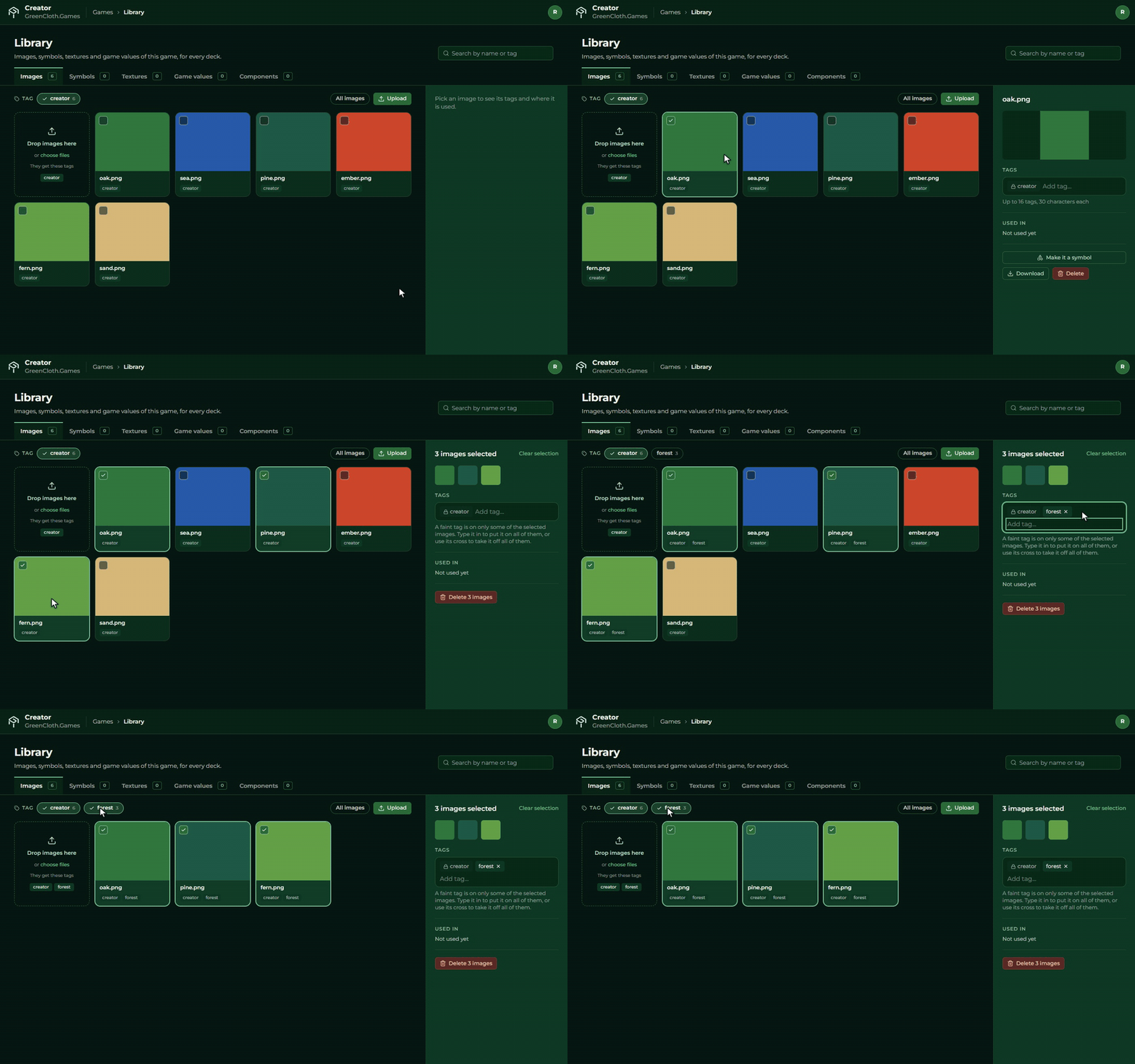
Managing an image
On a selected image’s panel, Used in shows which deck uses it (in the template or in the cells), and which symbol was made from it. Below it:
- Make it a symbol: a symbol is made from the image, and the image stays, see Symbols;
- Download: the image goes into your downloads under its original name;
- Delete: the Creator asks first. If the image is used, it shows where: if you delete it anyway, its place stays empty there. What a set in the Builder still uses is kept.
An image in the table
In the Image cells of the Cards view you choose from these same images, see The image picker.
The Components tab
The Components tab lists the game’s components, with how many copies they have and in which decks. Select a component to rename it, open it for editing, or delete it.
A component can only be deleted if it has no copy anywhere. The Detach everywhere button turns every copy into a plain group (the cards do not change), and after that the component can be deleted.