
Import and export
If your cards already exist in Excel, a CSV file or Google Sheets, you do not have to type them again: Import brings the table in one step. Export takes it out, so you can edit it elsewhere or keep a backup of it. Both buttons are in the Cards view, above the table.
Import
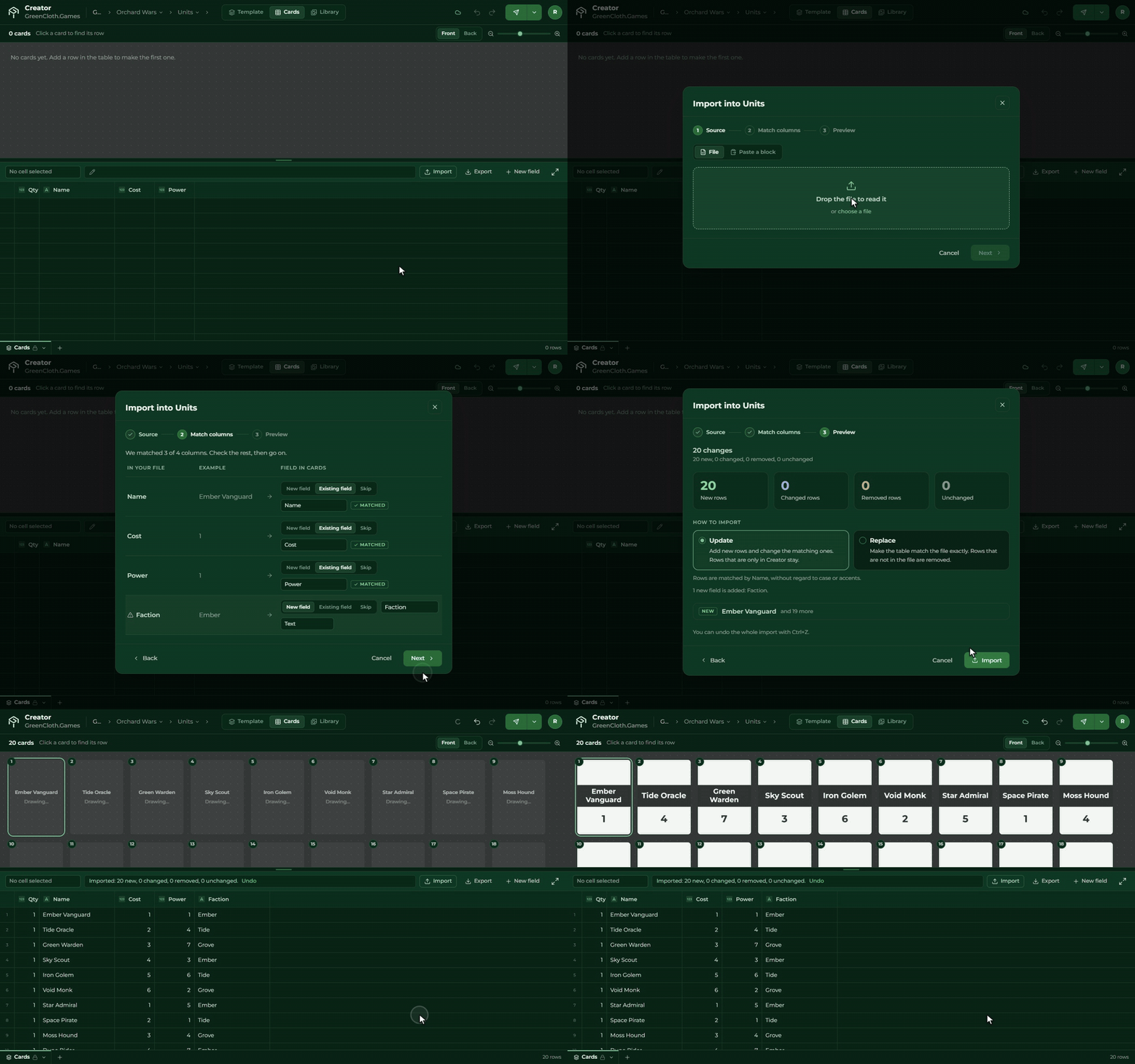
The import has three steps.
1. Source. Drop a CSV or XLSX file on the window, or choose one. Another way: copy a range from Excel, Numbers or Google Sheets, and paste it. Tick it if the first row holds the column names. If the Excel file has several sheets, you can choose which one goes to the cards; the Creator brings the others in as helper tables.
2. Match columns. The Creator matches the column names with the names of the fields. For the ones it does not find, you decide whether each is a New field, an Existing field, or you Skip it.
If an image column holds a file name whose image is not in the game yet, the Creator lists them, and with the Upload all button you can upload them all at once from your computer.
3. Preview. You see how many rows are new, how many change and how many are deleted. You choose one of two modes:
- Update: it adds the new rows, changes the existing ones, and keeps the rows that are only in the Creator. It matches the rows by the first field (usually the Name).
- Replace: the table becomes exactly like the file. What is not in the file is deleted.
What the Creator cannot read (an unknown image or symbol, a wrong number or colour), it lists row by row, and it does not change those cells.
The whole import can be undone in one step (Ctrl+Z). It does not read old .xls files; save them as .xlsx
first.
Export
In the Export menu:
- Excel (.xlsx): every tab of the deck is a sheet;
- CSV: the tab you are looking at;
- PNG images… and PDF for printing…: see Printing and images.
Importing the exported file again gives you the same thing. In the text the fields and the icons go out in a
readable form ({Power}, {gold}), and on import they turn back into fields and icons.
Importing shared tables
If the file would also change a helper table that other decks of the game use, the Creator warns you first, and lists the decks concerned. It only imports on the second click.