
Snapshots
A snapshot is a named save of your whole game in the Creator. It is worth making one before a big rework: if you do not like the result, you can go back to it with one click. You can make snapshots from the Plus plan.
The game’s snapshots open from the Snapshots button of the game’s section on the home page.
What is in a snapshot
- every deck of the game, with its template and cards;
- the game’s shared tables;
- the textures, the settings of the symbols, and the game values.
The images are not in it: the Library’s images stay as they are. You can make as many snapshots as you like.
Making a snapshot
- The Snapshot now field holds a suggested name with today’s date. You can change it, to
Before the reworkfor example. - Click the button.
The list starts with the newest. Every row shows the name, the date, who made it, and what is in it (for example
3 decks, 1 shared table). You can rename or delete a snapshot; deleting takes away only the save, not the game.
Restoring
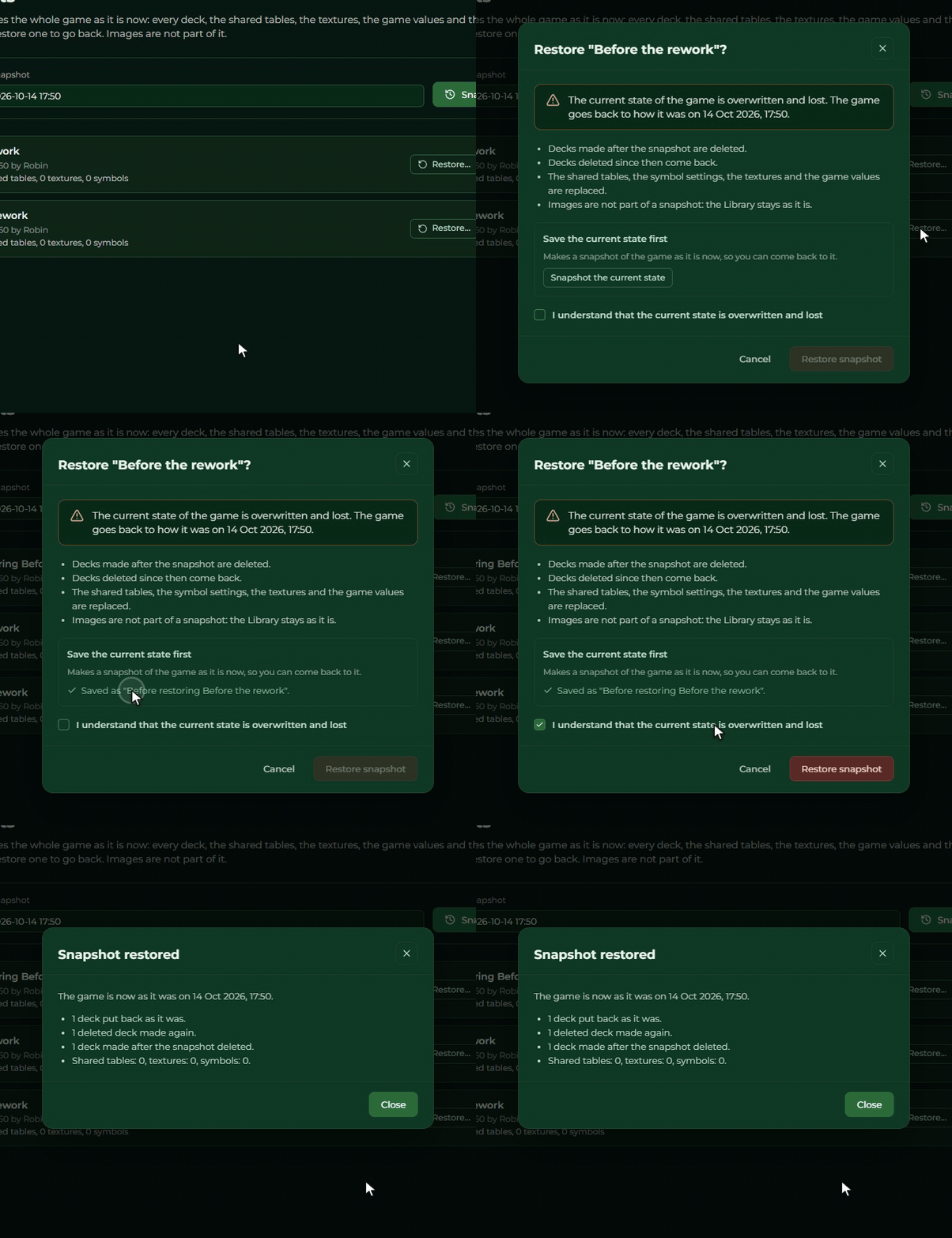
Restore… brings the game back exactly to the state it was in when the snapshot was made:
- decks made later are deleted;
- decks deleted meanwhile come back;
- the other decks, the tables, the textures, the symbols and the game values get the saved state;
- the images do not change, and cards already sent to the Builder stay there too.
The game’s current state is lost with this. So the Creator offers to save it first: the Snapshot the current state button makes a new snapshot that you can go back to later. To restore, you have to tick that you understand: the current state will be overwritten.
At the end the Creator sums up what changed. Close reloads the page. If the game is open in another window too, a bar there tells you to reload.
If you move to a smaller plan
On the Free plan you cannot make a new snapshot, but the existing ones stay: you can still restore, rename and delete them. If a restore would bring back more decks than your plan allows, the Creator does not restore it; delete a deck first, or change your plan.