
Groups
A group is the circle through which other accounts can start a game of yours that is not public. You take members in with an invite code, add your games, and decide per game what they may do with them. A member gets the game in their own controller; they only see into the Builder if you grant that separately.
The sidebar’s Groups row opens the page. The row is only there in your own workspace: in an organisation’s workspace the organisation’s own rows stand in its place, see Organisations.
As many groups as you need
You create a group yourself, and as many as you need. There is no ready-made “your group”: on a brand new account the list is empty, and this stands on it: “No groups yet.”
On the page, every group of yours that you are a member of is a card:
| On the card | What it shows |
|---|---|
| Name | what you gave it |
You own it | only if you created it |
N members and N games | the current size and the number of games in it |
Only groups are listed here, not organisations, so the card has no kind tag either. You reach an organisation from the workspace switcher, and the Organisations page goes through the difference.
In the sidebar, the arrow on the Groups row opens the list of your groups, with the open group highlighted. The list is collapsed to begin with, and your device remembers how you left it.
A new group
The New group button in the top right corner of the page (and in the middle of an empty list)
opens a modal; so does the small + beside the sidebar’s Groups row. It has a single field, the
Name (e.g. Harbour testers), and after the Create button the group appears in the list and
in the sidebar’s group list at once.
You do not create an organisation here but from the workspace switcher’s Add organization row, see
Organisations.
⚠ Your plan limits the number of groups. If you have reached the limit, creation does not start, and an explanatory panel appears with the current and the allowed count, see Account.
The invite code
The Invite code button in the header of the group’s page opens a modal. What you see there:
| Element | What it does |
|---|---|
| The code | Twelve capital letters, broken up by hyphens every three characters (KQZ-ONG-ANC-QRF). It can be selected, and copied to the clipboard with the icon beside it |
Expires in 23h 59m | The time left. On an expired code a red Expired stands in its place |
Generate new code | Asks for a new code. The old one is invalid from that moment, one code is live at a time |
Close | Closes the modal. The code survives, you do not have to generate it again |
For a group, the modal offers the invite link first and the code below it as the fallback, see The invite link. (An organisation’s modal has the code only, with the text “Share this code. Anyone who enters it in the app joins the group.”)
The code is valid for 24 hours.
⚠ The Invite code button can generate by itself. If you have no live code, or the one you had has expired, opening the modal asks for a new code at once, without checking with you. If you only wanted to look at the old code, you have already thrown it away.
A member does not redeem the code in the Builder but in the controller app, on their own profile. That is also where they can leave the group later.
The system turns two things down: you cannot join your own group (the same account), and a member who has already joined cannot join again with the same code.
⚠ Your plan can limit the size of a group too. If it is full, joining does not get through on the other side.
The invite link
The simplest way to bring in a tester: send them a link, and they do not have to type a code. The link sits in the group’s invite modal, above the code:
| Element | What it does |
|---|---|
Invite link | The link itself, for example https://play.greencloth.games/g#KQZ-ONG-ANC-QRF. It can be selected |
Copy invite link | Copies the link to the clipboard; for two seconds the button says Link copied |
Or the code, to type in on the Controller's profile page | Under it, the same code as before, still usable |
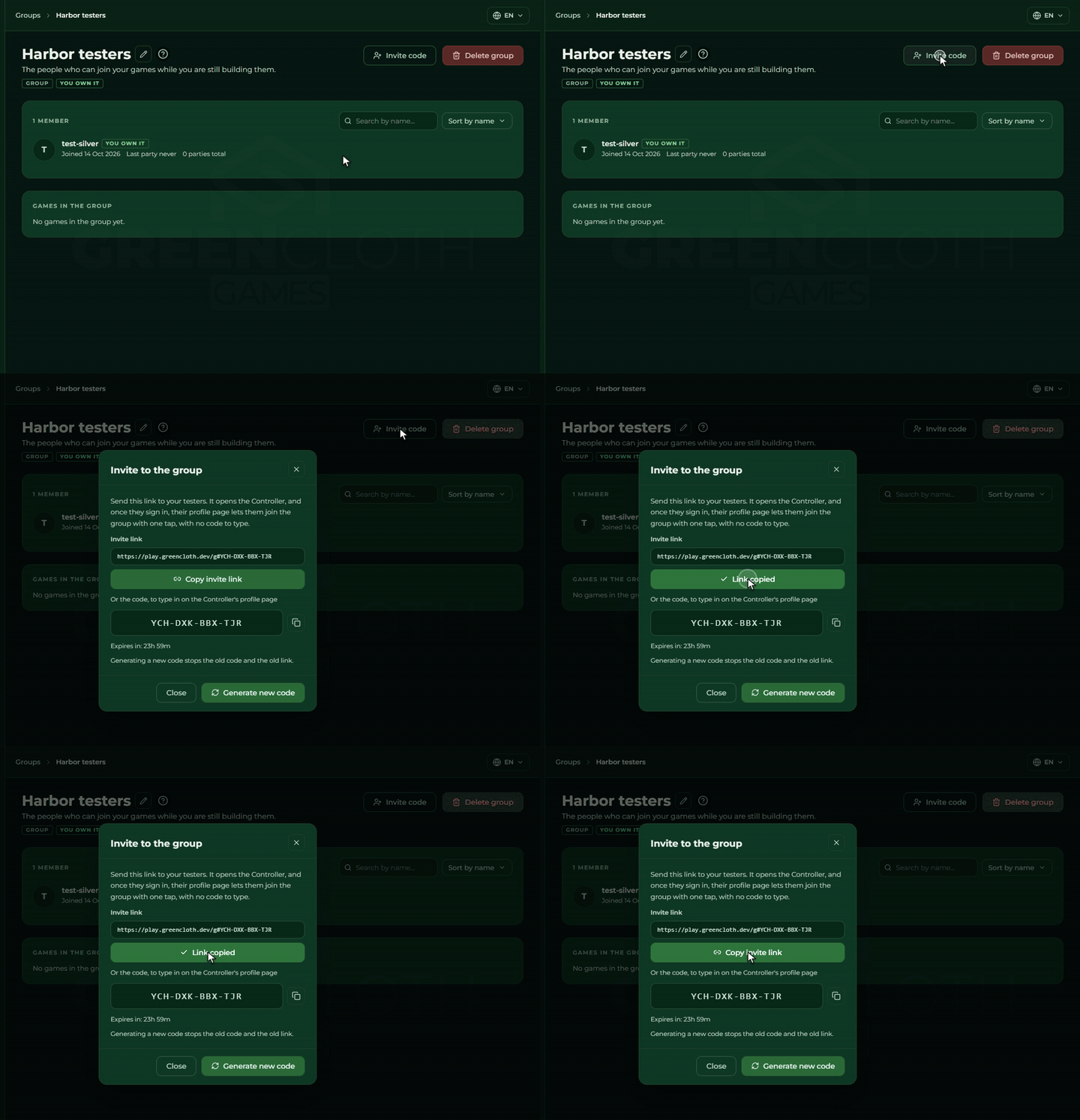
The link is the invite code itself, in link form: it grants exactly what the code grants, and it stops with the code.
What the tester sees when they open it:
- The link opens the Controller. If they are not signed in, the sign-in screen says they were invited to a group, and it offers no guest button for as long as the invite waits.
- After the sign-in (or straight away, if they were already signed in) the Controller opens their Profile page. In the groups section the invite waits with its code: “You were invited to a group”, with a Join group and a Not now button.
- Only Join group makes them a member. The group then appears in their group list, and its games in the New Party list. Opening the link alone does not join anybody.
If the tester is in the middle of a party when they open the link, a short message tells them the invite waits for the profile page after the game.
A guest cannot join a group. A guest can join a party, but group membership needs a signed-in account. This holds for the typed code too: a guest is asked to sign in first.
The link is valid for 24 hours, just like the code. Generating a new code stops the old code and the old link: the modal says so too (“Generating a new code stops the old code and the old link.”). An expired or replaced link explains itself on the tester’s side after Join group, and asks them to get a new link from whoever sent it. A full group says so as well, and so do too many join attempts in a short time.
The code stays as the fallback. If the link cannot be used for some reason, the tester types the code on the Controller’s profile page, as before, see The invite code.
The link is only offered for a group. An organisation is joined in the Builder, with the code, see Organisations.
The members
The first section of the group’s page is the list of members. The heading gives the size
(5 members), with the search and the sort beside it.
On a row:
- the avatar and the name, with a
You own ittag on the owner; Joined <date>,Last party <when>(ornever), andN parties total;- in an organisation, the member’s roles as tags, or
No roles; - the actions on the right:
Manage roles(in an organisation) andRemove.
Two tools in the header help when there are a lot of members:
- Search: the
Search by name...field filters on a fragment of a name. - Sort: the dropdown offers three orders,
Sort by name(the default),Sort by last party,Sort by total parties.
While you have no members, this stands where the list would be: “No members yet. Invite them with an invite code!”
The owner can remove a member: Remove on the row asks for a confirmation, and the text spells
out the consequence as well: “Their games leave the group too.” The owner cannot be removed.
A removed member also loses their roles and cannot come back on their own with the invite code (the code may still be valid, so the join answers: “You were removed from this group. Ask its admin to let you back.”). Removed members are listed under the members in Removed members; after Allow to rejoin they can join with the invite code again, without any role, as a new member. Someone who left on their own can still rejoin freely with the code.
Anybody who is not the owner sees the Leave group button in the header: “You can rejoin later with an invite code.”
The group’s games
The second section of the group’s page is Games in the group: every game that is in the group. If it is not yours, the owner’s name stands at the end of the row.
You put a game into the group from the game’s Access page, with the
Add to group button. In the window you pick the group and set what it should allow right there:
this is the starting ceiling, which the Add button saves. The window switches on only the
Play section’s switch to begin with, so members can start the private game but can do nothing else
with it.
Only a game of your own design can go into a group. A Purchased copy stays yours alone: the
button on the Access page is greyed out with an explanation, see
Where it comes from.
You cannot add a game from the group’s page or from the sidebar; only the games already in it show there.
Clicking one of your own games’ rows takes you straight to the game’s Access page, to the card that shows this group. Somebody else’s game row cannot be clicked: the owner’s name stands at the end of it. If the group has no games yet, this stands there: “No games in the group yet.”
The ceiling: what the group allows
A group does not grant access to everything automatically. You set a ceiling per game, which says the most members may do with that game. The switches fall into four sections:
| Section | What it is for |
|---|---|
| Play | they can start the version that is not public |
| Edit content | they can work on the game in the Builder: details, sets and items, images, rules |
| Versions and publishing | they can make versions playable, publish a version, request validation |
| Parties | the party features: seeing past parties, playback, a new party from an earlier one |
A new share only switches on the Play section’s switch to start with: the usual case for testing.
You set the ceiling on the game’s Access page, separately per group; the All on
and All off buttons on the group’s card set every switch at once.
⚠ Some switches can carry a faint note: “Not in your plan.” The right is switched on then, but the feature is not live because of the plan. The features always come from the game owner’s plan, see Account.
What a member sees
- The group’s games appear in their game chooser, as though they were their own.
- They only see versions: never the draft, never the deprecated versions.
- They only see into the Builder if the ceiling grants the rights of the
Edit contentsection too. For testing that is usually not switched on.
Two things happen automatically, and are worth knowing about:
- Take the game out of the group and the access goes with it, for every member, at once. The
removal is the
Remove from groupbutton on the game’s Access page, after a confirmation, and the text spells it out: “Its members lose every right to it at once.” The game itself is not harmed, only the group’s access to it ends. - Remove a member and their games leave the group too.
Party history
The group’s page has no party list. A game’s parties, that is who played with it, when, and for how
long, are shown by the game’s own Parties page, in the game’s menu. Members reach it too, if
the ceiling grants the See past parties right in the Parties section. The details of the list,
the playback and the branching are on the Parties and playback page.
Deleting a group
The red Delete group sits in the header of the group’s page, for the owner. The confirming text spells out what goes with it: “Every member and invite code goes with it. The games themselves stay with their owners.”
Worth knowing
- The Invite code button can generate. With no live code, opening the modal throws the old one away, see above.
- You add the game to a group from its own Access page. It does not work from the group’s page or from the sidebar, see above.
- An empty ceiling is silent. If you switch every switch off, in the adding window or later,
members see the game but can do nothing with it until you switch at least the
Playsection back on. - The group’s page shows only the games already in it, and somebody else’s game row cannot be clicked.