
New deck
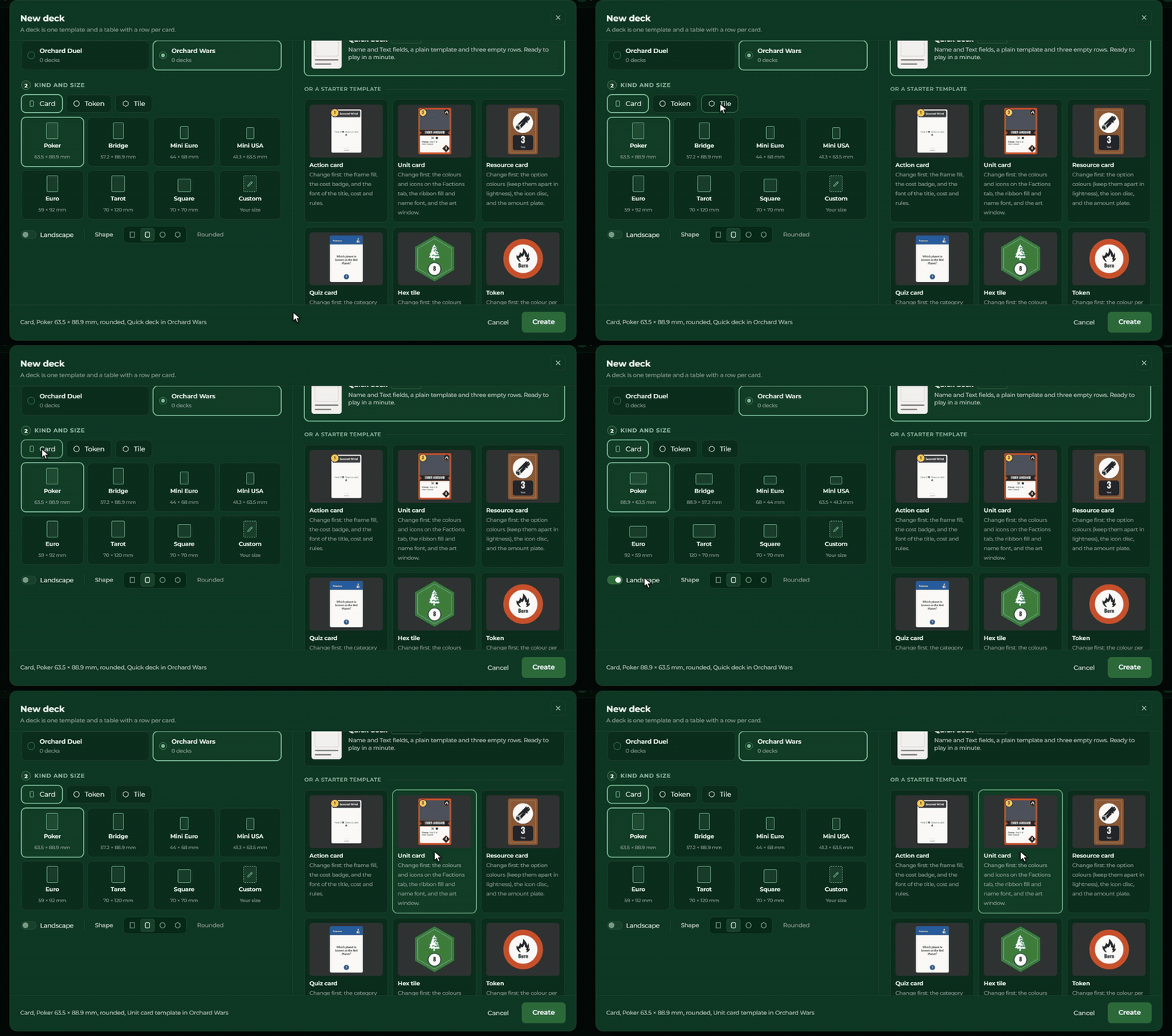
In the New deck window you start a new deck in three steps: you choose the game, the kind and size of the card, and whether you start empty or from a ready template. The window opens from the home page’s New deck button, or from the New deck button of a game’s section.
The three steps
1. Game. Choose one of your games, or click New game and type the title of a new game. The rest of the game’s details (author, cover, description) you give later in the Builder.
2. Kind and size. Choose what you are making: a Card, a Token or a Tile, then the size and the shape.
3. Start from. The Quick deck is the fastest: a Name and a Text field, a plain template and three empty rows. Or choose one of the starter templates.
At the bottom of the window a line sums up what you are creating. Create creates the deck (and the game, if needed), then opens it. The new deck is called New deck; you can rename it in the Template view, in the Deck name field of the right panel, when nothing is selected.
Card sizes and shapes
A card has seven ready sizes:
| Size | In millimetres |
|---|---|
| Poker | 63.5 × 88.9 |
| Bridge | 57.2 × 88.9 |
| Mini Euro | 44 × 68 |
| Mini USA | 41.3 × 63.5 |
| Euro | 59 × 92 |
| Tarot | 70 × 120 |
| Square | 70 × 70 |
With the Custom size you give the width and the height yourself, between 10 and 420 mm. The Landscape switch turns the card on its side.
The shape can be rectangle, rounded (the default), circle or hexagon. You can change the size, the orientation and the shape later in the Template view, see The card’s settings.
Token and tile
Not every piece of a game is a card. Token and Tile give their own sizes:
| Kind | Sizes | Shape |
|---|---|---|
| Token | Small 20 mm, Medium 25 mm, Large 30 mm, or a custom diameter | circle |
| Tile | Hexagon 60 × 69.28 mm, Square 50 × 50 mm, or custom | hexagon or rounded |
The hexagon tile is pointy-top and regular, so tiles placed side by side fit exactly. On a token or a tile the text goes inside the shape, so it is not damaged when you cut.
Around the shape the card is transparent: in the Builder and in the game only the token or the tile itself shows, with no corners. In the Builder these decks become Token sets, which can be picked up, stacked and flipped.
Starter templates
Instead of the Quick deck you can also start from six ready, worked-out templates, with sample rows. Each one’s card has a tip about what to change first.
| Template | What you get |
|---|---|
| Action card | Name, Cost and Text, with icons in the text |
| Unit card | Name, Cost, Power, Art, Ability, Icons, and a Factions table where you give each faction a colour and an icon |
| Resource card | Mini Euro size; the Resource is a choice, each option with its own colour |
| Quiz card | Two-sided: the question on the front, the answer on the back; the Category with a colour and an icon |
| Hex tile | The Terrain comes from a Terrains table; where there is no number, the number token does not show |
| Token | A 25 mm circle, Label, Icon and Colour |
Choosing a template sets the kind, the size and the shape. If you change any of these afterwards, the starting point goes back to Quick deck.
The template’s icons are added to the game’s symbols, and its tables to the game’s shared tables (see Tabs and links). If you choose the same template a second time, the Creator uses the symbols and the table that are already there, and does not duplicate them.
If you reached the limit
If your plan allows no more decks or games, the plan offer shows instead of New deck. Your existing decks do not change. See The limits of your plan.