
Multilingual game
A game’s cards can be made in several languages: in the Controller the player sees them in their own language. For this you set the game’s languages, mark in the table which columns need translating, and type in the translations. One language comes with every plan: on the Free plan it is the game’s base language, English for a new game. A further language needs the Plus plan, and with it you can choose from 37 languages, from English and Hungarian through German and French to Japanese.
The game’s languages
- On an open deck click the game’s name in the top bar, and choose Game languages….
- Add a language with the Add language button. The list shows each language in its own name (Deutsch, Français), with its English name next to it.
- With the radio button mark the base language: where a translation is missing, this language shows.
- Click Save.
The same setting is also in the Builder, on the game’s details page, see Game languages.
Multilingual columns
A Text, Long text or Image column can be multilingual: then it has a separate value for every language (a name in English and in Hungarian, a picture with an English and a Hungarian caption).
- In the menu of the column’s header turn on the Multilingual switch. The cells’ current content becomes the base language text, nothing is lost.
- With the Language switch above the cards (
EN | HU) choose which language you edit. The table and the cards both switch to this language. - Type in the translations. What you type or paste goes into the chosen language.
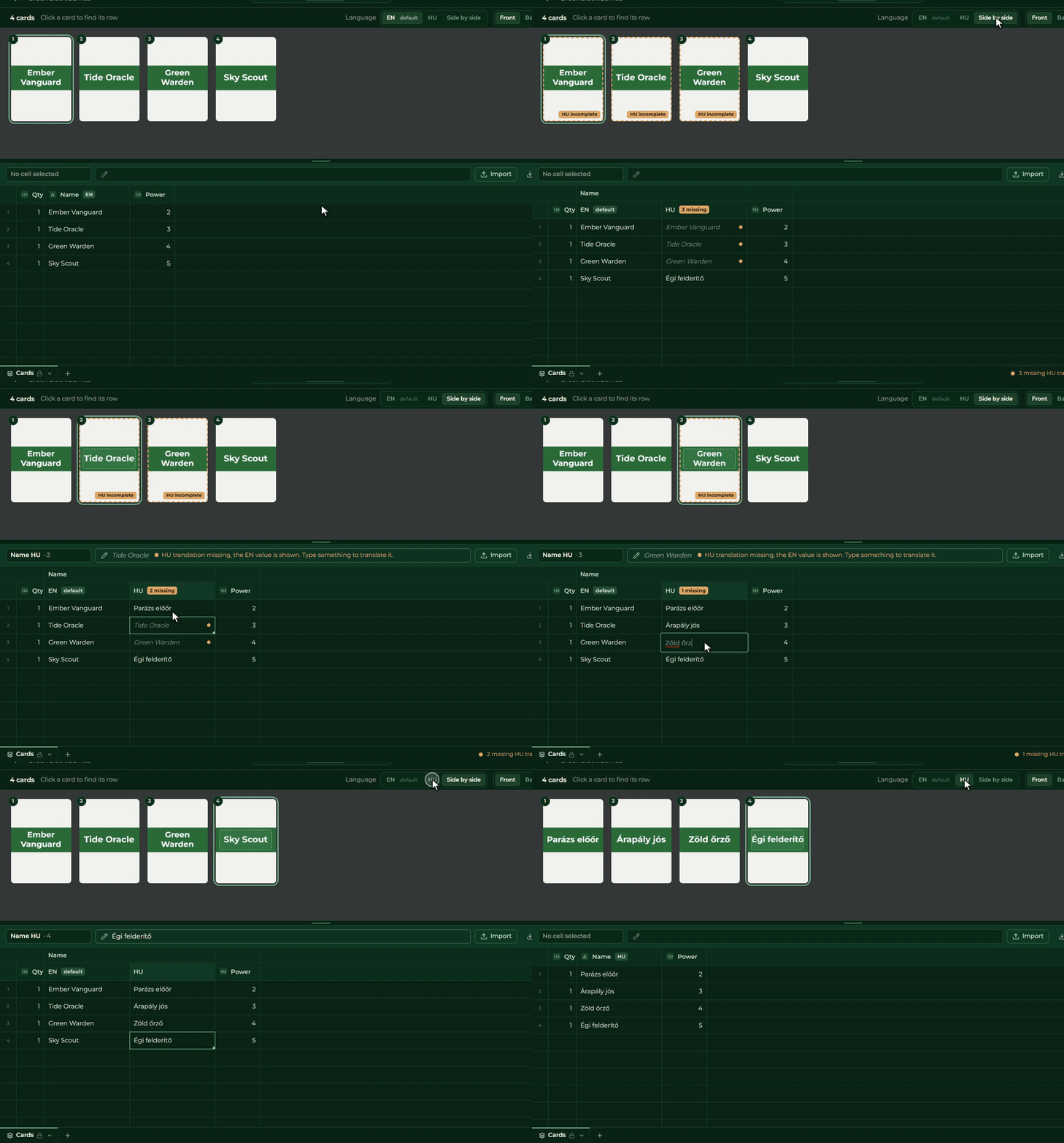
Missing translation. Where a translation is missing, the cell shows the base language text faded, and the card shows that too. The column’s header and the bottom of the table tell you how many translations are missing, and the Missing only button filters to the cards with gaps.
If you turn off the Multilingual switch, the translations are deleted (the Creator asks first, and undo brings them back).
Side by side
For translating, the handiest is the Side by side mode (the third button of the Language switch). In it every multilingual column opens into a separate column per language, so the English and the Hungarian text stand side by side. A two-column block copied in from Excel fills both languages at once this way.
Fixed text in several languages
A label in the template, such as the word ABILITY, can be multilingual too. Select the Text element, set
Content to Fixed content, and turn on the Multilingual switch. Below it you choose with the language
switch which language you are writing in.
The Template view’s preview shows the same language as the Cards view’s language switch.
Sending with every language
Send to Builder takes every language at once, you do not have to send language by language. The send sheet shows how many pictures of its own each language gets, and tells you if a translation is missing somewhere. This does not stop the send: where it is missing, the player sees the base language card.
In the game the Controller shows the cards in the player’s own language, the table display in the game’s base language.
If you do not have the Plus plan
On the Free plan the second language, the multilingual columns and the Side by side mode are locked: the button with the padlock opens the plan offer. If a game became multilingual earlier, on a bigger plan, nothing is lost from it after a plan change: the languages and translations already there stay readable, you can keep editing the base language content, you just cannot add a new language.