
The Cards view
In the Cards view the deck’s cards are at the top, and below them is the table, where every row is a card. Here you type the cards’ text and numbers, and give them pictures and icons. The table works like Excel, so you need no outside spreadsheet program.
The grid of cards
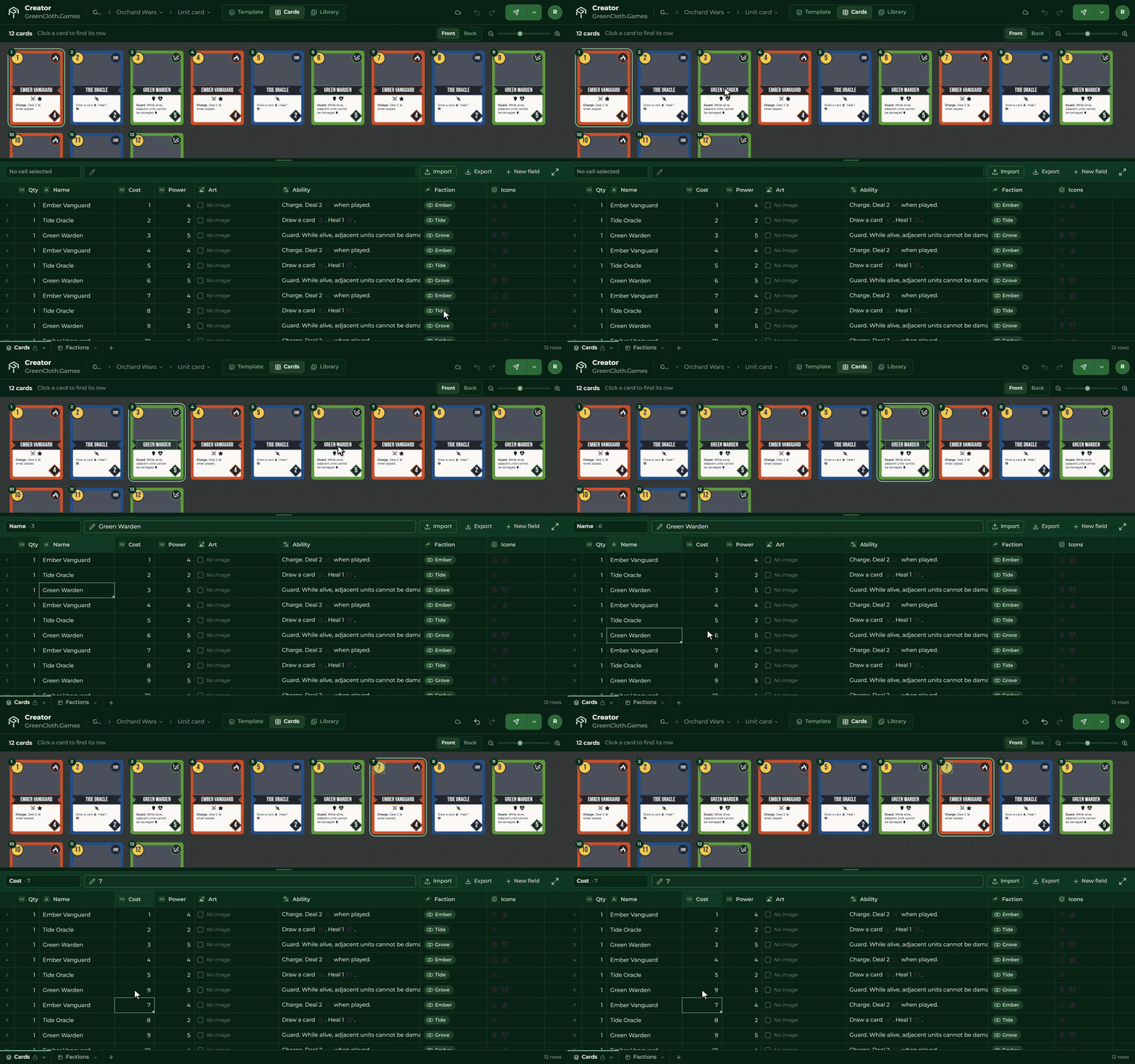
Above the table is a live picture of the cards. If you change a cell, the card redraws in a moment. Above the grid are the Front | Back switch and a slider that sets the size of the cards.
The grid and the table move together:
- clicking a card makes the table jump to the card’s row;
- clicking a part of the card, its name for example, takes you straight to the Name cell;
- when you select a cell, its card is highlighted, and a dashed frame shows which part of it comes from that cell.
You can move the divider between the grid and the table by dragging it. The Full screen table button hides the cards and gives all the room to the table.
On a phone you can look at the cards in the Cards view: tap a card to see it enlarged, and swipe sideways to page through them.
The columns and the cells
The table’s first column is the row number, then the Qty column: how many copies of the card go into the game (between 1 and 99). After it come the fields. The first field and the Qty column stay in place while you scroll.
Every cell shows its real content:
| Field type | In the cell | Editing |
|---|---|---|
| Text, Number | the text or the number | by typing |
| Long text | the text, with its fields and icons | double-click; Shift+Enter starts a new line |
| Image | a small picture | double-click: the image picker, or drag an image file onto it |
| Texture | a small swatch of the texture | double-click: a picker with the game’s textures |
| Symbols | the icons | a picker with the game’s symbols, several can be chosen |
| Colour | the colour swatch and its code | a colour picker, or type the code (#c95b4f) |
| Choice | the chosen option | the list of options, see Choice with options |
| Link to a tab | the name of the linked row | see Tabs and links |
Below the last row there is always one empty row. If you type or paste into it, it becomes a new card.
The strip above the table shows the full content of the selected cell; click it to edit. The Import, Export and New field buttons are here too.
The image picker
Double-click an Image cell to choose from the game’s images. By default you see the images uploaded in the Creator; All images shows the ones uploaded in the Builder too. The search filters by name or tag.
Upload new image… uploads a picture from your computer and puts it straight into the cell. Manage images takes you to the Library.
Excel moves
- Moving: arrows, Tab, Enter, Home, End, PageUp, PageDown.
- Editing: start typing (it overwrites the cell), or press F2, or double-click (you edit the existing text). Esc discards, Delete clears the selected cells.
- Selecting: with the mouse or Shift+arrow; click the row number to select a whole row, the header to select a whole column.
- Copy and paste: Ctrl+C and Ctrl+V work with Excel and Google Sheets too. If you paste more rows than there are, the Creator adds new cards for them.
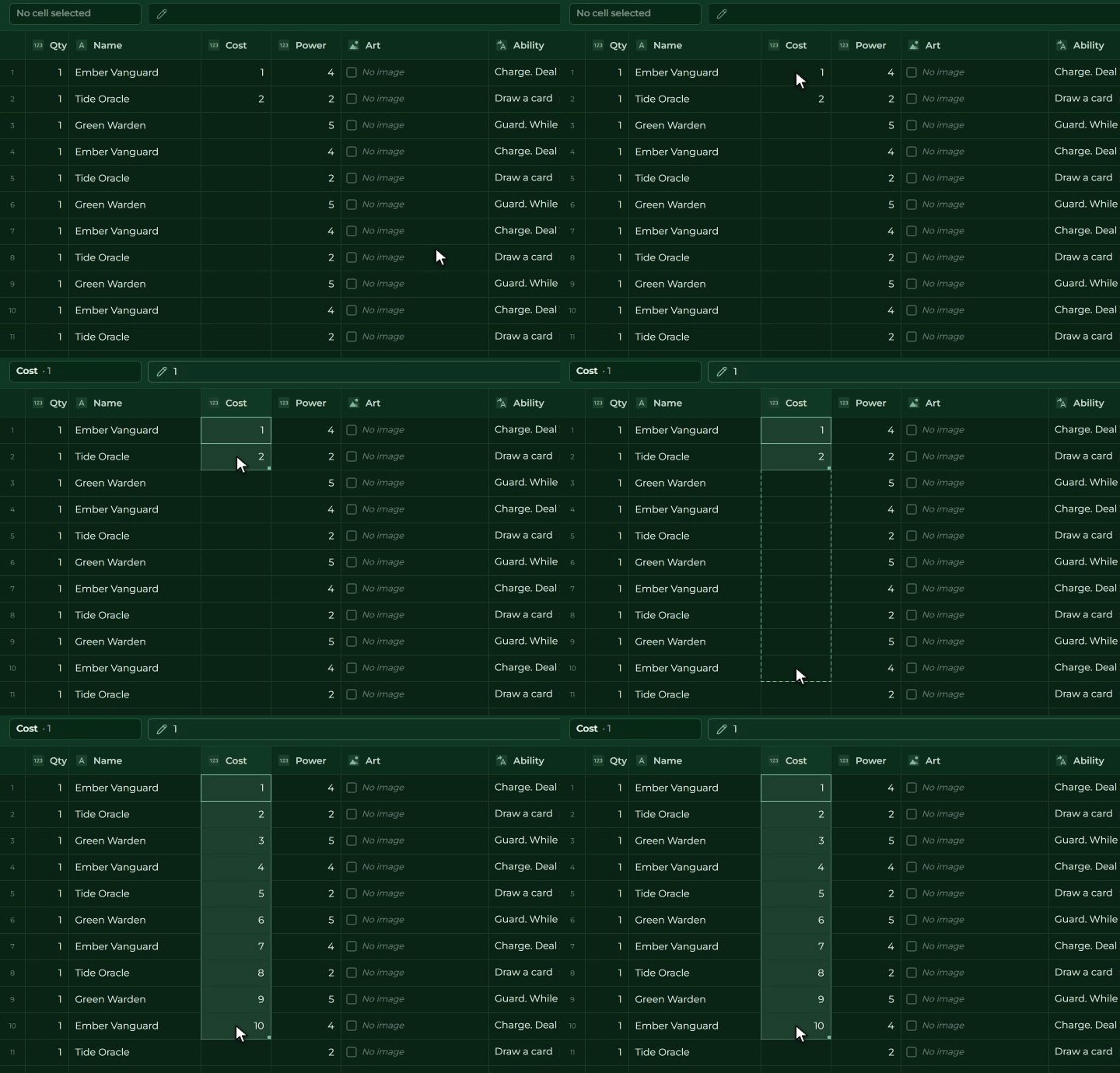
- Fill: drag the corner of the selection down, and the Creator copies the value. If two numbers are selected (1, 2), it continues the series (3, 4, 5). Ctrl+D copies the top row down.
- Undo: Ctrl+Z and Ctrl+Y. A paste or a fill is a single step.
Rows and columns
Right-click a row to insert a new row above or below it, duplicate it (Ctrl+Shift+D), sort and filter the table, or delete the row. Grab the row number to drag the row to a new place: that is how the order of the cards changes.
On a column’s header the arrow or a right-click opens the column’s menu: rename, change type, sort, filter, pin and delete the field. Grab the header to move the column, and drag its edge to make it wider or narrower.
When you change the type, the Creator tries to convert the values; what the new type cannot read (a word in a Number column, for example) is cleared. If that is not what you wanted, undo brings everything back.
Sorting and filtering only change the view: the order of the cards does not change. A bar tells you when something is sorted or filtered, and Show all rows takes you back to the whole table.
Find and replace
Ctrl+F opens a find bar: it searches every cell, highlights the matches, and Enter steps to the next one. Replace replaces one at a time, Replace all all at once; both can be undone.
Images and symbols by name
You can also type or paste an image’s file name into an Image cell (for example human.png, the extension can be
left off), and a symbol’s name into a Symbols cell. The Creator looks for it among the game’s images or symbols.
So you can simply copy in a list prepared in Excel.
If several images have the same name, you can narrow it down with tags written before the name:
hero/forest/human.png is the human.png that has both the hero and the forest tag. If the Creator cannot
find a single image for sure, the cell stays as it was.