
Parties and playback
This page is about how you see every party played of a game, how you look back through a party’s steps on the timeline, and how you start a new party from an earlier step.
You do not need an editing right for this. Whoever is given the See past parties right by a
group on the game’s Access page, or in a role,
reaches this page too; the game’s owner always has it.
The Parties list
The Parties row in the left sidebar (in the Game page group) lists every party that was
started with this game, newest first. If there has been none yet, the list’s place says: “No
parties for this game yet.” The Refresh button reloads the list.
The parties are sorted into groups by time, and the group headings say how long ago they
started: Today, Yesterday, 2 days ago, 5 days ago, 1 week ago, 2 weeks ago,
1 month ago, 1 year ago. A group only appears if there is a party in it. The list counts the
days in your own local time: a party started at eleven last night is in the Yesterday group
after midnight, however few minutes ago it was. Point at a group heading and the dates that belong
in it come up.
One row shows: the alias or the party’s code and the status (Active, Paused, Finished), the start time (the date is on the group heading; point at the time and the full date comes up too), who started it, how long it has been going, how many steps there were, and who the players are (or “No players”). If the party started from one step of another party (see New party from here), the row shows that too, for example “Branched from ABC-DEF, step 12”.
The Load more button at the bottom brings out older parties. An older party lands in its proper group.
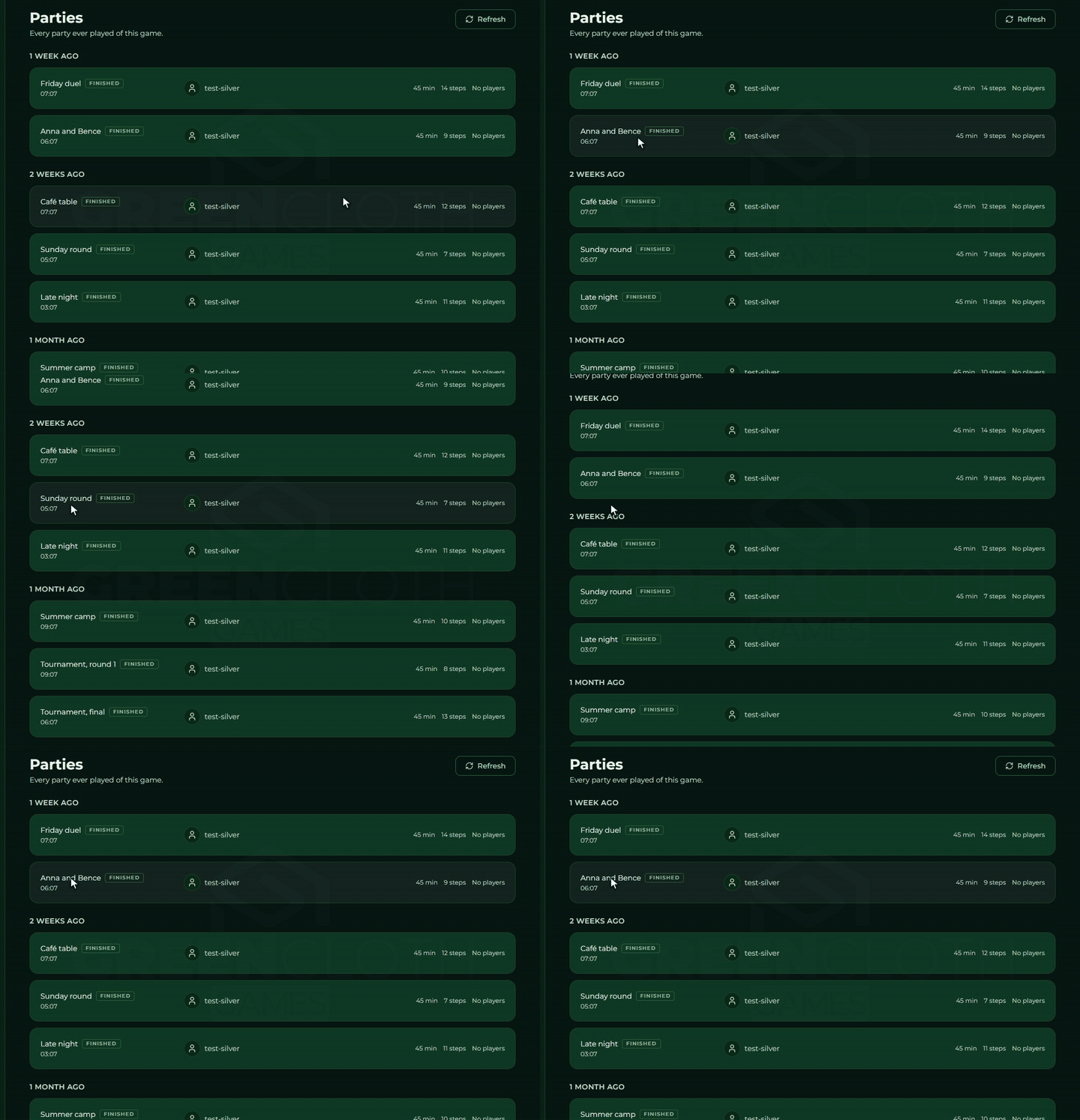
Click a row and it jumps to that party’s timeline.
The timeline
The timeline is a bar chart: each bar shows the number of steps that happened in one unit of time. The party’s pauses (stopping and resuming, or loading a save) are not drawn by the chart as an empty bar but as a narrow gap labelled “pause”.
- Click or drag on a bar: it jumps to the last step of the bar you chose.
- To step within a bar there are previous and next buttons under the chart; a separate marker shows the current position in the bar.
- The step strip shows which step you are on out of the total, what kind of step it was, who did it, and when it happened.
- The Live button: jumps back to the party’s current state.
- The Back to parties link above it takes you to the list.
As long as you are not on “Live”, the party is locked: a notice stands on the players’ phones and on the display too, and nobody can step until you jump back to Live.
If the party’s older steps have already expired, this stands above the timeline: “Earlier steps have expired and are no longer available. The timeline starts from the oldest step still kept.” See How long the step history is kept.
⚠ Stepping depends on the Play a party back right, which depends on the plan too (Plus and
above). The timeline’s chart always shows, right or not, but clicking, dragging, previous/next and
Live are not active, and a notice stands above the chart: “Playback is not available”. See
Account: plans and Access.
How long the step history is kept
The party itself stays on the list, but the detailed history of its steps, that is what the timeline shows and what you can play back or branch from, is only kept for a while. The limit depends on the plan of whoever started the party:
| Plan | How long the steps are kept |
|---|---|
| Free | 1 month |
| Plus | 6 months |
| Pro | 12 months |
| Ultra | unlimited |
Steps expire from the moment they happened, not from the party’s last move. So an older party is partly still there: with the steps that remain it can still be looked at and stepped through, and the timeline starts from the oldest step that remains and says so. If whoever started the party moves to a smaller plan, the shorter limit applies to them, and the older steps can expire.
Invite a display
On the timeline page, in a box called Invite a display, you can invite a display into the party: type the display’s code into the Display code field (the six digit code is in the display’s corner, see The display’s code) and press the Invite button. On success the message “Display invited” appears and the display joins the party. If there is no such code, the message “The display code was not found” stands there.
There is no separate right for this, neither Play a party back nor a plan: if you can open
the timeline, the box works.
New party from here
The New party from here button starts a completely new party from the state of the step you selected, without reshuffling the cards: it carries on from where the selected moment stood. If you cannot step (you do not have the playback right), it starts from the party’s latest step. After a successful start a join link and a QR code appear, and the Open its timeline button, which takes you to the new party’s own timeline. If the start fails, this stands there: “The new party could not be started.”
You can close the new party’s card with the Close button. It also disappears by itself as soon as you move on the timeline: you step to another step, click a column or switch to the live position with the Live button, because the link belonged to the earlier step. If a start was still running when you moved on, its late answer does not bring the card back.
The original party carries on undisturbed meanwhile: the branching does not touch it, and the Parties list still shows later which party branched from which, and from which step.
⚠ This depends on the Start a new game from a party right, which depends on the plan just
like stepping does (Plus and above): without the right the button is faint, and the notice “Branching
is not available” stands above it. Branching needs the step history too, that is the selected step
has to still exist, see How long the step history is kept.