
Menu
The menu holds everything that is not about the playing table itself: the party, the game, the connected displays and your own settings. This page is about how you open it, what you reach from it, and how you get back out.
Opening it
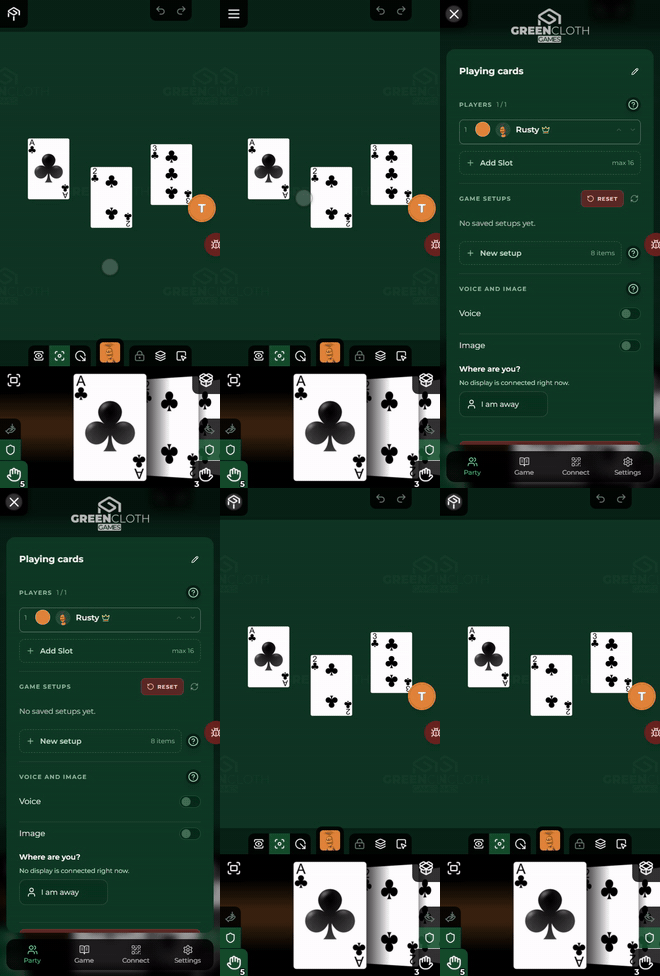
The Menu button sits in the top left corner of the table band. At rest it shows the GreenCloth mark; now and then, for a second or so, it turns into three horizontal lines to remind you that it opens the menu. Tap it and the menu slides over the game, the page switcher appears along the bottom, and the button turns into an X that closes it.
On a keyboard Escape opens it too, as long as nothing else is open: it brings back the page you looked at last. The very first time, that is the Party page.
What you reach
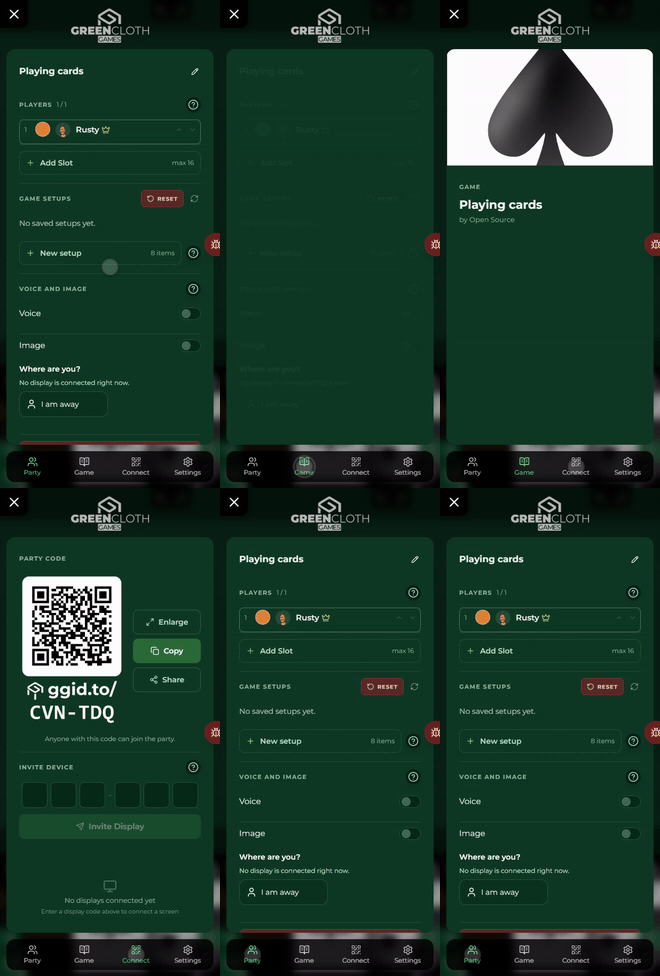
During a game you can move between four pages in the bottom bar:
| Page | What it holds |
|---|---|
| Party | the party’s name, the players and seats, the spectators, the game setups, leaving |
| Game | the game’s cover, details, description and the rules |
| Connect | the party’s QR code, the connected displays, inviting a display, display options |
| Settings | haptics, hand bar height, language, graphics quality, keyboard shortcuts |
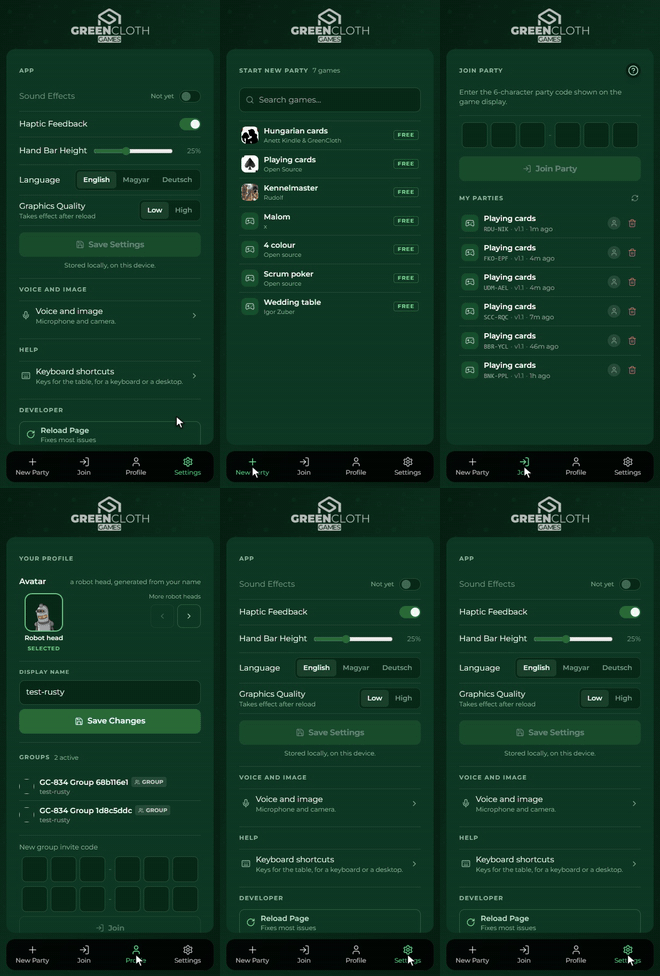
Before a party (while you are not in a game) the same interface greets you, with different pages:
| Page | What it holds |
|---|---|
| New Party | the list of games, with a search: pick one and the party is created, with you as its host |
| Join | the six-character code of an existing party, and the list of your parties in progress |
| Profile | your name and avatar |
| Settings | the same as during a game |
The app starts on New Party. If you have not picked a name yet, the Profile page opens first, once, so that you can set it.
Do not mix up Join and Connect: Join, before a party, is how you enter a party; Connect, during a game, is where the displays and the QR code are.
On Connect every connected display has its own options row, opening when you tap it. Two switches show only for the host who started the party, and only work from the Pro package up: without it they appear locked, with a “Pro” tag, and tapping one opens the packages page. In detail: Settings in the display manual.
Getting out
Three ways lead out:
- the X in the top left corner, exactly where the Menu button was
- the Escape key
- on Android, the device’s back button
Tapping the page you already have open in the page switcher closes the menu as well.
Inside a page that opens a further view (a rule, the list of keyboard shortcuts), that view’s header has its own back arrow: it only steps back one level and never closes the menu. Closing is always the X.
Before a party there is no X: there the menu is the screen, with no game behind it to go back to.
The Party page
The Party page shows who sits at the table. During a game it is the default page: the menu opens here first.
At the top is the party’s name, the game’s name unless changed. The host can rename it with the pencil button (up to 60 characters): the new name shows for everyone, latecomers included.
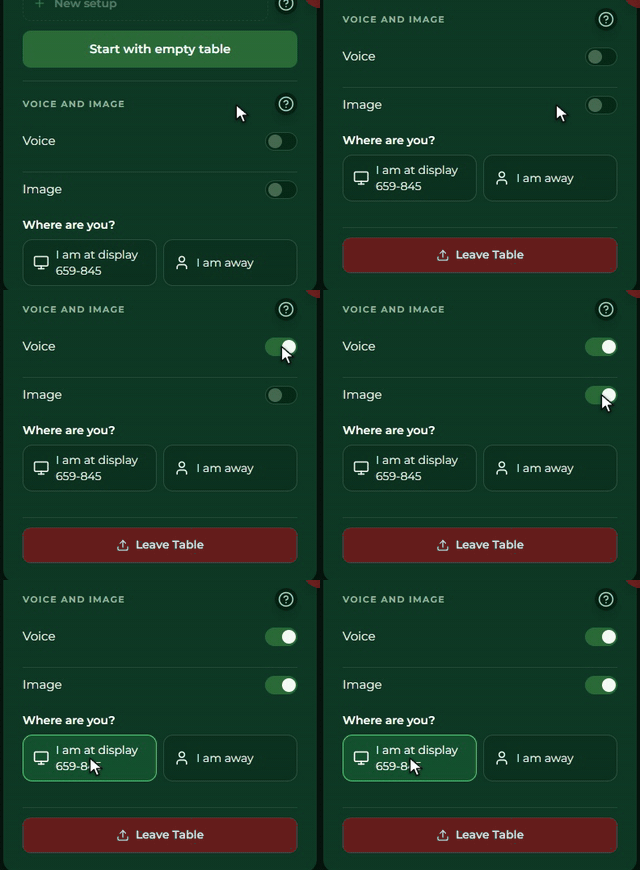
At the bottom of the page is the Voice and image section: two switches, Voice (talking) and Image (the selfie), and under them the Where are you? choice. See Voice and image below.
Every row of the Players list is a seat, in turn order, and the counter (“3 / 4”) shows the seated players against the number of seats. A row holds:
- the seat’s number, its colour, the avatar and the name; a crown beside the host
- a tap on the colour picks another one: yours for yourself, anyone’s for the host
- when it is your turn and somebody else sits at the table, a check mark at the end of the row ends the turn, just like the End Turn button
- an empty seat says “Empty slot”
The host has more buttons on the rows:
- the arrows move a seat up or down the turn order, and the Order button in the header reverses the whole order
- on the opponent whose turn it is, Skip turn passes the turn on
- beside a player, remove turns them into a spectator; their seat stays in the list, empty, and the cards in their area and hand stay in place
- on an empty seat the X deletes the seat
- the Add Slot row at the end opens a new seat, with “max N” beside it for the game’s largest player count (no more seats open past it, the button greys out)
The Spectators section shows only when there are spectators. Whoever joins is a spectator first: they see the table but cannot touch it. The host seats them with the button beside their name; with no free seat the button is greyed out, and a seat has to be added first. Someone not yet seated reads: “Waiting for host to add you…”.
Voice and image on the Party page
At the bottom of the Party page you find the Voice and image section: two plain switches with no explanations; the ? badge beside the title brings you to this help page. Only the host can change the two switches, but everyone sees their state. Both are off by default, nobody is asked about them when the party is created, and the host can switch them on any time.
- Voice: the players can talk by holding the round button (Talking). While it is off a long press does not talk, and a speech in progress stops at once.
- Image: the players can send a selfie (Selfie). Emoji do not depend on this switch. The heads already out stay on the screens when it is switched off, but the server drops them, so someone who joins later no longer gets them.
- Where are you?: everyone’s own: I am at display X or I am away. The buttons stand two to a row (one display and “I am away” side by side), more displays wrap onto the next row. The voice’s route follows from it; it is asked so that your voice does not play back from your own TV. Nobody is asked when joining; if the Voice is on and you have not answered, the switch-on sheet asks.
- While this device has no voice and image set up and the host has switched one of them on, a small card comes up once by itself: “Voice and image: turn on?”, with Turn on and Later. It does not hold the game up. If the host leaves both switched off, there is no card and no permission request either.
Game Setups
At the bottom of the Party page the Game Setups section holds the game’s saved table layouts, which can be loaded at the start of a party. The host manages them.
- A setup is made for a player count. The list shows what fits the current table (the number of seats) by default; More brings out the other counts too, tagged with their number. Every row shows the name, the date saved and the item count, plus a PUBLIC or PRIVATE tag.
- Loading: tap a row and it asks to confirm. The setup replaces the table, or lands on an empty one. If the player count does not match, the confirmation says so.
- New setup: the row at the end of the list saves the table as it stands now, under a name; the Make public switch lets others use it. An empty table has nothing to save, and the row is greyed out.
- Deleting: a bin appears beside your own setups.
- Reset: the red button on the section header puts every item back in the box. If there is something on the table, it asks first.
- The circular arrow refreshes the list.
Leaving: the party and the table
Two buttons sit side by side at the bottom of the Party page; both ask for confirmation.
- Leave Party: for players who are not the host. You become a spectator, your items and progress go back to the box, and the host can add you back as a player later. The host who started the party cannot leave it.
- Leave Table: for anyone. You step away from the table, but the party goes on without you; you can come back with its code, or from the list on the Join page.
The Party window of a new party
When you start the party yourself (by picking a game on New Party), the table does not open for you. The Party window does: the same Party page, with the table still hidden behind it. At the top the party’s name, below it the Players, further down the Game Setups, with the Start with empty table button at their end.
This is where you invite and seat the others, and where you load a setup, if there is one. If you
load one, it goes onto the table, and the window stays open. The button closes the window and
shows the table in one go, as it stands, with no setup. Your hand band then opens the box on
its second bar, so you can see what there is to put on the table; the box switch (or the B key)
puts your right hand back in its place.
You can also close the window another way (the X, Escape), and you still land on the table. The Party window opens like this only for whoever starts the party: anyone joining later arrives at the table.
The Game page
The Game page is about the game, not the party: it shows what the creator entered about the game in the Builder.
At the top is the game’s cover (always in a 16:9 frame), below it the title and the author. The next row gives three facts, with icons: the number of players, the play time in minutes and the age. Below come the Description, the Categories as tags, and finally the Rules. Whatever the creator left empty is not shown. If the game’s cards use icons from game-icons.net, the Icons part at the bottom of the page names their authors, with links to game-icons.net and the CC BY 3.0 licence.
Rules
Tap a row in the Rules list and the rule opens in a view of its own. The back arrow in the view’s header leads back to the list of rules and does not close the menu. If you close the menu and open it again later, you find yourself on the same rule.
A rule’s text can hold tables, images and embedded videos. Some rulebooks are made of pages instead: you see one page at full width and turn it by swiping sideways or with the Previous page and Next page buttons. Between the two, a counter such as “3/12” shows where you are; on the first page Previous is greyed out, on the last one Next. A vertical drag scrolls rather than turns.
The Profile page
The Profile page sets who you are in the others’ eyes. This is where the menu starts if you have not picked a name yet.
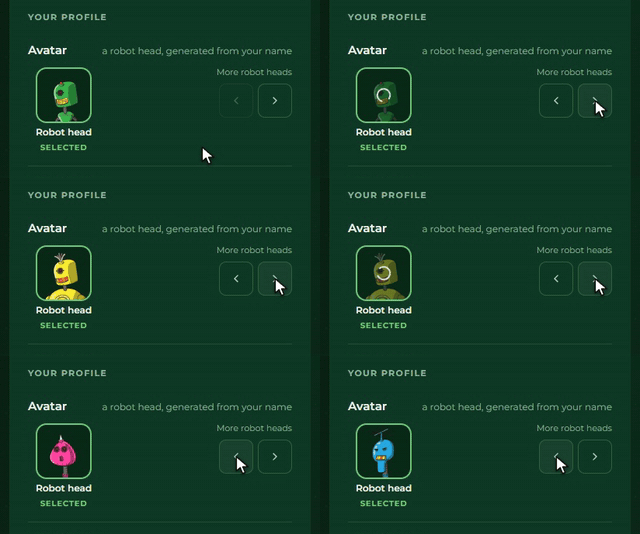
- Avatar: page through the robot heads with the arrows; if you have a picture of your own (from signing in, say), you can pick that instead. Each tile says which one is selected.
- Display Name: the name the others see. Until you save a name of your own, it is the first word of your account name (your first name), on this page and at the party table; a name you save stays whole. Changing the name starts the robot heads over, since the robot head is made from the name.
- Save Changes: the changes only take effect on saving; after saving the menu closes.
- Groups: the tester groups and organisations you belong to, with the name, a tag for the type and the owner’s name; you cannot leave your own group, but you can leave the others with Leave. You join a new group with an invite code: type or paste the 12-letter code into the boxes, then Join. For an invalid or expired code, or if you are a member already, a message appears under the boxes. If you got an invite link, open it: after the sign-in this page opens with the invite at the top of Groups, and Join group makes you a member (Not now drops it); for an expired or replaced invite a message appears in the same place. The games available through a group show up in the New Party list too, marked with the group’s or organisation’s name.
- Logout: at the bottom of the page; it signs you out on this device only, and you stay in the party.
The Settings page
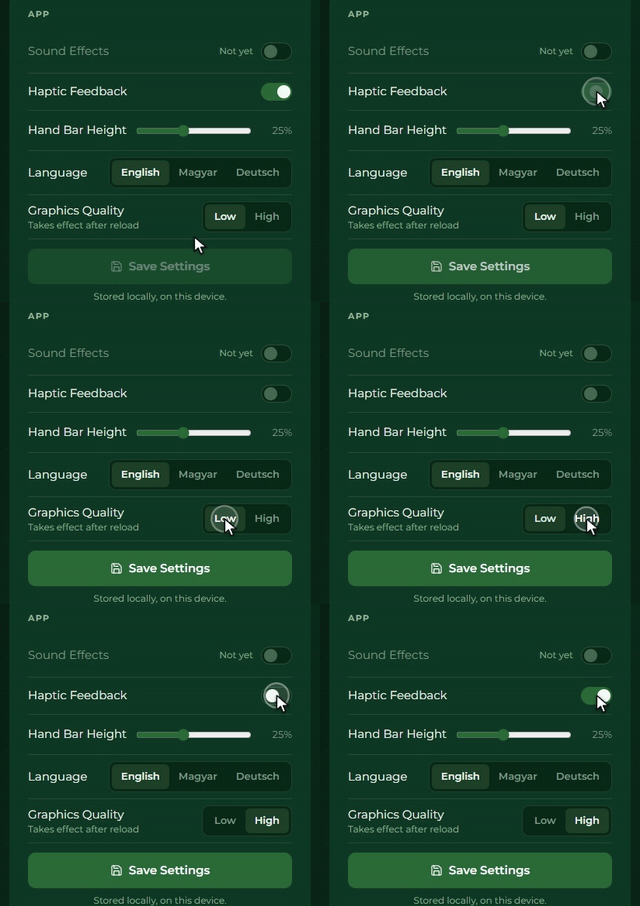
On the Settings page every switch and button changes only this device. On the App card:
- Sound Effects: the switch is there but does not work yet, with a “Not yet” note beside it
- Haptic Feedback: vibration on or off
- Hand Bar Height: a slider from 15 to 40 percent in steps of 5 percent; see The height of the hand bar
- Language: English, Magyar or Deutsch; the interface switches at once
- Graphics Quality: Low or High; Low by default, the device remembers a High choice, and it takes effect after a reload
The Voice and image row opens its own view, like Keyboard shortcuts: the arrow in its header steps back to Settings. See Voice and image: turning it on and off, and choosing the microphone and the camera. The device remembers this at once, without saving.
The Save Settings button sits directly under the settings and comes alive once you change something. Saving keeps the settings on the device (“Stored locally, on this device.”).
Below it the Help section has a single row, Keyboard shortcuts: it opens the list of commands, in your language (the ? or K key brings you there too). The arrow in that view’s header steps back to Settings, and any unsaved changes are still there. The commands themselves: Keyboard shortcuts.
The Voice and image sheet and Settings
It is the same block in two places: it comes up as a sheet the first time (the round button or the card brings it; the X at its top right closes it), and you can open it any time in its own view on the Settings page by tapping the Voice and image row (the ? badge in its header brings you here). It holds no explanations, only the settings:
- Where are you?, on the sheet only, and only when the host has switched the Voice on. Settings does not ask it: the Party page’s answer holds there.
- Turn on: the browser asks for the microphone and the camera in a single permission window (on iOS the browser may ask again from time to time; the sheet then asks again with one tap). After that, if the Image is on, you can take your first selfie right there (with the round shutter beside the picture), or skip it.
- A Microphone and a Camera picker, with a microphone level meter so you can see it works. The Test button listens to the microphone again later.
- Turn off, if you change your mind.
How to use it: hold the round button, you talk; tap it, new picture.
All of this sets only this device: the switch, the microphone, the camera and the button’s place are remembered by the device, your place (the Where are you? answer) per party.
What the menu does not hold
Protecting and hiding your area is not in the menu. It sits under your own area’s avatar, as tabs. See: Areas.