
Textures
A texture is a patterned fill: a background colour or gradient with a repeating pattern on it (dots, stripes, icons). It can fill a shape, or be the background of a border or a text. A texture’s colours can change card to card, so the same pattern can have a different colour for every faction.
Textures belong to the game. You manage them on the Textures tab of the Library.
The Textures tab
On the tab the game’s textures stand in a grid. The first tile is New texture: it starts from a ready pattern and opens the editor. The ◆ mark shows that the texture has a dynamic colour, one that changes card to card.
Select a texture, and the right panel shows its large preview, its tags, its dynamic colours, and which deck’s template uses it. Here are the Edit, Duplicate and Delete buttons. If a deleted texture was used, the element there goes back to its own colour.
The texture editor
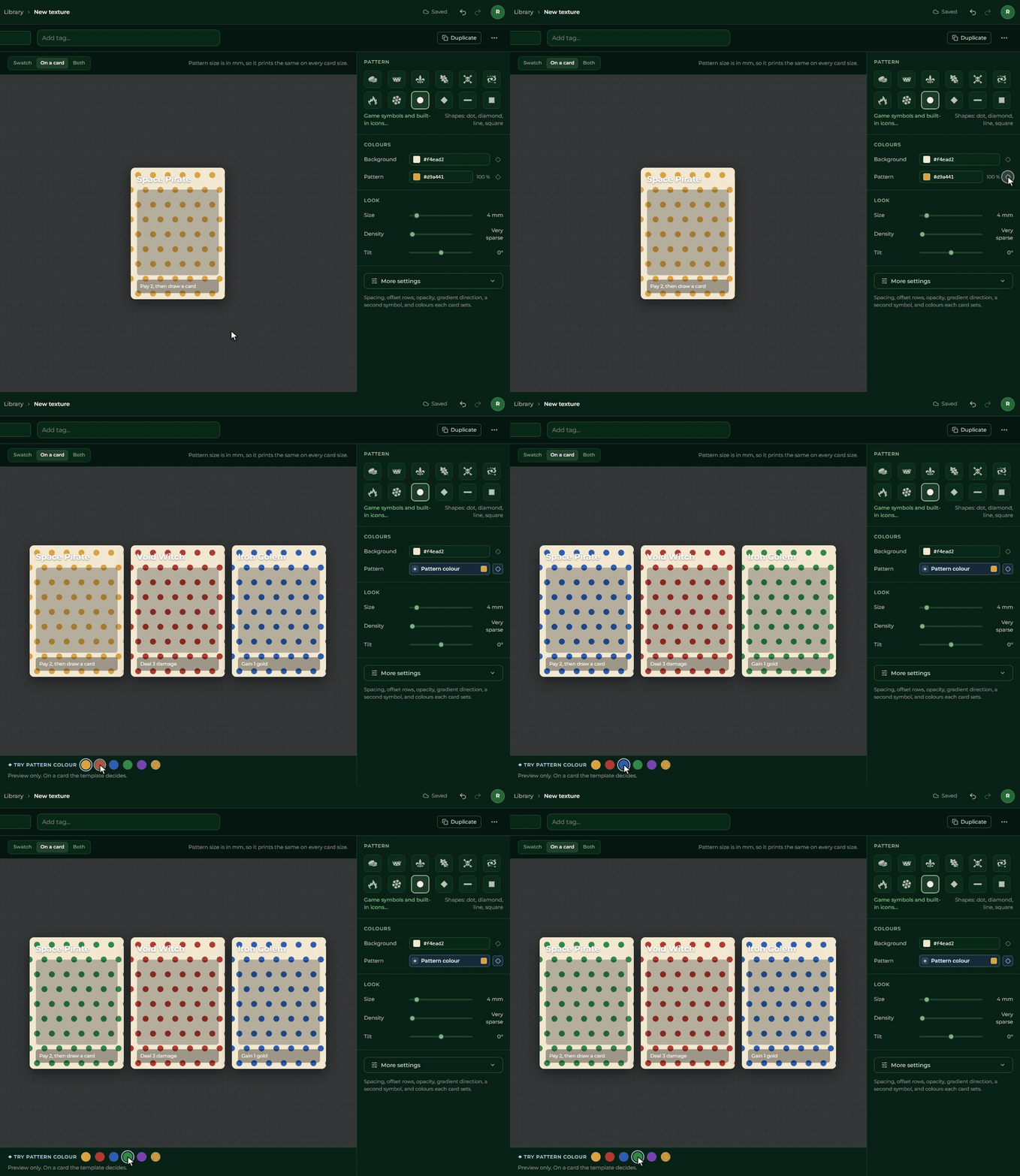
On the left of the editor you can start from ready patterns. In the middle is the preview: a large piece of the texture, a sample card, or both. On the right are the settings:
- Pattern: which shape or icon repeats;
- Colours: the colour of the background and of the pattern;
- Size, Density and Tilt.
The More settings button shows everything: a gradient background, the pattern’s spacing, offset and rotation, and a second pattern layer.
The editor saves itself. Undo and Redo work here too.
Dynamic colours
The ◆ switch next to any colour makes the colour dynamic. Then the colour has a name and a default value, but in the template you can override it card to card, with the faction’s colour for example. A texture can have at most four dynamic colours.
With the Try row below the preview you can try out how the texture looks with other colours.
A texture in the template
For a Shape’s fill, a border’s colour or a Text’s background, switch to texture with the Colour | Texture switch, and choose the texture. Below it:
- Texture colours: you set the dynamic colours here. Each can stay the texture’s default colour, get a colour of its own, or come from a Colour field, and then it changes card to card.
- Pattern scale: a bigger or smaller pattern.
- Pattern start: Element (the pattern moves with the element) or Card (the pattern runs on across two elements side by side).
A different texture card to card
If you want a different texture on every card, add a Texture field to the table, and choose the texture in every row. In the template drag this field onto the Texture from a field row, or turn on the switch next to it. Where the field is empty, the texture chosen in the panel shows.
In the Cards view the Texture cell shows a small swatch of the texture, with the row’s own colours.