
Organisations
An organisation is the frame in which several of you work on the same game. You invite members, invent roles of your own, attach permissions to the roles, and hand the roles out to the members, either for the whole organisation or per game.
An organisation is a workspace: you reach it from the workspace switcher at the top of the sidebar, not from the Groups page. The Groups page and the sidebar’s group list show private groups only. They are easy to confuse with a group; the next section goes through the difference.
While you are in an organisation’s workspace, the sidebar menu is the organisation’s: Games, Members and Roles. The Members row takes you to the organisation’s page.
An organisation or a group
The two are the same entity, with the same page, the same invite code and the same member list. What separates them:
| Group | Organisation | |
|---|---|---|
| How it is created | with the New group button on the Groups page | from the workspace switcher’s Add organisation row |
| Roles | none | yes, with a permission set of their own |
| Who can invite | the owner | the owner, and anybody with the Invite members right |
| Who manages the members | the owner | the owner, and anybody with the Manage members right |
| A workspace | no | yes: it appears in the workspace switcher, and the Games page shows its games |
| A member can edit too | only if the ceiling allows it | if the ceiling and their role both allow it |
The practical difference: in a group the ceiling decides alone, in an organisation the ceiling and
the role decide together. An organisation member gets on a game what is in the group’s ceiling
and in their role. The one exception is Play a version that is not public, which the ceiling grants on its own.
Creating and joining
The Add organisation row of the workspace switcher menu, at the top of the sidebar, opens a
modal with two options:
- New organisation: you type the name and create it with the
Createbutton. The name is the only piece of data. - Join organisation: you type the invite code you were given, and you are in.
Whoever creates it is the owner, and has every right in the organisation, without a role.
After creating or joining, the organisation appears in the workspace switcher, and the interface switches over to it. It does not appear on the Groups page or in the sidebar’s group list: those show private groups only.
⚠ You cannot join your own organisation with an invite code (the same account), and the owner
cannot leave it: Delete organisation is what is left for them.
A bad code shows under the field, not as a message that fades away: That invite code is not valid., That invite code has expired., or You're already a member.
⚠ You can create an organisation from the Pro plan up. With the Free and Plus plans no
organisation can be created: Create does not start, and a panel pointing to the plans appears. Pro
allows one organisation with up to 100 members, Ultra two, with no member cap. If an organisation is
full, joining with an invite code does not start either, and the same panel appears. The plans are
covered on the Account page.
Inviting members
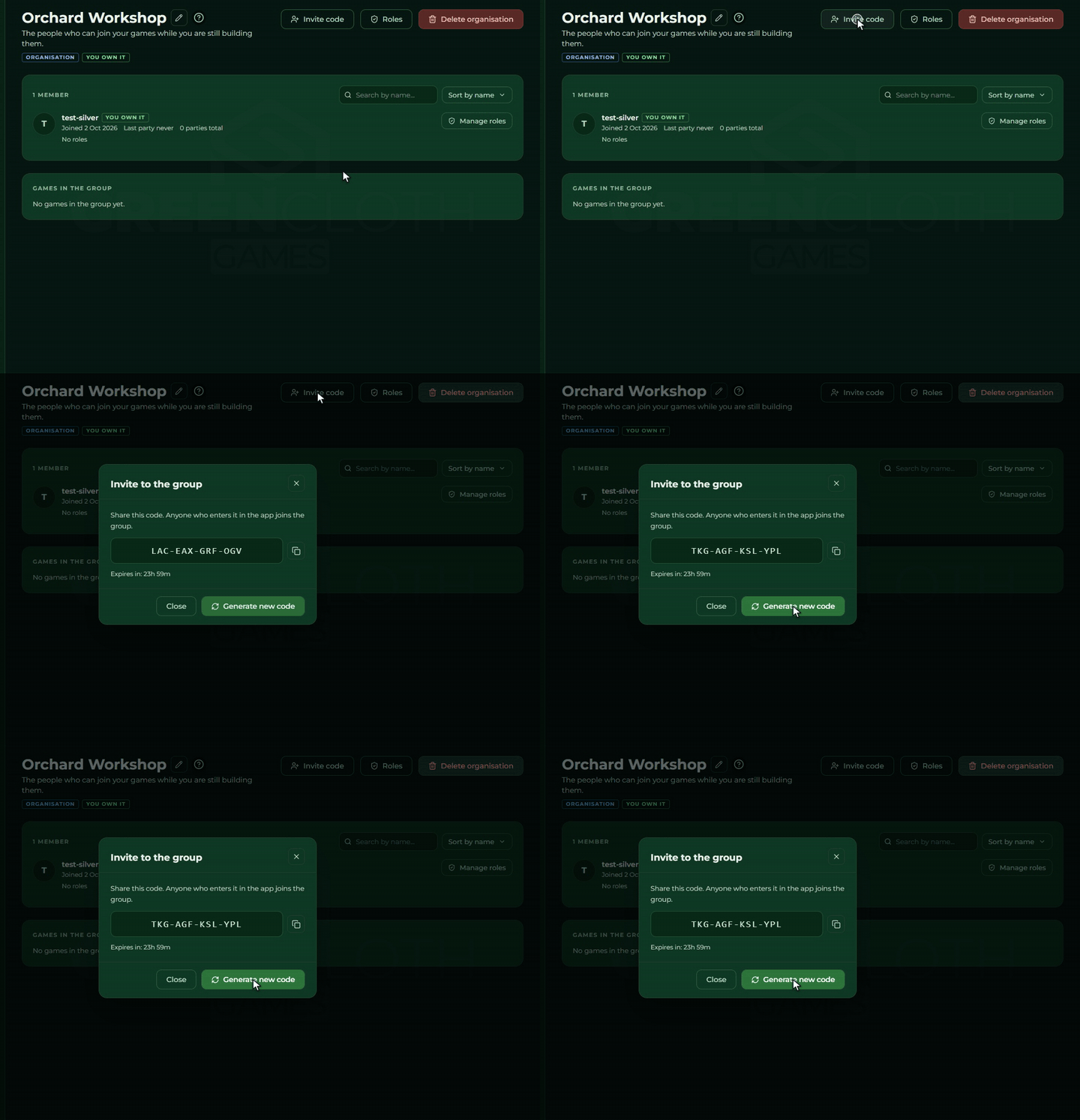
The Invite code button in the header of the organisation’s page opens the code’s modal.
Everything works the same as in a group: twelve capital letters broken up by hyphens, 24 hours of
validity, a copy icon, Generate new code.
⚠ The button can generate by itself: if you have no live code, or the one you had has expired, opening the modal asks for a new code at once, and throws the old one away with that.
One difference from a group: into an organisation you invite somebody with Builder access, because their role can grant editing rights as well.
The Invite code button is seen by the owner, and by a member whose role grants the
Invite members right.
The member list
The members section is the same as in a group (see The members), with two additions:
- the member’s roles stand under their name as tags, or
No roles; - the Manage roles button on the row, with which you hand them out, see Assigning a role.
Both appear only to whoever is the owner, or whose role grants the Manage roles or the
Manage members right.
Roles
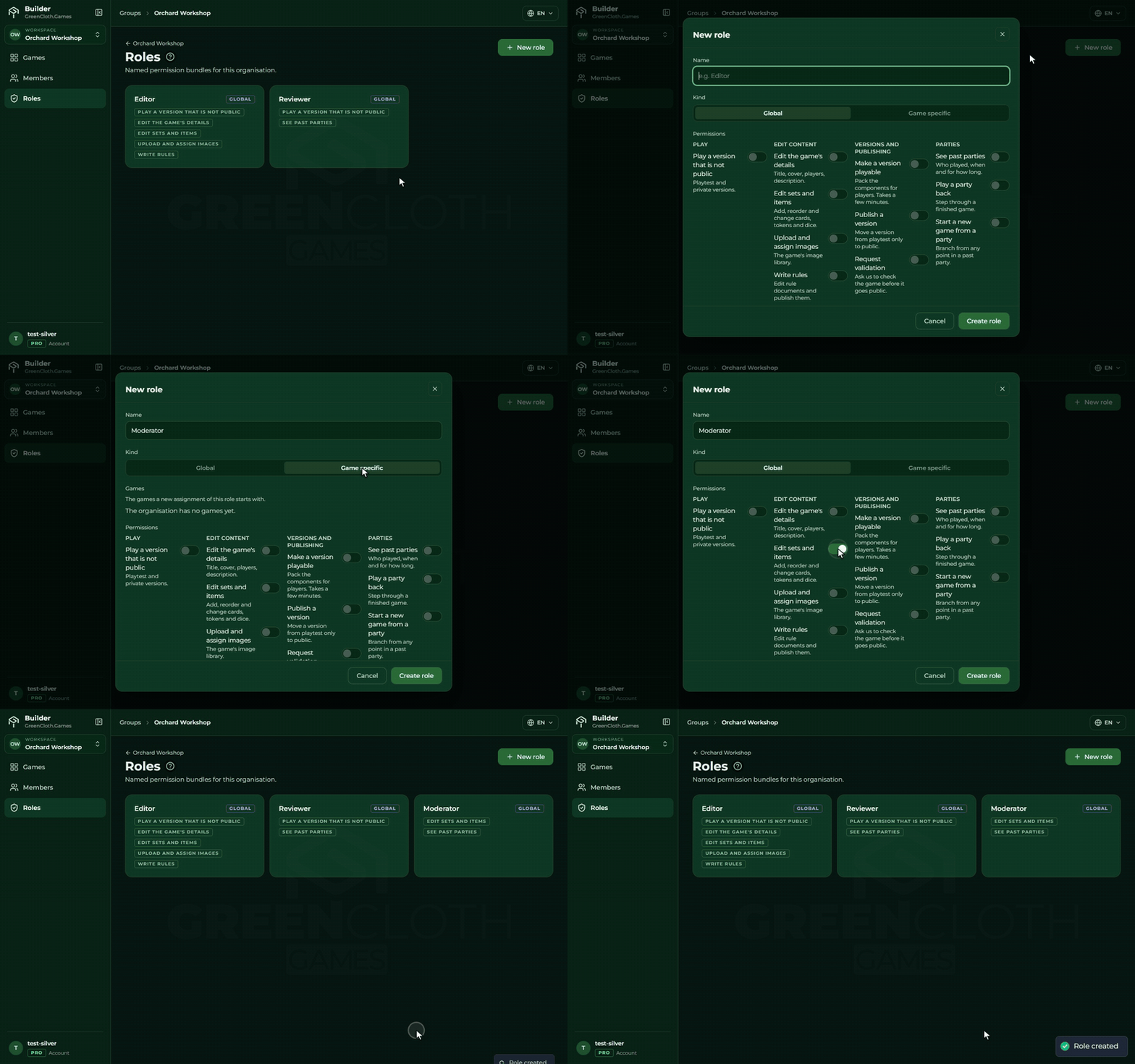
The Roles button in the header of the organisation’s page takes you to the roles page. (The same row is in the sidebar as well, while you are in the organisation’s workspace.)
Every role on the page is a card: its name, its kind, and the permissions in it as tags. The New role button is in the top right corner. If there is not one yet: “No roles yet.”
The form (a modal) is made of three parts:
- Kind:
GlobalorGame specific. ⚠ The kind cannot be changed after creation: on the edit form it only shows as a tag. - Name: free text (
e.g. Editor). While it is empty, theCreate rolebutton is greyed out. - Permissions: switches, see The permissions.
The kind decides two things:
- A global role applies to the whole organisation, and the organisation permissions are in it too (inviting, members, roles, seats, settings).
- A game specific role only holds the game permissions, and the role can be given which games it applies to. The list given here is the starting list: every new assignment starts with it.
You edit a role by opening its card, and Delete role is at the bottom of the modal. On a deletion
the role comes off every member, and the confirmation spells that out.
⚠ If you change the game list of a game specific role, the save asks: “The game list changed. Apply
the same change to every member who already has this role?” There are two answers, Apply and
Don't apply, and no third road: Escape takes you back to the unsaved form.
The permissions
The same list of switches appears on a role’s form, at the ceiling on the game’s Access page, and when you add the game to a group. Broken into sections:
| Section | Permissions |
|---|---|
| Play | Play a version that is not public |
| Edit content | Edit the game's details · Edit sets and items · Upload and assign images · Write rules |
| Versions and publishing | Make a version playable · Publish a version · Request validation |
| Parties | See past parties · Play a party back · Start a new game from a party |
| Organisation (on a global role only) | Invite members · Manage members · Manage roles · Manage seats · Organisation settings |
Two things are worth knowing about it:
- The
Organisationsection does not even appear on a game specific role. Only a global role can grant an organisation permission. - Some permissions depend on the plan too. A faint note stands beside
Play a party backandStart a new game from a partyif the plan does not include them: “Not in your plan.” The switch can be turned on, but the feature is not live until then. The features always come from the game’s owner’s plan, see Account.
⚠ A role grants no access on its own. A member gets on a game what is in their role and in the game’s ceiling. If a game is not added to the organisation, or its ceiling is empty, the role is worth nothing.
Assigning a role
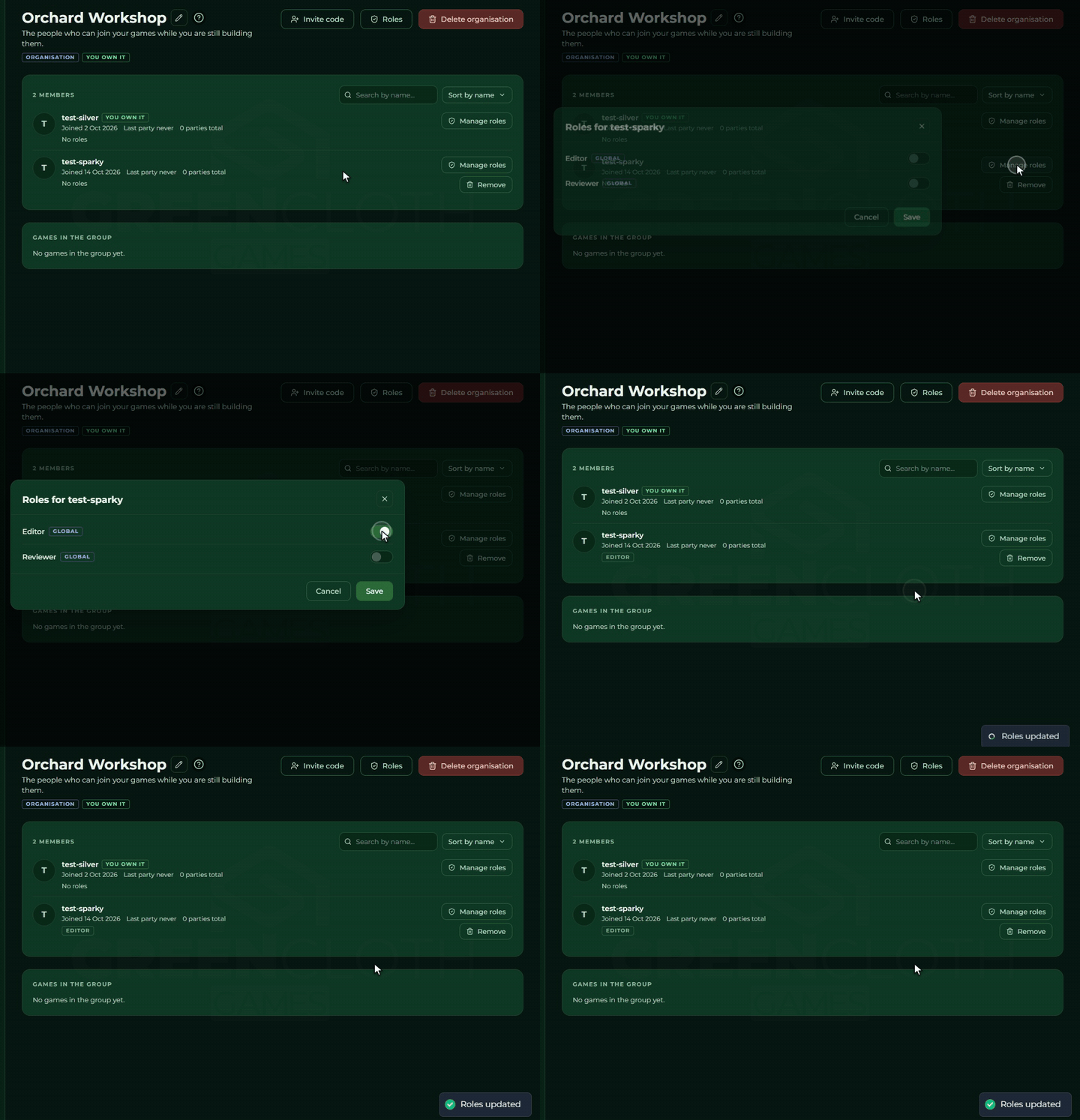
The Manage roles button on the member’s row opens a modal with every role of the organisation in it, each with a switch.
- A global role you simply switch on.
- With a game specific role, switching it on brings out a checkbox list of the organisation’s games underneath, filled in with the role’s starting list. You can freely widen or narrow it from there, for this member only.
A member can have several roles; their permissions add up. The save writes the whole setting out at once, and the tags on the member’s row refresh straight away.
The organisation’s games
The Games in the group section of the organisation’s page lists what is in the organisation, with
their owner’s name. You add a game exactly as you would to a group: from the game’s
Access page, see The group’s games. You cannot add a game from
the organisation’s page or from the sidebar. Only a game of your own design can go into an
organisation, a Purchased copy cannot, see Where it comes from.
If you create a new My own design game in an organisation workspace, it goes into the
organisation by itself, with an empty ceiling: members can do nothing with it until you switch
something on on the Access page. A Purchased copy does not go in by itself, it just stays yours.
⚠ An organisation has no storage or game allowance of its own. A game always stays with its owner, and the limit comes from the owner’s plan: the storage, the number of games and the features alike. If you work on a game someone else owns and it has run out of room, upgrading your own plan does not help: the owner has to delete something or pick a bigger plan. The details are on the Account page.
Renaming and deleting
- Renaming: the pencil beside the organisation’s name opens a small modal with a single
field. The owner and a member with the
Organisation settingsright see it. - Deleting: the header’s red Delete organisation button, with a confirmation. The text spells it out: “Every member and invite code goes with it. The games themselves stay with their owners.”
Anybody who is not the owner sees the Leave organisation button where Delete organisation would
be.
Worth knowing
- A role’s kind is final. If you created it as game specific, you can never make it global; you have to make a new role.
- What counts is the overlap of the ceiling and the role. The most common surprise is that the member has a role, but the game’s ceiling does not allow the permission, so they can do nothing after all.
- An empty ceiling is silent. A game added to an organisation allows nothing to start with.
- A change to the game list does not spread on its own. A change to a role’s game list only
reaches the existing assignments if the answer to the question is
Apply. - The owner can do everything, with no role at all. So in your own organisation you will never see what the members experience; try it with another account.