
Toolbar
The buttons sit along the edges of the screen, not in a strip of their own. This page tells you where each button is, when you can press it, and what it means when one is dimmed.
Where the buttons are
Every band has four walls and four corners, and the buttons live on those. A wall has three places: the start of the wall, its middle and its end.
┌─ corner ── wall start ── wall middle ── wall end ── corner ─┐│ ││ wall start wall start ││ wall middle wall middle ││ wall end wall end ││ │└─ corner ── wall start ── wall middle ── wall end ── corner ─┘On the top and bottom walls the “start” is the left side; on the left and right walls it is the top end.
A button’s size comes from its place, not from what it does. The corners and the middle of a wall hold a large button, the ends of a wall hold small ones. That makes the interface predictable: a button never changes size, and never moves because a neighbour appeared or disappeared.
A corner’s place is always reserved. When a corner button is not showing, its place stays empty anyway, and the group beside it does not slide into it.
The four button states
| State | How it looks | What it means |
|---|---|---|
| hidden | not there | it makes no sense right now, and it does not promise anything |
| disabled | dim grey | it is there, but you cannot press it now. Press and hold to be told why |
| normal | white icon on a dark ground | you can press it |
| active | green background | it is switched on, or you are already where it takes you |
The difference between disabled and hidden is that a disabled button keeps its place. We use that wherever it would be jarring for its neighbours to shift underneath it.
The table’s buttons
These stand on the edges of the table band, so in your own view they start at the top of the screen, and in an opponent’s view below their hand bar.
The four corners
| Corner | Button | When it is there |
|---|---|---|
| top left | Menu | always |
| top right | Close Zoom (X) | while the full screen zoom is open |
| Rotate | when there is something rotatable selected (a card, a container or an area on the table, never a card in your hand), or you are dragging such a thing | |
| bottom right | Shuffle | when a container or a die is selected, at least two cards are selected, or you are dragging something. A single selected card has nothing to shuffle, so the place is empty |
| bottom left | Flip | with a selection or during a drag, otherwise the place is empty |
In the top right corner the two buttons take turns: at most one of them stands there at any time, in the order above, so while a zoom is open Rotate is not shown. If no condition holds, the place stays empty.
End Turn and Undo / Redo are not corner buttons: they stand on the top wall, see The top wall.
::: tip Flip and Shuffle work during a drag as well: carry the card over the button and hold it there, and the action runs without you having to let go. :::
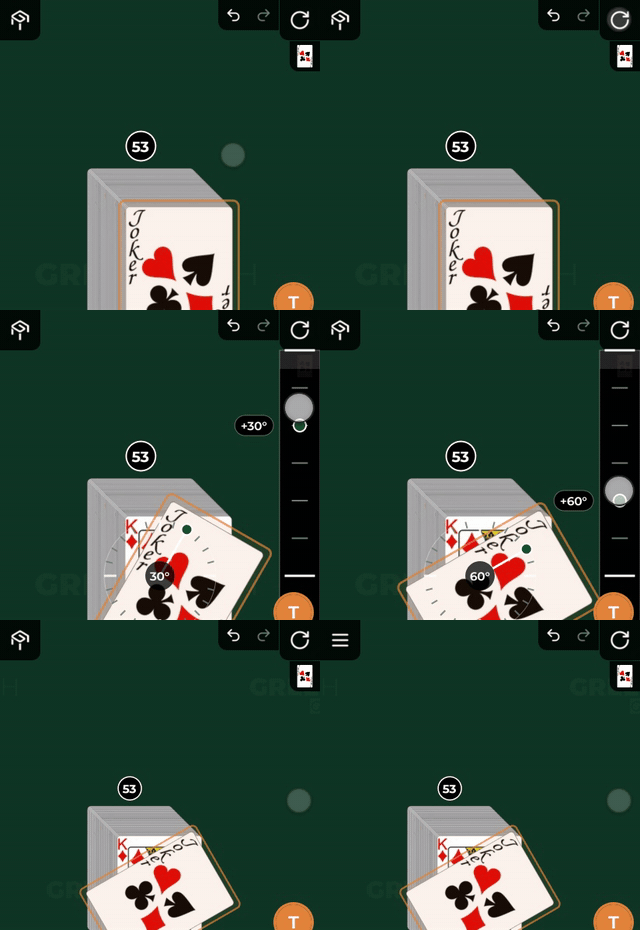
The rotate button
Rotate works in two ways, depending on whether you tap it or drag from it:
- tap: it turns by one step, 45 degrees on a card and on a container, 90 degrees on an area, always in the same direction (clockwise)
- drag from the button: two graduated strips open up, each a continuation of the button that runs as far as the next corner button and no further. On the right wall, dragging down from the button, it turns clockwise, up to 180 degrees; on the top wall, dragging left from the button, anti-clockwise, again up to 180 degrees. Your first movement decides which strip you have hold of, and it stays that one until you let go. Where your finger sits on the strip gives the angle: a card or a container steps in 15 degrees, an area in 90. Let go on the first segment next to the button and nothing happens. A thin dial around the selected piece shows the angle it will end up at (not how much you are turning it by). It turns when you let go
- long press: the same as on every other button, it just prints the name
Holding a dragged card or container over the Rotate button (about a quarter of a second) turns it by 45 degrees too. See Drag and drop.
The top wall
All three places on the top wall are taken:
- the start, beside the Menu: End Turn
- the middle: the opponents’ heads
- the end, beside the Rotate corner: Undo and Redo
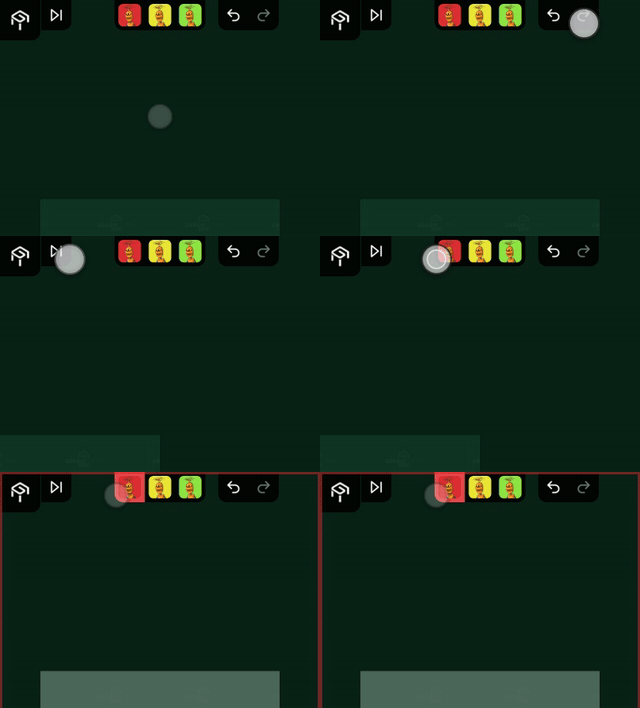
The opponents’ heads, in the middle. Tap one to switch to their view. When there are a lot of them the wall becomes scrollable: drag along the wall to scroll, but drag inwards and you are handing them the card instead.
As a spectator
A spectator cannot move a card, so their toolbar holds only two things: the Menu in its usual place, and the players’ heads along the top. Tap a head to go to that player’s area, tap the same head again to come back to the shared table. Every other button (the card, selection, rotate, container and turn buttons, the hand band’s buttons, Undo and Redo, your own head) is not there for a spectator.
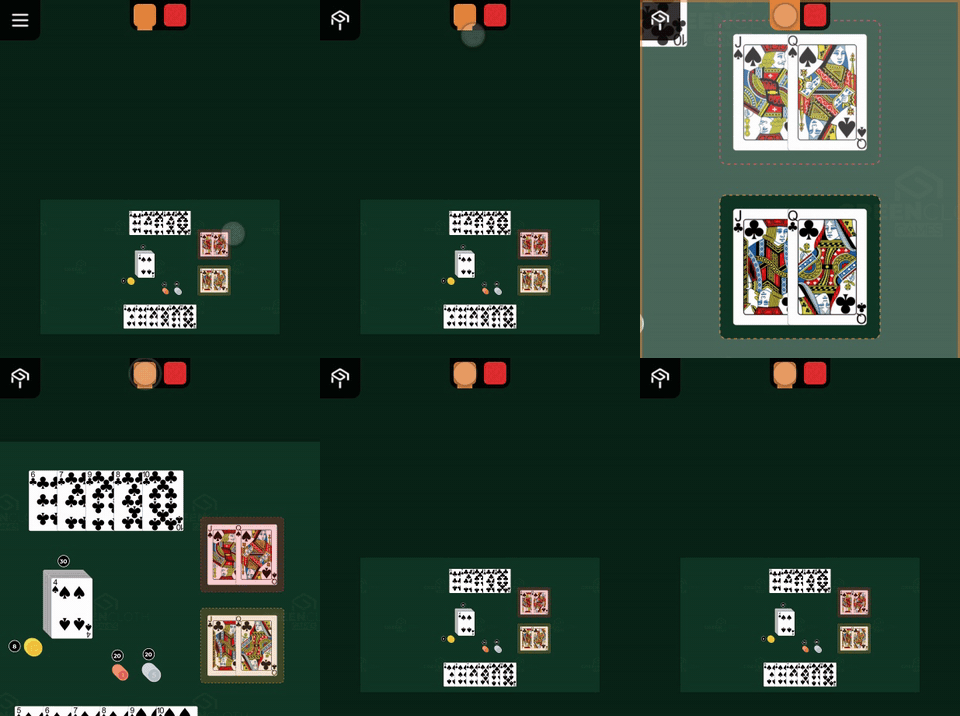
When the host promotes the spectator to a player, the full toolbar appears at once, with no reload. The other way round, when a player becomes a spectator, it disappears the same way.
End Turn
It stands at the left end of the top wall, beside the Menu. It shows only during your own turn, and only when somebody else sits at the table too: when you are alone it is not there, since the turn would come straight back to you. Tap it and the turn passes to the next player: the button disappears for you and appears for them.
The Party menu’s End Turn button and the Enter key do the same, see Keyboard shortcuts.
Undo and Redo
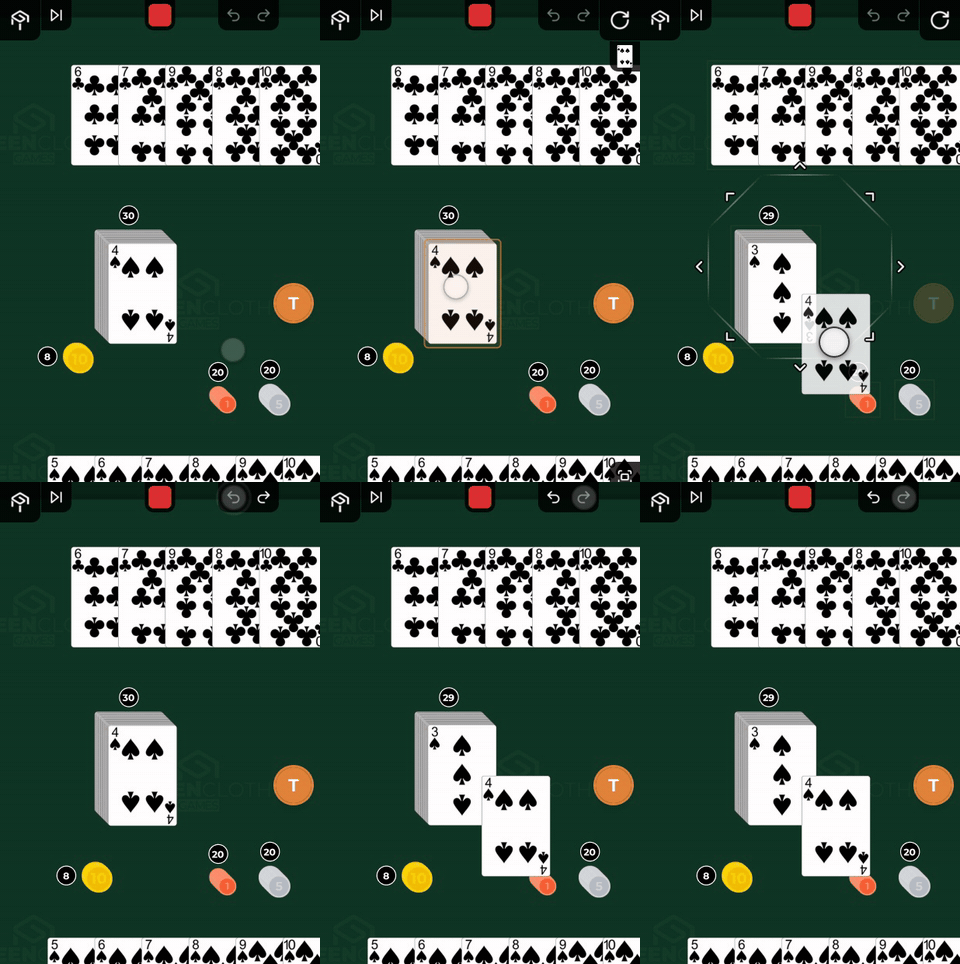
At the right end of the top wall, beside the Rotate corner, two buttons stand side by side: Undo on the left, Redo on the right. Every seated player sees both, a spectator does not. Whether they can be pressed right now is up to the game: when they cannot, the button is dimmed.
- As a player you can take back your own latest move, and only as long as nobody else has moved since. If several of your own moves follow one another you can go back through them one by one: there is no fixed depth.
- The host can take back any move, other people’s too, with no question and no warning. A move that cannot be tied to a single player can only be taken back by the host.
- Redo puts back what you have just taken back. Every new move empties the redo row, so once you move, the moves you took back earlier cannot be brought back any more.
The row of moves that can be undone is built from the party’s saved history, so it survives a restart.
The left wall
- in the middle the bookmarks, numbered. Tap one and the camera jumps there; drag along the wall to reorder them
- at the bottom Bookmark the selected container, or, if you are standing on a bookmark right now and container selection is on, Remove Bookmark in its place
In detail: Navigation.
The right wall
The selected pieces on the table, with their own pictures. If you select several of the same thing, say twenty identical tokens, they appear on one button, with a small count in its corner. One tap takes one out of the group (the count drops, and at one the button goes), while dragging inwards from the wall carries the whole selection, however many buttons it stands on. When there are many, the wall scrolls: drag along the wall to scroll.
At the bottom of the wall, in the corner, stands Zoom Selection: it opens the selected cards full screen, the ones selected in your hand included. Above it, when the selected container stands on a numbered track, two stepping arrows appear.
Without a selection this wall is empty, and nothing is drawn on it: the zoom and the arrows show only together with a selection.
Stepping arrows
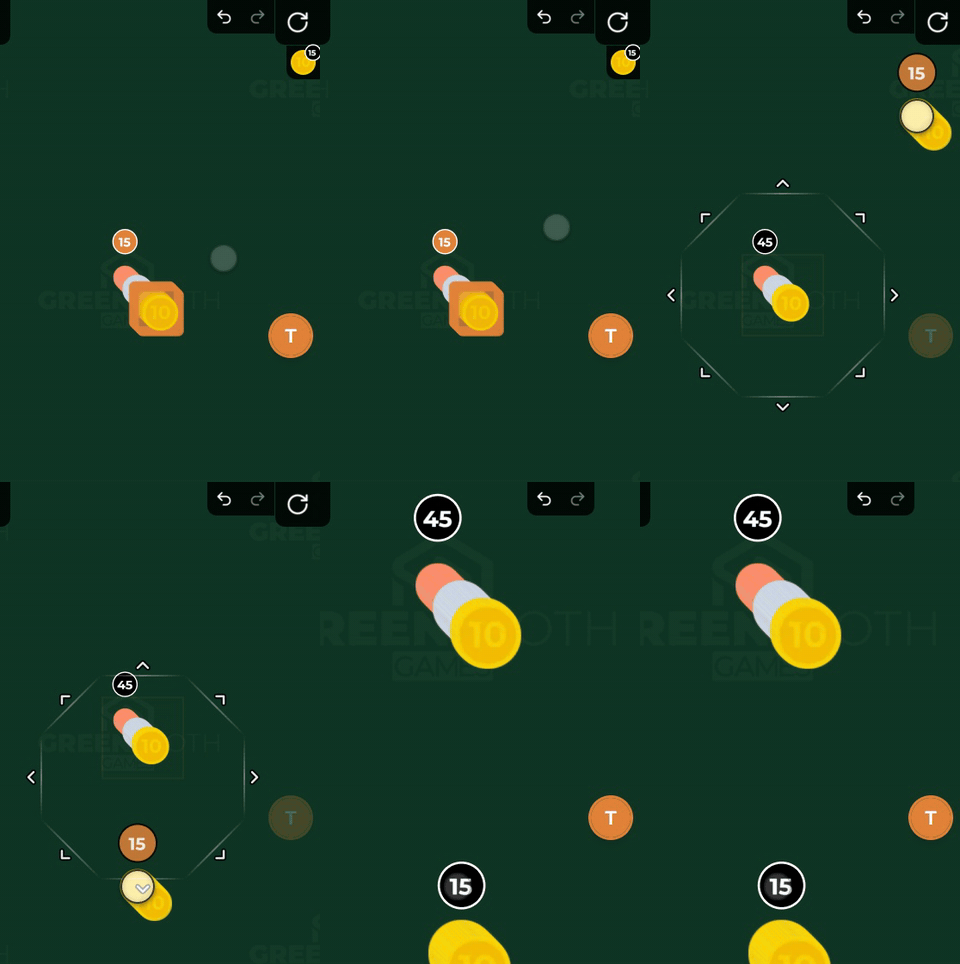
Some games give the board a track of numbered magnetic dots: a pawn’s road, a marker’s scale. When you select a container that has snapped onto such a track, two arrows appear at the bottom of the right wall, above Zoom Selection: Previous and Next. (The track is laid out by the game’s creator, see Magnetic dots in the Builder manual.)
- tap one and the selected piece steps one dot along the track, with no dragging
- at the end of the track the arrow pointing that way is dimmed and the other one works. The step does not wrap around to the start of the track
- if the selection is only part of the container, only the selected piece steps: it splits off into a new container. If the dot it arrives at is taken, and the container standing there can hold it, it merges into that one. If it cannot, it stays where it was
- in a protected area the step does not go through
The arrows are there only when the selection falls on a single container and that container stands on a numbered track. With a container off the tracks, a scattered selection or a card in your hand, they are not shown.
The bottom wall
From left to right:
| Button | What it does | When it is disabled |
|---|---|---|
| Whole table (eye in a frame) | shows the whole table from above at 0 degrees; switched off, it flies back to where you were | never, but it goes out by itself as soon as you move the camera by hand (and does not jump back) |
| Fit Area (frame corners with a dot) | fits the camera to the area you are looking at | never, but it dims by itself as soon as you move the camera by hand |
| Navigation Mode | switches stepping from container to container on and off |
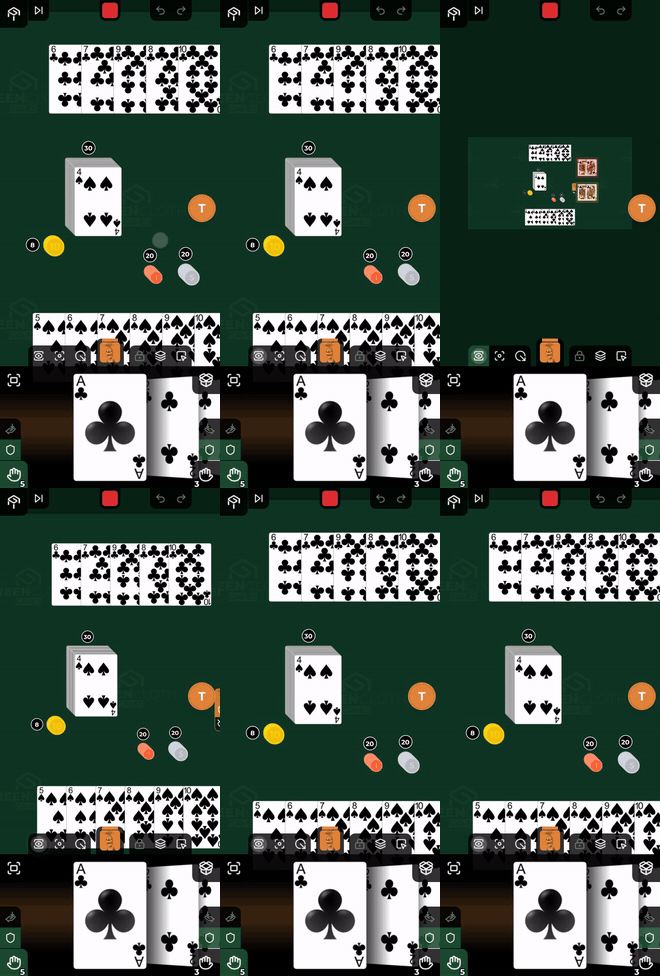
In the middle, alone and large: your own head. This is the wall’s biggest target, and it never moves.
To the right:
| Button | What it does | When it is disabled |
|---|---|---|
| Lock | pins the selected card or container in place | when nothing is selected |
| Select Containers | switches from piece selection to container selection | |
| Multi-Select | framed selection on the table (only in piece selection mode) | |
| Container Type | converts the selected container (only in container selection mode) | when there is not exactly one container selected |
The last two stand in the same place and take turns according to whether you are selecting pieces or containers. They are never both out, so the length of the row does not change.
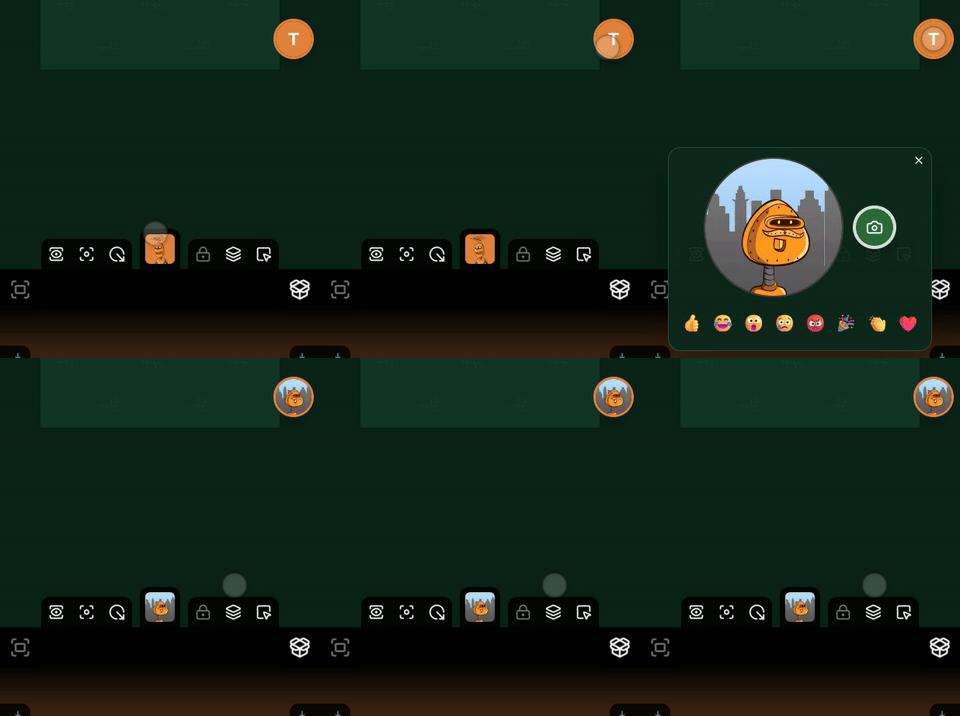
Selfie: your own head
Your head can be your own face. A round button floats on the screen and it is you: your selfie, or until you have one the initial of your name in your colour, or a smiling face. Tap it: a small camera window opens with a live picture from the front camera. The small round shutter (a camera icon) to the right of the picture takes it and sends it: it becomes your head for the other players and on the display, where your colour and avatar showed until now. Tapping outside the window (or pressing Esc) closes it without sending. Your own head on the bottom wall has no extra gesture any more: a tap takes you to your own area, as before, and the view never jumps.
- You can take a new one any time: it replaces the old one. Wait a few seconds between two selfies.
- The picture is small (256 × 256 px) and is kept for the length of the party only: the server holds each player’s latest in its memory and sends them all to anyone who joins or reconnects. Someone who joins later, or you after a page reload, see the heads that are already out. It goes into no database, history or replay, and it is deleted when you leave the table, when the host switches the Image off, or when the party ends.
- On the display the selfie shows where the game shows the players (at the player’s place).
- The host sets the Image switch at the bottom of the Party page; it is off by default (and stays off with children, or while streaming). While it is off the window opens without a camera, with the emoji row only. The button is there either way.
- The first time, the Voice and image sheet helps: the browser is asked for the microphone and the camera in a single request, and you can take your first selfie right there (see the menu).
- If the camera does not start, the window says why: the browser blocked it, another program is using it (a video-call program on the computer, for instance), or the device has no camera. You can allow it in the browser’s settings; the other program has to be closed.
- Selfies need no special permission or package.
Emoji: a floating sign out of your head
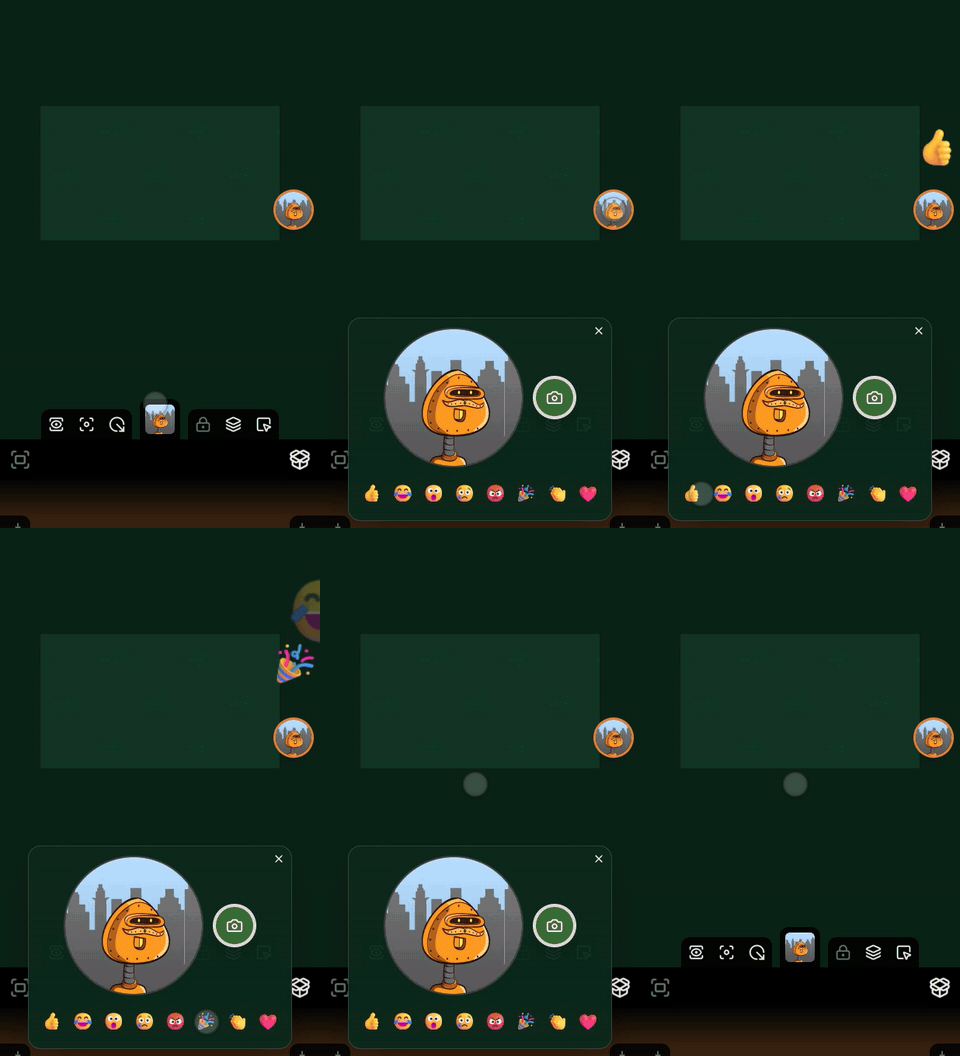
In the selfie window, under the live camera picture, there is an emoji row (👍 😂 😮 😢 😡 🎉 👏 ❤️). Tap one: it goes out and the window stays open, so you can send several in a row. There is no ready-made sentence and no text chat, only these few signs.
- How it floats. On the other players’ screens the emoji comes out of the sender’s head, slides down, grows and fades out (in about two seconds). Your own emoji rises from your round button, which is your own head. Several can be out at once, with a small sideways drift so they do not cover each other. It takes no touch and does not cover the game for longer than the animation.
- On the display it comes out of the player’s place if the game shows the players; if not, from the bottom of the display, in a frame of the player’s colour.
- It always works. It needs no permission or package, and the host’s Voice and Image switches do not affect it. With the Image off the window opens without a camera, with the emoji row only, and does not ask for camera permission either.
- Nothing is kept. The emoji passes through the room and that is it: it goes into no database, history or replay, and someone who joins later does not see it.
- A limit. A short run goes through at once (four), then one per second; anything faster is dropped by the server.
Talking: hold the button
To talk to the others, hold the round button (about half a second) and speak; when you let go, the floor is free again. A short tap does not talk: it opens the selfie window. While you hold, the button does not move, however you slide your finger.
You choose where the button sits: if your finger moves before the hold time is up, the button can be dragged, and it snaps to the nearest edge when you let go. Any edge and any point of it will do, down to the very bottom of the screen under the cards of the hand band. Only the screen’s four corners (and the corner buttons) are kept free: dropped there, it slides out along the edge. The device remembers the place. It fades while you drag a piece, hides when the menu opens, and nothing can be dropped on it. A small microphone on its corner shows that the host has switched the Voice on.
- The host switches it on first. At the bottom of the Party page the host allows talking with the Voice switch (off by default). While it is off a long press does not talk and only gives a short note; if the host switches it off in the middle of a conversation, the speech stops at once.
- One person speaks at a time. While someone speaks, a small pulsing speaker shows next to their head on the controller, and on the display too if the game shows the players; your own button pulses while you speak, and an “X is speaking” caption shows when someone else does. If you hold the button meanwhile, you do not get the floor and see a short “X is speaking” notice. One turn lasts at most 20 seconds, then the floor is free again.
- Where are you? The voice’s route depends on it, and we ask so that your voice does not play back from your own TV. There are two answers: I am at display X or I am away. You can change it any time at the bottom of the Party page, beside the switches; if the Voice is on and you have not answered yet, the Voice and image sheet asks. If you joined with a display’s code or QR code, that display is already selected. When a new display joins, the controller asks: “New display: X. Do you sit here?” Until you answer, you hear nothing. The browser remembers the choice per party.
- Where the voice goes. The speaker’s voice plays on the displays that are not theirs and where at least one other player sits. It also plays on the phones of those who are away, and of those who sit at a display that has no sound. Someone at the same display as the speaker hears them live. That way the TV’s sound never returns into a microphone, and there is no echo.
- A display without sound. If a display has no speaker (a monitor, a projector), mark it with the No sound switch in the display’s menu on the Connect page; its row then shows a crossed-out speaker, and the voice plays on the phones of those who sit at it. If the display cannot play audio itself (an old Tizen browser, or the browser does not allow sound yet), it says so, and the voice plays on the phones in the same way.
- Volume. The app has no volume or mute: use the TV’s remote for the TV and your phone’s own buttons for the phone. “No sound” is not a mute, it tells the app the display has no sound. If two TVs are in one room, turn one of them down.
- Microphone. The browser asks for permission on the Voice and image sheet, for the microphone and the camera together, once. The microphone runs only while you hold, and stops at once when you let go or when the page goes to the background. If you block it, or another program is using it, the controller says so.
- Nothing is stored. The server only passes the voice on: it records nothing, and someone who joins later hears nothing of what came before. No special permission or package is needed, and anyone can use it.
- Older browsers. Where the browser cannot encode audio (an old Safari), the recording is sent after you let go of the button, like on a walkie-talkie.
The hand bar’s buttons
| Place | Button | When it is disabled |
|---|---|---|
| top left corner | Zoom Hand | when both of your hands are empty |
| top right corner | Box / Hand | never. It is active while the box is out |
| left wall, bottom, above the shield | To left hand | when nothing is selected |
| left wall, bottom | Left hand protection (shield) | never. It is active while that hand is protected |
| right wall, bottom, above the shield | To right hand | when nothing is selected. Hidden while the box is out |
| right wall, bottom, above the shield | To box | when nothing is selected. Shown only while the box is out, in the place of To right hand |
| right wall, bottom | Right hand protection (shield) | never. It is active while that hand is protected, mirroring the left |
| bottom left corner | card count of the left hand | never. It is active while the left half is open |
| bottom right corner | card count of the right hand or the Box | never. It is active while the right half is open |
The two shields stand at the foot of the wall, right above the count button. More about the count buttons: The card count.
The To hand button
A To hand button stands at the foot of both walls, above the shield, and works while you have something selected: a hand with a small arrow pointing into it. The one on the left wall puts the selection into your left hand, the one on the right wall into your right hand: at the end of that hand, and every selected item if there are several. Afterwards the selection is cleared and that hand opens. That way even a player who does not like dragging can pick up things. With nothing selected the button stays in place but dimmed, so the other buttons do not resize when you select or deselect.
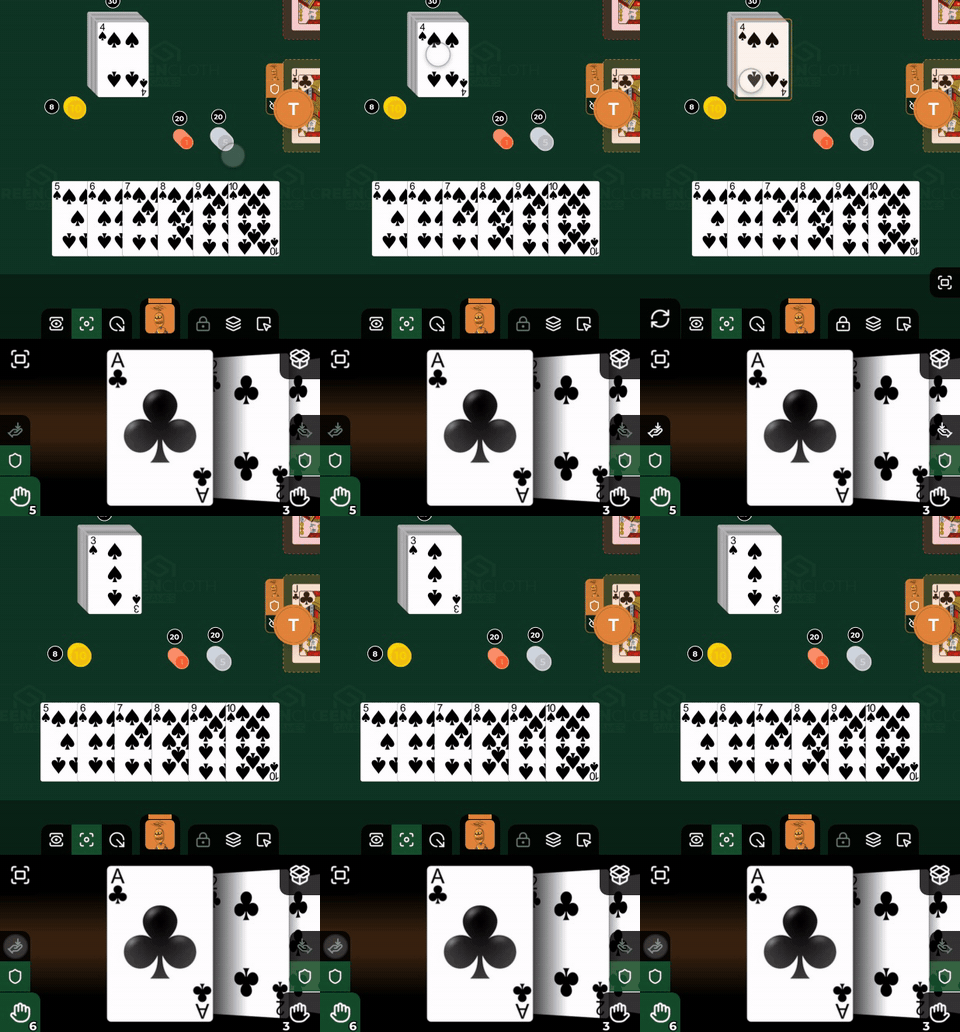
If the box is currently out on the right, your right hand waits hidden, so the right To hand button does not show then. In its place, above the right shield, stands the To box button (a box icon with an arrow pointing into it): it works on the same selection, but puts it into the box and then clears the selection. The two take turns, never both are there, so the number of buttons on the right wall does not change. The left To hand button stays. An item another player has selected cannot be taken into your hand or the box.
No button goes on the bottom wall of the hand bar: that is the bottom of the band, where your cards are drawn.
The opponent’s band carries only the two count buttons, in the bottom corners. On a narrow screen a tap opens the other half, as on your own band. There are no more buttons: their cards are face down, and there is nothing for you to do with them on that band.
When a wall gets a lot of buttons
A button never disappears just because there are many of them. Two things can happen:
- every button on the wall gets smaller until they fit (the bookmarks work like this, and there can be at most nine of them)
- or the wall becomes scrollable and the buttons keep their size (the row of opponents and the wall of selected pieces work like this)
Whatever has scrolled off the end of the wall cannot be tapped: only what is visible is reachable.
What a button’s name tells you
Press and hold any button and it prints its name. That is most useful on the disabled ones: dim grey on its own does not tell you why it cannot be pressed. On the heads it prints the player’s name: the opponent’s on theirs, yours on your own, and the seat number on an empty seat.
Keyboard shortcuts
On a computer, or with a keyboard attached to your device, you can play with keys too. Every key taps the button it stands for, so it does exactly what the button does, on the same selection, under the same rules. And only while the button is available: the key of a hidden or dimmed button does nothing. Letters go by the place of the key on the keyboard (not by the letter printed on it), so they sit in the same place on a QWERTZ or AZERTY keyboard (0 is the exception: it goes by the typed character, so on a Hungarian layout it is the key marked 0, at the left end of the number row). Shift counts: D and Shift + D are two different commands, and Caps Lock is not Shift.
| Key | What it does |
|---|---|
| Space | switches between the shared table and your own area (like tapping your own head) |
| 1-9 | jumps to the bookmark with that number |
| Shift + 1-9 | goes to the area of the opponent in that place, in head order |
| Arrows | push the selected container; with Shift in a bigger step. A locked, protected, grabbed or currently carried container does not move |
| 0 | saves a bookmark here, or removes the one you stand on (the same place as on the wall) |
| Q | Whole table on or off |
| W | Fit Area |
| E | Navigation Mode on or off |
| R | Select Containers on or off |
| T | Multi-Select (framed selection) on or off; with container selection, Container Type |
| A | Lock or unlock |
| S | Shuffle |
| D | Rotate (one step, like a tap) |
| Shift + D | Rotate one step the other way |
| F | Flip |
| G | shows the selection full screen; while a zoom is open, the same key closes it |
| X | puts the selection into your left hand |
| C | puts the selection into your right hand, or into the box while the box is out |
| V | shows your hand full screen; while a zoom is open, the same key closes it |
| B | opens or closes the box |
| Enter | End Turn |
| Ctrl + Z | Undo |
| Ctrl + Shift + Z, Ctrl + Y | Redo |
| , and . | step the selected piece back and forward along the track |
| U | opens or closes the Party window |
| I | opens or closes the Game window |
| O | opens or closes the Connect window (displays, QR code) |
| P | opens or closes the Settings window |
| ? (or K) | opens or closes this list |
| Esc | opens or closes the menu |
The map follows the rows of the keyboard: the number row is where you look (bookmarks, opponents), the Q row how you look and select, the A row what you do with the selection, the bottom row the hands and the box, and U I O P the menu windows. X and C do not switch the view: both hands are on screen, so they put the selection straight into the matching hand.
G and V are switches: while a zoom is open, its own key closes it and the other key changes over to the other zoom (in the zoom opened with G, V opens your hand’s, and the other way round); Esc closes it too.
Nothing runs while you type in a text field, or while Ctrl, Alt or Meta is held: those stay the browser’s. The exception is Ctrl + Z, Ctrl + Shift + Z and Ctrl + Y (Cmd works on a Mac), which follow the printed letter and only run while there is something to undo or redo. While a panel of the menu or the full screen zoom covers the table, only the window keys (U, I, O, P) and ? (K) work (and, inside a zoom, G and V, see above): they switch to another window, and the open window’s own key closes it. Under a prompt (a question window) none of them does. A key that is held down does not repeat, except the arrows.
The list is in the game too, in your language: the ? (or K) key brings it up, or the Keyboard shortcuts row in the Help section of the menu’s Settings page. The back arrow there takes you to Settings.
You also see a key where you use it: point at a button with the mouse and its key stands beside
its name in a small frame (for example Flip F), and the menu windows show their own key
in the same frame right after their title (U, I, O, P, and ? on the list). On a touch
screen the header leaves it out, as there is nothing to press.
What is gone
There is no mode switching any more. The old three-way “piece selection / container selection / area selection” toolbar is gone, and with it the “hold mode” that swapped the row for a single large button during a drag. The actions now live where their subject is, and they stay there during a drag as well.