
Symbols
Symbols are small icons with a short name, such as sword or gold. On the cards you use them as cost marks,
in an icon row, or inserted into the text. Symbols belong to the game, so every deck of the game sees the same ones.
You manage the symbols on the Symbols tab of the Library.
The game’s symbols
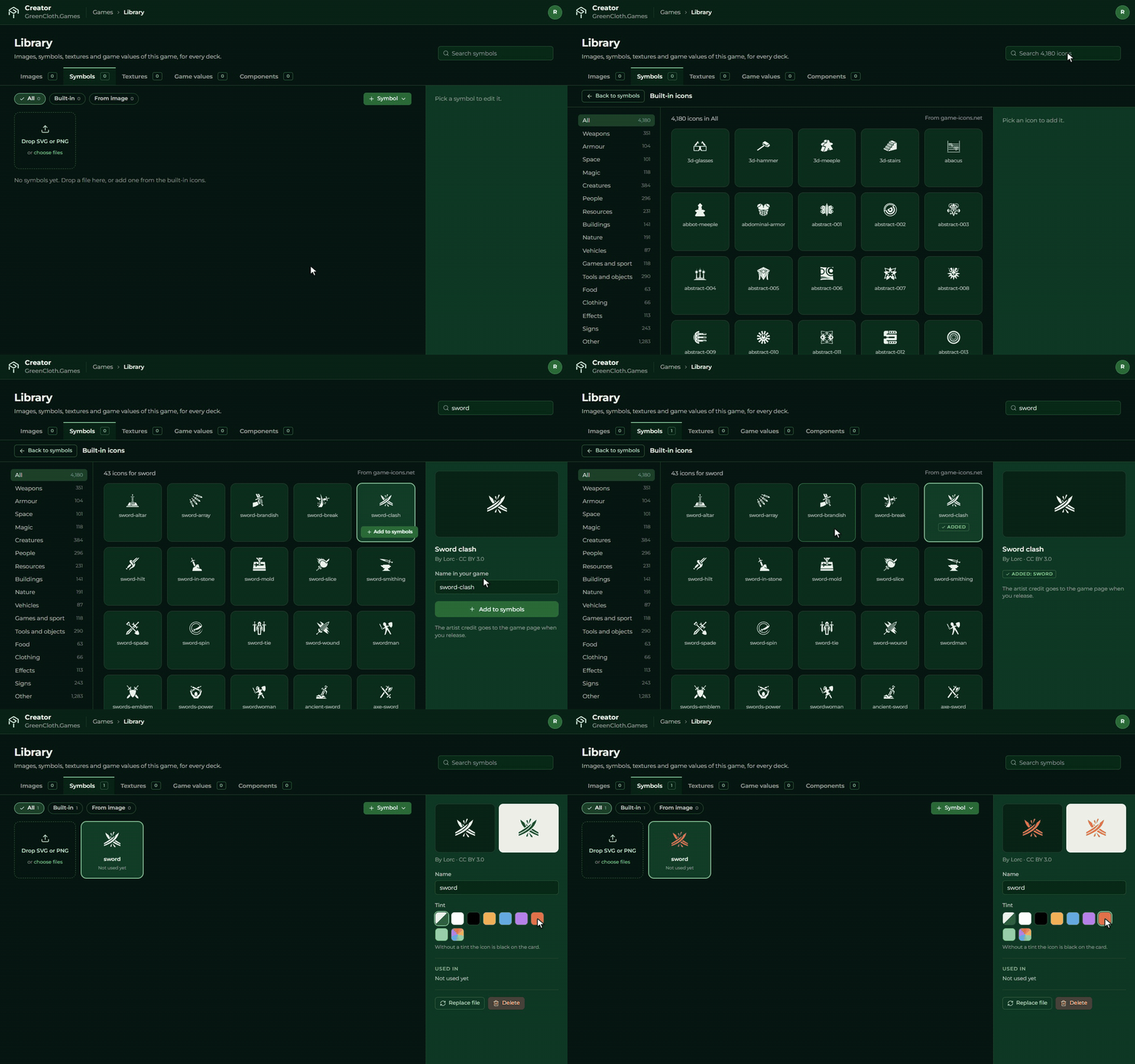
On the tab the symbols stand in a grid, with their names and how many cards use them. Above them you can search, and filter on where they came from (Built-in or From image).
Select a symbol, and in the right panel:
- Name: you can rename it. You do not have to change anything on the cards, they follow the new name.
- Colour: Original keeps the picture’s colours, a chosen colour recolours the symbol everywhere.
- Used in: on how many cards of which decks it appears.
- Replace file and Delete. After a delete the symbol’s place stays empty on the cards.
A new symbol
The + Symbol button adds a symbol from three sources:
- From built-in icons…: you can choose from more than four thousand ready icons, see below.
- From the game’s images…: a symbol is made from an uploaded image. The image also stays among the Images.
- From a file (SVG, PNG)…: you upload a file from your computer. You can also add a file by dropping it on the tab.
A symbol made from a single-colour picture can be recoloured; a multicoloured one keeps its own colours.
Built-in icons
The built-in icons come from the game-icons.net collection: more than four thousand icons, sorted into categories (weapons, creatures, buildings, magic, resources and many more), with a search. Choose an icon, give it a name in your game, and click Add to symbols.
A built-in icon is black by default. If you want another colour, set it in the Colour field of the right panel.
Icons and authors
The makers of the built-in icons ask to be credited by name. You do not have to do this by hand: when the game is released, the authors’ names go into the game’s details, and show on the game’s page and in the Controller.
A symbol on the card
- Icon row: select the Icon row element, and in the right panel choose with the Add a symbol button. If the Icon row is bound to a Symbols field, it shows the row’s own icons on every card.
- Text: type a
{sign and the beginning of the symbol’s name, see Text and fonts. - Table: in a Symbols cell you choose from the game’s symbols, see The Cards view.