
Sets
This page is about what a set is, how you create a new one, and what the type and the container decide about it. The Items page covers the items themselves (frames, size, quantity, subsets).
What a set is
A set is one group of the game’s physical material: one kind of thing, in one box. A deck of cards is one set, the board another, the red dice a third. Inside a set live the items, the individual cards, boards and dice.
Every set has exactly one type and one container. Those two decide what you can do with it: how many images an item may ask for and of what kind, and how it behaves in a party. You can change both later, with finished items in place, but a change of type swaps the frames as well, see Editing a set.
The game’s sets line up in the sidebar, in the Components group, as soon as you have opened the game. Every row is a set: an icon, a name, and the item count at the end. The name appears in the interface language; if it has no name in that language, the one in the other language shows, and failing that the id.
A new set
The New set row at the bottom of the set list opens a modal (The screen). It asks for five things:
| Field | Required | What to put in it |
|---|---|---|
| Title | yes, in at least one language | one field with an EN and a HU badge; click the badge to switch |
| Icon | no | it shows in the sidebar and in the set’s header, see The icon |
| Type | yes | five options, see The type |
| Container | yes | the type narrows it down, see The container |
| Quantity | yes, 1 by default | how many copies of the set the box holds, see The quantity |
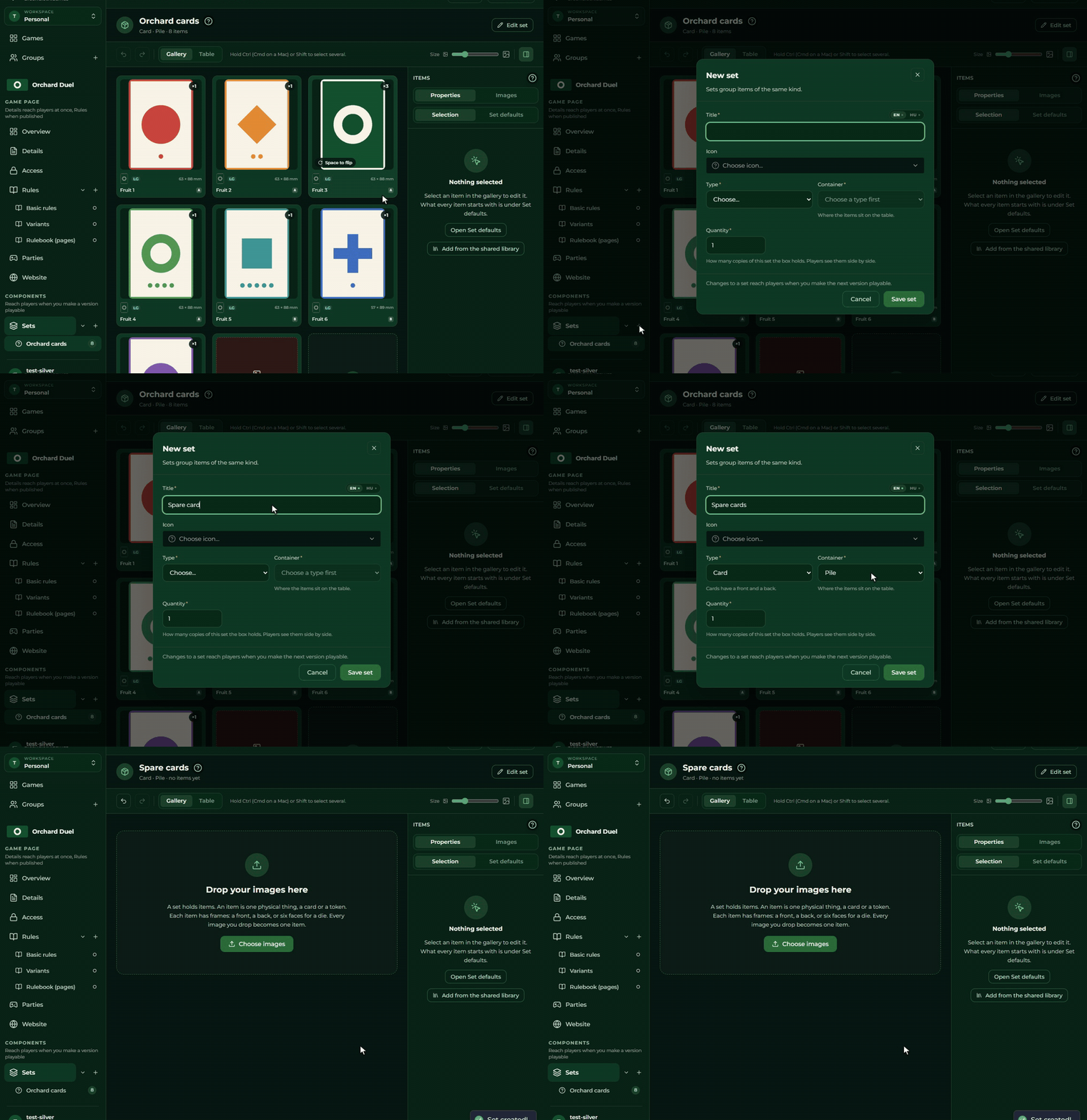
A quiet sentence at the bottom of the modal reminds you that “Changes to a set reach players when you make the next version playable.” The Save set button creates it, and the interface takes you straight to the new set’s page, with an empty gallery.
⚠ The form does not ask for an id, and does not show one, see The id.
The type
There are five types, and the choice follows the set around:
| Type | What it is for | How many frames an item may have |
|---|---|---|
| Card | cards you draw, shuffle and hold in your hand | a front and a back |
| Board | the big, fixed pieces of the playing area | a front, and a back if you give it one |
| Dice | something you roll | every face is an image, as many as you fill in |
| Token | small markers, money, resources | a front, and a back if you give it one |
| Figure | figures you move about the board | a single image |
Under the type the modal writes the same thing out in a sentence (for example “Cards have a front and a back.”). The detail on frames is on the Items page.
The type counts in a party too, not only while editing: this is how the system knows whether an item can be flipped (a card always, a board and a token only with a back, a die steps to its next face, a figure not at all), and what container it can be put down into on the table. What that means on the player’s side is described by the controller manual.
The container
The container says how a set holds together in a party: as a pile, in a row, in a stack, in a pouch. Nine containers exist, but the type narrows down which ones you can choose:
| Type | Containers you can choose |
|---|---|
| Card | Pile · Row · Stack |
| Board | Standalone |
| Dice | Group |
| Token | Pile · Group · Collection · Pouch |
| Figure | Group |
Until you have picked a type, “Choose a type first” stands where the Container would be. If only one container belongs to a type (Board, Dice, Figure), the interface picks it by itself. If you change type, the container you already picked stays if it is valid for the new type as well; otherwise it empties and you have to choose again.
Two containers never appear in the list:
- Single is not a set setting but a state during a party: an item stands single when it was put down on the table on its own. Cards and tokens can end up like that.
- Grid is built, but it is switched on for no type today.
The quantity
The Quantity field says how many times the whole set is in the box. It is a whole number from 1 to 99, 1 by default. Nothing else is accepted: a fraction, zero, a number above 99 and an empty field all get a red error message (“Enter a whole number from 1 to 99.”), and the set cannot be saved until it is fixed. The interface does not round anything or correct it for you.
Quantity sits under Type and Container, the last field of the form, and you can edit it in the same place later: Editing a set fills it with the saved value.
⚠ This is not the item’s quantity. An item’s quantity says how many copies belong to a single card or die, and the Items page describes it. The set’s quantity multiplies the whole set: if a deck’s quantity is 3, the box holds three decks.
Players see the copies in the box as a single entry, side by side, and pull one copy out of it onto the table at a time. How that looks on the player’s side is described by the controller manual.
The id
Every set has a short id, which is what tells it apart from the game’s other sets.
You do not give the id, and you cannot change it. Neither the create form nor the edit form has a field for it; the interface generates it when the set is created, and it never changes from then on. It surfaces in two places: in the browser’s address bar, and wherever a set has no name, because the id stands in for the name there.
If you rename the set, the id does not follow the new name. A name is for showing, an id for identifying.
The icon
The icon appears in the sidebar’s set list and in the header of the set’s page. That is the whole of its job, a player never sees it.
Clicking the Icon field drops down a searchable grid: around a hundred and fifty chosen icons, grouped by playful themes, each with an English and a Hungarian label. The search finds both languages; for anything not in the list the answer is No results, and you cannot upload one of your own. The × beside the field clears the chosen icon.
If you pick no icon, the set gets a generic mark.
The set’s page
A set’s page is made of three parts:
- the header: the set’s icon, its name, and under them its type, its container, the item count and how many items are selected. To the right the Edit set button;
- the toolbar: the undo and redo buttons (see below), the Gallery | Table switch, the thumbnail size slider, and the button that shows and hides the right-hand panel;
- the gallery or the table, with the panel to the right of it.
The slider sets the width of the gallery’s tiles between 120 and 280 pixels, and is not usable in the table view. The setting survives until you open the set again.
The Items page covers editing the items, the table and the panel.
A set that came from the Creator
When a set was sent into the game from the Creator, its header shows a From Creator tag next to the name, and an Edit in Creator button beside it. The button opens the set’s deck in the Creator in a new tab, with the same sign-in. The set’s items can still be edited freely in the Builder (size, quantity, subset, magnetic dots, replacing an image).
If the deck has changed in the Creator since the set was last sent, a yellow strip appears under the
header: A newer version is waiting in the Creator. It also appears when only a shared table or a linked deck changed since the send (A shared table or a linked deck changed). It tells you how many changes were saved in the
deck since, how many cards more or fewer the deck has than the set, and when the last send was. The
strip’s button opens the Creator at the send step, because the images are made there. When you send
again, the Creator’s data (quantity, order, back, size, title) overwrites what you set in the Builder.
Detach from Creator. At the bottom of the Edit set window, Detach from Creator, after a confirmation, turns the set into an ordinary set: the tag and the strip disappear, and sending from the Creator no longer updates it. The items and images stay as they are, and the deck in the Creator is untouched. Detaching cannot be undone, but a new send from the Creator can create a new set.
On the Games page, Design in Creator next to New game takes you to the Creator’s home page.
Undo and redo
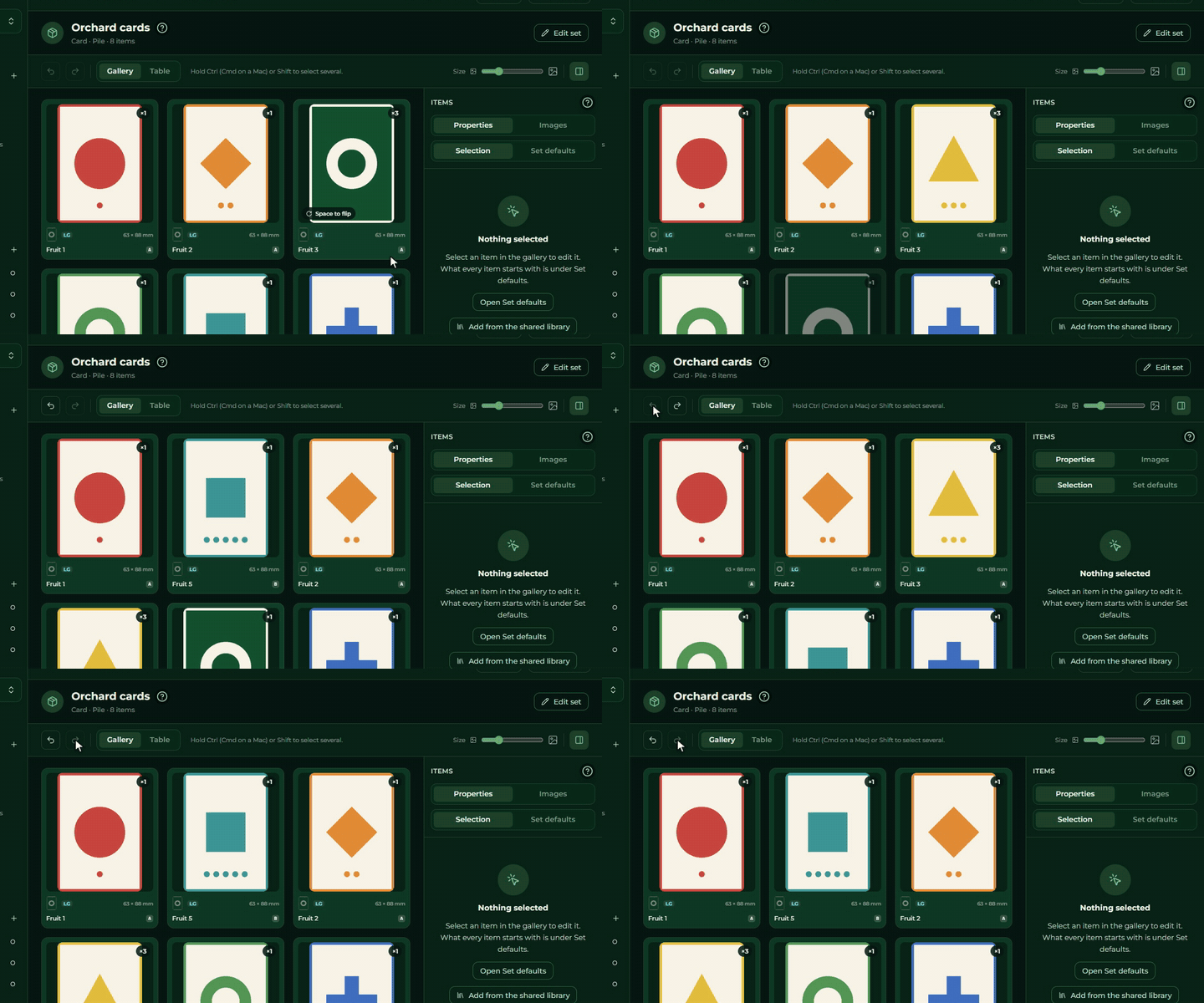
While you edit a set you can take back up to ten steps, and bring back what you took back. Every edit to the set counts as a step: an item added, deleted, reordered or changed, the set’s defaults, and saving Edit set. Several quick changes to one field in a row are one step, and several items added from the shared library at once are one step too.
| What | How |
|---|---|
| Undo | Ctrl+Z, or the toolbar’s Undo button |
| Redo | Ctrl+Y or Ctrl+Shift+Z, or the toolbar’s Redo button |
On a Mac the key is Cmd instead of Ctrl. The two buttons are grey while there is nothing to undo or redo, and also when you cannot edit the game.
- In a text field, the field’s own undo works. While the cursor is in an input, or a dialog (modal) is open, Ctrl+Z acts there, not on the set. For the set’s steps click out of the field, or use the toolbar buttons.
- The autosave stores the undone state. If you undo a step and reload the page, the undone state is what you come back to.
- Images stay. If you undo an item that was added by an upload, the item disappears but the image stays among the game’s images, as an unused image.
- The history lives only in the browser, and is lost when you reload the page, switch to another game, run into a conflict with another editor, the sets are changed somewhere else (another tab, the Creator) and the change shows up by itself, or publish the rules. What happened before that, you can no longer undo afterwards.
- It touches sets only. The rules and the game’s data sheet are not affected.
Editing a set
Edit set opens the same modal as creating one, filled in with the existing values. The type, the container and the quantity can be changed afterwards. Save set saves, Cancel discards.
⚠ Changing the type swaps the frames. Set a dice set over to card, and you will see a front and a back instead of the faces, while the earlier images disappear from the editor.
Deleting a set
The Delete set button is in the bottom left corner of the Edit set modal. Press it and a red confirming question comes: “Delete this set?”, with the set’s name under it and how many items go with it, and one reassuring sentence: “Players keep the current version until you make a new one playable.”
The action takes the set and every one of its items, and cannot be undone. After the deletion the interface takes you to the game’s Overview page.
The set’s images survive: those belong to the game, not to the set. After the deletion they will be sitting on the Images page as unused images, and you can use them for another set.