
Images
This page is about how images get into a game: the uploading, the gallery and the selecting, the filters, the search, the tags, the storage and the deleting. The Items page covers assigning them to items (which image goes into which frame).
The Images row of the Components group in the sidebar opens the page.
An image belongs to the game, not to a set
Every uploaded image goes into the game’s shared list, and from then on any item of any set of the game can use it. There is no “the deck’s images” and “the board’s images”: there is one list per game, and this is it.
That has three consequences:
- If you delete a set, its images survive, they only become unused.
- If you delete an item, its image stays in the list in the same way, and is reusable.
- The same image can be assigned to several items and several sets; you only have to upload it once.
The images are not part of the draft: they go to the server the moment they are uploaded, it is not the draft’s saving that takes them out. The save indicator in the top bar therefore has nothing to do with uploading. The same goes for the tags.
What this page is for
The Images page is the game’s whole image library: this is where you upload, search, filter, tag, look at where you use each image, and delete.
You do not create items from here. There are two roads for that: the set’s gallery, or the Images tab of the set’s panel, see Items. One thing you can start towards the sets from here: drag an image onto one of the set rows in the sidebar, and one new item is born in the target set per image.
Uploading
Two roads lead here, and both arrive in the same place:
- Dragging: drop the files anywhere on the page. While the files are over the page, a large notice says “Drop the images to upload them.”
- Browsing: the Upload images button in the page’s header opens the machine’s file chooser. Several files can be selected at once.
Both work even when the list happens to be empty, or when the filter is hiding everything. The upload always goes into the whole game’s library.
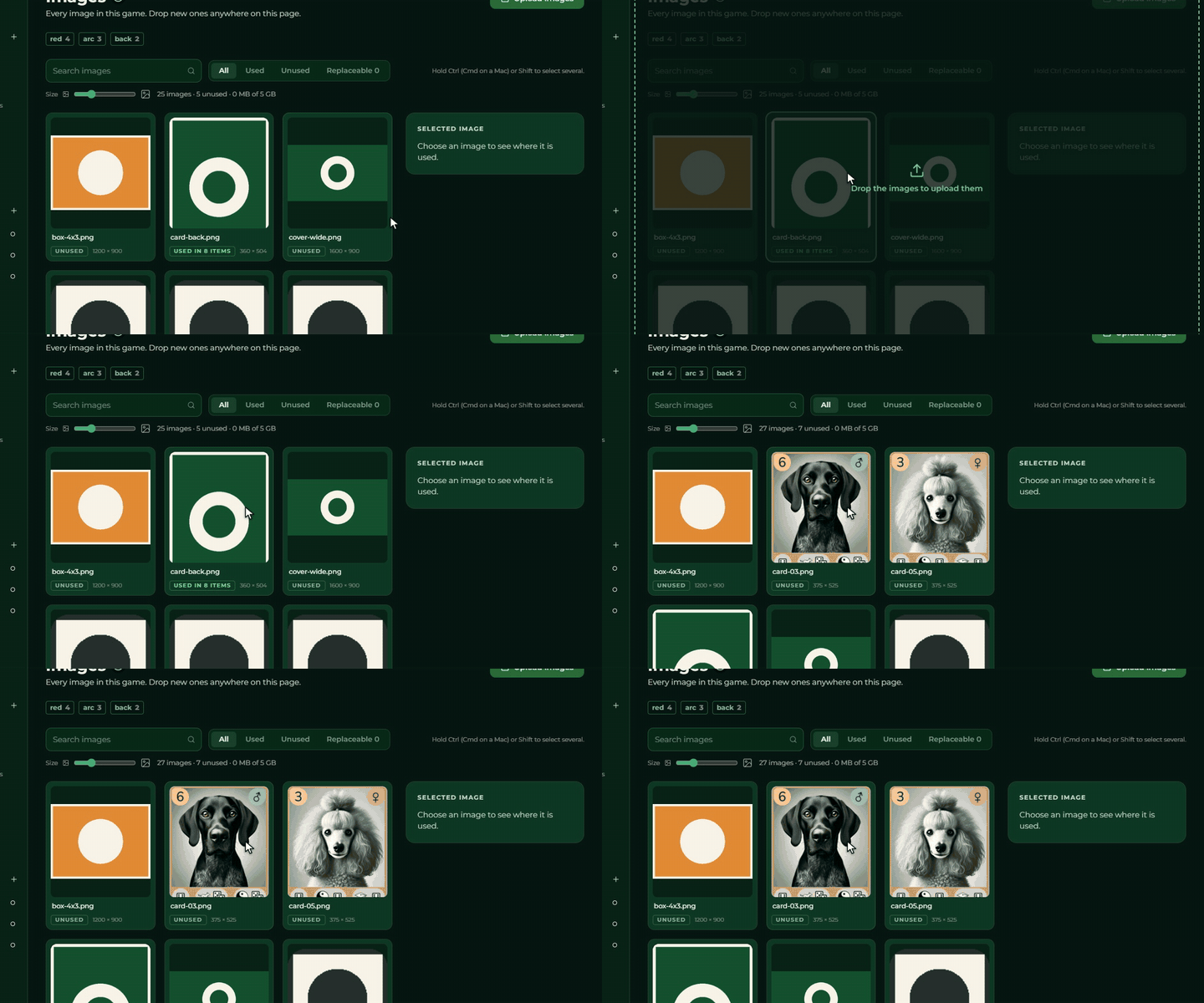
Two go at a time
At most two images upload at a time, the rest wait in a queue, and as a slot frees up the next one starts by itself. They all get a tile straight away, though.
⚠ Do not navigate away while it runs. Leaving the page loses the queued and the half uploaded files, without warning.
What the progress tile says
Every upload gets a tile of its own at the front of the gallery, with the file name on it:
| What you see on the tile | What it means |
|---|---|
a bar and Uploading… | in progress, the bar shows the percentage |
| (the tile disappears) | done, the image shows up as an ordinary tile |
a red border and Not uploaded | it failed |
The failed tiles stay until you clear them away with the × in their top right corner. That is not a retry: you have to upload the file again.
What it accepts
The usable formats are PNG, JPEG and WebP. Everything else the interface rejects at once, before the upload even starts: no tile is born, and instead it says how many files were left out and what the right format would have been. That works the same for dragging and for browsing, and the file chooser only offers the accepted formats too.
On a mixed drop the good files start and only the bad ones are left out.
GIF is therefore not usable. If you want to show a moving image, a video embedded in the rules is the thing for that (Rules).
The upper limit is 50 MB per file. The interface says this nowhere, and going over it shows up as the uninformative failed tile.
Storage
The summary sits in the page’s header: how many images there are, how many are unused, and how much
storage you take out of your plan’s allowance (for example 46 MB of 200 MB). The space in use
counts the images of all the games that belong to your account together, not only this game’s. On an
unlimited plan only the space in use shows (46 MB used). The page images of paged rules count just
like any other uploaded image (Rules).
⚠ The storage limit is enforced. If the upload would go over it, the upload does not get
through, and a panel appears with the current and the allowed size, the names of the files that
could not go up, and the See plans button.
⚠ If the game’s owner is over their storage or game limit, the game becomes read-only. A
Read-only tag and a warning then stand at the top of the page (“The owner’s plan is over its storage
or game limit. Delete some content, or the plan needs to be bigger, before new changes can be made
here again.”), the Upload images button is disabled, and files dropped on the page do not go up
either: “New images are blocked while this game is read-only.” Deleting still works, that is the way
out.
The limit always comes from the game owner’s plan, even when you are working on somebody else’s game: upgrading your own plan does not help, the owner has to delete something or pick a bigger plan. The details are on the Account page.
The gallery
The images line up by file name, alphabetically; the order cannot be rearranged.
One tile: the thumbnail, the full file name under it, and a mark that says where you use it:
| Mark | What it means |
|---|---|
Used in N items | this many items refer to it |
Set default | no item uses it, a set’s default does |
Rule page | no item uses it, a page of a paged rule does (Rules) |
Unused | nothing uses it |
If an item uses the image too, the item mark is the one that shows; Rule page only stands when no
item uses it.
Beside the mark stands the image’s original resolution in pixels. The tags do not show on the tiles.
Click a tile and the image is selected, and the image’s detail panel opens on the right of the page. On a narrow screen that is not a column but a sliding page, with the Back button. You can select several images too, see Selecting.
Selecting
Selecting works as in the set’s gallery, with no separate “Select” mode:
- Click: selects the image and opens its detail panel. Click the only selected image again and the selection goes away.
- Ctrl (Cmd on a Mac) + click: adds the image to the selection, or takes it out.
- Shift + click: selects everything from the image you clicked last to this one.
- Shift + Ctrl + click: adds that same range to what is already selected.
The page reminds you in one line: “Hold Ctrl (Cmd on a Mac) or Shift to select several.” On a narrow screen (below 640 pixels) that line is not shown.
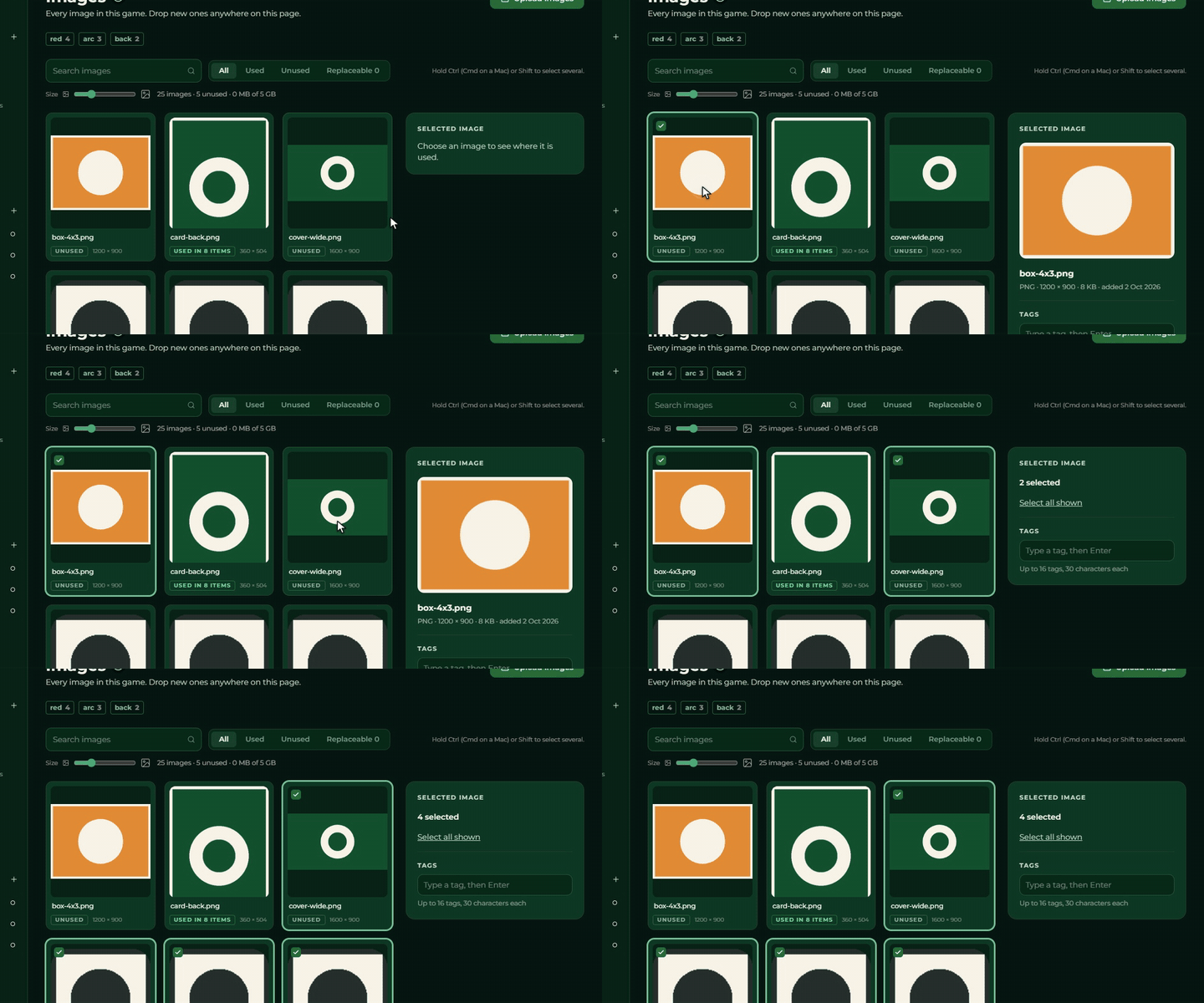
The detail panel belongs to a single selected image. Once two or more images are selected, the
right-hand panel (where the detail panel was) turns into the selection’s editor: N selected, a Select all shown link (it selects every image that is
visible after the filters and the search), and below them the Tags field, which tags several at
once. The Tags field only shows for somebody who can edit the game’s images. On a narrow screen the panel opens over the list, and Back clears the selection. Deleting goes one
image at a time.
The tile size
Beside the search and the filter, the Size slider sets the width of the tiles, from about 120 to 280 pixels. The bigger the tile, the fewer fit in a row. The value is remembered on the device, and it is shared with the set’s gallery: set it there and it holds here too, and the other way round. On a narrow screen (below 640 pixels) there is no slider, and the gallery is two columns.
The filters
A four-way switch sits in the header, with exactly one of them always active:
| Filter | What it shows |
|---|---|
| All | every image of the game |
| Used | what at least one item, one set default or one page of a paged rule in the game uses |
| Unused | what nothing uses |
| Replaceable | what has a new version and is still in use (with the count beside it) |
“Used” means what the draft uses. The reckoning looks at the current state, the one being edited, not at the versions: delete an item out of the draft and its image moves into the unused ones at once, no matter that it appears in an earlier version.
Set defaults count too: the shared back counts as used, even though it is not set separately on a single item.
The pages of paged rules count too: if the image is a page of a rule, it is used, whether it stands in the rule’s draft or in its already published copy.
“Unused” is the best clearing-up list: whatever stands there you either have not put into an item yet, or do not need.
Above the switch, in a row of its own, stands the filter by tag. The two, and the search too, narrow the list together.
Searching by file name
The search field in the header searches the file name, case insensitively, on any part of the name. The file name only: not the set’s name, not the item’s name, not the size, not the tag. The tags are filtered by the tag row.
The search works together with the filters: what you type always searches within the current filter and the tags switched on. If there is no hit, the words “No image matches.” stand where the gallery would be.
The image’s detail panel
With an image selected, the right-hand column shows:
- the large thumbnail;
- the full file name, and under it the format, the resolution, the file size and the date it was uploaded;
- the Tags field, if you can edit the game’s images, see Tags;
- the Used in list: every item that refers to it, with its set, then the set defaults
(
Set name · Set default), and last the paged rules (Rule: name). Click a row and the item opens in its own set, the set default in its set, the rule on the Rules page. If nothing uses it: “No item uses this image.”; - when the image has a newer version, the New version available part, see Replace;
- the Replace button, if you can edit the game’s images;
- the Delete image button.
Tags
You can give the images tags: words of your own choosing, for example back, red or board,
that you use to keep the library in order. A tag belongs to no language and does nothing in the game:
it only helps you find images. The system never creates a tag by itself. The tags belong to the image,
not to the draft, and they do not go into the versions.
The rules:
- An image can have at most 16 tags, each at most 30 characters.
- A tag is always lower case. As you type, the field turns the text to lower case, drops the spaces from the front, and does not let you write past the 30th character.
- The same tag can be on an image only once.
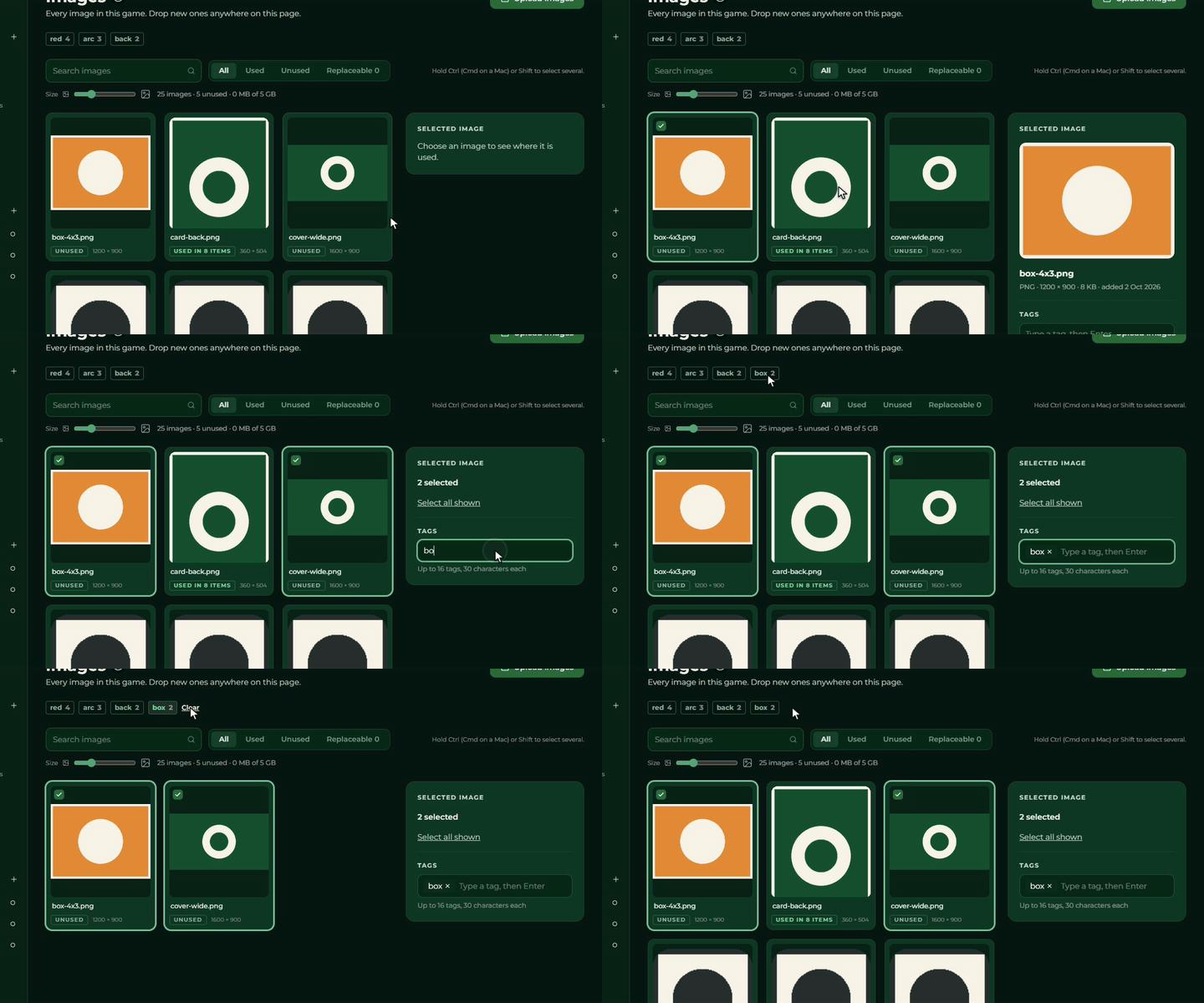
Tagging one image. Select an image: the Tags field stands in its detail panel. Type a tag (“Type a tag, then Enter”) and press Enter or type a comma: the tag becomes a small chip. The chip’s × takes it off, and in an empty field Backspace takes off the last one. While you type, the field offers the tags already in use in the game, so you do not misspell them. Every change is saved at once; if the server refuses it, the field goes back to how it was and an error message appears. Under the field stands: “Up to 16 tags, 30 characters each”. If the image is full and you type one more, the page tells you: “1 image already has too many tags for this and will be skipped.”
Images from the Creator. The Creator uploads its own images with the creator tag, and the card pictures it sends to the Builder with the builder tag (older sent pictures still have creator). These tags show, but they are
locked: it has no ×, you cannot take it off in the field, and you cannot type it in. So one button in the
tag row filters the Creator’s images in the library. The Creator’s other, internal tags (for example
deck:…, h:…, symbol) show neither in the field nor in the tag row, and the field never takes them off.
A new image can get tags when it is uploaded: if a tag button is switched on in the tag row at the moment
you drop new images on the page, they get the tags that are on (except creator).
The Tags field only shows for somebody who can edit the game’s images. The others see the tag row, not the field.
Filtering by tag
If the game has at least one tagged image, the tag row shows at the top of the page, above the search: a button for every tag in use, with the tag’s name and the number of images that carry it (in the whole game, not in the filtered list). The most used comes first, the ones with the same count in alphabetical order. With no tagged image the row is not there.
- Click a button and the tag switches on or off.
- Several tags switched on narrow the list: only the images that carry all of them stay.
- While any tag is on, a
Clearlink appears at the end of the row, which switches them all off. - If a tag that is on is carried by no image any more (you took off the last one), it drops out of the filter by itself.
The tag row works together with the All / Used / Unused switch and the search: they all filter at once.
The tag filter in the image pickers too. The same tag row stands wherever you choose from the game’s
images: the Images tab beside a set, the cover picker, the dropdown list of the table’s image
cell and the rules’ image insert panel. The filters work together with the name search (where there is
one): only an image that matches the name and carries every tag that is on stays. If you upload in a picker
while tags are on, the new image gets them (without creator and builder, which the Creator sets).
Tagging several images at once
Select several images (Selecting): the right-hand panel holds the same Tags field as for one image, but it shows the tags of all the selected images.
- A tag that is on every selected image is a normal chip.
- A tag that is on only some of them is a fainter, grey chip. There is no “Mixed” label.
- Each chip’s × takes the tag off all the selected images that have it.
- If you type a tag (Enter or comma), it goes on every selected image, even if only some had it before: the faint chip turns normal. The field offers the tags already in use.
- If that would give an image more than 16 tags, that image is left out and you are warned: “N image already has too many tags for this and will be skipped.” The other images are changed.
With one selected image it is the same field, with every chip normal. The changes go to the server one at a time (an add or a remove), so they never touch the hidden internal tags.
Replacing with a new version
When a better version of an image is ready, do not upload it as a new image and move it item by item: replace it. The Replace button on the image’s detail panel opens a window. Drop a file into it, or click Choose a file: the file is uploaded as the image’s new version. Dropping a single file on the image’s tile in the gallery does the same (several files on a tile are an ordinary upload).
At the bottom of the window stand all the versions of the image, newest first: v1, v2, …
Each says where it is used: In use (the draft’s items), Game version v1.2 (a game version made playable),
Waiting (the newest, not switched to yet) or Not used.
The upload alone changes nothing in the game. The items show the old image until you switch. The old image’s tile carries a New version available tag, and while it is in use it also stands under the Replaceable filter.
Switching over and freeing up the old image
On the old image’s detail panel the New version available part shows the old and the new thumbnail. Switch to new version moves everything that uses the old image over to the new one in one step: the items’ frames, the set defaults and the set icon. It is one edit: one undo takes it back, and it is saved in one go.
Free up the old image is ticked by default: once the switch is saved, the old image is deleted if nothing uses it any more. While a game version uses it, it stays: the panel then says “Still used by game version v1.2. The old image stays until that game version is retired. New game versions use the new image version.” An image used as a page of a paged rule stays as well; replace it in the rule.
Several images at once: switch on the Replaceable filter, and in the bar above the gallery Switch all switches every such image, with the Free up the old images tick.
Replace and the switch are only there for someone who can edit the game’s images; on a read-only game Replace is not available.
Deleting
The Delete image button opens a confirming question: “Delete this image?”, with the file name in it and the fact that the image comes off the server for good.
There is no undo. What has run has run: the file comes off the server, and only comes back by being uploaded again, as a new file, without the old assignments.
An image in use is kept
If the image is in use, the confirmation’s text is different: it says how many items use it (or that it is a set’s default, or a page of a paged rule), and spells out that an image in use is never deleted: you have to take it off the items, out of the set defaults, or out of the rule first.
An image that is a page of a paged rule is protected too. The confirmation then says: “This image
is a page of the rule ”…”, so it will be kept: an image in use is never deleted. Take the page out of
the rule first.” As long as the image is a page of any rule (in the draft or in the published copy),
it cannot be deleted. In the Used in list of the detail panel a Rule: name row shows which rule
it is. Paged rules are covered on the Rules page.
Press it anyway and the action runs, but the image survives, and a yellow box appears on its detail panel: “The image was kept. It is in use (on an item, in a set default or as a page of a rule), so it was not deleted.” That is not a fault, it is the protection.
The check looks at the draft, the same one the filters do: delete an item and its image becomes deletable at once, no matter that it appears in an earlier version. For a rule’s page, both the rule’s draft and its published copy count.
⚠ With an unsaved change in flight, the deletion does not run: “Your latest changes are not saved yet, so nothing was deleted. Try again in a moment.” Wait a second and try again.
The practical road to clearing up is the “Unused” filter: only images that really can be thrown away stand there.
What happens to the versions
The versions already made playable are not harmed by a source file disappearing: they work from a closed image package of their own. A running party therefore carries on, and nothing changes on the display or on the controller.
If you take an image off the items first and then delete it, the items survive, only their frame is left empty, and you have to choose a new image for them (Items). The gap shows up at the next version: without a required image no version can be made playable.