Cards
This page is about what you can do with cards: selecting, flipping, shuffling, locking. Moving them is on the Drag and drop page.
“Card” here means every playing piece: a card, a board, a token, a figure, a die.
Selection
The selection is what the toolbar’s actions apply to. There are two kinds, and the toolbar’s Select Containers button switches between them:
- piece selection (the default): you select individual cards
- container selection: you select whole containers
Selecting one card
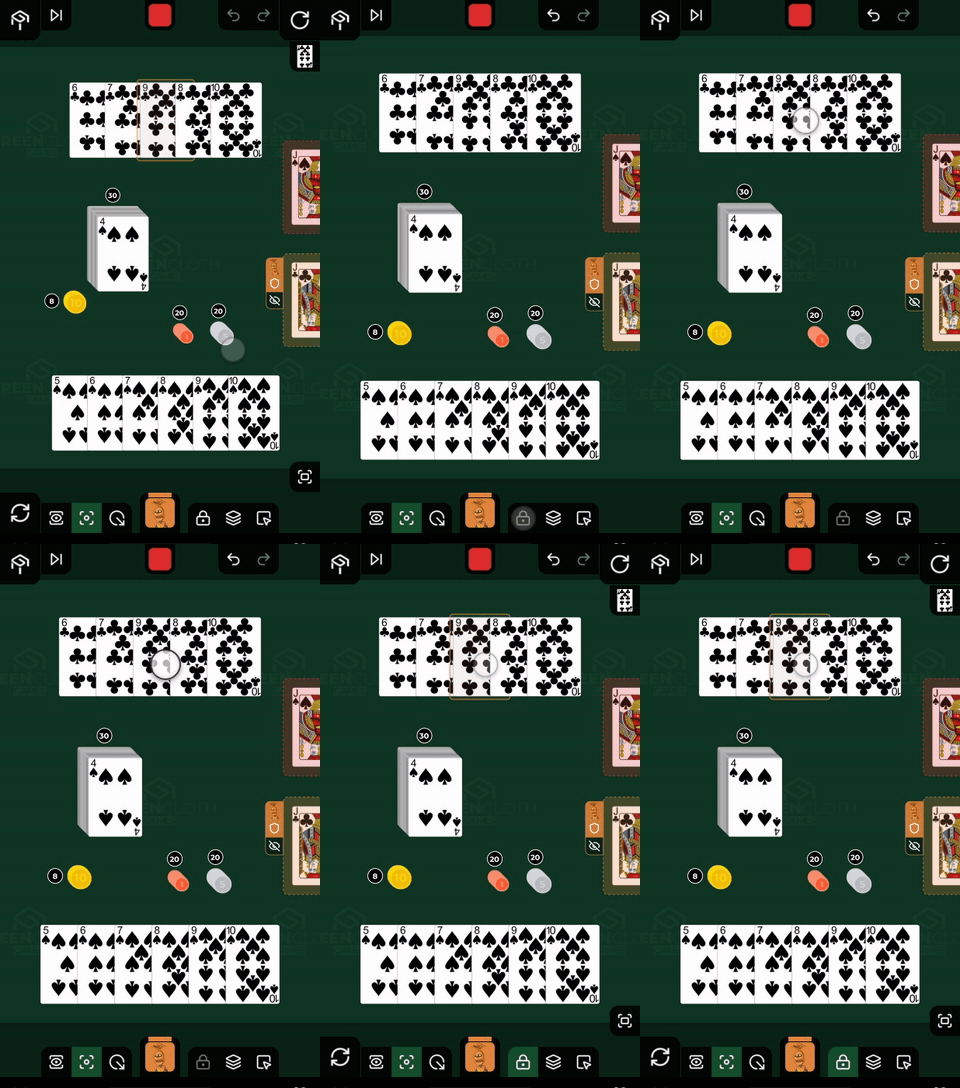
Tap the card. It gets a border in your own player colour. Tapping it again clears the selection.
More cards can be added to the selection by tapping them one after another. Tapping an empty part of the table clears every selection.
Framed selection
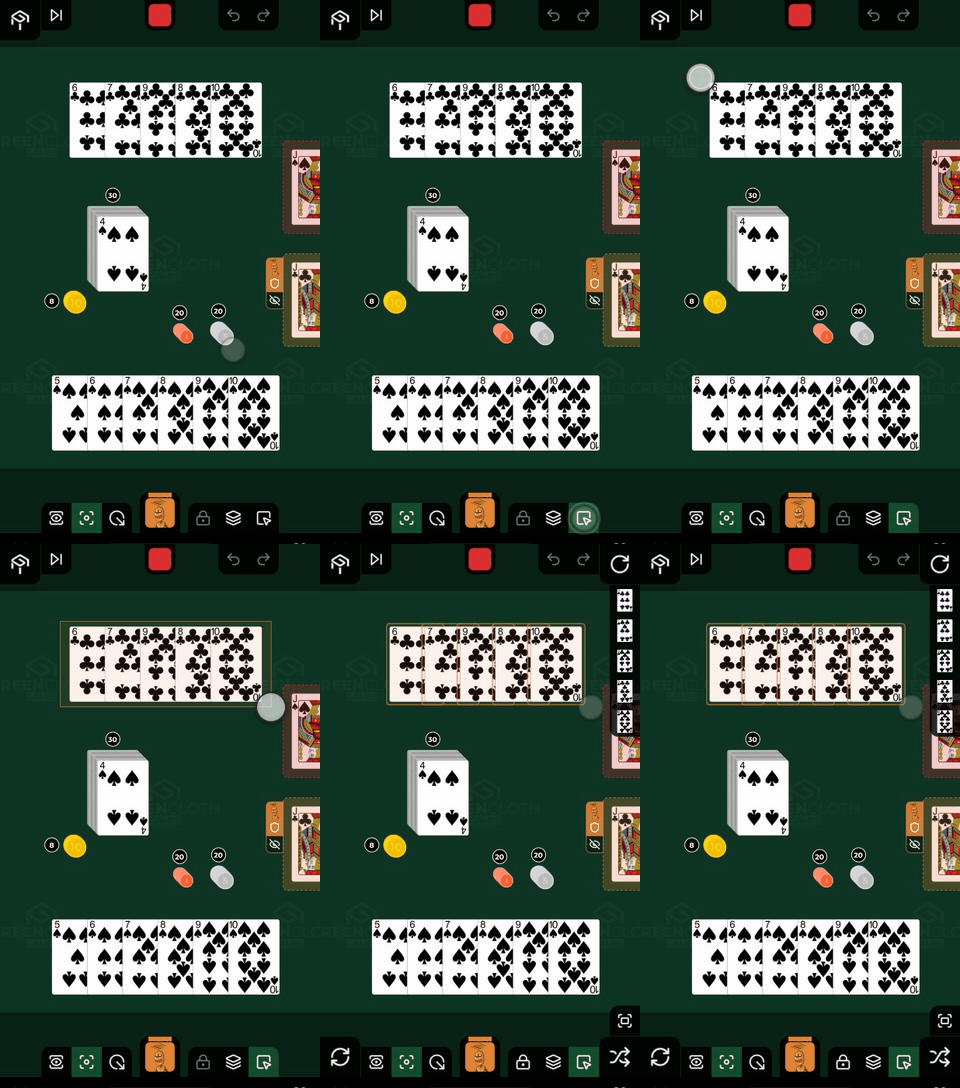
Switch the Multi-Select button on the bottom wall on, then drag on an empty part of the table: you draw a rectangle, and every card inside it is selected.
Selection in your hand
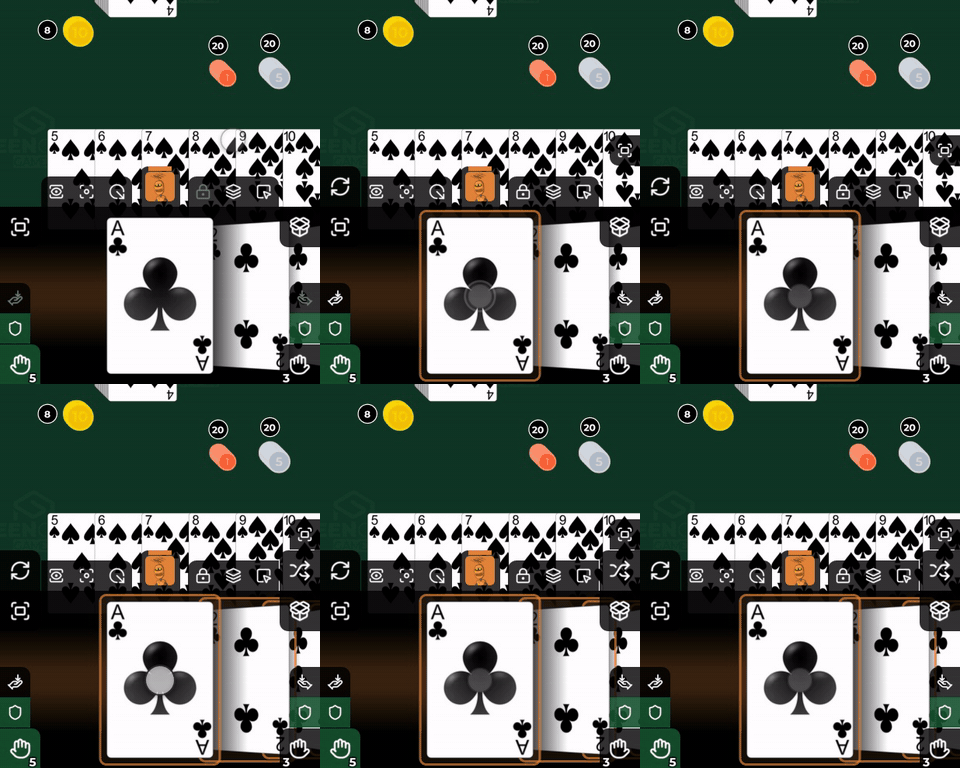
Tapping the middle card of your hand selects it. Pressing and holding the hand bar selects every card you hold. See: Your hand.
Locked cards
A tap does not reach a locked card: you select it with a long press. It works that way so you do not move a pinned piece (a board, say) by accident.
Where the selected cards are shown
The selected cards on the table line up along the right edge of the screen, with their own pictures. Identical cards, that is the same card with the same side up, appear on one button, with a small count in its corner:
- a tap takes one card out of the group behind the button (the count drops, and at one the button turns back into a plain, single card button)
- dragging inwards from the wall grabs the whole selection and carries it, whichever button you start from
- when there are many, the wall scrolls: drag along the wall to scroll
Taking several cards off a pile
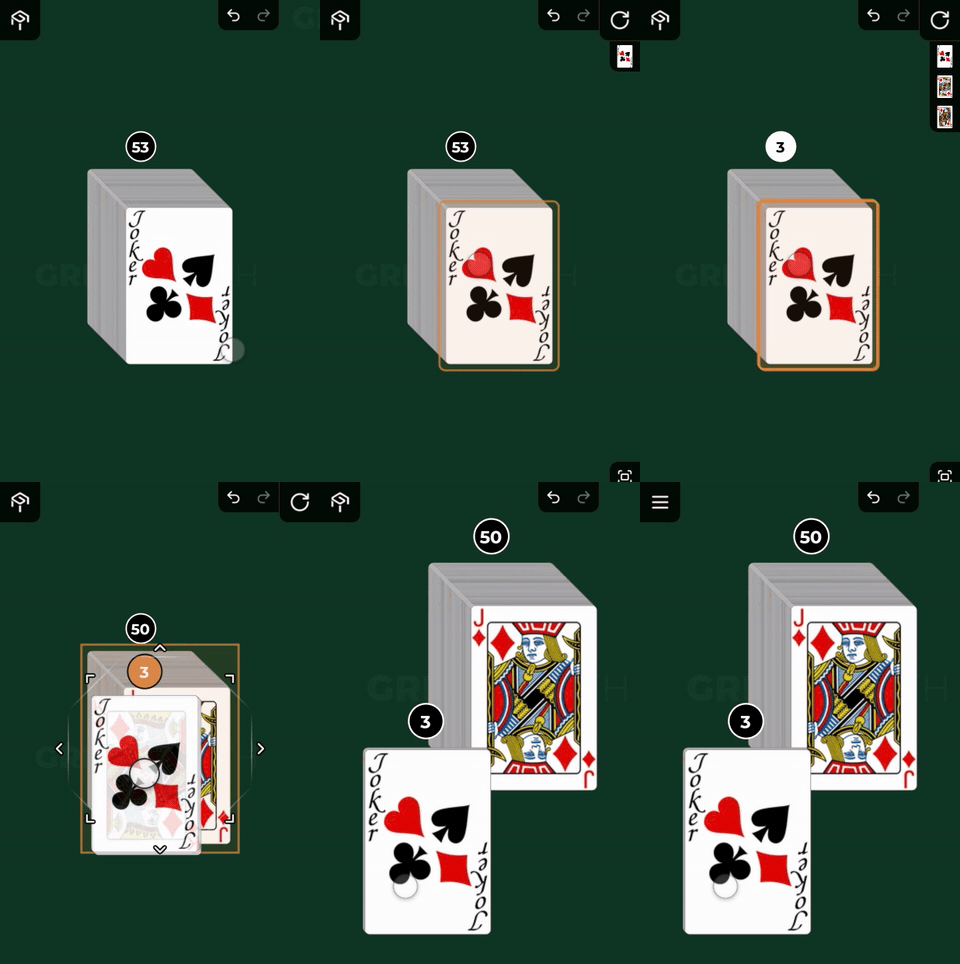
Tap the pile or the stack quickly and repeatedly: it takes as many cards off the top as you tapped. A number above the pile shows how many cards that is. Then drag them away: they move together.
Flip
Cards can be face up (picture up) or face down (back up).
- select the card, then tap the Flip button in the bottom left corner of the table
- or during a drag: carry the card over the button in the bottom left corner and hold it there, and it flips
Several selected cards flip at once. Every card in a selected container flips.
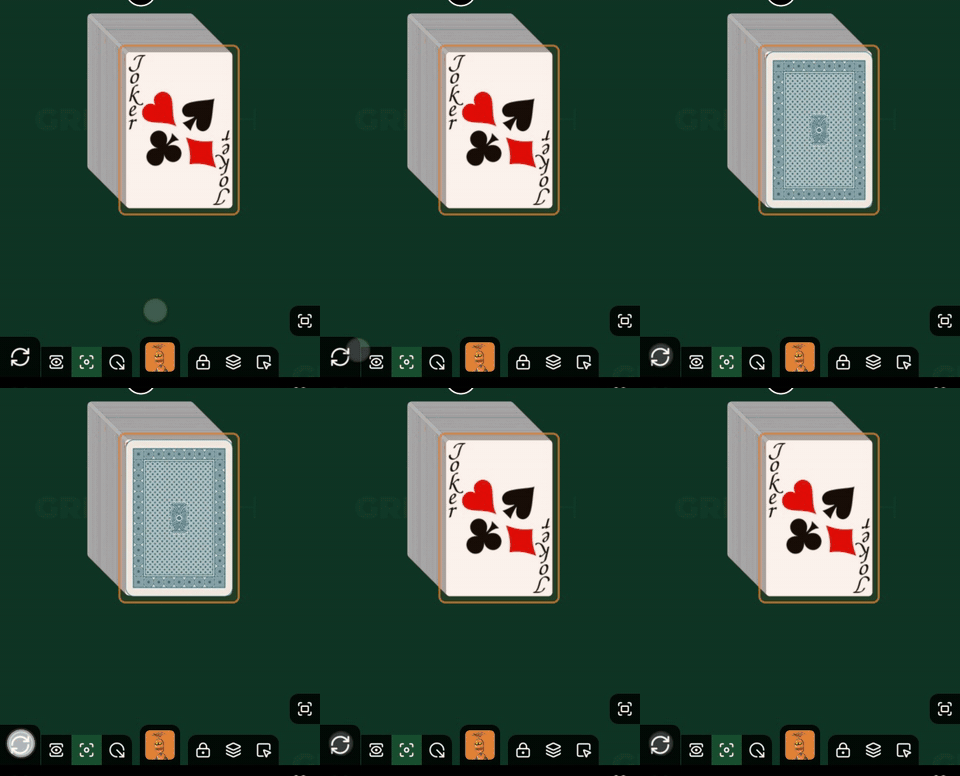
::: warning Not every piece can be flipped. A figure has no back, and a die steps to its next face instead of flipping. :::
The language of the cards
When the game is made in several languages and the cards came from the Creator with every language, the controller shows the cards and the game’s title in your own language, the one you chose in the app settings. You can change the language during play, and the cards are redrawn. If a card has no separate picture in your language, you see the base one. The display shows the cards in the game’s base language, whatever languages the players use. It is the same item, only the picture differs: nothing hidden is revealed, and the flip works the same.
Shuffle
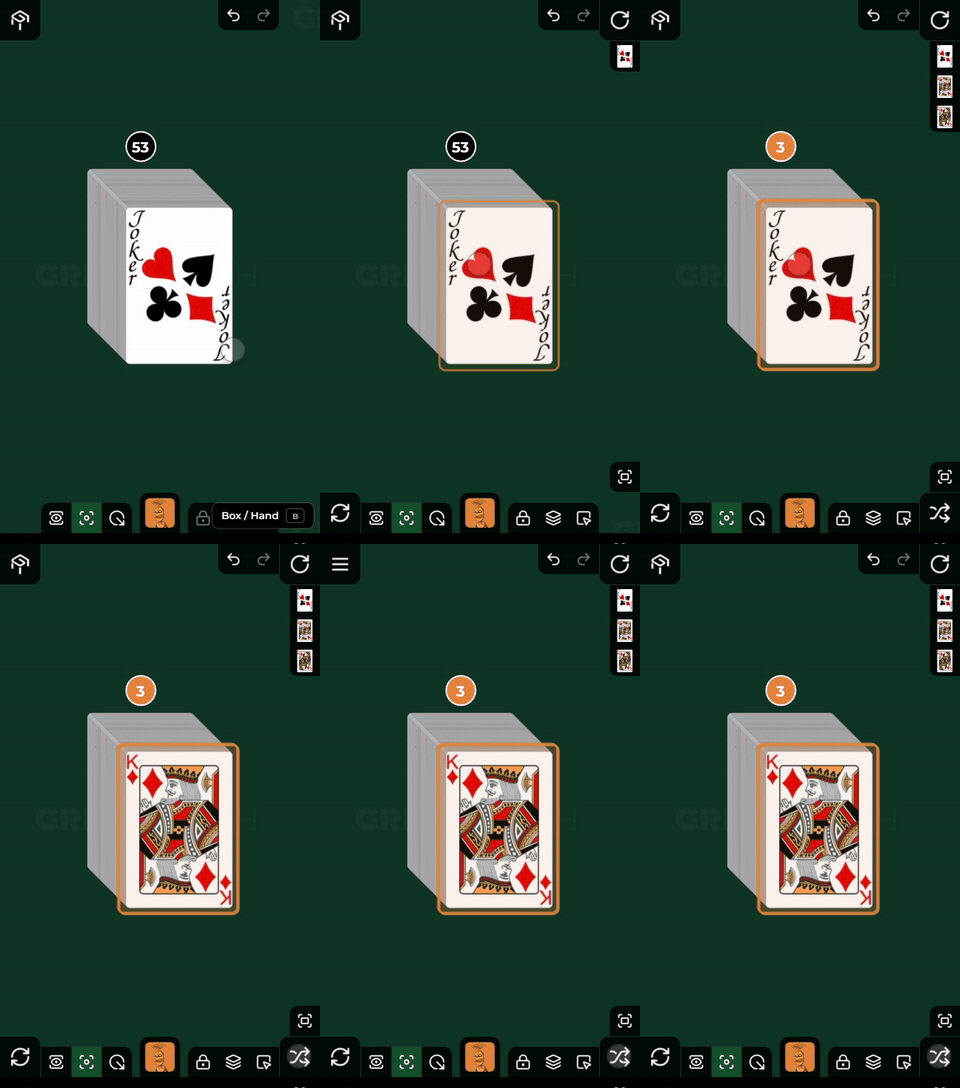
The Shuffle button in the bottom right corner of the table:
- with a selected container, it shuffles the container’s contents
- with at least two selected cards, it shuffles those among themselves
- with selected dice, it means a roll: the dice land on a new face, each one turned at a slight angle (a die in your hand is not turned). Shuffling a container with dice in it rolls them the same way
- during a drag, it shuffles the handful you are carrying
Rotate
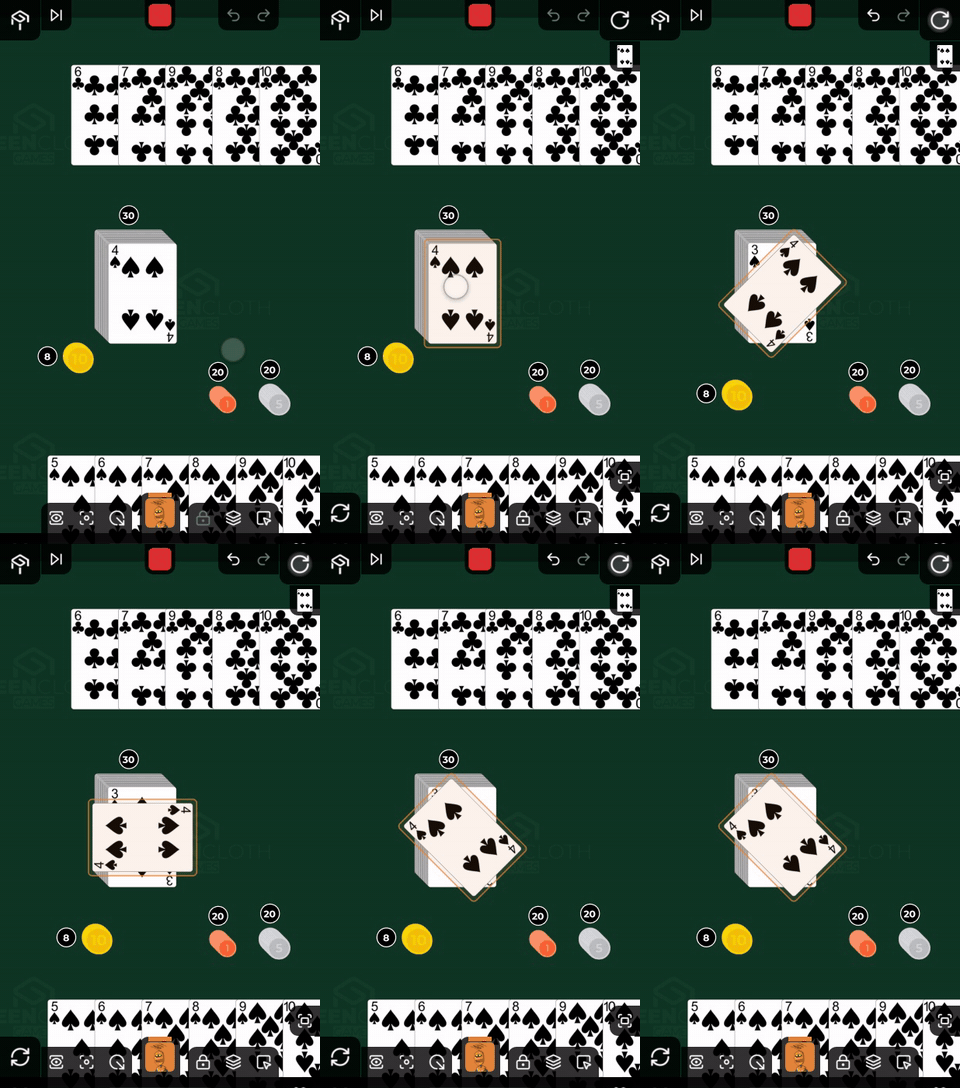
The Rotate button appears in the top right corner of the table when there is a card selected on the table (a card in your hand cannot be rotated). How the button works (tap, dial, during a drag) is described in detail on the Toolbar page; only the rules specific to cards are here:
- tap: the selected card (or several selected cards) turns by 45 degrees, always in the same direction (clockwise), so eight taps make a full circle
- drag from the button: a graduated strip opens along the wall, dragging down turns clockwise, dragging left anti-clockwise, up to 180 degrees, and you step in 15 degrees. The thin dial around the card shows the card’s resulting angle, and it turns when you let go
A locked card does not turn: the button does appear, but the locked card stays where it is, and you have to unlock it first.
A card’s rotation is always relative to its container: moved into a hand, into the box or into another container, its angle always goes back to 0 degrees; if it stays in the same container (when you rearrange it, for instance), its angle is kept.
Lock
The Lock button at the right end of the bottom wall pins the selected card or container in place. A locked piece cannot be moved, and can only be selected again with a long press.