
Pairing
This page is about how a display gets into a party: where its code comes from, what you do with the QR code, and how long what you set up once stays valid.
The display’s code
When you open the app on the display, it gets a six digit, numbers only code, in the shape
123-456. That code identifies the display until you invite it into a party.
The party’s code is a separate thing: that is six letters, in the shape ABC-DEF. The two can
never be confused, because one is digits and the other is letters.
The code appears in the bottom right corner: a QR code, with the address and the code written
out underneath it, in the shape ggid.to/123-456. If you have nothing to read the QR with, you can
read the digits off and type them on the phone.
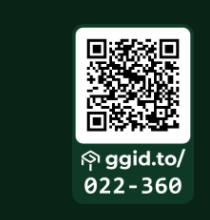
⚠ The code and the QR are part of the same image, so they go together. If an empty, broken image is left in the corner, the display gives away its pairing code in no other way. It is working and waiting for an invitation, you simply have nowhere to learn which code that is. If you see this, there is nothing you can do from the party’s side; tell whoever runs the screen.
Two ways into a party
Scan the QR code
Scan the QR code on the display with your phone. The phone opens the Controller, and:
- if you are in a party already, the display is invited into that party straight away
- if you are not in a party, the scan is remembered, and the display joins when you join a party or start a new one
This is the quicker way, and it saves you reading the code off.
Type the code on the phone
In the Controller, open the menu and go to the Connect page. Under Invite Device, type the display’s six digits, and press Invite Display. On success the phone says Display invited!.

If there is no such code, or that display has already connected somewhere else, the phone tells you: Display not found or already connected.
What happens after it connects
A short confirmation flashes on the display with the party’s code, the logo fades, and the table appears. From then on the display shows every change in the party immediately.
On the phone, the display’s card appears at the bottom of the Connect page under Connected Devices, with the code on it. This is the card you set the display from, see Settings.
How long the code lives
As long as the browser tab does. The display’s code belongs to the browser session you opened it in. Close the tab and open a new one and it gets a new code, while the old one can no longer be invited. Reloading the page is fine: that is still the same session, so the code stays. The same goes when the display restarts itself after an error: it asks for its old code back and does not get a new one. See Connection.
If a display is not in a party (it was never invited, or it was unlinked), its code goes stale 12 hours after it was issued, and it gets a new one the next time it starts. While it belongs to a party, it does not expire.
If, after a long wait, the phone cannot find the display’s code (Display not found or already connected), reload the page on the display: it gets a new code, and that one you can type in.
Unlinking
The display itself has no button for this, and it shows nothing about the party: nobody has to stand at it or hold a remote. The display is disconnected from a phone. On its card (the Connect tab, Connected Devices) you see who added it (“Added by Anna”, or “You added it”). The one who added the display and the host can tap the card and choose the red Disconnect row; for everyone else the row is not there. The display then gets a new code and a new QR on its own, usually within seconds (the display asks every few seconds while it is in a game), and waits for a new invitation. The old code does not work any more.
The same happens when the party ends. See Connection.
One party can have several displays
There is no limit on how many displays you invite into the same party. Each one gets its own card on the phone, and each one is set separately: you can show hands on one and not on the other.