
Fields in the template
A field is a column of the table: Name, Cost, Image. If you bind an element of the template to a field, the element shows that row’s value on every card. That is how one template becomes many different cards. This page describes how you bind fields to the template.
The Fields panel
On the left of the Template view, above the Elements, is the Fields panel. Every field is listed with its name and its value on the card you are looking at.
At the end of the list are the built-in fields, which you do not have to fill in: the card’s number, the total number of cards, the deck’s name, the game’s name.
If a field points to a helper table (see Tabs and links), the table’s columns also show below it as
fields, for example Faction › Colour.
The + New field button adds a new column with a name and a type. The types are: Text, Long text, Number, Image, Texture, Symbols, Colour and Choice.
The row stepper
Below the card is the row stepper (◀ 1 / 24 ▶ and the card’s name). The arrows step card by card, and the
editor and the Fields panel show that card’s data. So you see straight away how the template looks with a long
name or an empty cell.
Dragging a field in
The simplest way is to drag a field from the Fields panel onto the card with the mouse:
- onto an empty part of the card: it becomes a new element that suits the field’s type. A text field gives a Text, an Image an Image, Symbols an Icon row, a Colour a Shape in that colour. Before you drop, a dashed frame shows where it will go.
- onto an existing element: from now on the element shows this field. Before you drop, a label tells you
what changes, for example
Show Power here, was Cost. - onto a setting in the right panel, a colour for example: that setting comes from the field card by card. This is how, say, every faction gets a frame in a different colour.
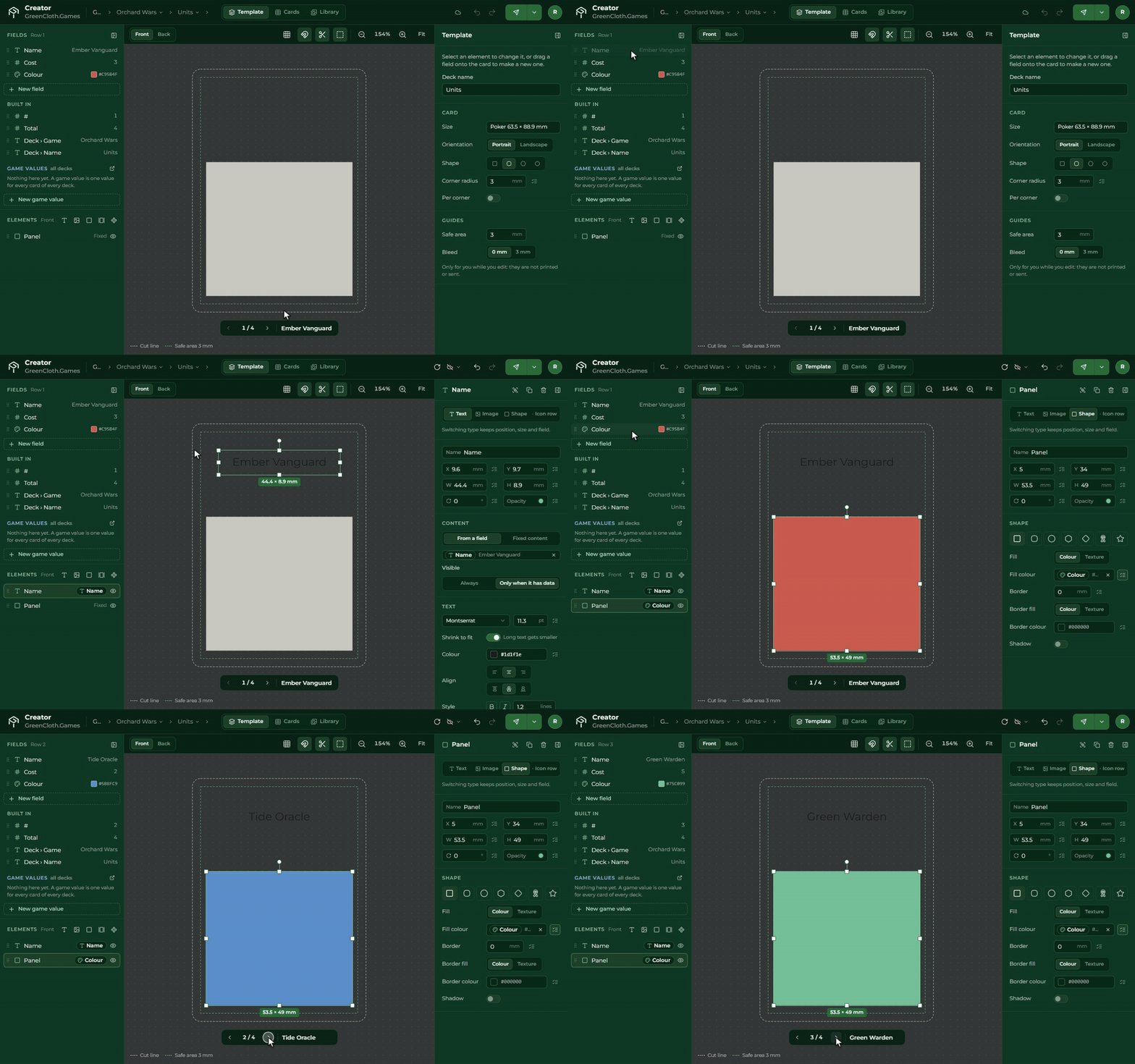
From a field or a fixed value
You can set the same binding in the right panel too, which is the only way on a tablet, because dragging in does not work there:
- For Text and Icon row, the Content can be From a field (the value of a field) or Fixed content (the same on every card).
- Next to the colours, the image source and the numbers (size, position, font size, rounding) there is a switch: when it is on, you can pick a field from the list.
In place of a bound setting you see the field’s name and the current card’s value. The × removes the binding.
When you bind an element to a field, its visibility becomes Only when it has data by itself: so no empty box is left on cards where the field is empty. See Visibility.
Game values in the template
At the bottom of the Fields panel, in blue, are the game values. You bind them just like fields, but they give the same value on every card and in every deck of the game. See Game values.