
Draft and versions
This page is about how what you edit becomes a version that a party loads, and how you make a version playable. It goes through the autosave, what making playable needs, the packing, the version list and loading into the editor, the Builder’s most dangerous action.
A version you have made playable starts out private: only you and your testers can play it. Making it public is a separate step with conditions of its own: Making it public.
Draft and version
In the Builder you always work on one draft. The draft is the live working copy: every set, item, size, rule text and details field goes into it. There is exactly one draft per game, and it never disappears, not even when you make a version playable in the meantime.
A version (Version in the interface, v1.3 on the rows) is a snapshot of the draft: at the
moment you press Make playable it copies the sets and the items, and nothing ever overwrites
that copy. That is how a party can load exactly the content it got when it started, months later.
A draft cannot be played; only a version can.
Three roads lead to the players, and they are not the same:
| What you edit | How it gets there |
|---|---|
| Details (title, description, cover, categories) | on its own, on save |
| Rules | with the Publish button, see Rules |
| Sets, items, images (the “components”) | only in a version you make playable |
The page’s most important sentence follows from that: not a single player sees the work you do on the components until you make a version playable.
The draft saves itself
There is no save button. What you do on the set, item, details and rule pages goes out to the server by itself: the Builder gathers the changes up and sends them off after a short quiet spell. The save lands on the server, not in the browser: sign in on another machine and you find the same draft.
You see its state in the top bar, beside the breadcrumb:
| What you see there | What it means |
|---|---|
| All changes saved | there is nothing pending |
| Saving… | it is on its way to the server |
| Couldn’t save. Retrying. | a save got stuck, the Builder is trying again |
Couldn’t save. + Retry | it did not get through; send it with the Retry button |
Someone else changed this in the meantime… + Reload | a conflict, see below |
The sets update by themselves. If the game’s sets are being edited somewhere else at the same time (another browser tab, a co-editor, or a send from the Creator), the change shows up for you within a few seconds, without a reload. Your own change that has not been saved yet stays: the Builder merges it with the other one and saves the two together. This works item by item and field by field, so if you are typing an item’s title while the other side changes its quantity, both stay.
⚠ On a real conflict your change was not saved. If the same field was set to different values
on both sides (or somebody else worked on the rules or the details too), the bar spells it out, and
Reload brings the other version in. On the rules page the Copy my text button sits in front of
it, see Rules.
You can leave the page without worrying. If there is still an unsent change, the Builder saves it first and only then lets you on; a question only comes if the save failed, or a field on the details page is invalid.
One exception to the autosave: the images are not part of the draft. An uploaded image goes to the game at once, independently of any version.
What is still waiting for the players
At the right edge of the top bar, inside a game, sits the Changes button. Press it and a panel opens that gathers into one place what is waiting to reach the players:
- Rules: how many unpublished changes there are, and the Publish button;
- Components: whether they have changed since the last version, or whether there is no playable version yet, and the Make playable… button;
- if nothing is pending: “Nothing is waiting. Players see your latest work.”
The button itself signals when there is something to take out.
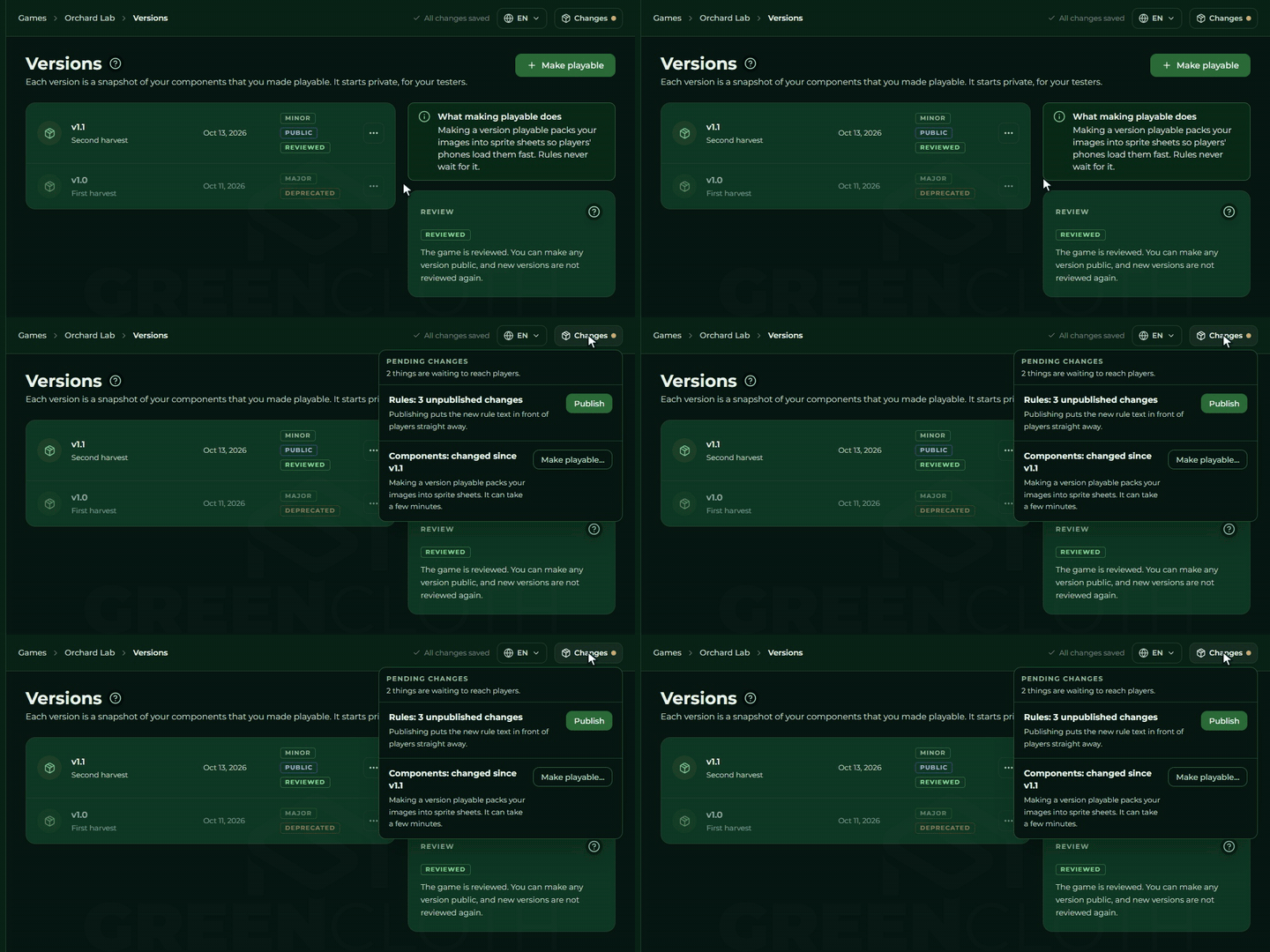
On the Games page’s cards the same thing shows up as two tags: Unpublished changes means the
rules have to be published, Changes not playable yet means the components need a new version, see
What a card shows. So you publish the rules and you make the components
playable.
Where you find the versions
The Versions page is in the sidebar’s Components group, under Images. It has three parts:
- the title and the Make playable button at the top;
- the list of versions on the left, the newest at the top;
- the What making playable does note and the Review card on the right, see Making it public.
On a brand new game, the words No version yet stand where the list would be.
When you can make a version playable
You can press the Make playable button if you have the Make a version playable right. The game’s owner always has it; anybody else gets it from the group’s ceiling and their role. Without it the button is greyed out, and if you hover over it the help text says why: “You don’t have permission to edit this.” When the button is live, the modal says what the situation is.
An item’s size is missing
If even a single item has no width and height, a red box stands at the top of the modal and the Make playable button is greyed out. The box lists the trouble per set: how many items have no size, in which set, and clicking the row takes you there too.
An item counts as having no size if neither it nor the set’s default has a width and a height greater than zero. So filling in the set’s default is enough, you do not have to do every item one by one. See Items.
A required image is missing
It appears in the same red box, per set in the same way: how many items are missing the image on a required side. On a card, a board and a token the front is required, on a die the first face, see Items.
The same thing shows on the gallery’s tile: “No front image · Drop one here.”
Nothing has changed since the last version
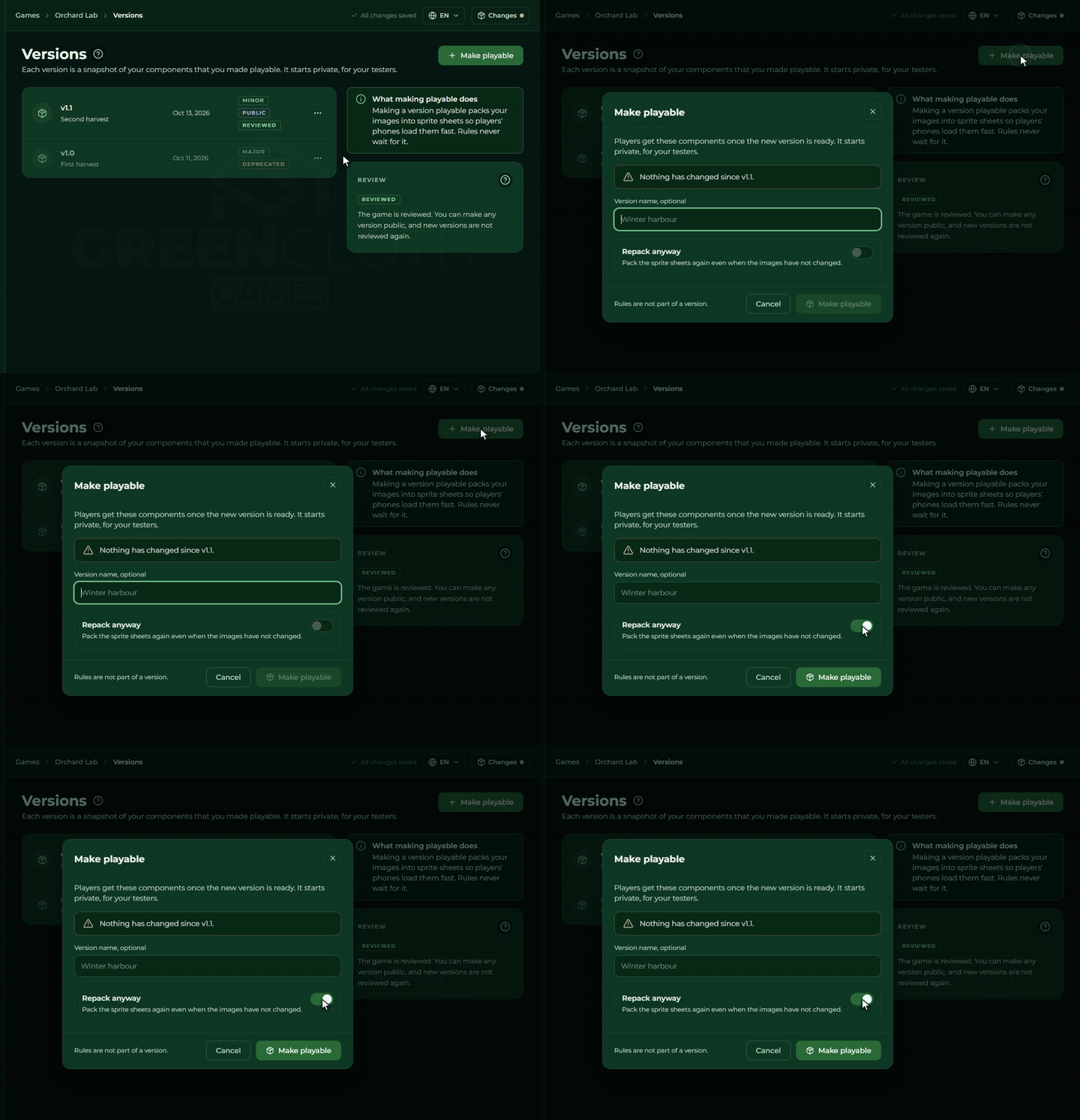
If the draft’s components match the last version’s exactly, the modal says: “Nothing has changed since v1.3.”, and the button is greyed out.
That is not a fault: the system does not allow two versions with identical content in a row. If you do need a new version anyway (because the previous one’s package is missing or broken, say), switch on Repack anyway and the button becomes active at once.
Not everything is saved
If the save has just failed or there is a conflict, a red box stands in the modal: “The components are not saved yet. Everything has to be saved before a version is made playable.” Sort the save out and try again.
What is not an obstacle: the rules. The rules are not part of a version, and the modal spells that out separately.
The version’s name
The Make playable modal has a free text field labelled Version name, optional.
It affects nothing: it does not set the version number, and there are no rules about its shape. It does one single thing, it appears behind the version number on the version’s row. It cannot be changed afterwards: a version is finalised together with its name.
So it is worth writing something into it that will still say months later why you made it: Expo demo, Fixed dice faces, Winter harbour.
Repack anyway
The Repack anyway switch at the bottom of the Make playable modal turns off two things at once:
- The “nothing has changed” block. Switched on, you can make a new version even if the draft is identical to the last version.
- Reusing the package. Without it, the system checks whether the images or the sizes have changed; if not, it takes over the previous version’s package unchanged. Switched on, it always repacks.
The explanation stands under the switch: “Pack the sprite sheets again even when the images have not changed.”
When you need it:
- when the previous version’s images are wrong or incomplete in a party;
- when you have to make a version with unchanged content under a different name;
- when you have to make the same content a fresh version after loading an old version.
When not to: after ordinary editing. The packing can take minutes.
What happens when you make a version playable
After Make playable, the progress appears where the modal was, with four steps:
- Check items and sizes
- Pack images into sprite sheets
- Build the version file
- Make it available to players
Under it the estimated time left, and the most important sentence: “You can close this and carry on working.”
The packing runs on the server, not in your browser. Close the modal or navigate away and the
work carries on, and a bar at the top of the Versions page shows the progress, with a
Show progress button. When it is finished you get a notice: “v2.0 is playable now.”
If a minor version is being made, the packing is skipped and the whole thing runs in a moment.
If it fails, the interface says so (“Making the version playable failed.”). If the failure came right at the start (everything not being saved, say), no new version was made. If it got stuck during the packing, look at the Versions list: if the version is already there but its package was never finished, make a new one with Repack anyway switched on.
Without the Multiple game versions right (from the Pro package), a new version deprecates the earlier live version. The Several live versions at once section covers that.
Which version number you get
The version number has the shape major.minor, and it decides itself. You cannot give it, and
the modal tells you in advance which it will be:
| What changed in the draft | What the modal says | Package |
|---|---|---|
| an image or a size on any item | Major, v2.0, “Images or sizes changed, so the sprite sheets are packed again. This takes a few minutes.” | repacked |
| anything else: quantity, order, subset, container, title | Minor, v1.4, “Nothing to repack, so this is instant.” | the previous one’s, unchanged |
| Repack anyway switched on | always major | always repacked |
A major version always lands on x.0, a minor one steps to the next tenth. The first version is
always 1.0, and the modal says that too: “This is the first version of your components.”
Several live versions at once
How many versions can be live (not deprecated) at once is decided by the package of the game’s owner. The Multiple game versions right is in the Pro and Ultra packages, and not in Free or Plus. The right belongs to the owner, not to whoever makes the version playable: when a group member does it, the owner’s package counts.
| The owner’s package | What happens when you make a new version playable |
|---|---|
| with the Multiple game versions right (Pro, Ultra) | the earlier live versions stay live, side by side |
| without that right (Free, Plus) | the earlier live versions go to the Deprecated state, and the newest is the only live one |
What else follows from that:
- The first version never deprecates anything, there is nothing to deprecate.
- The deprecation happens when the work starts, not when the packing ends.
- A deprecated version stays in the list, its content survives, and it can be loaded into the editor. No new party starts on it, but running parties carry on, see Deprecating. A deprecated version cannot be made live again: if you need its content, load it into the editor and make a new version from it.
- A new version does not become public by itself. It starts private. You make it public with the
Publicmenu item, see Making it public. - The right is checked at the moment you make the version playable. If the owner’s package has become smaller in the meantime, the versions already live stay live, and only the next one deprecates them. In the same way, a game that carried several live versions from before the right was brought in keeps them until the next version.
The package
The package (the sprite sheets) is the handful of large image sheets onto which the system packs every item image, so that a party loads them all at once. That is why a major version takes minutes, and why a minor one is instant.
When it is done, the interface says how many images went onto how many sprite sheets (per size, so the number of sheets of one size), and, if the Pro zoom images were made, how many zoom images there are.
What goes into the package also depends on the game owner’s package. The High-resolution images right (Pro and Ultra) puts a larger-resolution version, lossless image compression and one separate close-up image per item into the package. Without that right the package holds only the smaller-resolution versions, with compressed images and no close-up images. The system checks the right when the packing starts, from the owner’s package at that moment. If the owner moves to a bigger package later, the packages of the versions already made do not grow. A new high-resolution package needs a new version, and if the images have not changed in the meantime, with Repack anyway switched on, otherwise a minor version takes over the previous package.
The note in the Versions page’s side column says the same: “Making a version playable packs your images into sprite sheets so players’ phones load them fast. Rules never wait for it.”
The version list
The versions line up with the newest at the top. What a row holds:
| Part | What it shows |
|---|---|
| Version number | v2.0, say, with the version name under it, if you gave one |
| Date | when you made it playable |
| Major / Minor | what kind of step it was |
| Public / Playtest / Private | who can reach it, see Making it public |
| Deprecated | if you have deprecated it, or a new version did, see Several live versions at once |
| The review’s tag | only on the newest live row, see Making it public |
| ”…“ | the row’s menu, see below |
What actions a row has
The ”…” menu holds:
Public: only live after an approved review, and one version at a time can be it;Private: takes it off public;Load into editor, see below;Deprecate, see below. Greyed out on a public version, and the help text says why: “Make it private first.”
Under the two visibility items the explanation is always there: “A version can only be made public once the game has been reviewed.”, or after approval “One version at a time can be public.”
The review is not a row action: it belongs to the game, and is asked for on the Review card, see Making it public.
The menu items are greyed out if you lack the right for them: Public and Private need the
Publish a version right, Load into editor and Deprecate need the Make a version playable
right; loading also needs the Edit sets and items right, because it rewrites the draft. The game’s
owner has all of them.
⚠ On a deprecated version the two visibility items disappear. Load into editor stays, but it
can never be made public again.
Load into editor
⚠ This is the Builder’s most dangerous menu item. Read this before you press it.
Load into editor copies the chosen version’s components into the draft, in place of the current draft’s components. The confirming question spells it out: “This overwrites your current components draft with v1.0. Game details and rules stay as they are.”
What it overwrites: every set and every one of their items, so the frames, the sizes, the quantities, the subsets, the order and the magnetic dots.
What it does not overwrite: the game’s details page, the rules, and the uploaded images. The images stay where they are, only nothing refers to them any more.
⚠ The action cannot be undone. The system does not keep what was in the draft beforehand. Every piece of component editing you did not make into a version ceases to exist in that second.
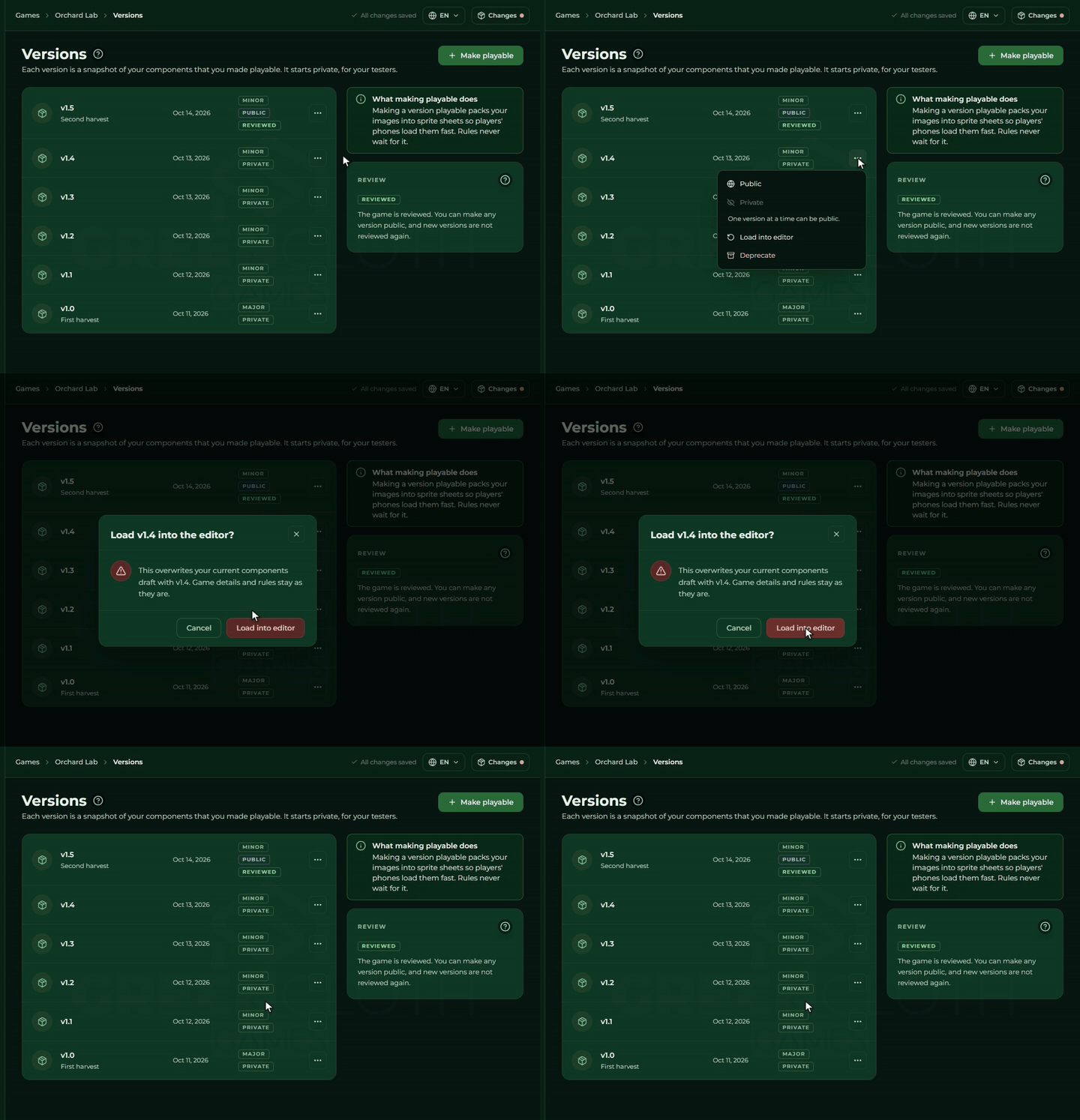
There is one safety catch, and you have to do it yourself: before you load an old version, make the current draft a version, with Repack anyway if need be. Then the current state survives as a version, and can be brought back in exactly the same way at any time.
Nothing happens to the versions: loading only writes the draft. Afterwards the draft’s content matches the source version’s, so the Nothing has changed since v… message shows up at once.
Deprecating
Deprecate puts a version into the Deprecated state. It does not delete it: its content survives
and it stays in the list, but no new party starts on it.
The confirming question reads: “Players cannot start a new game on this version. Running parties keep working.”
A public version cannot be deprecated by hand: make it private first. A new version can also deprecate the earlier live version by itself, see Several live versions at once. The Making it public page covers running parties and what all of this means from the player’s side.
Who sees the version list
Not everybody sees the same list:
- You, the game’s owner: everything, the deprecated versions too.
- Whoever reaches it through a group or an organisation: what the group’s ceiling allows; never the draft.
- Anybody else: the public version only, if there is one. If there is not, nothing.
That does not show in the Builder’s interface: your list is always the whole list.