
Your first deck
This page walks you through your first deck in order, from the empty home page to your cards showing up in the Controller. Each step says only as much as you need there; for the details, follow the link at the end of the step.
The deck passes through three places: you make it in the Creator, release it in the Builder, and play with it in the Controller.
The order at a glance
| # | Step | Where |
|---|---|---|
| 1 | A new deck | Creator, home page |
| 2 | Filling in the cards | Creator, Cards view |
| 3 | The template | Creator, Template view |
| 4 | Send to Builder | Creator, top bar |
| 5 | Release | Builder |
| 6 | The cards in the Controller | Controller |
1. A new deck
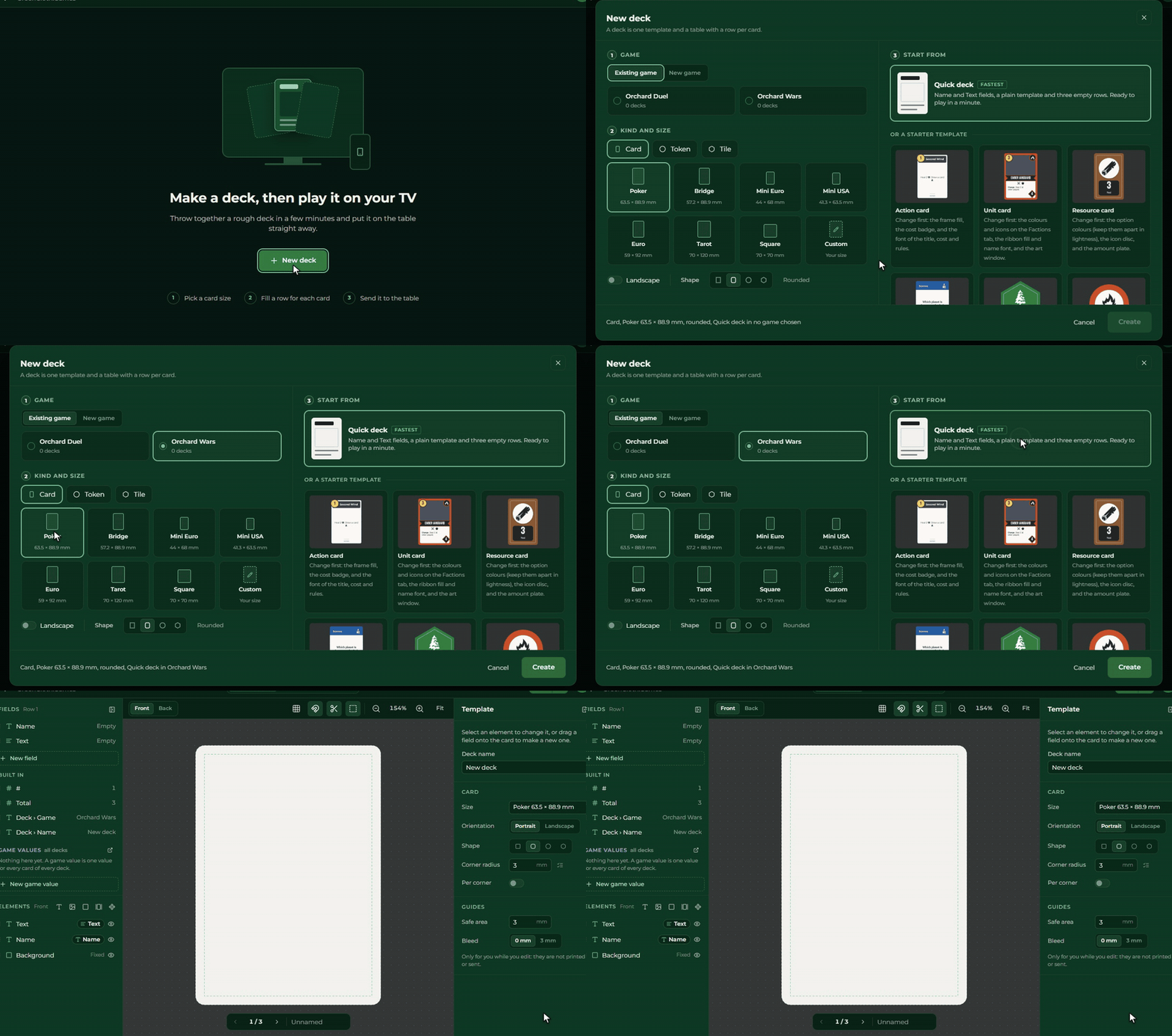
On the home page click New deck, and give:
- the game: choose an existing one, or click New game and type the title of a new one;
- the size: Poker, for example, is a good start;
- the starting point: the Quick deck is the fastest, ready with a plain template and three empty rows.
Create opens the deck. Details: New deck.
2. Filling in the cards
In the top bar switch to the Cards view. At the top you see the cards, below them the table, where every row is a card. Click the first cell of the Name column and start typing. Tab moves to the next cell, Enter to the next row. Below the last row there is always an empty row: type into it and it becomes a new card.
If your cards already exist in Excel or Google Sheets, copy and paste them, or use the Import button. Details: The Cards view and Import and export.
3. The template
Switch to the Template view. The Quick deck’s template already shows the name and the text, so a simple deck can skip this step. If you want more, drag a field from the Fields panel on the left onto the card: it becomes a new element that shows its own value on every card. The arrows under the card let you look at the result card by card.
Details: The template and Fields in the template.
4. Send to Builder
Click Send to Builder in the top bar. The side sheet tells you how many cards it will send, and tells you if something is missing. Click the Send N cards button: the Creator draws the cards into images and makes them a set of your game in the Builder. At the end, Open in Builder takes you there.
Details: Send to Builder.
5. Release
Players can only play with a version that is made playable. In the Builder open the game’s Versions page and press Make playable. You, and those you gave access to, can already start a party with the game; others see it once you make it public.
If you do not want to go over to the Builder, the Creator’s Send and release button does both in one step, see Send and release.
Details: Draft and versions and Making it public.
6. The cards in the Controller
Open the Controller with the same account, and pick your game on the New Party tab. Your own released games are there even while they are not public. Use Start with empty table to sit down at the table, open the box, and drag the deck onto the table.
Details: Your hand and Drag and drop.
When you change it later
You can change the deck and send it again any time. Sending again sends only the cards that changed. On the home page the deck’s tile says Changed since last send when there is something to send. The players get the new cards with the next release.