
Rules
This page is about how you write the game’s rules: the rule documents, the two languages, the formatting, inserting images and video, the paged, image-based rule book, and publishing, which is the step that matters with the rules.
The rule text saves itself, there is no save button. What you write goes into the draft, and players only see it once you press the Publish button.
What a rule is
A rule is a document of its own, belonging to the game. A game can have several: the short summary separately, the full rule book separately, the variants separately. Each has its own title and its own text, and a player gets each of them as a separate page, see What a player sees of it.
The rules are on the Rules page, in the sidebar’s Game page group. The rule documents are
listed in the sidebar, under the Rules row (the chevron folds the list): every row is a rule’s
title and a small dot for its state (hollow: not published yet, green: published, amber: changed
since the last publish; hover for the words). The + beside Rules is New Rule. On a narrow screen
the list is a chooser that drops down in the page header.
The list shows a rule’s title in the interface language; if it has no title in that language,
the one in the other language shows, and failing that the word Untitled.
The first rule is the base rule: it cannot be deleted, its Delete button is greyed out, and the help text says why. The rest can be deleted at any time.
A new rule
The + New Rule button opens a modal (The screen). It asks for two things: the
rule’s title and its type.
The title is a single field with an EN and a HU badge, and filling in one language is
enough.
On the Type switch you pick one of two, and a short description underneath explains the one selected:
- Text (the default): you write it in the editor, with formatting, images and videos. The rest of this page is about it.
- Pages: a rule book made of page images, which the player flips through on their phone. See Paged rule book.
⚠ The type is decided when the rule is created, and cannot be switched afterwards: a paged rule cannot be turned into text, and a text rule cannot be turned into a paged one. That is why the rename modal has no type choice. If you want the other kind, create a new rule.
With the Create rule button the rule is created at once, with the title, and the interface takes you to its empty editor.
The two languages
Above the editor stand language tabs: the game’s languages, as you set them on the Details page’s Game languages card (English only by default; with one language there is one tab and no Side by side switch). Whichever you pick is the one you see, and a
missing tag stands on a tab if there is not a single letter in that language yet. (On a paged rule
the tag means the language does not have a single page yet, see Paged rule book.)
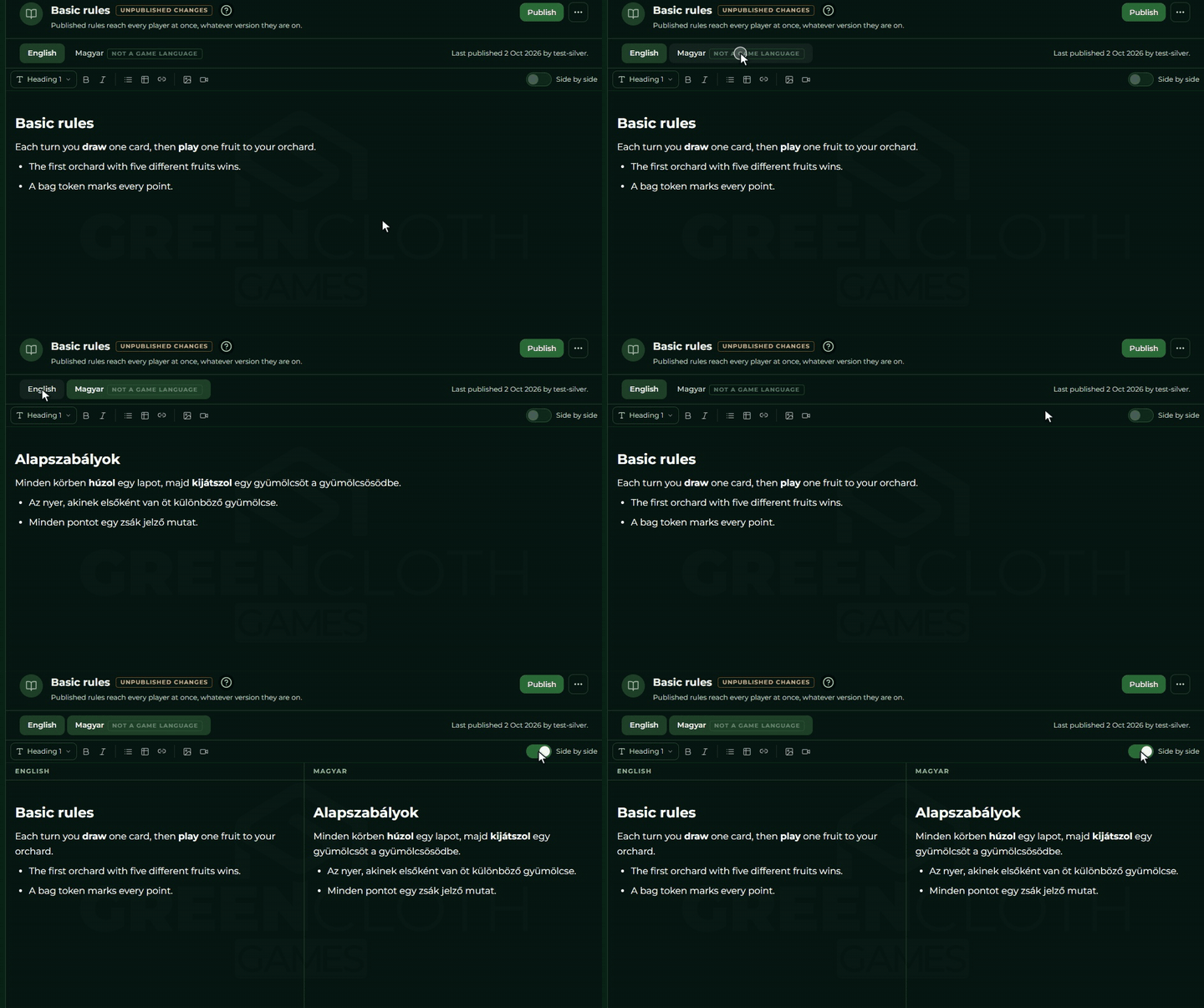
On the right edge, the Side by side switch shows both languages at once, in two columns, both editable. It is available on every plan (it is not tied to a permission) and works on a screen wider than 1024 pixels; on a narrower one the switch is hidden.
The tabs also include every language the rule already has text in, even if the game does not list it: that tab carries a not a game language tag. In the recording below, only English is a game language in the demo game, so the Hungarian tab carries the tag, and the Side by side switch is available because the rule has text in two languages.
The two languages are not two views of the same text, they are two separate texts. Either can stay empty independently of the other.
It is worth filling in both: a player gets the rule in their own language, and if that is empty, they see the one in the other language instead. The detail is in the What a player sees of it section.
At the right edge of the language bar it says when and by whom the rules were last published.
Formatting
You format in three ways, and all three reach the same thing.
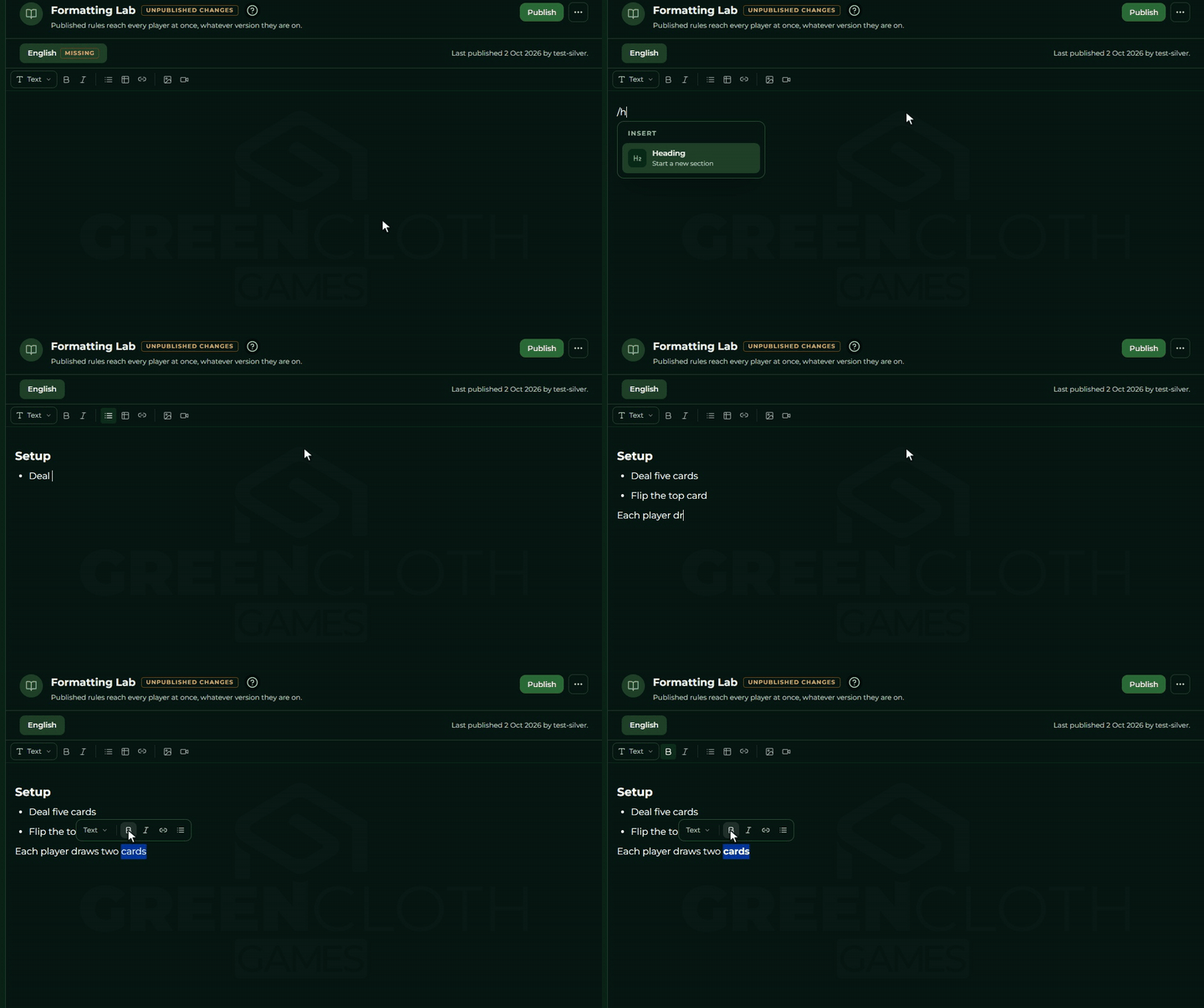
The thin toolbar under the language bar: text style (Text, Heading 1, Heading 2, Heading 3), bold, italic, bullet list, table, link, image, video. The toolbar always acts on the column you were last in.
The floating menu: select some text, and the text style, bold, italic, link and bullet list
appear above it. On the link, you type the address into a small field and Enter applies it.
The / insert menu: type / at the start of an empty paragraph and the list of insertable
things opens: Heading, Bulleted list, Table, Image (from this game’s images) and
YouTube video. Typing narrows it down, the arrows step through it, Enter or Tab picks, Escape
closes it.
Beyond that you can also format by typing markdown: # , ## or - at the start of a line
turns into a heading and a list at once, and **bold** and *italic* become formatted once they
close. Pasting works the same way: paste markdown text in from somewhere else and the editor
turns it into formatted text.
A table
The table item of the toolbar or the / menu inserts a 3x3 table with a header row. There are no
row and column controls, the keyboard does it:
| Key | What it does |
|---|---|
| Tab | moves to the next cell; in the last cell it opens a new row |
| Shift + Tab | moves to the previous cell |
For more columns, or to restructure a table, the Markdown view is the more dependable road.
⚠ Two things not to do with a table: do not merge cells, and do not put more than one paragraph or list into a single cell. The editor cannot save such a table into markdown, and its contents break the next time you open it.
The player sees the table as a table; if it is too wide for their phone it scrolls sideways inside its own box and does not push the page apart. See What a player sees of it.
Inserting an image
The image button on the toolbar, or the Image item of the / menu, opens a modal with the
game’s images. Every row carries the thumbnail, the file name and the Insert button, which
puts the image into whichever column you opened it from. The list does not show the page images of
paged rule books, those do not belong in the text.
You can upload from the modal as well: with the button, or with a file dropped on the modal. It lands in the same place as an image uploaded from the Images page, among the game’s images.
The inserted image’s alt text is the file name.
What goes into the rule is the original image, at full resolution, not the small thumbnail you see in the list. A detailed diagram, a card image or a piece of a board therefore stays sharp for the player too. Images inserted earlier also appear at their original size, there is no need to insert them again.
Inserting a video
The video button on the toolbar, or the YouTube video item of the / menu, opens a modal with
a single field, into which you paste the video’s address. The address can be the usual watch?v=…
shape, the shortened youtu.be/… or shorts/…, and the interface picks the id out of it by itself.
The moment it recognises the id, the video’s preview image appears and the Insert Video button becomes active. If no id comes out of the field’s contents, the button stays greyed out.
YouTube only. You cannot insert another video service or a video file of your own.
Markdown view
The Edit as Markdown item of the header’s ”…” menu switches to the markdown source: the raw
markdown appears in a plain text box where the formatted text was, and can be edited directly there.
A note stands where the toolbar was: “You are editing the Markdown source.” You come back from the
same menu (Back to rich text).
The switch acts on every visible column, so on both languages in side by side view.
The Markdown view is also the quickest road if you want to bring finished rule text over from somewhere else: paste it in here, and after the switch you see it formatted.
The saving goes by itself
There is no Save button. What you type goes into the draft by itself after a short pause, just as everywhere else in the Builder. The state of the save shows in the top bar, see Draft and versions.
Two things follow from that:
- You can leave the page without worrying. If there were still an unsent change, the Builder saves it first and only then lets you on; if the save fails, it asks whether you really want to go.
- “Side by side” and switching language lose nothing: the text of both languages lives in the same draft.
⚠ If somebody else has changed this same rule in the meantime, a bar appears under the header: “Someone else changed this in the meantime, so your change wasn’t saved.” It has two buttons on it: Copy my text puts the text of both languages onto the clipboard, and Reload brings in the other version. Copy first, reload only afterwards.
Publishing
Players do not see a rule that is in the draft. The header’s Publish button makes it live, and the page spells it out: “Published rules reach every player at once, whatever version they are on.”
- The button is live when there is an unpublished change. The header and the list then carry a yellow
Unpublished changestag; after publishing,Published <date>, and on a rule that has never been published,Not published. - The button asks for a confirmation: “Rules update for every player right away, including games in progress.”
- Publishing takes out all of the game’s rules at once, not only the one you are looking at.
- If you happen to have an unsent change, the interface says so: “All changes need to be saved first.” Wait a second and press it again.
The Revert to published item of the ”…” menu goes the other way: it throws away every rule
change made since the last publish, and brings back what players see. ⚠ It cannot be undone, so it
asks for a confirmation.
A rule is not part of a version. You do not need to make a version playable for it, and making one playable does not publish it either, see Draft and versions.
Renaming
The Rename item of the header’s ”…” menu opens the same modal as creating one, filled in with
the existing title. One language is enough here as well.
The rename goes into the draft like everything else: no separate save is needed.
Deleting
The red Delete rule item of the header’s ”…” menu opens a confirming question: “The rule is
removed from the draft. Players stop seeing it after the next publish.”
That sentence is exact: the rule disappears from the editor at once, but whoever has already seen it goes on seeing it until you publish again.
The base rule cannot be deleted, its menu item is greyed out for it.
Paged rule book
A paged rule book is the right thing where the rules already exist as images: a designed or scanned
rule booklet, one image per page. You do not edit text, you edit the order of the page images. You
choose the type in the New rule modal, with the Pages setting.
In the editor, the pages of the selected language stand in a grid. The language tabs stay, but the
tools of text editing are not there: no formatting toolbar, no Side by side view, and the
Edit as Markdown item of the ”…” menu is greyed out.
- Every language has a page list of its own, that is its translation: the English pages on the
English tab, the Hungarian ones on the Hungarian tab. The
missingtag tells you the language does not have a single page yet. - The
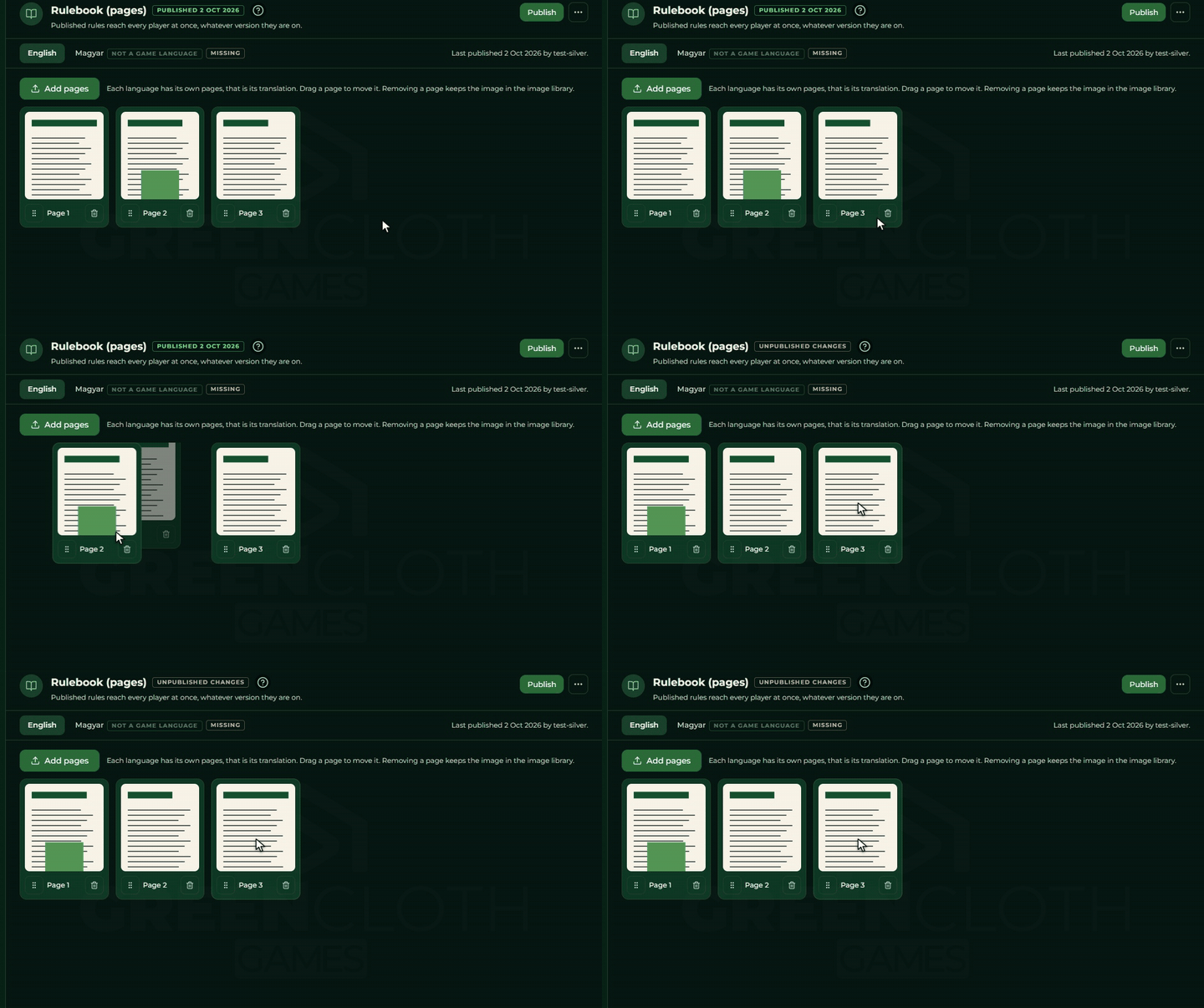
Add pagesbutton opens a file chooser where you can select several images at once; you can also drop files on the grid. The pages go to the end of the list in the order you selected them. The same three formats apply as for other images (PNG, JPEG, WebP, see Images). - Reordering is by dragging: grab the handle on the page’s card and take it to its place. The handle can also be moved with the keyboard.
- The bin only takes the page out of the list. The image stays among the game’s images, where you can add it again or delete it.
- The pages line up with a number (
Page 1,Page 2, …), and the player gets the same order.
An image used as a page of a rule also appears on the Images page, with a Rule page
tag and the rule’s name. While it is a page of some rule, the image cannot be deleted: an image in
use is never deleted, so take the page out of the rule first. The pages of a paged rule count toward
the storage like any other uploaded image.
Like a text rule, a paged rule saves itself (The saving goes by itself), and players see it only after you publish (Publishing). Renaming and deleting work as they do for a text rule.
What a player sees of it
A rule appears in the controller’s menu, on the game’s page, during a party. At the bottom of the page the game’s rules line up as a list, one row per rule; tap one and the rule opens as a full page of its own. The rule does not appear anywhere on the display.
Which language they get: the one their own interface is set to. If the rule is empty in that language, they get the English text instead. Two rules follow from that:
- English is the general fallback. If the English is empty, a player who is not using Hungarian
sees
No contentwhere the rule should be, not the Hungarian text. - Hungarian is never a fallback. Only a player set to Hungarian gets it.
The same holds for the title: if a rule has a title in neither language, it appears in the list under a default name.
A text rule appears with the formatting you saw in the editor: headings, lists, bold, italic and struck-through text, tables, images, links and an inserted YouTube video (embedded and playable). Lines written under one another stay separate lines. A wide table scrolls sideways inside its own box.
A paged rule shows one page image at full width. The player turns the page by swiping (left
for the next, right for the previous) or with the previous / next buttons; between the buttons
stands the page counter (for example 3/12). On the first page the previous button is greyed out, on
the last one the next. For a paged rule the English fallback is a little wider: if there are no pages
in the player’s language they get the English ones, and if the English is empty too, the pages of
the first language that has any. If no language has a page, the text No content stands in its
place (Nincs tartalom on a Hungarian interface).