
Account
This page is about your own account: where you find it in the Builder, what the account menu shows, how you see how much room you have left, how you sign out, what the plans mean, and how you install the Discord bot on your own server (the last one in the account application).
A short page, because you have little to do with it in the Builder: the account’s settings are in the account application, not here.
Where you find it
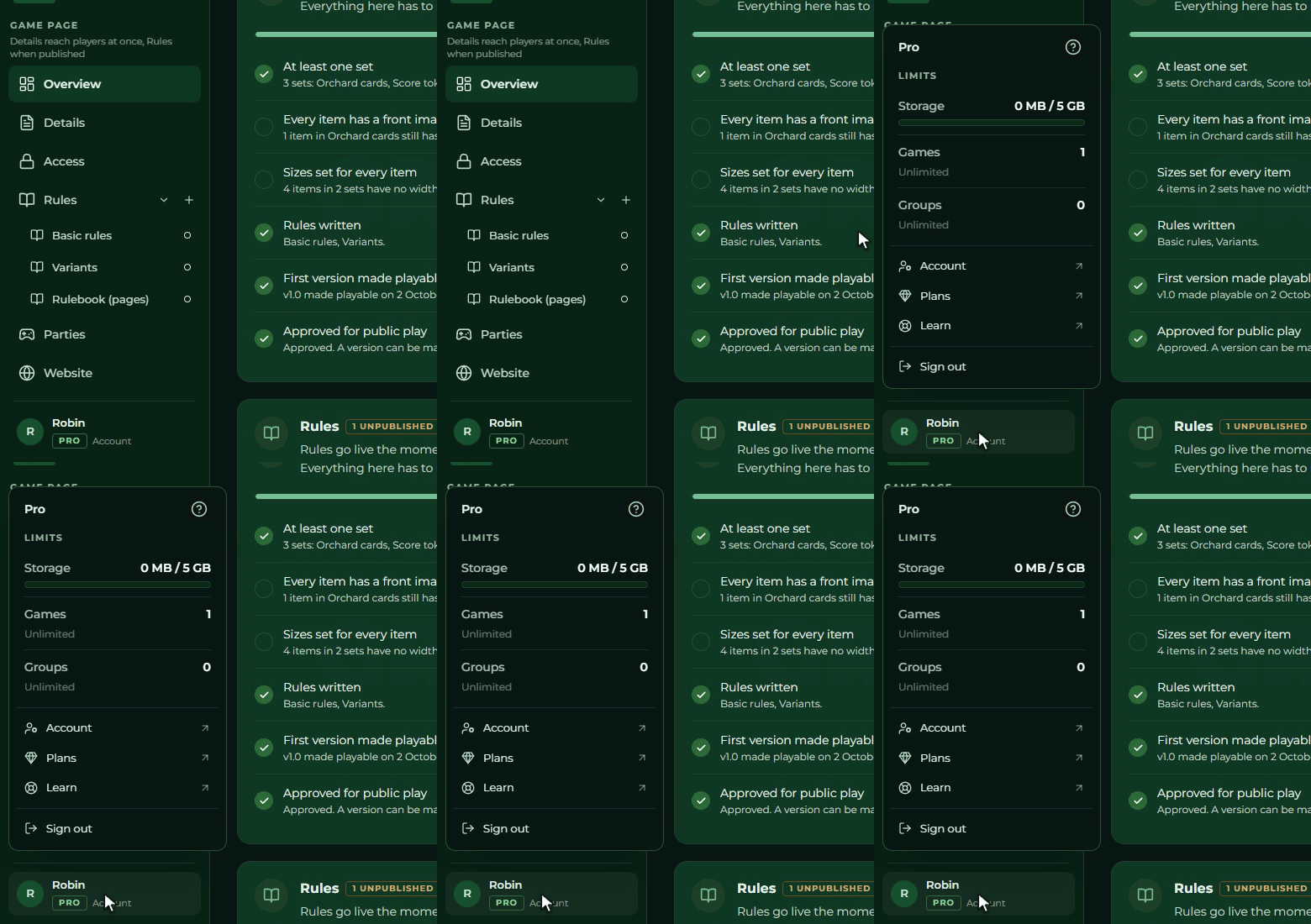
The account row stands right at the bottom of the sidebar: your profile picture, your name, and
under them your plan’s tag and the word Account. Clicking it opens the account menu.
The row is reachable from every page: it does not change even while you are working in a game, a group or a brand. With the sidebar collapsed only your profile picture shows, and the menu opens the same way.
If you have an unread message, a counter appears on the row.
The account menu
From top to bottom:
| Part | What it shows |
|---|---|
| The name of your plan | Free, Plus, Pro, say. If an organisation gives you a plan too, the biggest one shows, as a single badge |
| A warning about a failed payment | only if the last payment failed: “Payment failed. Sort it out in your account.” |
| Limits | three meters, see below |
| Account | opens the account application in a new tab; if you have an unread message, straight on the messages |
| Plans | opens the plans page in a new tab, see Plans |
| Learn | opens the front page of the Builder manual in a new tab, that is, this help |
| Sign out | see below |
⚠ There is no profile page in the Builder. You change your name and your picture at the service you signed in with (Discord, Google, Facebook), and the rest in the account application.
Limits
The menu’s Limits section shows three meters, each with the current value, your allowance and a
bar:
| Row | What it measures |
|---|---|
| Storage | all of your uploaded images together, 46 MB / 200 MB for example |
| Games | how many games you have |
| Groups | how many groups you have, with Up to N members per group under it |
If a value reaches 90 per cent of the allowance, the bar and the percentage beside it turn amber.
On an unlimited allowance the word Unlimited stands in place of the number, with no bar.
The menu queries the values afresh every time it opens, so you see the up to date number right after an upload.
Switching language
You set the interface language not here but with the globe icon in the top bar. The detail is on The screen.
Signing out
The last row of the account menu is Sign out. There is no signing out anywhere else in the Builder.
What happens after you press it can be surprising:
- The Builder opens a separate small browser window, which clears your sign-in.
- The window does not close by itself, you have to close it.
- Only then does the Builder notice you have signed out, and only then does it switch to the sign-in screen.
Two practical consequences follow from that:
- If the small window stays open, the Builder shows the old screen. It is not stuck: close the window.
- If your browser blocks pop-up windows, the signing out does not happen. The row then looks as though it does nothing.
The Builder cannot be used as a guest: with that kind of entry a blocking screen greets you instead of the Games page, carrying the same signing out. Editing needs a full account.
Plans
Your plan decides how much room you have, how many games and how many groups you can keep, and which features are available. The menu’s Plans row opens the plans page in the account application in a new tab: buying and billing are there, not in the Builder.
⚠ The system enforces the limits. That shows up in three places in the Builder:
- An action does not start. If an upload would go over your storage, or a new game, group or
organisation would not fit, the interface opens a panel with the current and the allowed value, and
the
See plansandNot nowbuttons. The panel spells this out too: “Plans and billing live in your account. Your games stay exactly as they are in the meantime.” - A game becomes read-only if its owner has gone over their storage or game limit. A
Read-onlytag and a warning then stand on the game’s pages, and you cannot upload new images. Either you delete something, or the owner needs a bigger plan. - Some permissions get a faint note. In the ceiling editor, beside
Play a party backandStart a new game from a party, stands: “Not in your plan.”
What counts is the game’s owner. A game always has a single owner, and the limit always comes
from the owner’s plan: the storage, the number of games and the features alike. That stays true
when the game is also in a group or an organisation: the game lives on its owner’s storage and game
allowance, not on the group’s or the organisation’s. So if you work on a game someone else owns and
it has run out of room, upgrading your own plan does not help: the owner has to delete something or
pick a bigger plan. The Read-only marker then shows for everyone who opens the game.
Discord bot
With a Pro or Ultra plan you can make your games reachable through a Discord bot on your own server too: members can browse your list there, start a party, and check their account, without having to open the controller first.
Installing it
The installation is not in the Builder: it is on the account application’s Profile page, in
the Sign-in method section, and only shows when you signed in with Discord. On Pro and Ultra,
clicking the Discord bot on your server row opens Discord’s own authorisation page in a new tab,
where you pick which of your servers the bot goes on and approve the permissions it asks for
(viewing a channel, sending messages, embeds). The copy icon next to the row puts the same link on
the clipboard, in case you would rather send it to a server admin who installs it for you. On a
smaller plan the row is closed and points at Plans.
Once you approve it, Discord sends you back to the Builder, and a confirmation message tells you whether the installation succeeded.
⚠ Only one installation counts per server. If someone else (or you, another time) installs the bot on the same server again, the last installer’s account is the one that decides whether the bot’s commands are active there, based on that account’s own plan.
What the bot can do on your server
Once installed, three commands become available to anyone on the server:
| Command | What it does |
|---|---|
/games | Lists your games, alphabetically, five at a time (searchable by title); your own games always sit at the top of the list. Each row carries a Party button |
/party | Picking a game (with suggestions as you type) reserves a party straight away and posts the party card in the channel: name, players, viewers and a Join button anyone can open in the controller |
/account | Shows the state of the calling person’s own GreenCloth account: plan, renewal date, storage and game count, the same figures the account menu shows |
The party card updates itself as the party’s state changes: Waiting to Running to Ended (or
Expired, if nobody joins in time). The Join button disappears once the card reaches a closed state.
⚠ If your plan lapses or drops to a smaller one, the bot stays on the server but its commands go
quiet: /games and /party then answer that the bot is not active on this server, until your plan
qualifies again. /account keeps working regardless of your plan.