
The template
In the Template view you draw what one card of the deck looks like. You build the card from elements: text, image, shape and icon row. This page covers the basics of the editor; how the elements get the cards’ own data is described on Fields in the template.
How the editor is laid out
The editor has three parts:
- on the left the Fields panel (the table’s columns) with the Elements list below it;
- in the middle the card;
- on the right the Properties panel, with the settings of the selected element.
Above the card are the Front | Back switch, the guide switches and the zoom; below it is the row stepper, which lets you look at the template card by card.
Both side panels collapse. On a smaller screen (a tablet, a narrow window) the left side shrinks to a narrow rail, and Fields and Elements open with a button; narrower still, the right panel also floats over the card, and a tab on the card’s right edge opens it.
The card and the guides
In the editor the card looks exactly the way it will in the Builder and in the game, with the data of the card you picked with the row stepper.
The switches above the card only help while you edit, they do not go onto the card:
- 1 mm grid;
- Smart guides: while you move, they show when the element lines up with the card’s edge or centre;
- Cut line: where the card has to be cut;
- Safe area: the strip near the edge that important text should not reach into.
The zoom’s − and + buttons zoom in and out, and Fit fits the card to the window.
Adding elements
The buttons in the Elements list header put four kinds of element in the middle of the card:
| Element | What it is for |
|---|---|
| Text | a name, an ability, any label |
| Image | an illustration, a background picture |
| Shape | a frame, a background, a coloured strip: rectangle, rounded, circle, hexagon, diamond, ribbon, star |
| Icon row | small icons standing side by side, such as cost marks |
The fifth button puts a ready component on the card, see Groups and components.
The Elements list shows the card’s layers, starting with the topmost. Drag them to change their order. The eye icon in a row hides the element while you edit, so you can reach the one behind it; the element stays on the card all the same.
Select, move, resize
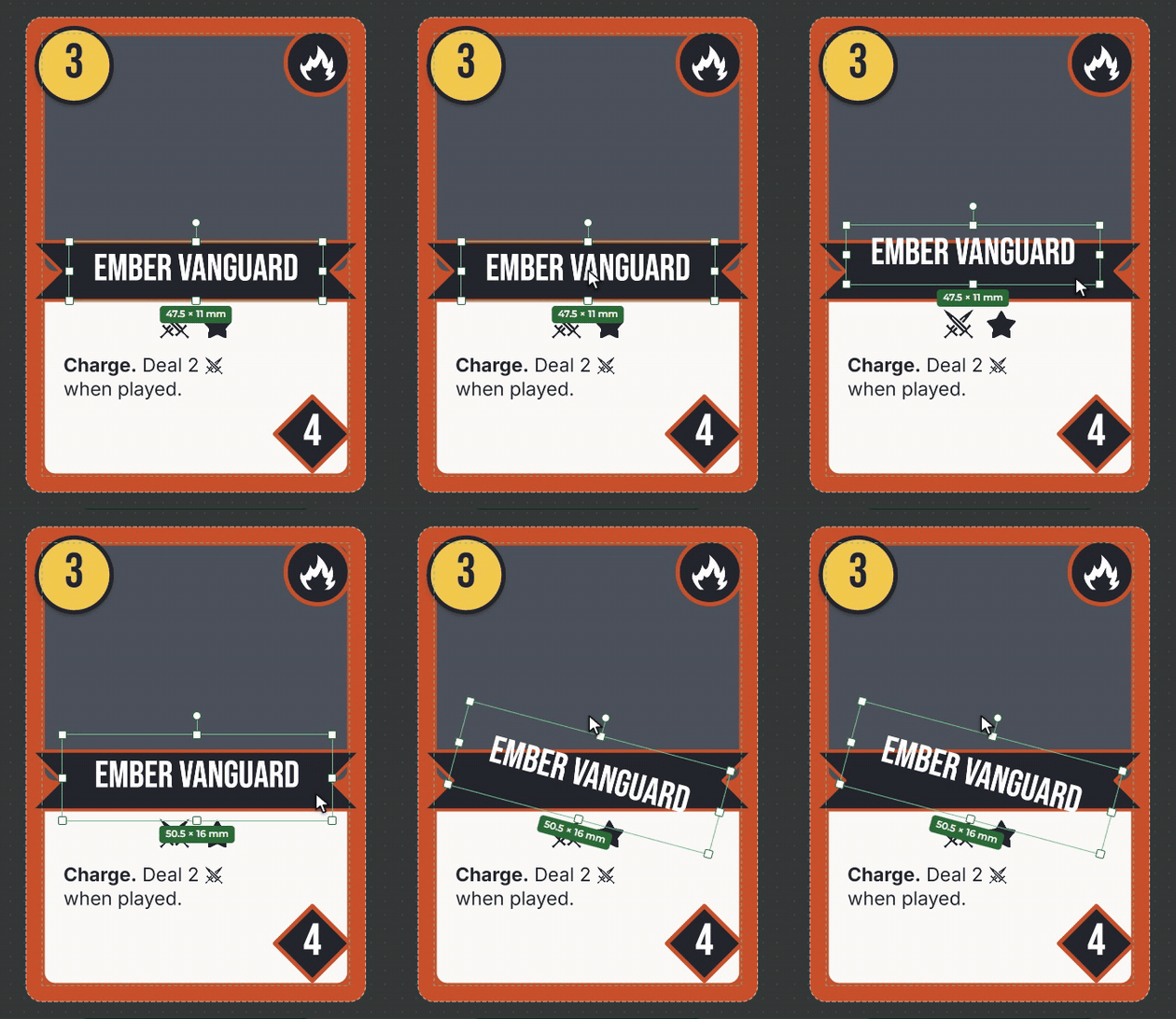
- Select: click the element on the card or in the list. With Shift you can select several elements.
- Move: drag the element. It snaps to the card’s edges and centre, shown by a pink line.
- Resize: drag one of the eight handles of the frame.
- Rotate: drag the small handle above the element. With Shift it turns in 15 degree steps.
A drag can be undone in a single step. This works with a touch screen and a pen too.
Keys
| Key | What it does |
|---|---|
| arrows | move the selection by 1 mm (with Shift by 0.1 mm) |
| Delete | delete the selection |
| Ctrl+D | duplicate it |
| Ctrl+C, Ctrl+X, Ctrl+V | copy, cut, paste |
| Ctrl+G, Ctrl+Shift+G | group, ungroup, see Groups |
| Esc | clear the selection |
| Ctrl+Z, Ctrl+Y | undo, redo |
Copy and paste. You can paste copied elements on the back, into another deck, even into another game. If you paste them in the same place, the copy lands a little to the side so you can see it. In another game the images and the symbols do not come along; choose new ones there.
The element’s properties
The right panel shows the settings of the selected element. At the top is its type: if you switch it (from text to shape, for example), its place, size and field are kept. Below are the name, the position and size in millimetres, the rotation and the opacity.
By type:
- Text: font and size, colour, alignment, bold, italic, line spacing, outline, background, inner margin. Shrink to fit makes text that is too long smaller, so it fits. See Text and fonts.
- Image: where the picture comes from (the game’s images, or an Image field), and how it fills its place: Whole image (the whole picture shows) or Fill (the picture fills the place, its edges may be cut off).
- Shape: the form, the fill, the border’s thickness and colour, the shadow.
- Icon row: the icons’ direction (side by side or below each other), alignment, size and spacing.
Instead of colours and fills you can also choose a texture.
Rounding. Rounded corners are all the same by default. With the Per corner switch you can set each of the four corners separately.
Several elements at once. If you select several elements, the panel shows the settings they share, and a change applies to each of them. Where they differ, it says Mixed.
Numbers quickly. In a number field the Up and Down arrows step the value, with Shift in bigger steps, with Alt in smaller ones.
Visibility: only when it has data
For an element that comes from a field, Visible can be Always or Only when it has data. With the
latter, on cards where the field is empty the element is not drawn at all, nor its background and border, so no
empty box is left on the card. The Creator counts the number 0 as a value, and it shows.
The card’s settings
When nothing is selected, the right panel shows the card’s settings:
- the Deck name;
- the size and the orientation;
- the shape and the rounding of its corners;
- the width of the safe area and the bleed (see Printing).
The back
The Back button above the card switches to the back, which you edit just like the front. A new deck’s back is a single shape filling the card.
A label next to the switch tells you whether the back is Same on every card or Changes card to card. The latter shows when an element of the back takes its value from a field (the faction’s colour, for example): then every card gets a back of its own.