
Text and fonts
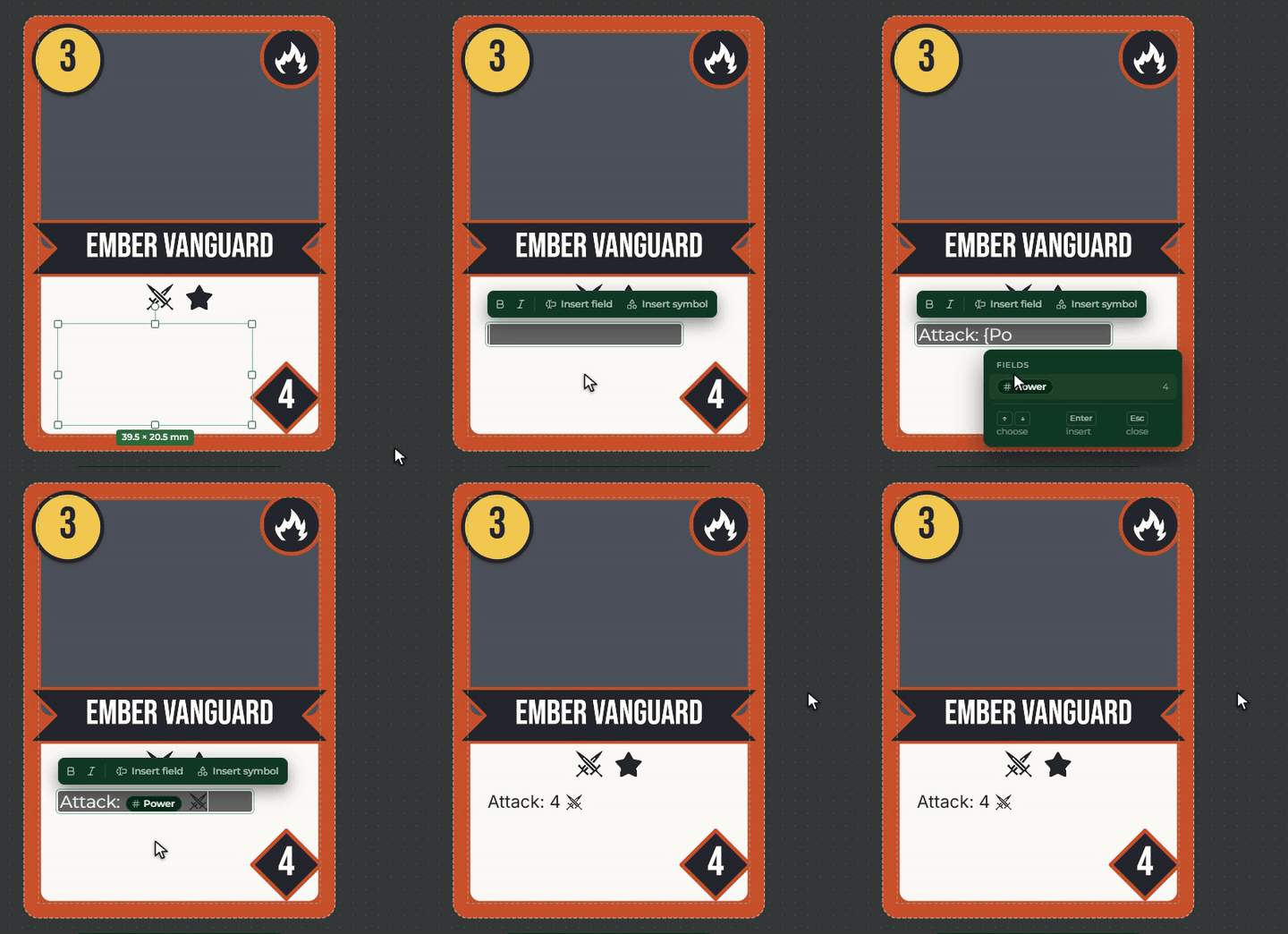
A Text element can show more than plain text: you can put fields and icons into the text. Insert the Power field after “Attack:”, and every card shows its own value there. This page is about editing text and about fonts.
Editing the text
You can write a Text element’s text in two ways:
- on the card: double-click the element and type right in its place;
- in the right panel: set Content to Fixed content, and write the text below it.
The editor’s toolbar: Bold, Italic, Insert field and Insert symbol. Enter starts a new line. Text you edit on the card is closed with Esc, or with a click on another part of the card.
In the text, fields show as small tags and symbols as icons, and on the card the row’s value or the icon takes their place.
A field or an icon in the text
The quickest way is a { sign: type it, then the beginning of the field’s or the symbol’s name, and a list offers
the matches. Choose with the arrows, Enter inserts it, Esc closes the list.
You can also drag a field from the Fields panel, or an icon from the symbols, into the text with the mouse. Image and Colour fields cannot go into text.
Fonts
The Font picker has two groups:
- Built in: twelve fonts, each with a sample line written in its own letters. Montserrat (the default), Inter, Oswald, Roboto Slab, Merriweather, Playfair Display, Bebas Neue, Cinzel, Lobster, Patrick Hand, Caveat and JetBrains Mono.
- Google Fonts: Google’s font collection, about 1900 font families. You can browse by name with the search, and by kind with the filter (sans serif, serif, display, handwriting, monospace).
Every font handles Hungarian accents, ő and ű too, and looks the same on every machine, in the Builder and in the game too. We load the Google Fonts from our own server, so your data does not reach Google.
If a font cannot be loaded right now, a warning shows under the picker, and until then the card shows the default font. You can try again with Try again.