
Your hand
The bottom band of the screen is yours: your cards are here, and this is where you reach the game’s box too. This page is about how you page through them, how you take a card out and put one back, and how you read a card full screen.
Your two hands and the box
You have two hands, and both work the same way: whatever you can do with one, you can do with the other, only they are stored separately. The bottom band is split into two halves, and their places never swap:
- your left hand is always on the left
- on the right you get either your right hand or the box (the game’s supply, from which you put pieces on the table), because those two share the same place
The Box / Hand button in the top right corner of the hand bar switches what is on the right. While the box is out the button is lit, and your right hand simply waits hidden for you to switch back to it. It is not emptied.
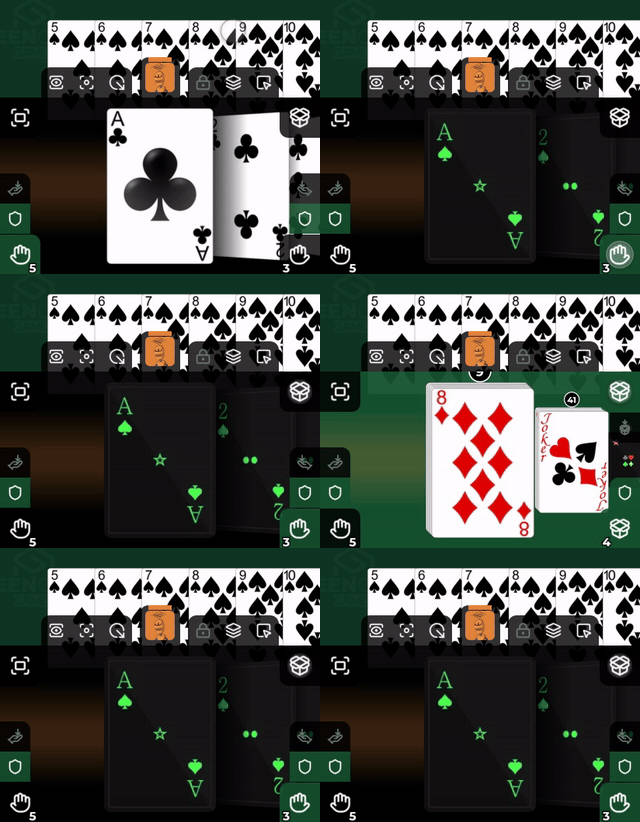
On a wide and on a narrow screen
| Screen | What you see |
|---|---|
| wide (phone in landscape, tablet, browser) | both halves open, side by side, separated by a thin line |
| narrow (phone in portrait) | one open, filling the whole bar; the other is closed and not shown |
Which case you get is decided by the shape of the screen, not by you: wherever two halves fit side by side, both open. The switch is instant, with no animation.
The closed hand
On a narrow screen the closed half is not shown: the open hand gets the whole bar. Its place is still there, though: a button stands in each of the two bottom corners of the bar, with a hand icon and the card count, and these are what you switch with.
- tap the closed half’s button and that half opens while the other one closes. The open half’s button is lit
- hold a card over the closed half’s button during a drag and after half a second that half opens by itself, so you can drop a card into it even though it was closed
The left button is always your left hand, the right one your right hand or the box. On a wide screen both halves are open, so there the buttons only show the card count.
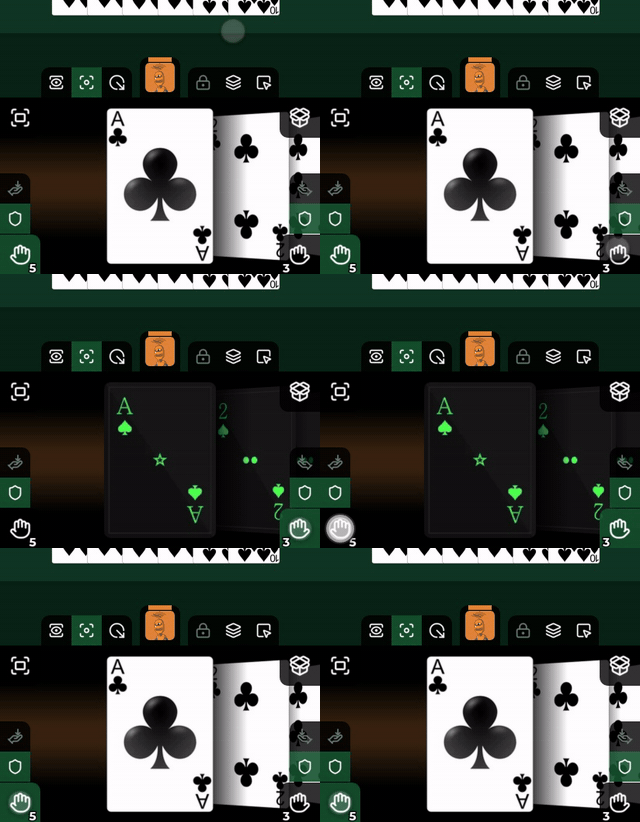
The card count
The buttons in the two bottom corners of the hand bar carry the card count:
- the same place and the same size open and closed, so it does not jump when you switch
- on the left it is always the number of cards in your left hand
- on the right it is either the number of cards in your right hand, or the number of entries in the box, whichever is showing, see More than one copy in the box
- the open half’s button is lit, so on a narrow screen the pair reads like a two position switch
- tapping it switches to that half, see The closed hand
The height of the hand bar
The hand bar takes a quarter of the screen height by default, but you can set it per device, anywhere from 15 to 40 percent of the screen height, in steps of 5 percent. Two ways:
- drag your own head vertically, live: up makes the bar taller, down makes it shorter. This only resizes while no opponent’s hand is open; if one is, the same movement closes it instead
- the Hand Bar Height slider in Settings; Save applies it
The value stays on the device, even after a reload. Your bar and an opponent’s bar are always the same height, and whatever the bar gains, the table loses.
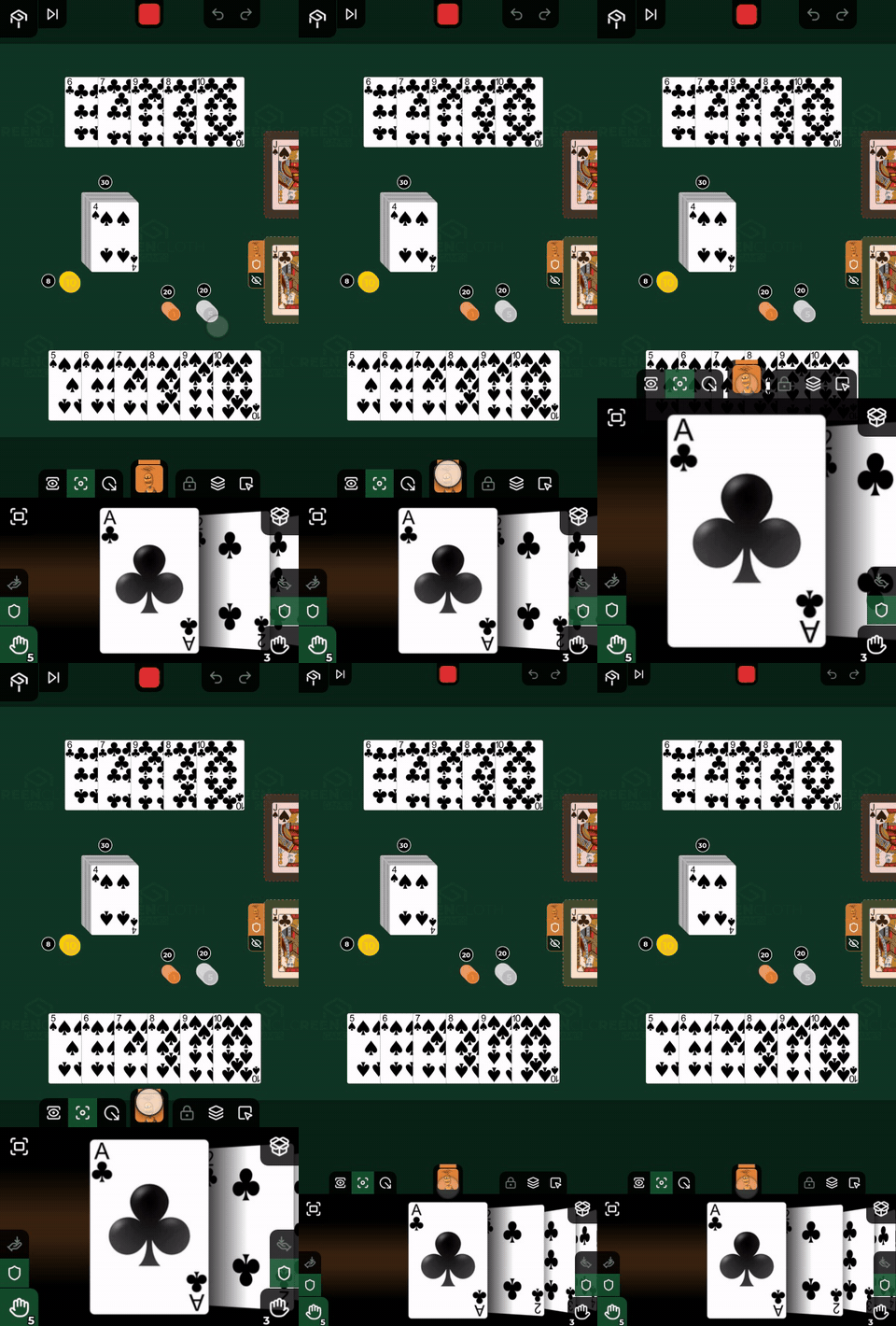
Paging through your hand
Your cards stand in a fan: the middle one is at full size, its neighbours progressively smaller.
- drag sideways and the fan follows your finger; let go and it snaps to the nearest card
- a quick flick steps one card along
- tap an outer card and that card comes to the middle
The box half pages the same way, independently of your hands.
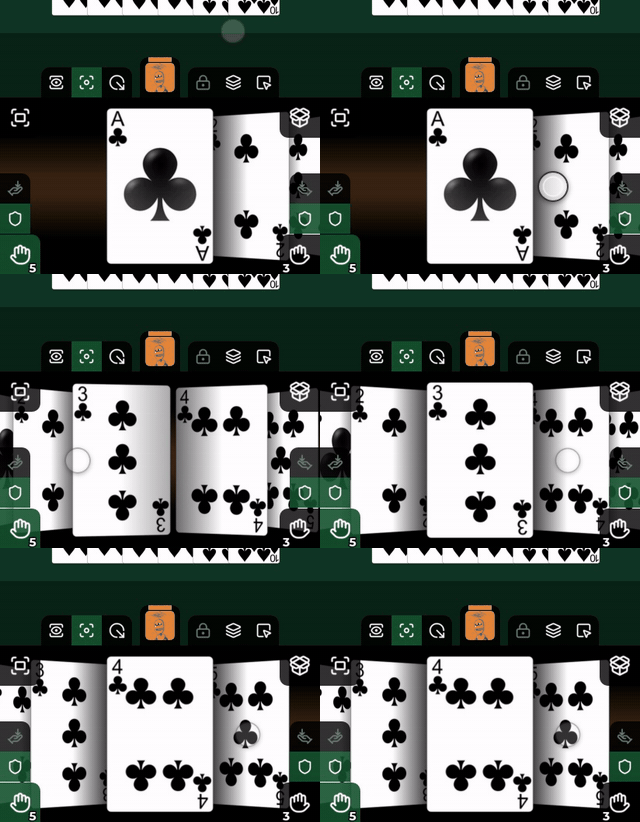
More than one copy in the box
If the game’s creator put several copies of a set into the box (the set’s Quantity field in the Builder, from 1 to 99), the box shows them as one entry, the copies side by side. There is no number badge on them: you see how many there are by how many stand next to each other.
- dragging upwards takes one copy from the entry onto the table; the row gets shorter, and the entry disappears with its last copy
- a copy that is missing an item, or has one turned over, is an entry of its own; put it back, and once it matches the others again it folds back in with them
- paging through the box and the corner count follow the entries, not the copies
A set of a single copy behaves as it always did.
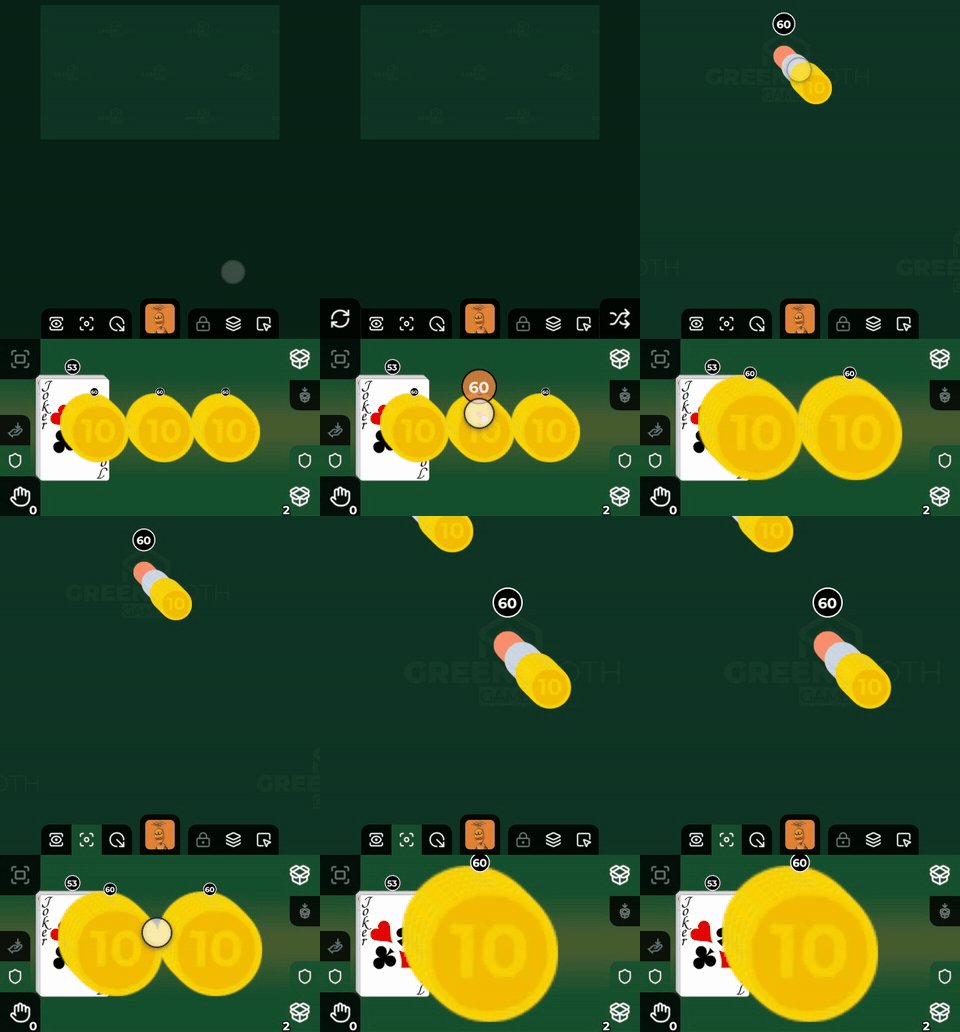
Taking a card out of your hand
Grab the card, whichever hand it is in, and drag it upwards, towards the table. The card leaves your hand, and from then on you carry it like any card on the table. On dropping it: Drag and drop.
The box half works the same: drag upwards and the piece goes onto the table.
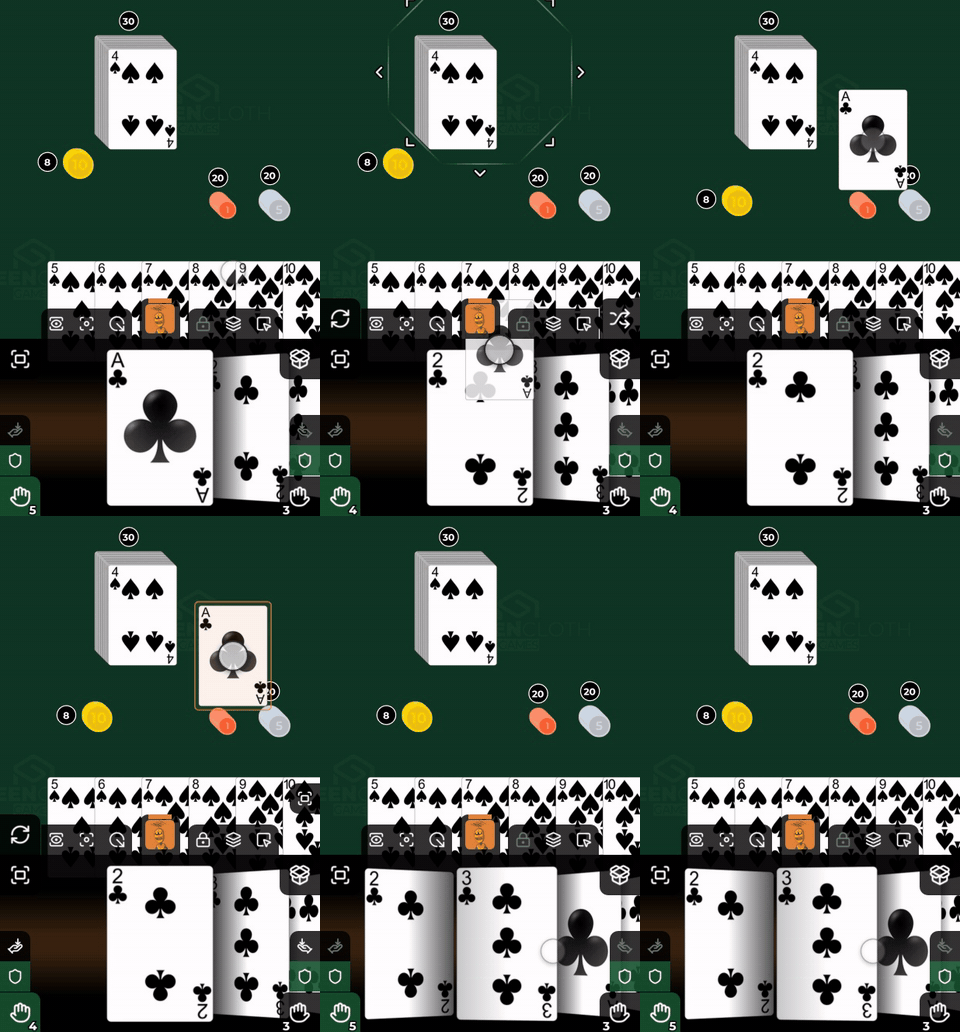
Putting a card into your hand
Drag a card from the table over one of the hand bars and let go. The fan opens a gap at the point your finger is on, so the card lands where you aim: dropped on the left bar it goes into your left hand, on the right bar into your right hand.
You can drag between your two hands as well: pick the card up in one hand bar and carry it to the other. On a narrow screen the other hand is closed: hold the card over the other side’s bottom corner button and after half a second that hand opens, see The closed hand. If the box is currently out on the right, your right hand waits hidden: to drop a card into it, switch back to it first with the Box / Hand button.
You can also do it without dragging: select the item and tap the To hand button at the foot of the wall, see Toolbar. The selection goes to the end of the hand.
Selection in your hand
- tap the middle card to select that card, or to clear it
- press and hold the hand bar and every card in that hand is selected
A card selected in your hand is part of the selection exactly like one on the table, so the Zoom Selection button shows it too. That button stands at the bottom of the right wall and is only there while you have a selection, see Toolbar.
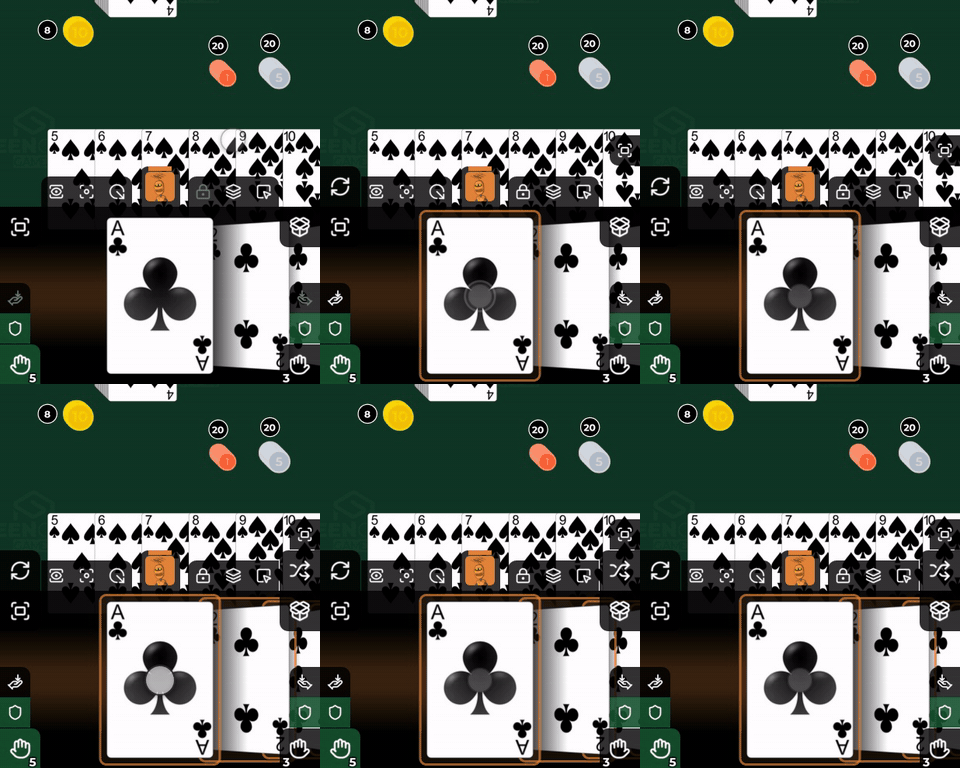
Full screen zoom
The Zoom Hand button in the top left corner of the hand bar blows your cards up to full screen. Which hand (or hands) it shows depends on the width of the screen:
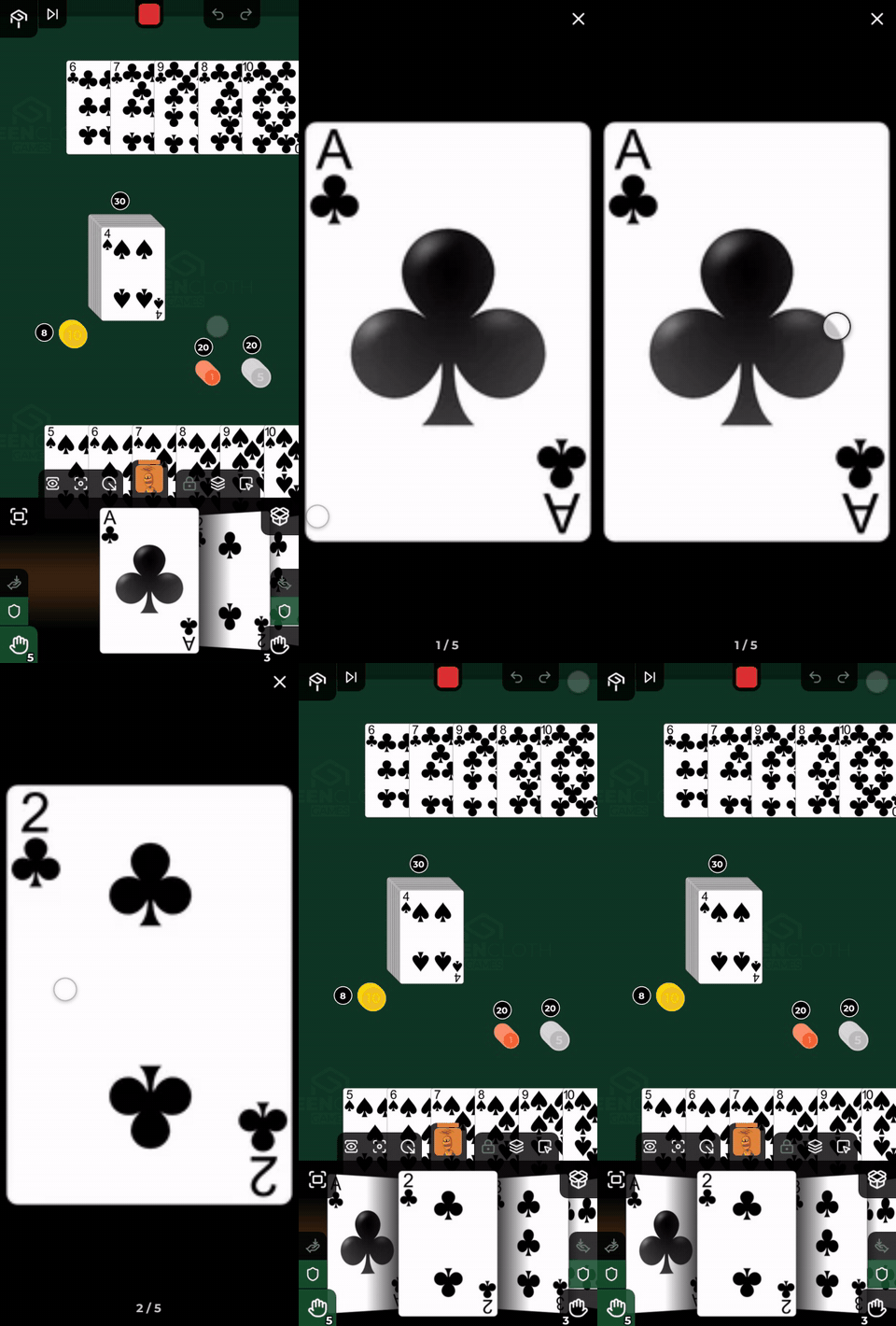
- on a narrow screen it zooms the hand that is currently open: the left bar out gives your left hand, the right bar your right. If the box is out on the right, it shows your left hand
- on a wide screen, where the two halves are side by side anyway, both of your hands open together in one row: first the left hand’s cards, then the right hand’s, starting from the middle card of the left hand
It opens where you are standing:
- drag sideways to page through the rest of the cards, in the same order
- the bottom tells you which card you are on
- its scope is always your hand (or both of them), even when something is selected on the table at the same time. The selection has a button of its own, see Toolbar
- if both of your hands are empty, the button is disabled: it has nothing to show
While the zoom is open nothing else is visible: not the box, not the table, and not a single other button. The way out is the X in the top right corner, even when you started the zoom from the corner of the hand bar. On a keyboard Escape closes it too.
After you close it, that hand stands on the card you looked at last; the other hand’s paging position is unchanged.
Protecting your hands
Each of your hands has a shield of its own, and they are switched independently:
- the left hand’s shield stands on the left side of the hand bar, at the bottom, right above the bottom left corner button
- the right hand’s shield on the right side, also at the bottom, above the bottom right corner button, mirroring the left
Both are always visible, even when the box is out on the right, or one of the halves is closed. While one is on, no other player can take a card from that hand, and they can still steal from your other hand if that one is unprotected. Both shields are on at the start.
This is not the same as your area’s shield: all three are separate, see Areas.
An opponent’s hand
An opponent’s head answers to two separate gestures, and the two never blur into each other:
- tapping it only focuses on their area. The camera takes the view there, exactly as when you switch to your own or to the shared area, see Areas. Their hand does not appear because of it.
- dragging down from their head brings their hand in: it slides down from the top, cards face down, with their left hand open by default. This does not select them and does not move the camera to their area. The point of it is to draw a card from them.
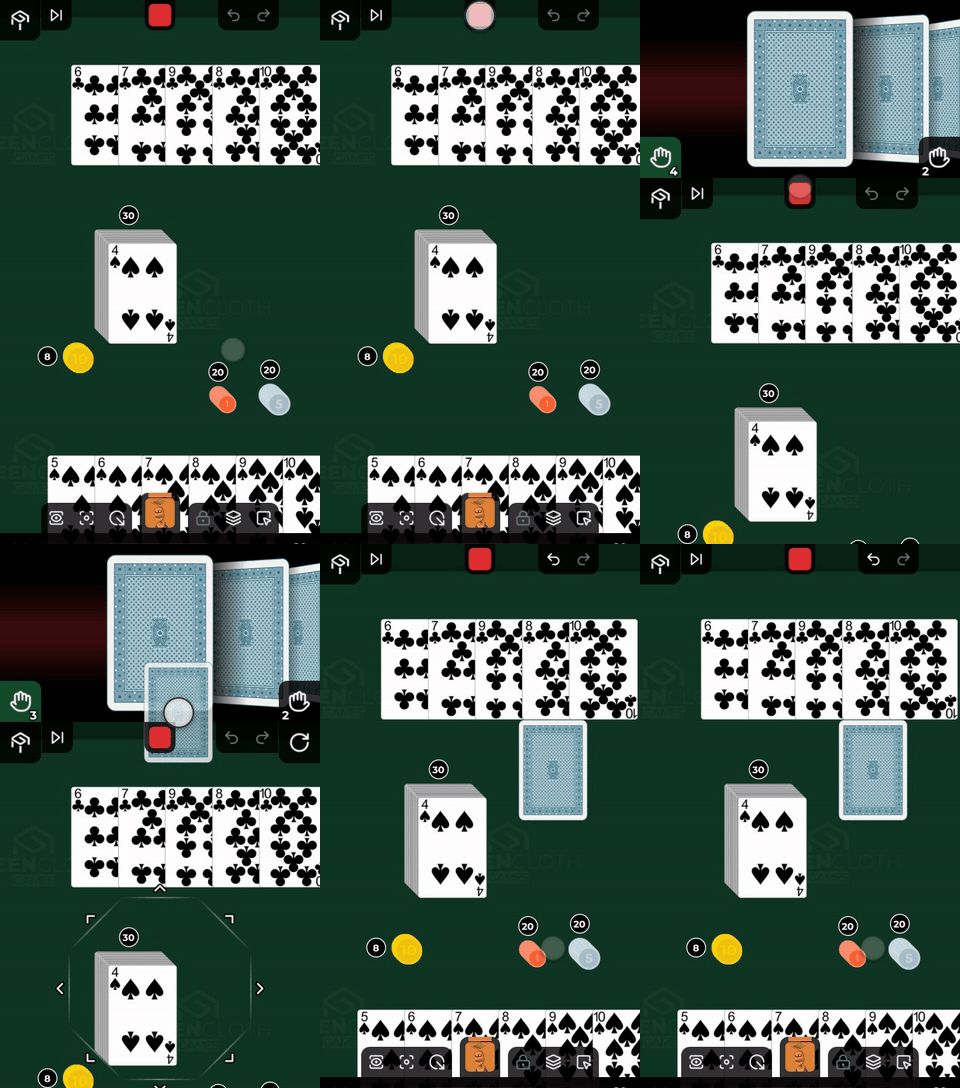
Dragging sideways on the top wall pages through the heads, when there are a lot of players in the party.
An opponent’s hand is split into a left and a right half just like yours. The only difference is that the box is missing from their right side: you only reach that on your own pair. On a narrow screen only one half shows here too; tap the buttons in the bottom corners of the bar to swap the two halves, exactly as in The closed hand.
While their hand (either half) is open:
- drag sideways to page through their fan
- tap a card to bring it to the middle; tapping the middle card selects it (another tap deselects it), and long-pressing their bar selects every card of that hand
- drag down from the middle card to take that card from that hand, as long as that hand’s shield is not on. Their left and right hand block independently, exactly as yours do, see Protecting your hands. If you selected several cards and the middle one is among them, you carry the whole selection, see Drag and drop
Dropping to an opponent: a card dropped on their avatar goes into their right hand, so it does not get mixed in with their own cards and they can see what they were given. Dropped on their open bars it goes into whichever hand you dropped it on: the left bar for the left hand, the right bar for the right. See Drag and drop → Dropping to an opponent.
Closing it again: push the hand bar or the opponent’s head back up, or drag your own head inwards. If you took a card from them, their hand closes by itself.
Nobody sees your own cards, though. The display shows only their number.
Your hand swallows the touch
Gestures inside the hand bar do not reach the table behind it, so you cannot accidentally move a card on the table while you are rummaging in your hand.