
Website
Your game’s own page on your own domain: the game’s name, cover, description and rules, and a Play now button, in your colours and your typeface. This page covers how to set it up in the Builder and what a visitor sees of it.
The settings live in the game’s left sidebar, under Website. It has five pages: Domain, Appearance, Layout, Content and Preview. The Domain page works with any plan; the others need Pro, see The Pro plan.
Instead of the Brands menu. You used to set the game page’s domain, colour, typeface and logo in the Brands menu. That menu is gone and those parts moved here. The old Brands page now only describes what stayed: the branded
play.andview.apps.
What you get
A page at www.<your domain>. A visitor needs no account and installs nothing:
- a header with the game’s logo and name, and a language switch (when the game has more than one language);
- the cover image or a colour gradient, the game’s status (
Released,In playtestand so on), its title, tagline and three facts (players, play time, age); - the big button: what it shows depends on whether the game can be tried right now;
- the blocks: how to play, about the game, what is in the box, images, rules, testers, links, the designers and a QR code for the phone;
- a footer: the page counts visits without cookies, the privacy notice, and a
Report this pagelink.
The title, description, facts, sets and rules come from the game’s Details page and the game itself. The Website menu only sets what belongs to the page: the look, the order and its own texts.
Domain
A game has one domain. On Website ▸ Domain:
- Click Add domain and type the domain without
https://(for examplekennelmester.example). If you already have a brand, the dialog asks which one; if you have none, the system makes a hidden default one, so you do not have to create anything first. - The Your domain card shows the domain as
Waiting for DNS, and below it the DNS records card with two records: aTXTproof of ownership (_greencloth-verify) and aCNAMEforwwwpointing tocustom.greencloth.games. The copy buttons take the values. - Add them at your domain provider.
- Click Verify. If the record has not spread yet you get
Not found yet, and you can try again later. On success the domain isVerified, and with Pro thePage livenote and the Open page button appear.
After Remove domain the Add domain button comes back. You can add and verify a domain without Pro: the plan only decides whether the page shows.
⚠ If your provider flattens the CNAME and the domain says Not connected though the page works, see Tips.
Appearance
On Website ▸ Appearance you give one base colour (a hex field and a colour picker). The other colours (background, card, text, accent, accent text) are worked out from it with the same function the page uses, so the colours and the two contrast values on this page (Text on the button, Links and accent text on the page) are exactly what a visitor gets.
- Scheme:
LightorDark. - Typeface: one of eight curated families (Poppins, Inter, Roboto, Nunito, Lato, Oswald, Raleway, Montserrat). The letters are served from the page itself, not from an outside provider.
- Logo and Hero image: from the game’s own image library (you can upload in the chooser too). The hero image needs alt text in at least one language; Save stays disabled until it has it.
- Copy from another game: copies another game’s look (colour, scheme, typeface, layout kind) into the form. The logo and the hero image do not come along, because those images live in the other game’s library. Save changes writes the copy.
⚠ Any colour is fine: the page always works the text out so it can be read. Text on the background gets at least 7:1, the muted text, links and the button label at least 4.5:1. With a light colour the button label is black.
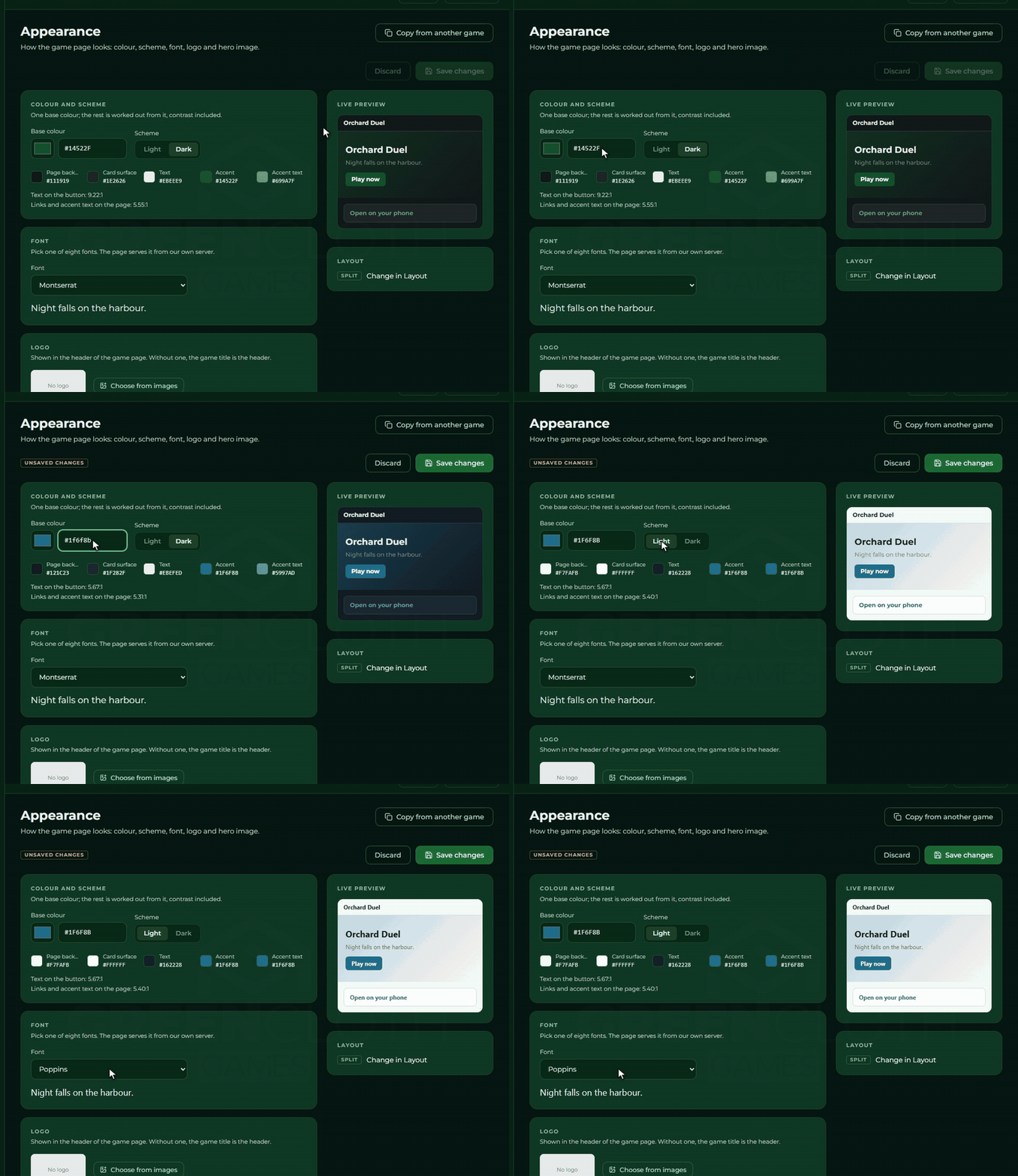
If someone else saved while you were editing, the page asks: Keep my change (yours goes on top of theirs) or Load theirs.
Layout
On Website ▸ Layout you pick one of three layouts, each with a small sketch:
| Layout | What it does |
|---|---|
| Split | text and image side by side |
| Showcase | the image runs edge to edge, one centred column below |
| Sidebar | the hero’s info card sits on top of a sidebar, the narrow blocks you put there under it, the rest in the main column beside it |
All three fall into one column on a narrow screen; the sidebar blocks then follow the hero. When you switch layout the order, the switches and the sidebar choices stay.
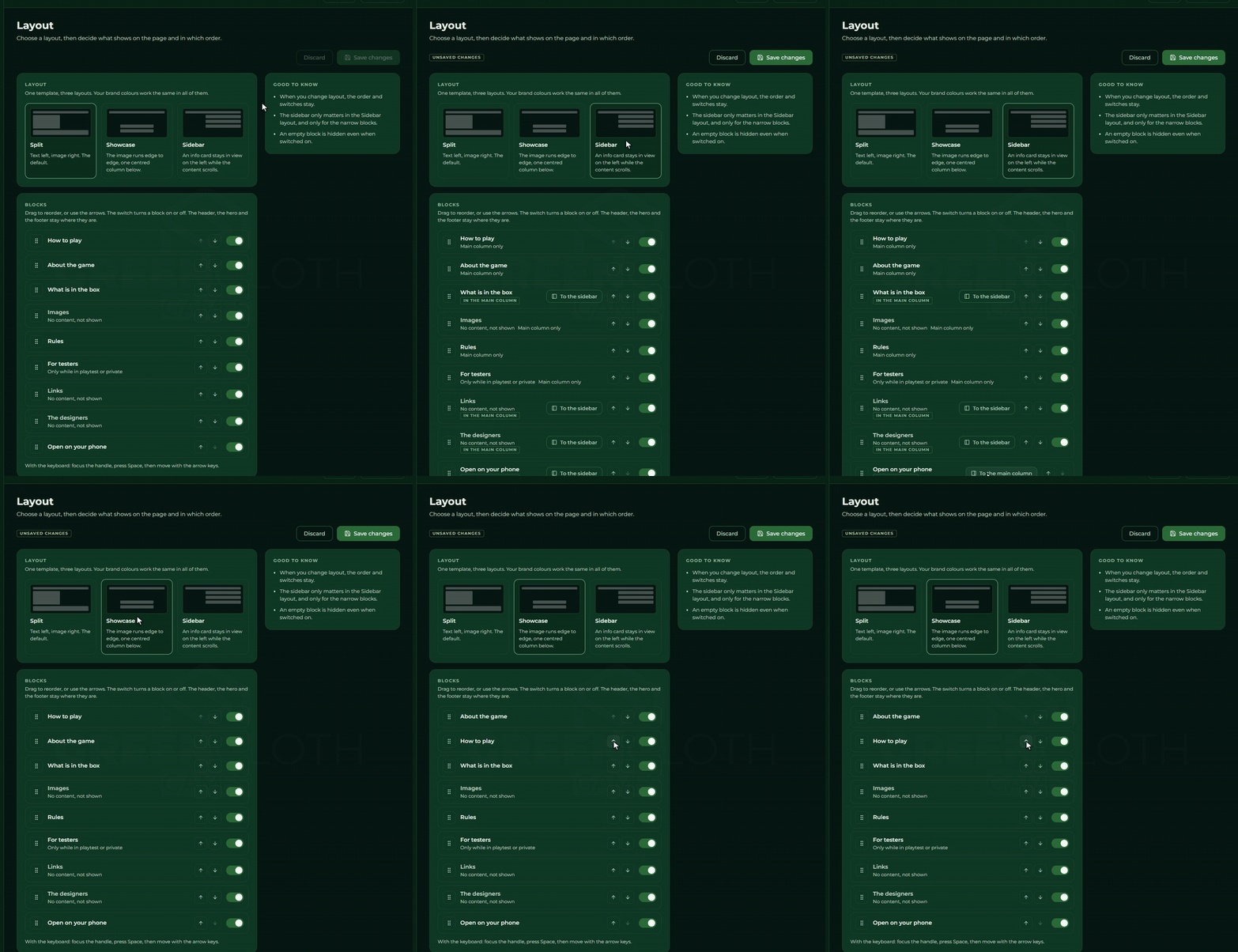
The order of the blocks
Below that is the Blocks list with the nine movable blocks. A block:
- can be dragged by its handle (with the keyboard: focus the handle,
Space, arrow keys,Space); - can be moved with the Move up and Move down buttons; a screen reader announces the new place;
- can be switched on and off with its switch (
Show on the page).
A switched-off block does not show, and neither does one with no content: the page says No content, not shown (images, links and designers without content). The testers block only shows when the game cannot be tried yet or its status is In playtest, and there is something to show (a request or a feedback link).
| Block | What it shows |
|---|---|
| How to play | three steps: open the display, tap Play now, link your phone and invite friends |
| About the game | the description and the facts: designer, players, play time, age, languages, version, categories |
| What is in the box | the sets with their counts, and the total |
| Images | the images you added on the Content page |
| Rules | the game’s rules, with a link to the Rules page |
| For testers | your request and the feedback link |
| Links | up to six links, each with an icon for its kind |
| The designers | the people you added on the Content page, never an e-mail address |
| Open on your phone | the QR code |
In the Sidebar layout only the narrow blocks (QR, links, designers, box) have a To the sidebar button; the others say Main column only.
Content
Website ▸ Content holds the page’s own texts and images; the game’s name and description stay on the Details page. Five cards:
- Headline: the Tagline (at most 120 characters; left empty, the first sentence of the description shows) and the Status (
Automatic,Prototype,In playtest,Crowdfunding,Released).Automaticfollows whether the game can be tried right now. - Images: up to 8, each with required alt text (at most 200 characters).
- Links: up to 6, each with a kind (Discord, Website, Crowdfunding, Shop, Rulebook, Press, Social), a full
httpsaddress only and an optional label. The target host shows under the field. - For testers:
What would you like tested?(at most 200 characters) and the Feedback link. Do not put a group invite link here; the page warns you. - The designers: up to 6 people with a name (required), a bio (at most 400 characters) and a website.
Every text is editable per game language: one language has no switch, more have one tab per language. While a field is wrong (an http link, an image without alt text, a designer without a name) Save changes is disabled and the error stands next to the field.
Preview
Website ▸ Preview shows the page as a visitor sees it, with the saved settings. With Both, Desktop and Mobile you see the two widths side by side or one at a time. It only reads: change things on the other three pages, save, and come back.
⚠ The preview is a simplified drawing: the structure is the same, the pixels are not. Open the real page with Open page on the Domain page.
The big button
You do not switch the page’s main button; the game’s state decides it:
| State | When | What you see |
|---|---|---|
| Play now | anyone can start the game (a public version) | the button opens the game; with the Crowdfunding status and a crowdfunding link there is a Follow the campaign link next to it |
| Request access | the game is private, but you gave a Feedback link | the button goes to your link; below it an Already a tester? Open the game link |
| Private testing | the game is private and there is no link | only a sentence: This game is in private testing. |
The Rules button is there in all three cases when the game has rules.
The QR code
The Open on your phone block shows a QR code, so someone who opens the page on a TV or a computer can start the game on their phone at a glance. By default it sits beside the hero, as long as you leave the block last in the list; move it up and it becomes a block of its own, and in the Sidebar layout it can go to the sidebar.
- For a game that can be tried the code opens the
Play nowaddress, and the page adds where the visitor came from (utm_medium=qr), so the measurement shows how many came with the code. - For a private game the code opens the page’s own address, because there is nothing to hand over.
- The code sits on a light tile, so it scans on a dark scheme too. It is hidden at phone width, where it makes no sense.
Without Pro, or without a page
A visitor gets a neutral page (This game page is not active) when:
- the domain is unknown, or no verified game answers on it;
- the game’s owner does not have the Pro plan;
- the back end does not answer.
The page deliberately gives nothing away: no brand, no game data, no colour, no game name; it is hidden from search engines (noindex) and answers with status 404. One link leads to the GreenCloth main site.
The Pro plan
The Website menu behaves in two ways:
- The Domain page is complete without Pro. A note at the top says:
The game page needs the Pro plan. You can add the domain without it. - In place of Appearance, Layout, Content and Preview stands a locked card:
The game page comes with Pro, with aPage not activemarker, an explanation, See plans (opens the plan picker in a new tab) and Back to the game. A direct link to those pages gives the card too.
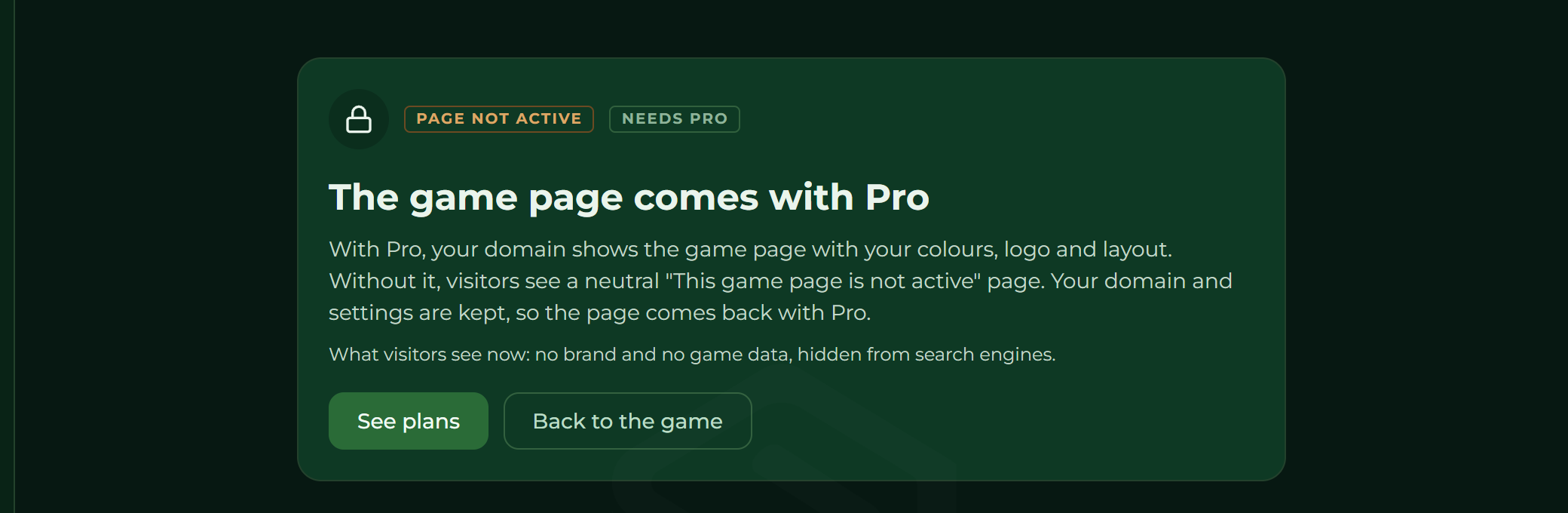
Your settings and your domain are not lost: when the plan is Pro again, the page comes back. The gate is on the game owner’s plan, not on whoever is editing.
Search engines and sharing
- Every language of the page has its own address (
?lang=) andhreflangmarks. - When shared (Discord, social sites) the card image is your hero image; without one the page makes a card with the title, tagline and status in the page’s colours.
- Search engines also understand the page as a game (players, play time, age, languages, the designer’s name; never an e-mail address).
- ⚠ A private page and one with the In playtest status are hidden from search engines (
noindex), and so is its Rules page. For a public page the game has to be public first, see Making it public. - The page counts visits and button clicks without cookies, and respects the browser’s
Do Not TrackandGlobal Privacy Controlsignals.